You tap to talk to Siri on your iPad (10th generation) and nothing happens, or you say "Hey Siri" and the screen stays dark. Siri may also clearly hear you yet never speak a single word back.
A silent or unresponsive voice assistant on this A14 model is almost always a settings, connection, or software hiccup rather than a broken iPad, and most cases clear up in a few minutes. Work through the fixes below in the order shown, starting with the quickest and safest checks and saving a full reset or a service visit for the very end.
Make Sure the iPad Is Actually Online
Siri on the iPad (10th generation) cannot work offline. The official tech specs list internet access as a requirement for Siri, so if the iPad has quietly dropped its connection, the assistant simply will not answer no matter how you phrase the request.
Confirm that Wi-Fi is connected and working, or that cellular is active if you own the Wi-Fi + Cellular model, before you change anything else. A fast way to check is to open a webpage or load an app that needs live data.
If that fails too, fix the connection first, for example by toggling Wi-Fi off and back on or briefly switching Airplane mode on and off. Then ask Siri again once you are back online.
Confirm Siri Is Switched On, Then Toggle It
A setting can switch off without you noticing, so check it directly rather than assuming. On the A14 iPad 10th gen this menu is labeled Siri (not "Apple Intelligence & Siri"), because the model does not support Apple Intelligence.
Open Settings, then tap Siri and tap Talk & Type to Siri. Make sure "Siri" or "Hey Siri" is turned on. If the option is already on, turn it off and back on again to clear a stuck state, then ask Siri something to see whether it responds.
Retrain Siri to Recognize Your Voice
If Siri ignores your spoken "Hey Siri" in particular, the stored voice model may need rebuilding. Re-running the setup teaches the iPad to recognize you again.
Go to Settings > Siri > Talk & Type to Siri. Turn off Listen for "Siri" or "Hey Siri," then turn it back on. When the Siri setup screen appears, tap Continue. Say each command you see on the screen, then tap Done.
Rule Out a VPN That Blocks Siri
After you restart the iPad, look again in Settings. If Siri (or Siri & Search) does not appear at all, a VPN profile may be the cause, because some VPN profiles do not allow use of Siri.
Temporarily disable the VPN and test the assistant again. If a configuration profile installed that VPN, you can remove it. Go to Settings > General > VPN & Device Management, select the configuration profile, then tap Remove Profile.
Siri Hears You but Stays Silent
If Siri shows a written response on screen but never speaks it aloud, the issue is audio output, not voice recognition.
Go to Settings > Siri > Siri Responses and turn on Prefer Spoken Responses so Siri speaks its answers even when Silent mode is on. If the spoken replies are still too quiet to hear, raise the iPad's volume while Siri is responding and make sure nothing is muting the speaker, then test the assistant again.
Restart the iPad
Restarting is the single most reliable quick fix, because a simple reboot clears the temporary glitches behind many unresponsive-assistant problems. Use the standard restart for the iPad (10th generation).
Press and hold the top button and either volume button until the power-off slider appears. Drag the slider to turn the iPad off. After it powers down, press and hold the top button again until the Apple logo appears.
Force Restart an iPad That Is Frozen
If the screen is frozen or the iPad is unresponsive and a normal restart will not start, force restart it instead. This model has no Home button, so follow this exact sequence, pressing the buttons one after another rather than all at once.
- 1.Press and quickly release the volume button closest to the top button.
- 2.Press and quickly release the volume button farthest from the top button.
- 3.Press and hold the top button until you see the Apple logo.
Update iPadOS
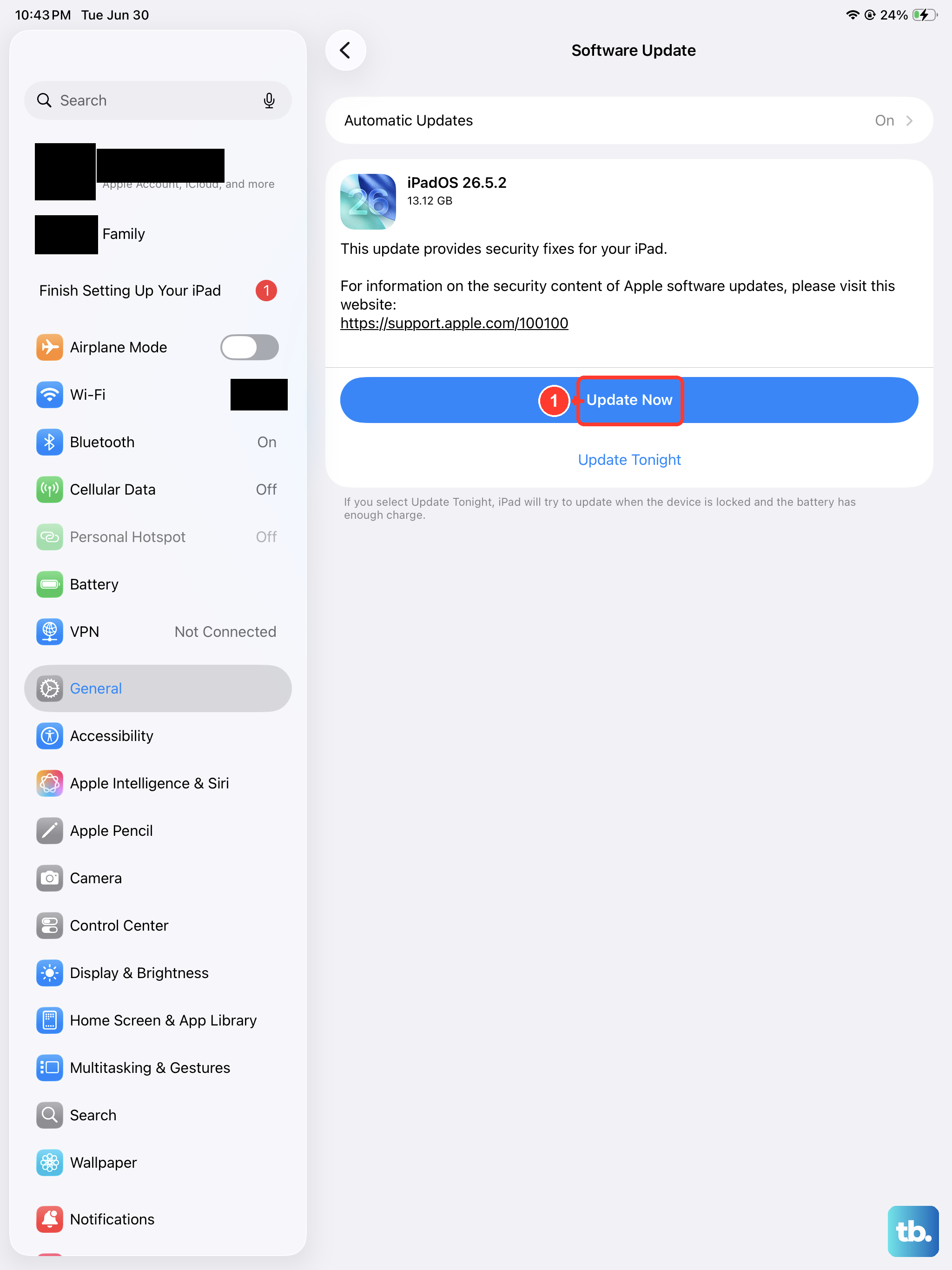
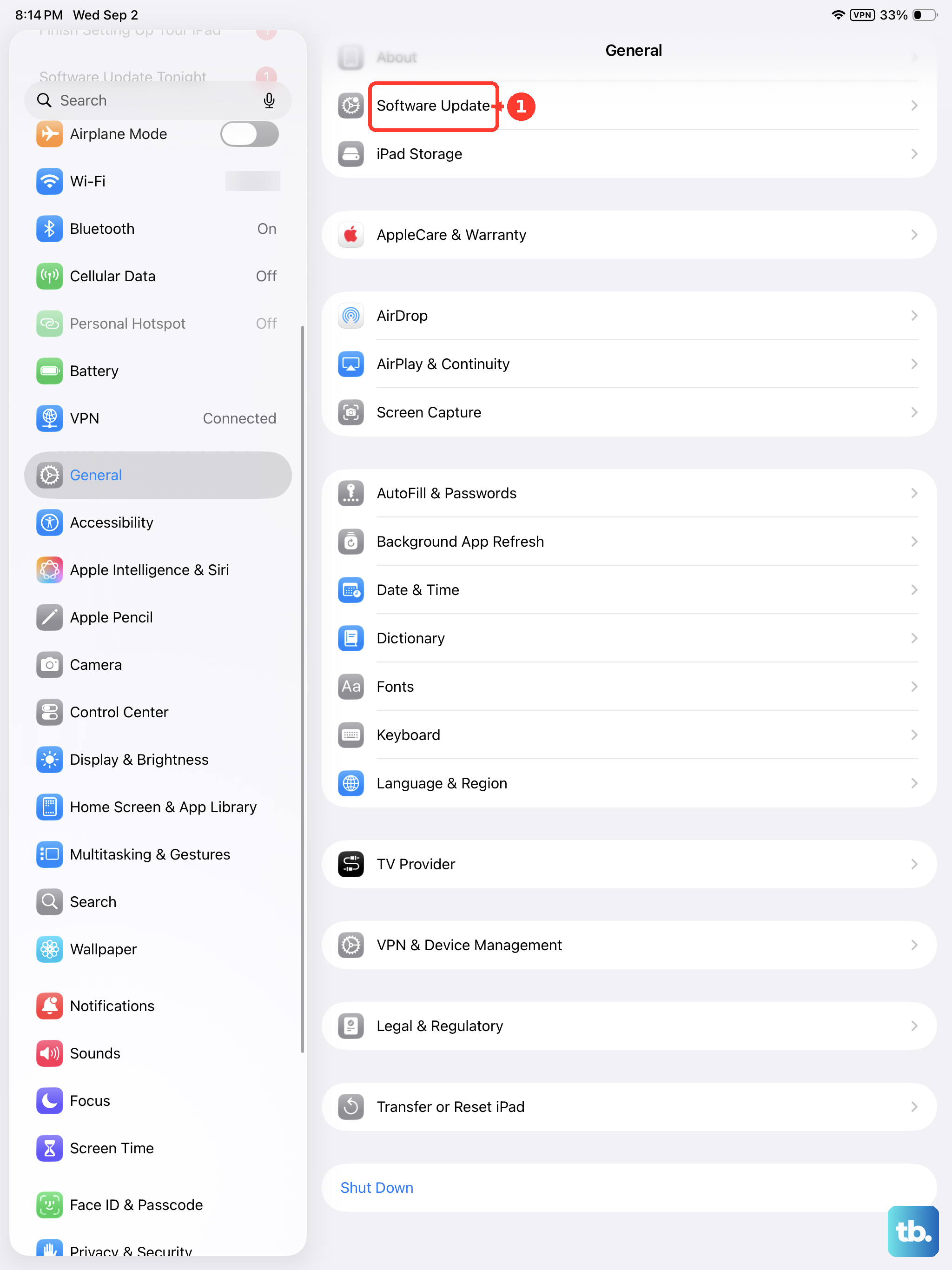
Siri depends on current software, so an outdated system can leave the assistant misbehaving. Back up the iPad first, plug it into power, and connect to Wi-Fi before you begin, since an update can take a while and should not be interrupted. Go to Settings > General > Software Update.
If an update is available, tap Download and Install. Follow the onscreen instructions.
Reset the Network Settings
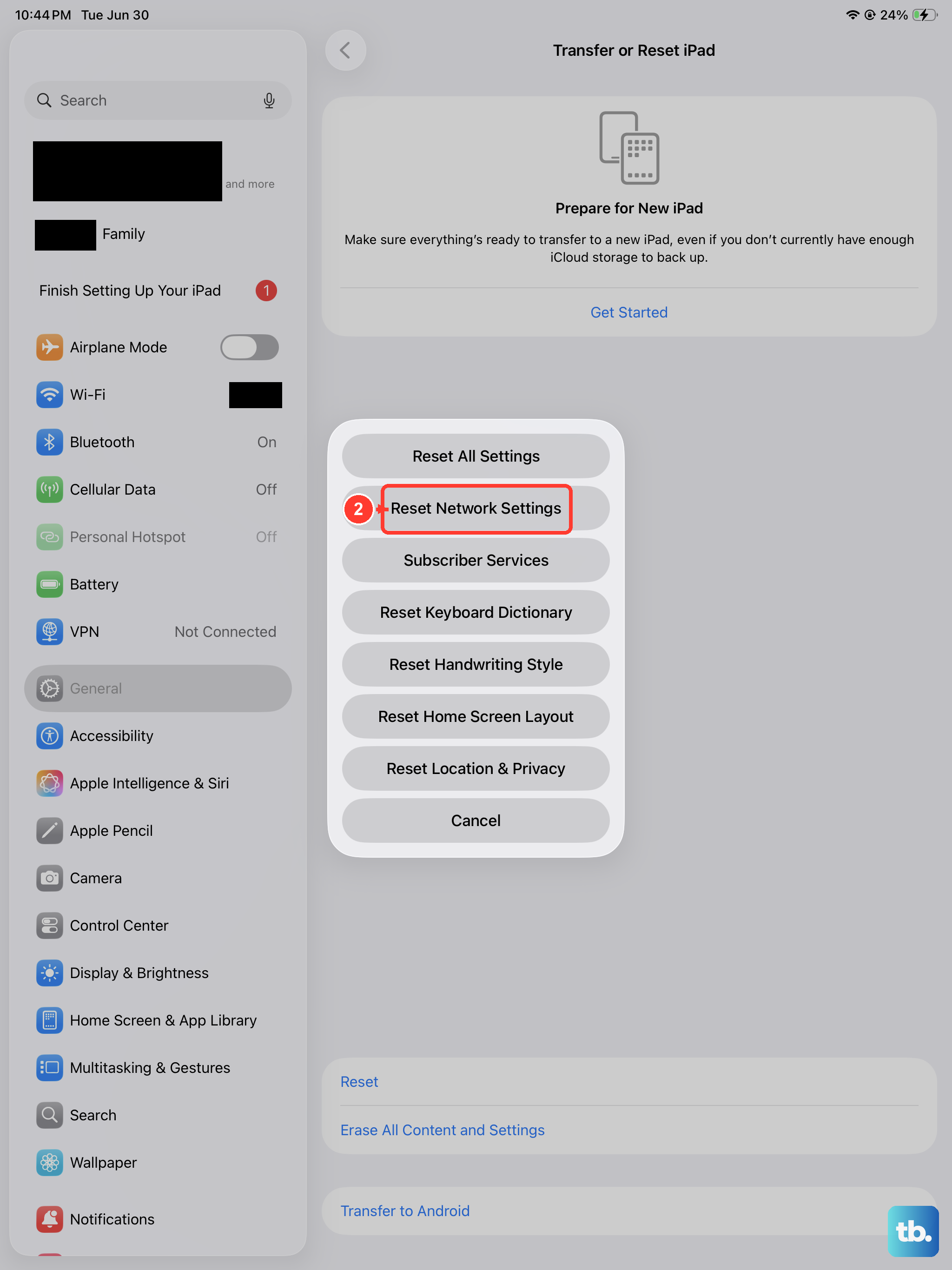
If Siri still cannot connect even though other apps reach the internet, resetting the network settings often clears a stubborn connection fault. Be aware that this removes all network settings, including saved Wi-Fi networks and any VPN settings that were not installed by a configuration profile or MDM, so you will need to rejoin Wi-Fi afterward.
Go to Settings > General > Transfer or Reset iPad. Tap Reset, then tap Reset Network Settings.
Erase the iPad as a Last Resort
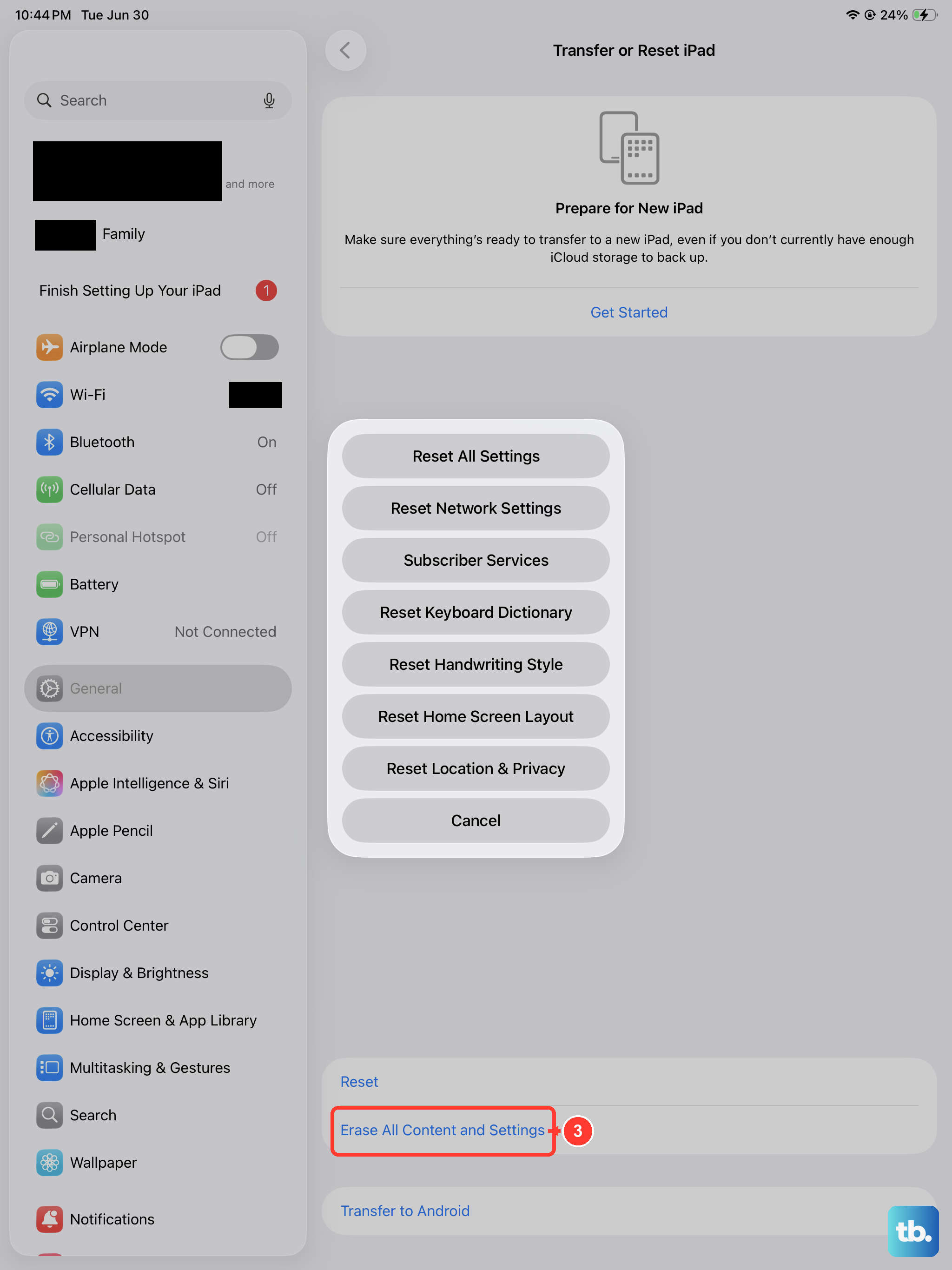
When none of the steps above help, a full factory erase gives Siri a clean slate. This removes all of your content and settings, so back up the iPad first; the official guidance strongly recommends a backup so you can restore your data afterward.
Back up the iPad. Go to Settings > General > Transfer or Reset iPad > Erase All Content and Settings. Tap Continue. Enter your iPad passcode or Apple Account password when prompted.
When the iPad Needs Professional Service
If Siri still will not work after a factory erase, the trouble may be hardware rather than software. At that point the official path is to get service, which means contacting Apple Support or scheduling a repair through Apple's "Get service" option.
If the iPad also refuses to update normally, you can use recovery mode through a computer first. Connect the iPad, then open Finder on a Mac running macOS Catalina 10.15 or later, or the Apple Devices app or iTunes on Windows or an older Mac, and choose Update when it is offered.
Frequently Asked Questions
Does Siri work on the iPad (10th generation) without an internet connection?
No. The official tech specs note that Siri requires internet access, so the assistant will not respond when Wi-Fi or cellular is unavailable. Reconnect to a working network and try Siri again.
Why does my Settings menu say "Siri" instead of "Apple Intelligence & Siri"?
Because the iPad (10th generation) uses the A14 Bionic chip, and Apple Intelligence requires iPad models with M1 and later. This model does not support Apple Intelligence, so its menu is simply labeled Siri, and the Apple-Intelligence-only Siri enhancements are not available on it.
Will resetting network settings delete my photos and apps?
No. Reset Network Settings only clears network data, such as saved Wi-Fi networks and VPN settings that were not installed by a configuration profile or MDM. Your photos, apps, and other content stay in place, although you will need to rejoin your Wi-Fi network afterward.
Do I need a computer to fix Siri on this iPad?
Usually not. The iPad is a standalone device with no phone-style companion app, and almost every fix is done right in Settings. You only need a computer for a recovery-mode update or restore, using Finder on a Mac (macOS Catalina 10.15 or later) or the Apple Devices app or iTunes on Windows or an older Mac.
What should I do if Siri still fails after a factory reset?
Treat it as a possible hardware problem and stop troubleshooting on your own. Use Apple's "Get service" path to contact Apple Support or schedule a repair.