Your iPad (10th generation) just threw up a "Storage Almost Full" warning, and now apps refuse to update, the camera will not save a video, and iPadOS keeps nagging you every time you unlock it. This is especially common on the 64GB model, which fills quickly once you add a few games, downloaded shows, and a growing photo library.
Because this iPad uses only built-in storage (there is no microSD slot or expandable internal memory), the real fix is clearing out what you do not need and shifting the rest to iCloud. Work through the steps below from the top, starting with the safest changes that lose no data, and you will usually reclaim several gigabytes before you ever consider anything drastic.
Find out what is filling up your iPad first
Before you delete anything, see exactly where your space has gone so you target the biggest offenders instead of guessing. On most iPads, the largest space users are the photo library and downloaded media, not the apps themselves.
Open Settings > General > iPad Storage.
Read the available storage shown at the top of the screen.
Review the list of recommendations for optimizing storage that appears below it.
Scroll the list of installed apps to see how much storage each one is using.
The recommendations list is worth acting on first, since iPadOS surfaces the changes that will free the most space for the least effort. Once you know which apps and categories are the heaviest, the rest of this guide tells you what to do about each one.
Let iPadOS offload the apps you rarely open
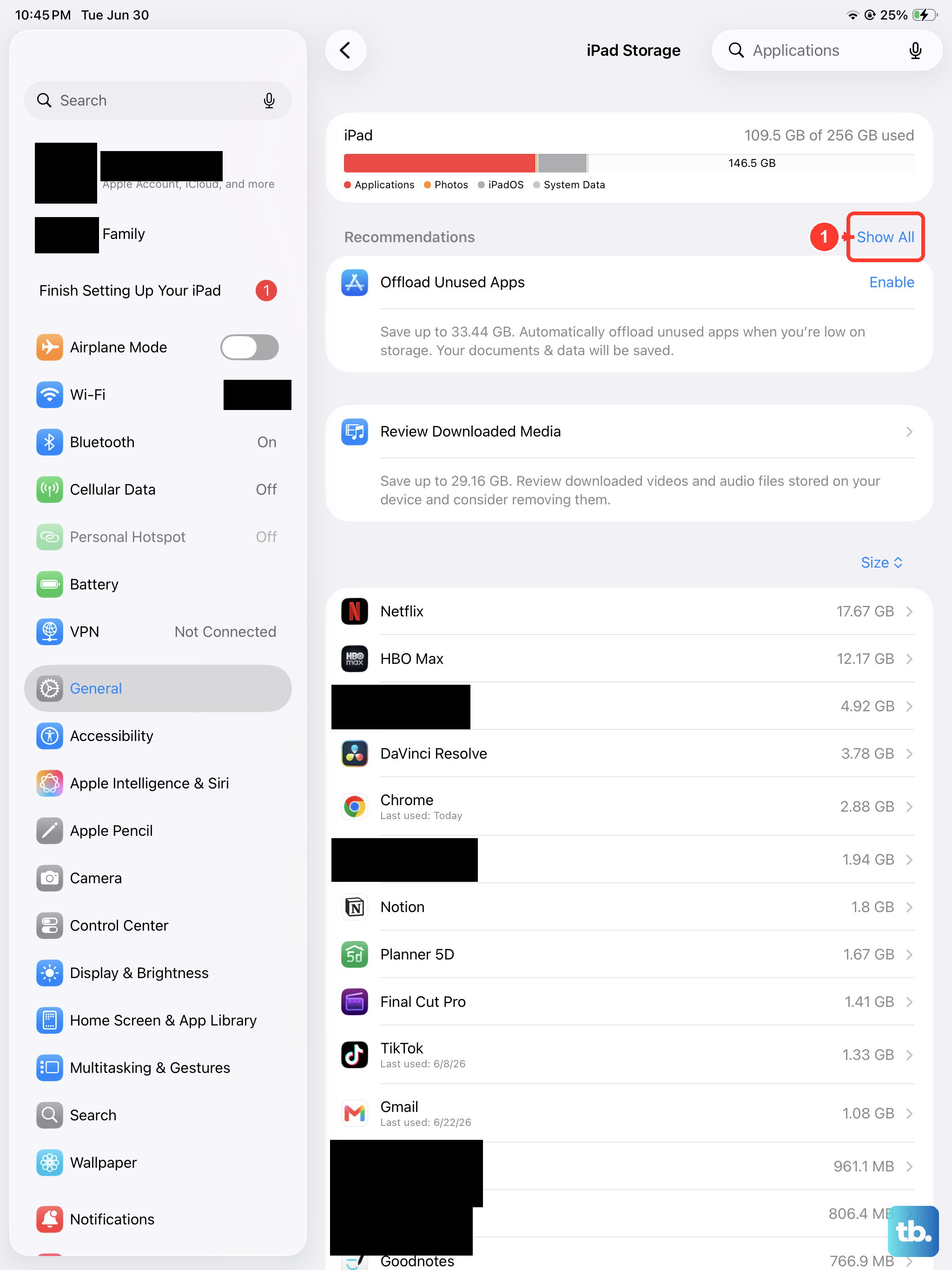
Offloading is the gentlest fix because it removes the app itself but keeps all of its documents and data on the iPad. The app icon stays on your Home Screen with a small cloud symbol, and tapping it reinstalls the app and restores your stuff.
Go to Settings > Apps > App Store.
Turn on Offload Unused Apps.
With that switch on, when storage runs low your iPad automatically removes apps you do not use while preserving their data.
If you would rather clear a specific app right now, go to Settings > General > iPad Storage, tap the app, and choose Offload App.
That frees the app's storage immediately but keeps its documents and data intact for whenever you reinstall it.
Delete the apps you no longer use
When you are sure you are done with an app, deleting it removes both the app and its related data, which reclaims more space than offloading. This is also the official way to clear a third-party app's built-up cache, since iPadOS has no universal one-tap cache cleaner for every app.
Open Settings > General > iPad Storage.
Tap the app you want to remove.
Choose Delete App to remove it and its data.
If an app you still want has ballooned in size from cached content, deleting it and then reinstalling it from the App Store gives you a clean copy with its temporary data cleared out.
Clear out the Files app
Apps are not the only thing taking up room; downloaded documents, PDFs, and saved attachments live in the Files app and add up over time. These are separate from your apps, so they need their own pass.
Open the Files app and look through your folders for documents and data you no longer need, then delete them.
Old downloads and one-time attachments are easy wins here, and clearing them out is part of Apple's recommended approach to freeing space on the device.
Wipe Safari's cache and cookies
Unlike third-party apps, Safari has a dedicated control for clearing the browsing data it stores on your iPad. Removing it clears your browsing history along with cached website data and cookies.
Go to Settings > Apps > Safari > Clear History and Website Data.
Confirm the timeframe you want to clear.
Tap Clear History.
Keep in mind this signs you out of sites and removes saved browsing data, so you will need to log back in to pages you use regularly. The trade-off is worth it if Safari has quietly accumulated a large cache.
Move your photos and videos to iCloud
Photos and videos are usually the single biggest reason a 64GB iPad runs out of room, and iCloud Photos is the built-in fix. With it enabled, your full-resolution originals live in iCloud while smaller, space-saving versions stay on the iPad.
Go to Settings > [your name] > iCloud > Photos.
Turn on iCloud Photos syncing if it is not already on.
Keep Optimize iPad Storage selected (it is on by default).
Optimize iPad Storage is what frees the space on your device; if you ever want full-resolution copies stored locally again, you can switch to Download and Keep Originals instead. One caveat: if your library is larger than the free 5GB iCloud allowance, you may need to upgrade to iCloud+ for enough room to hold everything.
Install the latest iPadOS
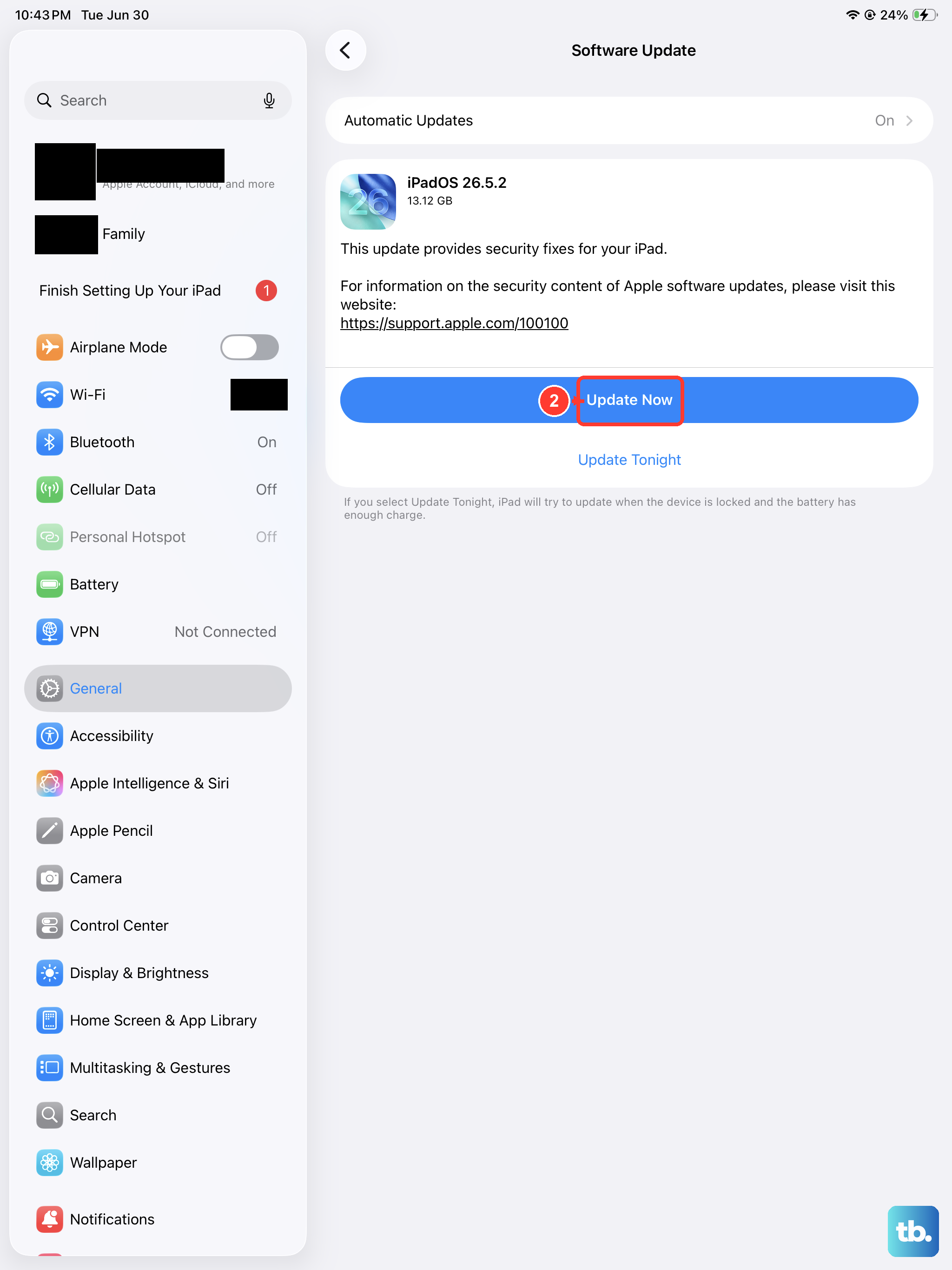
A software update can resolve storage-handling bugs and tidy up how the system reports and manages space, and the iPad (10th generation) is supported on the latest iPadOS (iPadOS 26). Updating does not change your data and settings, but it is still smart to prepare first.
Plug the iPad into power and connect to Wi-Fi.
Back up your iPad beforehand.
Go to Settings > General > Software Update.
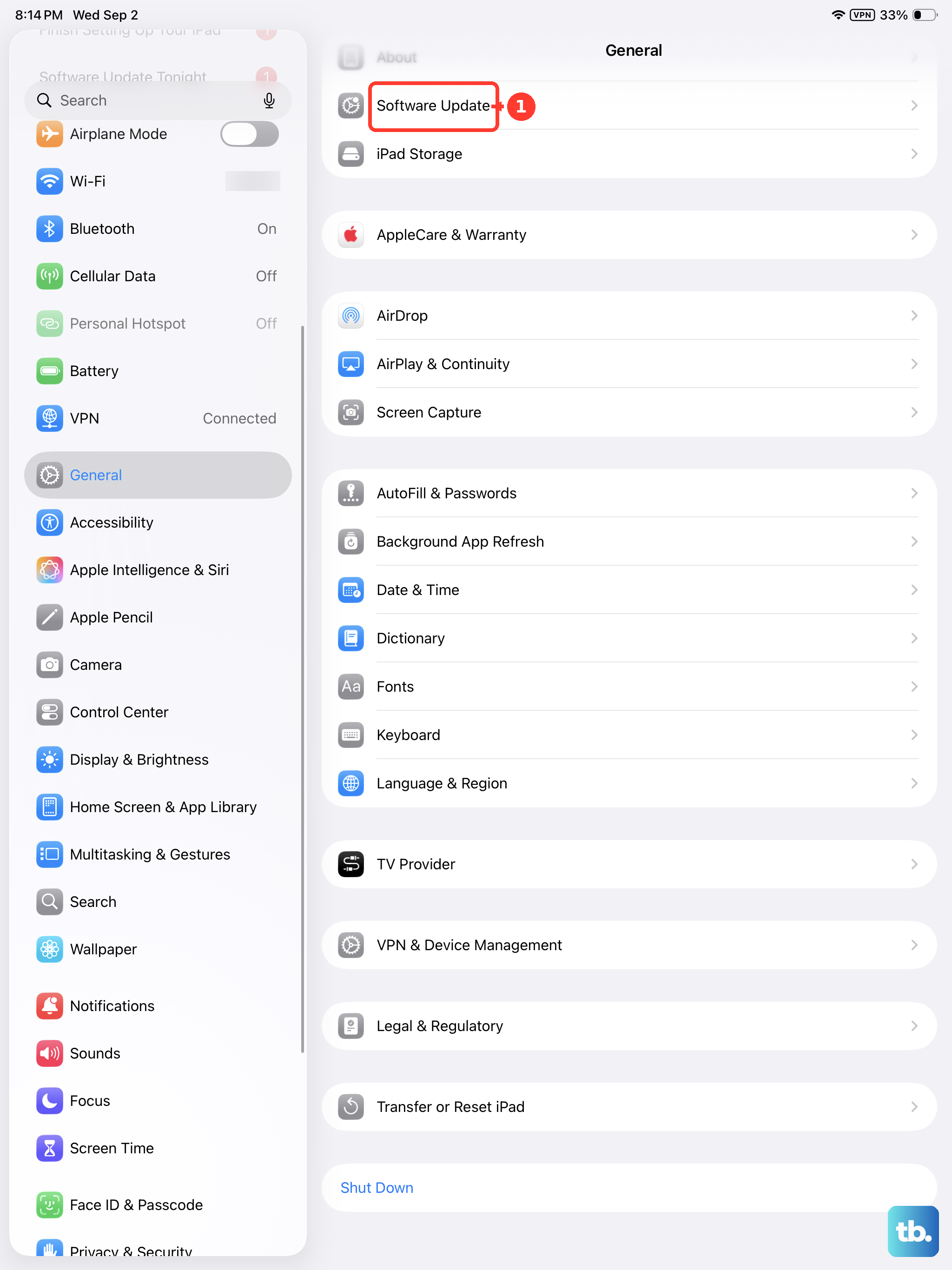
Tap Download and Install if an update is available.
If storage is so tight that the update will not download, free up some space with the earlier steps first, then come back and try again.
Force restart if the iPad freezes while you clear space
Deleting large apps or a big photo library can occasionally leave the iPad stuck or unresponsive. A force restart does not erase anything; it simply reboots the device so you can continue. The iPad (10th generation) has no Home button, so use this exact sequence.
- 1.Press and quickly release the volume button nearest to the top button.
- 2.Press and quickly release the volume button farthest from the top button.
- 3.Press and hold the top button.
- 4.When the Apple logo appears, release the top button.
Once the iPad restarts, head back into Settings > General > iPad Storage and pick up where you left off.
When nothing frees enough space
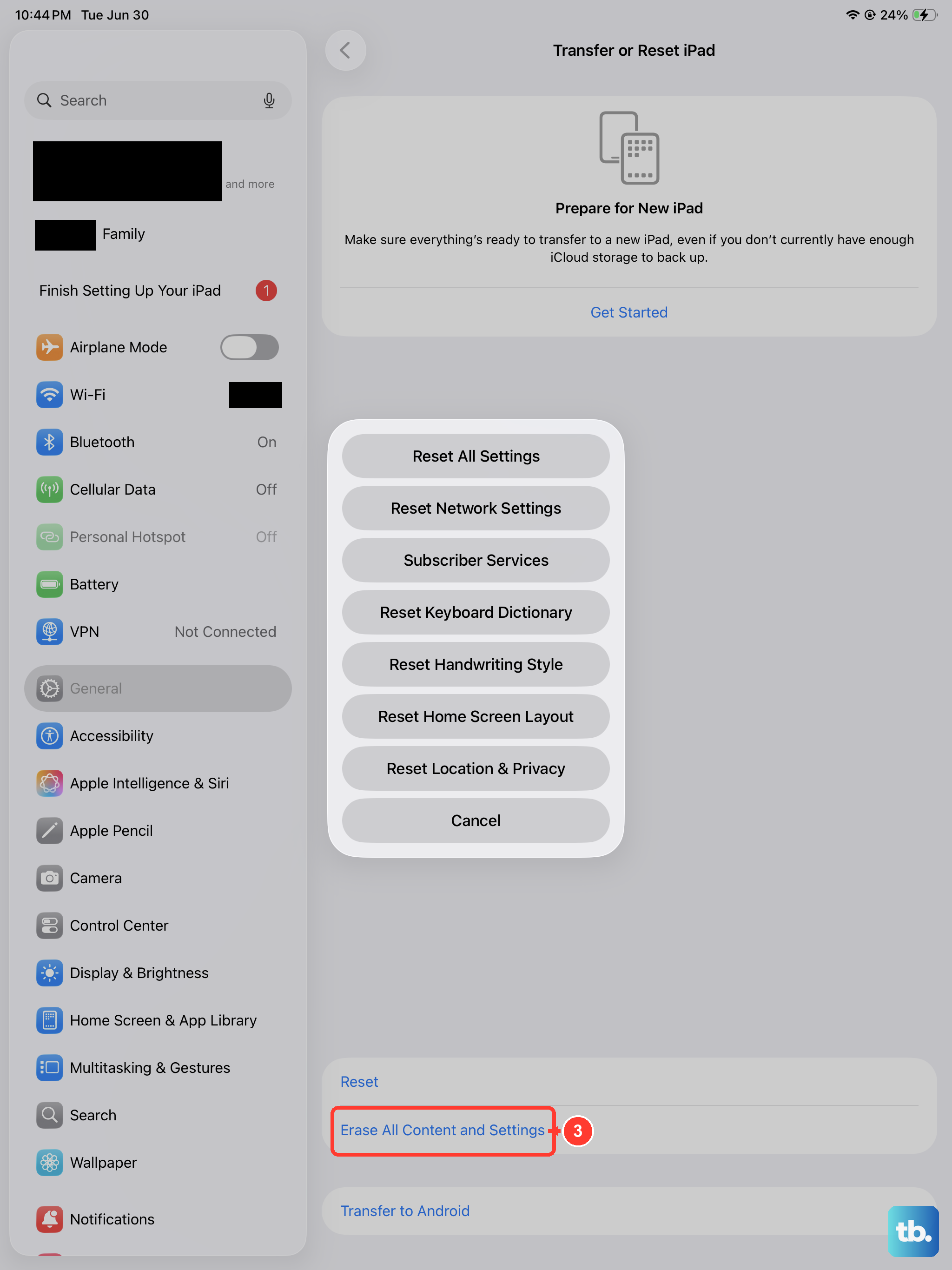
If you have worked through everything above and the iPad is still unusably full, the last resort is to erase it and set it up fresh. This restores factory settings and deletes everything on the device, so a backup is essential before you proceed.
Back up using iCloud Backup, or connect the iPad to a Mac and use the Finder to back up the device.
Make and confirm a current backup of your iPad.
Go to Settings > General > Transfer or Reset iPad > Erase All Content and Settings.
Enter your iPad passcode or Apple Account password.
Tap Continue.
After it wipes, set the iPad up again and restore from your backup so you keep your data while shedding whatever was clogging the system. If the storage problem persists even after a clean setup, contact Apple Support for further help.
Frequently Asked Questions
What is the difference between offloading and deleting an app?
Offloading removes the app but keeps its documents and data, leaving a cloud-marked icon you tap to reinstall later. Deleting removes the app and its related data entirely. Offload when you might want the app back; delete when you are finished with it for good.
Will moving photos to iCloud delete them from my iPad?
No. With iCloud Photos and Optimize iPad Storage turned on, your full-resolution originals are stored in iCloud while space-saving versions remain on the iPad, so your photos stay viewable. If your library exceeds the free 5GB allowance, you may need to upgrade to iCloud+ for enough space.
Can I add a memory card to expand my iPad's storage?
No. The iPad (10th generation) has no microSD slot or expandable internal storage. You can browse external USB-C drives in the Files app, but they do not add to the device's internal capacity, so freeing space means offloading or deleting content and moving photos and files to iCloud.
Does updating iPadOS erase my data?
Updating iPadOS does not change your data and settings. Even so, plug into power, connect to Wi-Fi, and back up first as a precaution before you tap Download and Install.
How do I clear the cache for an app that is not Safari?
iPadOS has no universal one-tap cache cleaner for every app. For a third-party app, offload it or delete and reinstall it to clear its stored data. Only Safari has a dedicated Clear History and Website Data control.