
You're staring at your Infinix Note 40 Pro, and that Wi-Fi icon just won't turn blue. It's a frustrating feeling, especially on a new phone. The good news is that this is almost always a software or settings hiccup you can fix yourself in a few minutes.
Start With the Quick Toggle and Restart
First, pull down the notification shade from the top of your screen. You'll see a Wi-Fi tile among the quick settings. Tap it once to turn Wi-Fi off, wait about five seconds, then tap it again to turn it back on. This simple refresh forces your phone to drop and reacquire the connection, which often does the trick.
If that doesn't work, give your phone a full restart. Press and hold the power button until the power menu appears, then tap "Restart." This clears out any temporary glitches in XOS 14 that might be interfering with the wireless radio.
Use Airplane Mode to Reset All Radios
When a simple toggle isn't enough, airplane mode is your next best step. Swipe down your notification shade and tap the airplane icon. Leave it enabled for a solid 15 to 20 seconds. This completely shuts down the Wi-Fi, cellular, and Bluetooth radios. When you turn airplane mode back off, all those radios restart fresh, which can clear up stubborn connection problems.
Forget Your Wi-Fi Network and Rejoin
Your phone might be holding onto outdated or corrupted information for your network. To clear it, go to Settings > Network & Internet > Wi-Fi. Tap on the name of your network and select "Forget." This removes it from your saved list. Now, just tap on the network name again from the available list and re-enter your password to connect from scratch.
This is crucial if you've recently changed your Wi-Fi password at home. Your Note 40 Pro will keep trying the old password and fail every single time until you forget the network.
Double-Check the Network and Password
It sounds too simple, but it's worth verifying. Make sure you're selecting the correct network name from the list, especially if you have a dual-band router with both 2.4GHz and 5GHz networks. Also, when typing your password, remember that it's case-sensitive. A quick check here can save you a lot of unnecessary troubleshooting.
Turn Off Bluetooth to Check for Interference
Bluetooth and Wi-Fi can sometimes step on each other's toes because they both use the 2.4GHz radio band. Try swiping down your notification shade and turning Bluetooth off completely. See if your Wi-Fi connects immediately afterward. If it does, you've found a source of interference. You can usually turn Bluetooth back on once Wi-Fi is stable.
Disable Smart or Adaptive Wi-Fi Features
XOS and Android have features designed to "help" by switching networks, but they can backfire. On your Note 40 Pro, go to Settings > Network & Internet > Wi-Fi. Tap the three-dot menu or "Wi-Fi preferences" and look for options like "Smart network switch," "Switch to mobile data automatically," or "Adaptive connectivity." Turn these features off. They can prevent a solid connection by being too eager to jump to your mobile data.
Check Your Power Saving Modes
The Infinix Note 40 Pro has aggressive power saving features to extend the battery life. These modes can limit background network activity, including Wi-Fi. Go to Settings > Battery and see if any power saving mode is active, like "Power Saving Mode" or "Ultra Power Saving." If one is on, turn it off temporarily. Your Wi-Fi connection should restore itself if this was the cause.
Update Your Phone's Software
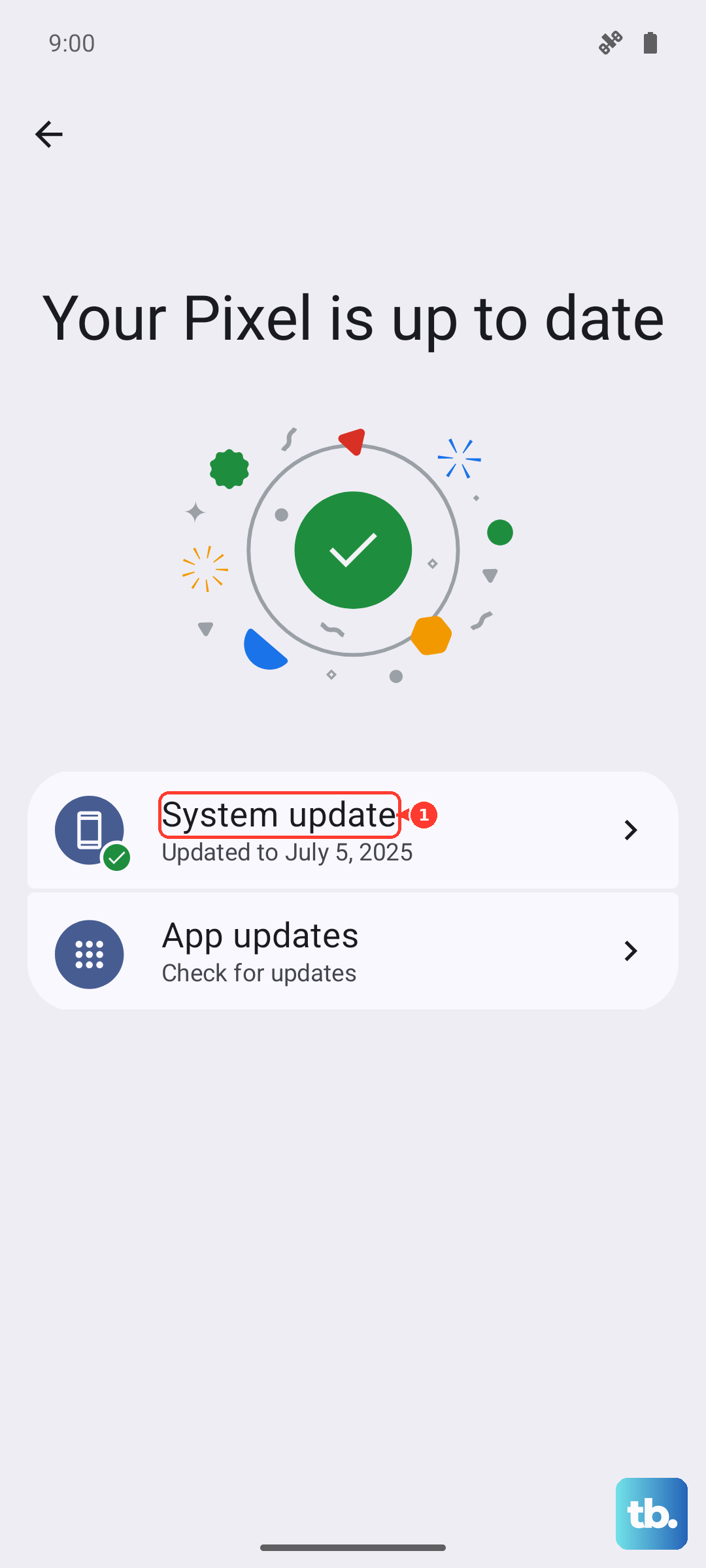
Running an old software version can lead to bugs, including Wi-Fi instability. Infinix releases updates to fix these kinds of issues. Go to Settings > System > System update and tap "Check for updates." If an update is available, install it. It's a good idea to connect to a mobile data hotspot or use another Wi-Fi network if yours isn't working to download the update.
Verify Your Date and Time Settings
This is a sneaky one that many people overlook. If your phone's date and time are incorrect, it can break the security certificate handshake with your Wi-Fi router, preventing a connection. Go to Settings > System > Date & time. Make sure the "Use network-provided time" or "Automatic date & time" option is switched on.
Reset Your Network Settings
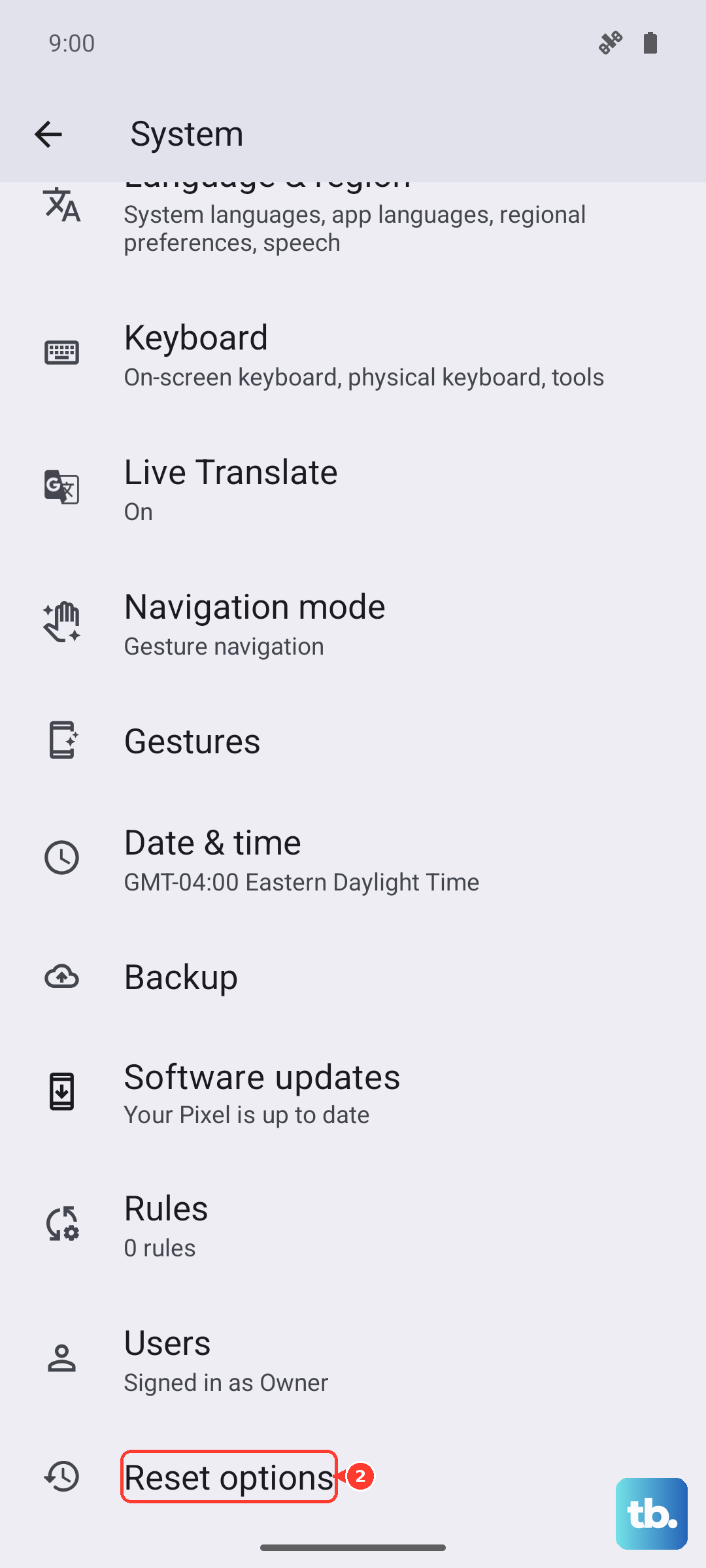
If you've tried everything and you're still stuck, resetting network settings is a strong next step. This will erase all your saved Wi-Fi networks, Bluetooth pairings, and mobile data settings, returning them to default. To do this, go to Settings > System > Reset options. Tap "Reset Wi-Fi, mobile & Bluetooth." After the reset, you'll need to reconnect to your Wi-Fi and re-pair any Bluetooth devices, but it often resolves deep-seated connection issues.
Don't Forget to Restart Your Router
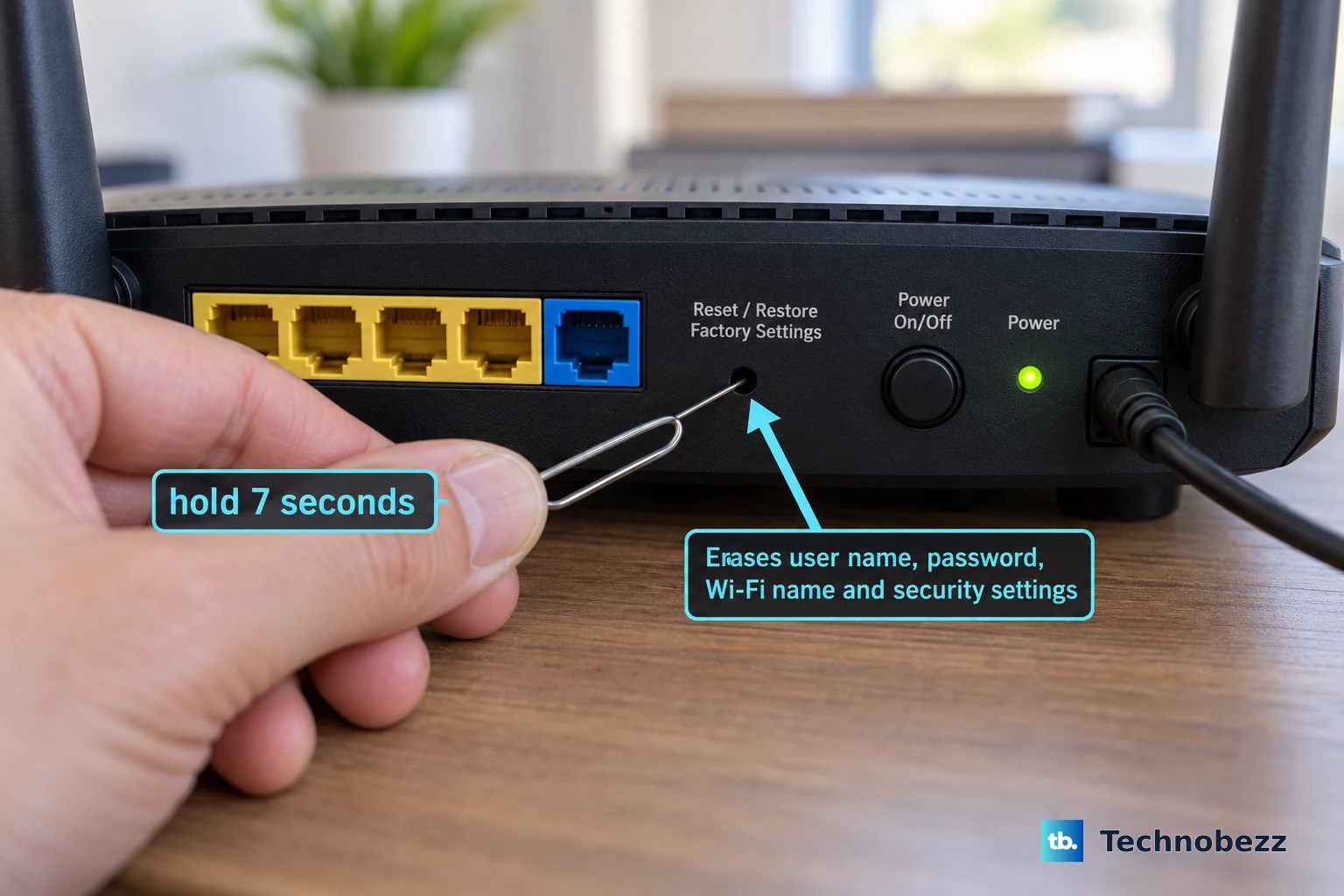
Sometimes the problem isn't your phone at all. If other devices in your home are also struggling to connect, the router is the likely culprit. Unplug your router from the power outlet, wait a full 60 seconds, and then plug it back in. Give it a couple of minutes to boot up completely, then try connecting your Note 40 Pro again.
While you're at it, consider checking if your router has a firmware update available. An outdated router can have compatibility problems with newer phones. You can usually check this through your router's admin page or its companion app.
Boot Into Safe Mode to Check for App Conflicts
Third-party apps, especially VPNs, ad blockers, or certain "booster" apps, can interfere with network connections. To see if an app is causing the trouble, you need to boot into Safe Mode. Press and hold the power button until the power menu appears. Then, tap and hold the "Power off" option on your screen. A prompt should appear asking if you want to reboot to Safe Mode. Tap "OK."
In Safe Mode, all third-party apps are disabled. If your Wi-Fi works perfectly here, then a recently installed app is the problem. You'll need to restart your phone to exit Safe Mode, then uninstall apps one by one to find the culprit.
Perform a Factory Reset
This is your absolute last resort before considering a hardware issue. A factory reset will wipe your phone back to its original out-of-the-box state. You must back up everything important first, photos, messages, app data, because this process erases it all. To proceed, go to Settings > System > Reset options > Erase all data (factory reset).
Only use this option if every other fix on this list has failed. In the vast majority of cases, one of the simpler software or settings fixes will get your Infinix Note 40 Pro back online. If Wi-Fi still doesn't function after a factory reset, there may be a physical problem with the phone's antenna or Wi-Fi module.