
When your Infinix Note 40 Pro's Bluetooth stops connecting to your headphones, car, or speaker, it can feel like you're suddenly cut off. I've found that on XOS 14, the issue is usually a quick software glitch rather than a hardware failure. Let's run through the most effective fixes to get your wireless connections working again.
Toggle Bluetooth and Restart Your Phone
Start with the simplest step. Swipe down from the top of your screen to open the Quick Settings panel and tap the Bluetooth icon to turn it off. Wait about ten seconds, then tap it again to turn it back on. This refreshes the Bluetooth radio and can clear up a temporary hiccup.
If that doesn't do it, a full restart is your next move. Press and hold the Power button until the power menu appears, then tap "Restart." For a more forceful refresh, you can perform a force restart by holding the Power button and the Volume Down button together for about ten seconds until you feel the phone vibrate and see the Infinix logo.
Check the Basics and Your Device
Before we dig deeper, let's cover a few quick checks. Make sure the Bluetooth device you're trying to connect to is in pairing mode, which is often indicated by a flashing light. Keep the Note 40 Pro and the other device within a few feet of each other without obstructions.
Also, verify the other device isn't already connected to something else, like another phone or tablet. Some accessories, especially newer earbuds, might require a specific companion app from the Google Play Store for initial setup, so check the manufacturer's instructions.
Forget and Re-Pair the Problem Device
If a device was previously connected but now won't work, the pairing information might have become corrupted. Go to Settings > Connection > Bluetooth. Find the troublesome device in your list of paired gadgets and tap the settings icon (it looks like a little gear) next to it.
Tap Unpair or Forget to remove it completely. Once it's gone, put the accessory back into pairing mode and search for it again on your phone's Bluetooth screen to establish a fresh connection. This solves a lot of stubborn pairing issues.
Clear the Bluetooth System Cache
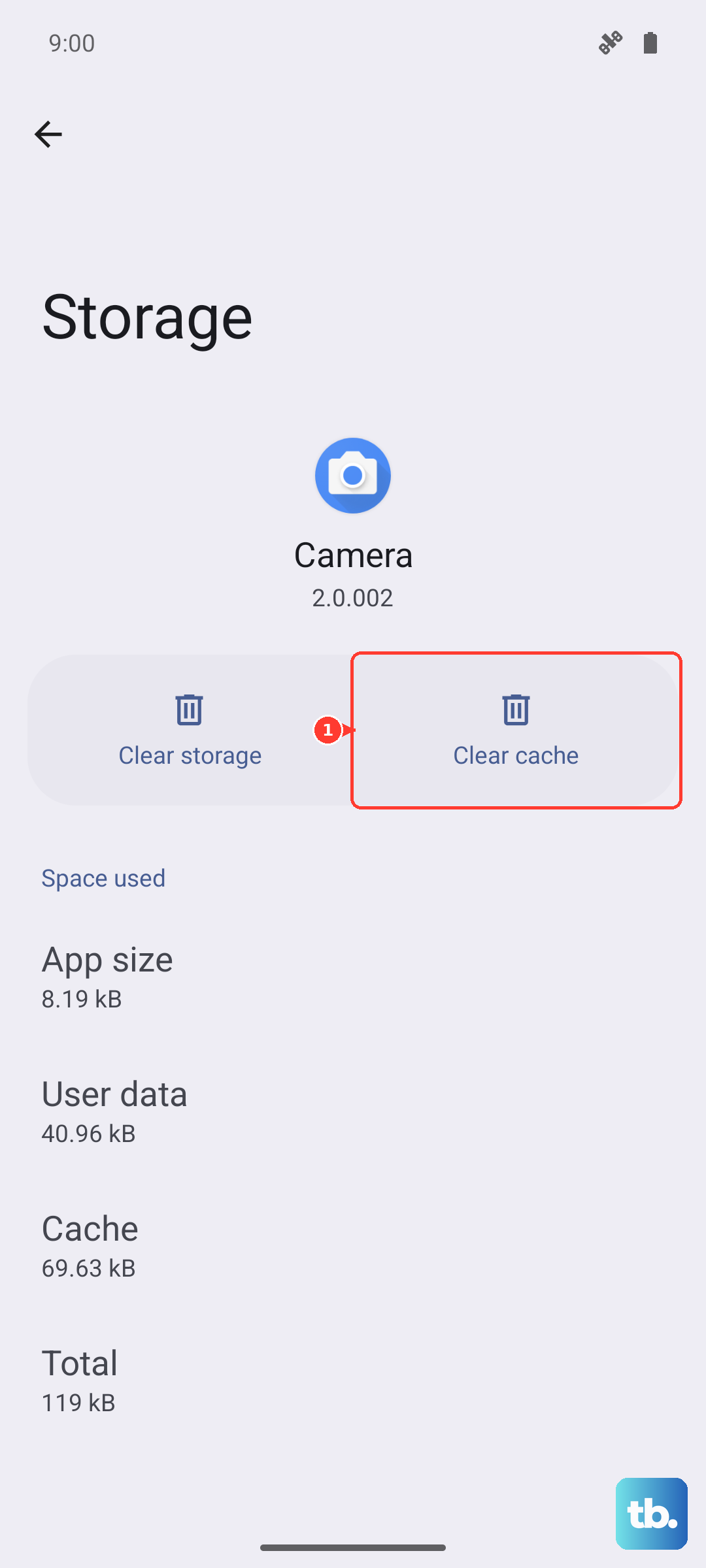
Android's system services, including Bluetooth, store temporary data that can sometimes get messed up. Clearing this cache is safe and won't delete your personal files or paired devices. Head to Settings > Apps.
You might need to tap "See all apps" or the three-dot menu and select "Show system apps" to find the right one. Scroll down and look for "Bluetooth" in the app list. Tap on it, then go to Storage & cache. Tap "Clear cache" and then restart your phone to see if the connection improves.
Update Your Infinix Note 40 Pro
Software updates frequently include bug fixes for connectivity issues like Bluetooth. Infinix rolls these out through their XOS updates. To check, go to Settings > System > System updates.
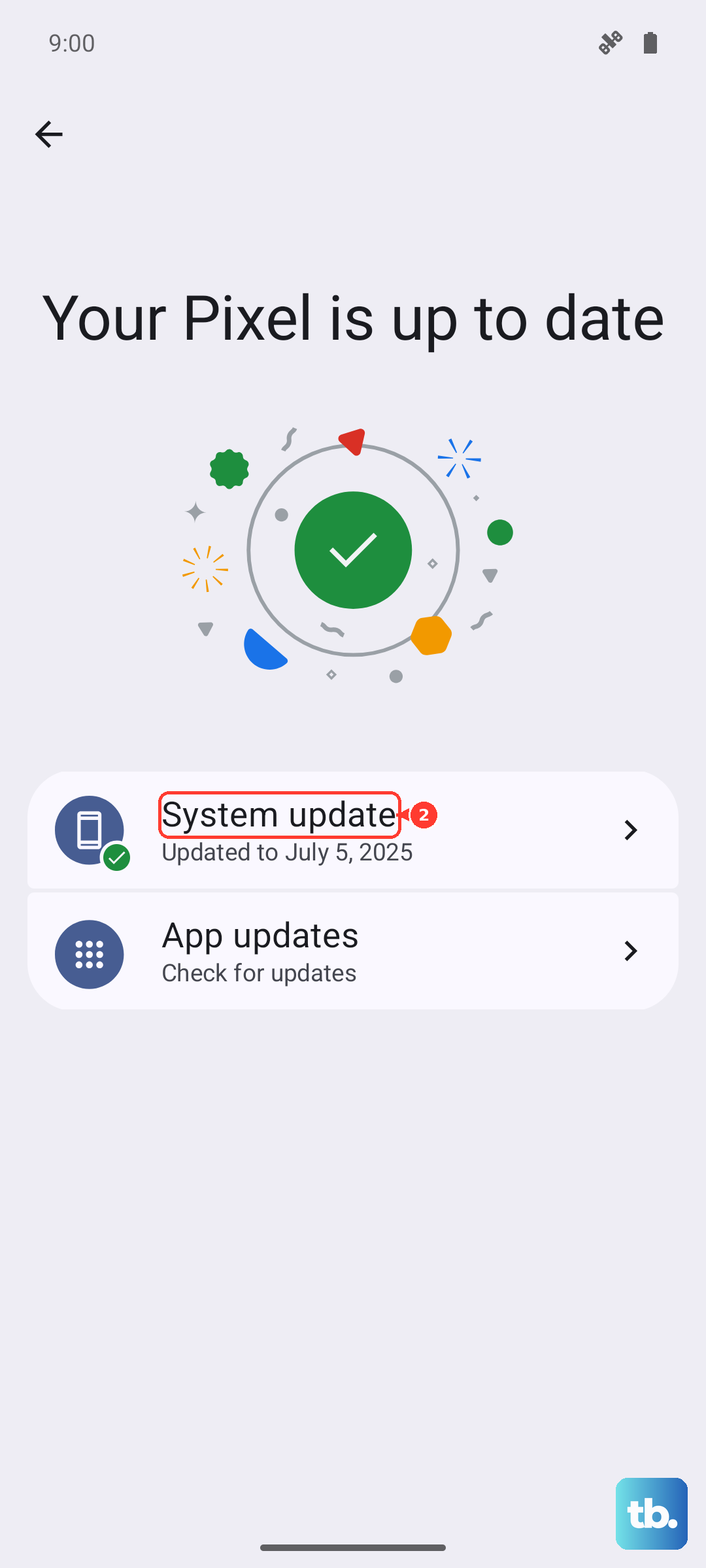
Tap "Check for updates." If an update is available, make sure your phone is connected to Wi-Fi and has a good charge, preferably using the included 70W charger, before you download and install it. An update can resolve compatibility problems with newer Bluetooth accessories.
Boot Into Safe Mode
Since XOS can come with pre-installed apps and the ones you download yourself, it's worth checking if a third-party app is causing interference. Safe Mode temporarily disables all apps you didn't get with the phone. To enter it, press and hold the Power button until the menu appears.
Then, tap and hold the "Power off" option on your screen. You should see a prompt asking if you want to reboot into Safe Mode. Tap "OK." Once your phone restarts, you'll see "Safe Mode" in the bottom corner. Test your Bluetooth here. If it works perfectly, a downloaded app is the likely culprit. Restart normally and try uninstalling recent apps one by one.
Reset All Network Settings
This is a more thorough step that resets Wi-Fi, mobile data, and Bluetooth back to their factory defaults. It will make you forget all saved Wi-Fi networks and Bluetooth pairings, so be ready to re-enter those passwords. Go to Settings > System > Reset options.
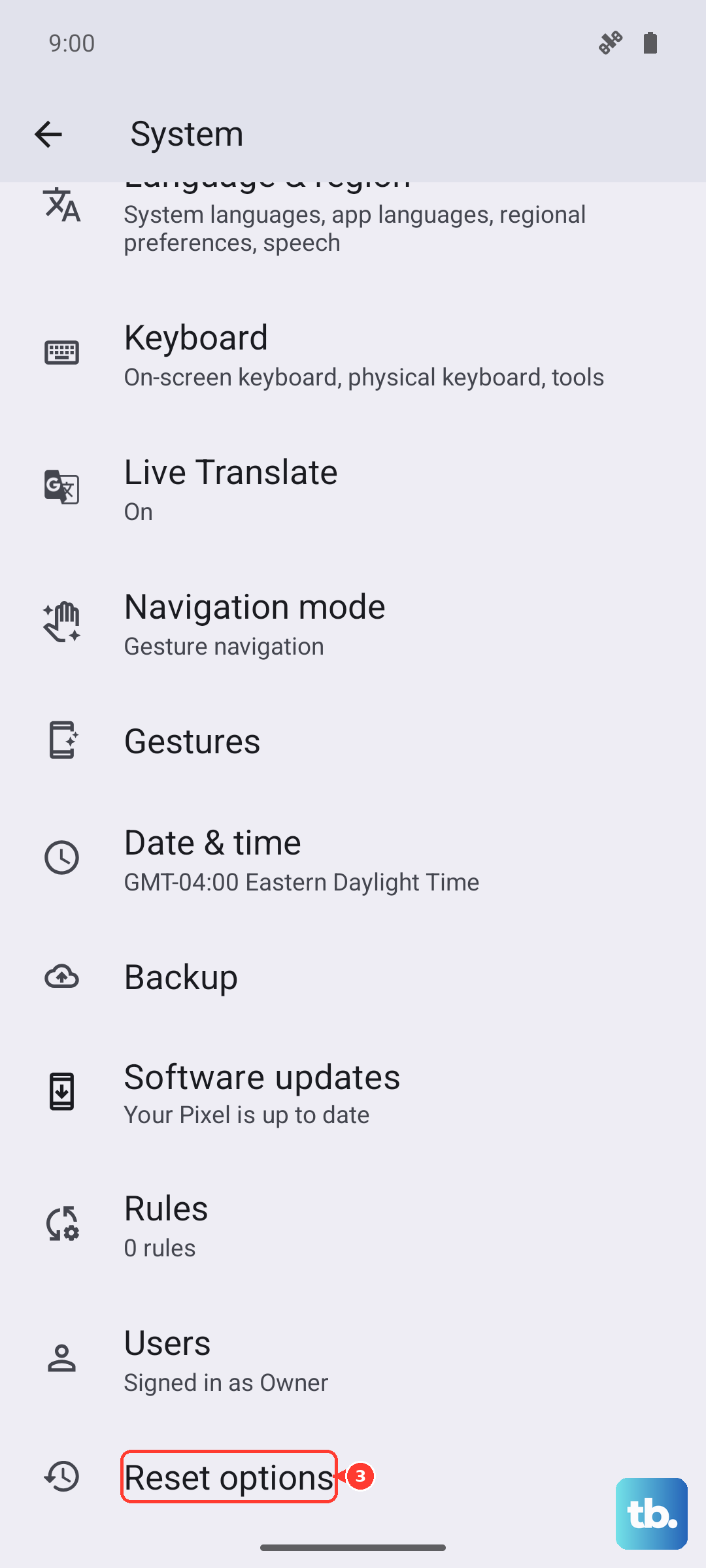
Tap "Reset Wi-Fi, mobile & Bluetooth." You'll need to enter your PIN, pattern, or password to confirm. After the reset, your phone will reboot. This often cleans up deep-seated network configuration errors that simpler steps can't fix.
Check for System App Conflicts
Infinix's XOS includes various smart services that can sometimes over-manage connections. It's a good idea to review these. Go to Settings > Special features > Smart Service (the exact path might vary slightly).
Look for any settings related to power saving for Bluetooth or automatic connection management and try disabling them temporarily. Also, while you're in Settings, you can search for "Device connection" or "Connection preferences" to see if there are any other XOS-specific Bluetooth controls that might be blocking a proper link.
Clear Bluetooth Data as a Last Resort
If you're still having no luck, you can take the more nuclear step of clearing the Bluetooth app's data. This is different from clearing the cache. It will erase all your paired devices from the phone's memory. Go back to Settings > Apps > Bluetooth > Storage & cache.
This time, tap "Clear storage" or "Clear data." Confirm your choice. Afterward, your Bluetooth list will be completely empty. Restart your phone and treat it like you're pairing all your devices for the very first time. This gives you a completely clean slate.
Addressing Specific Connection Problems
For car Bluetooth that won't connect, the most reliable method is to clear the pairing from both sides. Delete your Infinix Note 40 Pro from your car's stereo system, and forget the car from your phone's Bluetooth list. Then, initiate the pairing process from your car's menu first, before searching on your phone.
If Bluetooth simply won't turn on at all, even after a force restart, it points to a deeper software issue. Going through the steps of clearing cache, checking for updates, and trying Safe Mode are your best bets. Persistent failure to turn on after all software fixes could indicate a rare hardware fault with the antenna or related component.