
When your iMac M4 feels unusually warm, it's the system working to manage its own temperature. While it's designed to handle heat, sustained high temperatures can lead to the fans running loudly and, in rare cases, performance slowing down to cool off. Let's get it back to a comfortable state.
Find What's Using All the Power
Open Activity Monitor from your Applications > Utilities folder. Click the CPU tab and sort the "% CPU" column in descending order. A single app, like a web browser with too many tabs or a video editor, might be stuck and using nearly 100% of a core, generating a lot of heat. You can quit that process right from here.
Also check the Energy tab. This shows which apps are demanding the most power over the last 12 hours. An app with a high "Energy Impact" is a prime suspect for causing your iMac to work harder than it needs to.
Manage Your Apps and Workflow
The M4 chip is powerful, but tasks like 4K video rendering, 3D modeling, or gaming will naturally make it warm up. If you're not actively using a heavy app, close it completely. For web browsing, try to consolidate tabs or use bookmarks instead of leaving dozens open, especially tabs with video players or complex web apps.
I'd start by checking your browser first, as it's often the culprit. Having multiple windows of Chrome or Safari with resource-heavy sites can silently push the CPU.
Update macOS Tahoe
Go to System Settings > General > Software Update. Apple frequently releases updates that include optimizations for power management and thermal performance. Installing the latest version of macOS 26 Tahoe can resolve background processes that might be misbehaving and causing excess heat.
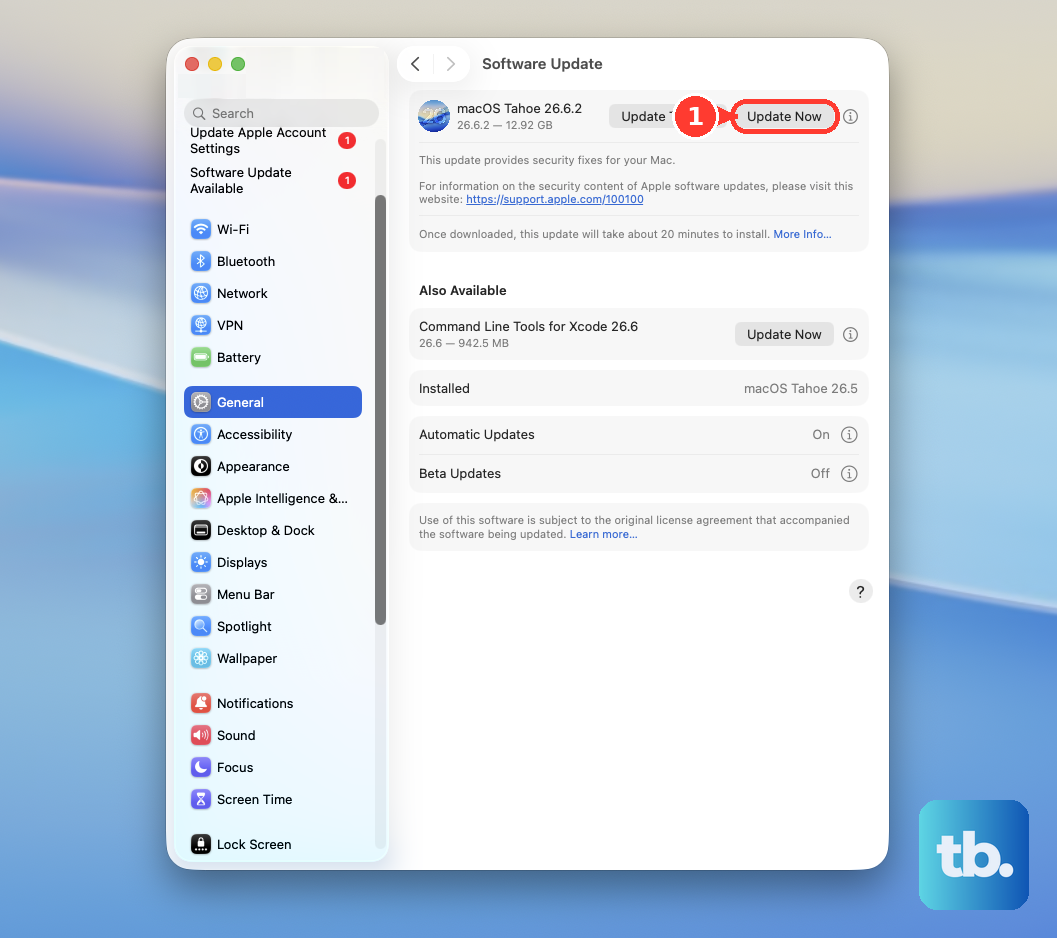
After a major update, it's normal for Spotlight to reindex your drive, which can cause fan activity for an hour or so. Let this process complete in the background.
Check Its Physical Environment
Since the iMac M4 is always plugged in and has no battery, its thermal design relies on passive and active cooling around the enclosure. Make sure the rear of the computer, where the logic board is, has several inches of clear space from walls, books, or other objects.
Don't place it in direct sunlight or right next to a heating vent. The ambient room temperature makes a big difference. Ensure the vents along the bottom edge of the back aren't blocked by papers or a desk mat.
Run Apple Diagnostics
This built-in tool can check for hardware issues that might affect thermal management. Shut down your iMac completely. Press and hold the power button on the back of the computer as you turn it on, and keep holding until you see the startup options window.
Click Options, then from the Utilities menu, choose Apple Diagnostics and follow the on-screen instructions. It will check the fans and sensors for any problems.
Adjust Display and Settings
The stunning display is also a source of heat. Reducing the screen brightness from maximum can have a noticeable cooling effect. You can also temporarily turn off features like True Tone or Auto-Brightness from System Settings > Displays to see if it helps.
For the nano-texture glass option, while it reduces glare, ensure you're cleaning it only with the provided cloth. Using other materials can create smudges that, while not causing heat, might make you think the screen itself is hotter when it's just uneven light diffusion.
Be Strategic with Peripherals
The iMac M4 has a limited number of USB-C ports (four in total). If you're using all of them with high-power devices like external drives, hubs, and displays, you're asking the internal power delivery system to work harder, which generates heat.
If you're driving an external display, remember it requires a separate cable purchase. Using a high-resolution external monitor alongside the iMac's own 5K screen is a significant GPU workload that will warm up the system, and that's expected.
Consider Your Browser Choice
Apps not optimized for Apple Silicon can use more power. Safari is deeply integrated with macOS and is generally the most energy-efficient browser for the iMac M4. Browsers like Chrome, while feature-rich, are known to use more CPU and memory, which translates to more heat during everyday use.
If your iMac runs hot mainly while browsing, try using Safari for a day to see if the issue improves. You might be surprised by the difference.
Reset the System Management
If the fans are running high even at idle, a full restart can clear out any temporary software glitches affecting thermal management. Since this is an Apple Silicon Mac, a simple restart is the equivalent of resetting the older SMC on Intel models.
Go to the Apple menu and choose Restart. If the system is unresponsive, you can force a restart by pressing and holding the power button on the back for about 10 seconds until the screen goes black, then press it again to turn the iMac back on.