
When your Huawei Pura 70 Pro's Settings app keeps crashing or freezing, it can stop you from managing your phone entirely. This is usually a software hiccup within EMUI 14.2, often related to cached data or a minor system process that's gotten stuck. The good news is you can almost always fix it yourself without losing any personal data.
Force Restart Your Pura 70 Pro
This is the universal first step for any weird software behavior on your phone. A force restart clears the phone's temporary memory (RAM) without deleting any of your files or settings. It's different from a normal restart and can knock loose whatever is causing the Settings app to misbehave.
Just press and hold the Power button on the side of your phone for about 10 seconds. Keep holding it until you see the Huawei logo appear on the screen, then you can let go. Wait for the phone to boot up completely and try opening Settings again.
Clear the Settings App Cache and Data
Over time, the temporary files (cache) that help the Settings app load quickly can become corrupted. Clearing them forces the app to rebuild these files from scratch. This is a safe fix that won't erase your personal preferences like Wi-Fi passwords or accounts.
Go to Settings > Apps > App management. Find and tap on the "Settings" app in the list. On its app info page, tap on Storage usage. Here, you'll see two options: "Clear cache" and "Clear data." Tap "Clear cache" first and test the app.
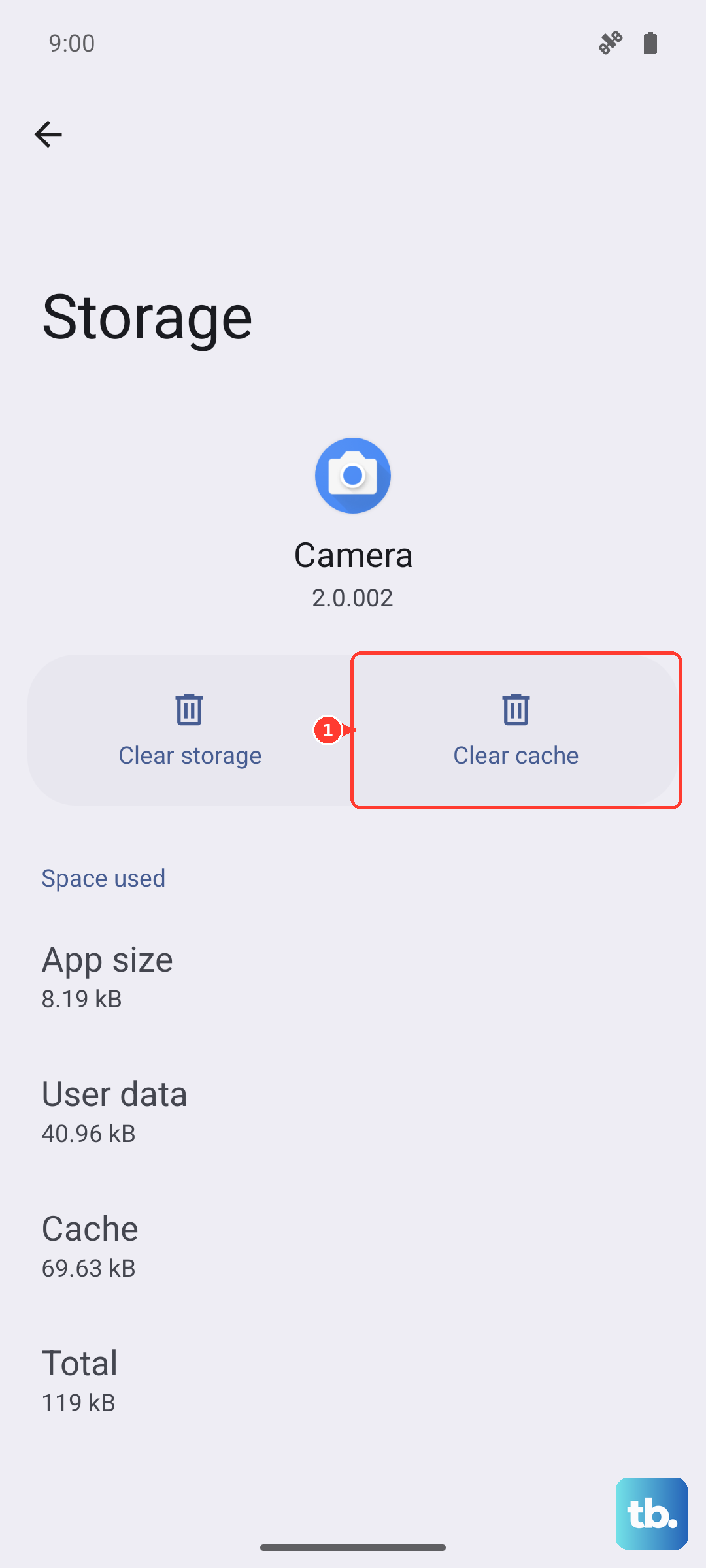
If the crashes continue, go back and tap "Clear data." This will reset the Settings app to its default state, so you might need to re-adjust some quick toggle preferences, but your core system settings remain intact.
Check for a System Software Update
Huawei regularly releases updates for EMUI that include bug fixes and performance improvements. An outdated system version might have a known bug that's causing your specific issue, which a newer update has already patched.
Open the Settings app (if you can) and go to System & updates > Software update. Tap "Check for updates." If an update is available, make sure your phone is connected to Wi-Fi and has at least a 30% charge, then follow the prompts to install it. I've seen many random app crashes resolved simply by installing the latest patch.
Boot Into Safe Mode
If the Settings app only crashes after you've installed or updated other apps, one of those third-party apps could be causing a conflict. Booting into Safe Mode temporarily disables all apps you've downloaded, letting you see if the problem is with the system or something you installed.
To enter Safe Mode, press and hold the Power button until the power menu appears. Then, press and hold the "Power off" option on your screen. A prompt will ask if you want to reboot to Safe Mode; tap "OK." Your phone will restart with "Safe Mode" visible in the bottom corner.
If Settings works perfectly in Safe Mode, you know a third-party app is the culprit. Restart your phone normally to exit Safe Mode, then try uninstalling apps you recently added or updated, one by one, to find the offender.
Review Recently Installed or Updated Apps
Since the Pura 70 Pro uses Huawei's AppGallery and not Google Play Services, some apps might not be fully optimized for HarmonyOS-based EMUI. Compatibility issues can sometimes cause unexpected system app crashes.
Think about any apps you installed or that received updates just before the Settings problem started. Pay special attention to apps that request accessibility services, draw over other apps, or have deep system permissions. Try uninstalling the most suspicious one, restart your phone, and check if Settings stabilizes.
Reset All App Preferences
This is a broader fix than clearing a single app's data. It resets all your permissions, default apps, and background restrictions back to factory defaults without touching your personal files. It's useful if a permission setting got messed up and is causing a system conflict.
Navigate to Settings > Apps > App management. Tap the three-dot menu icon in the top right and select Reset app preferences. Confirm your choice. Afterward, you'll need to re-grant permissions to apps when you use them next, but it often clears up persistent app crashes.
Perform a Factory Reset
If you've tried everything else and the Settings app is still unusable, a factory reset is the final step. This will erase all data on your phone and return it to its original out-of-the-box state. You must back up everything important first using Huawei's backup tool to your PC or cloud storage.
Since you may not be able to access the full Settings menu, you can often trigger a reset from the recovery screen. First, power off your Pura 70 Pro completely. Then, press and hold the Volume Up button and the Power button together until the Huawei logo appears, then release only the Power button (keep holding Volume Up).
This should boot you into the EMUI recovery menu. Use the volume buttons to navigate to "Wipe data/factory reset" and select it with the Power button. Confirm your choice. Once complete, select "Reboot system now." After the reset, set up your phone as new to see if the issue is resolved.