
When your Huawei Pura 70 Pro starts missing calls, it feels like you're carrying a very expensive camera that just happens to have a phone app. This is a common headache on modern smartphones, and on the Pura 70 Pro, it can sometimes be tied to its unique EMUI 14.2 software or network quirks. The good news is you can almost always fix it yourself without a trip to a service center.
Start With These Quick Checks
Before we get into the deeper settings, run through these five basic steps. They solve the majority of missed call problems in under a minute.
First, pull down the notification shade twice to see the full Quick Settings panel. Look for the airplane icon and make sure Airplane Mode is off. If it's on, tap it to turn it off, wait a few seconds, then tap it on and off again to refresh the connection.
Next, give your phone a simple restart. Just press and hold the power button, then tap 'Restart'. This clears out any temporary software glitches that might be hanging up the phone app.
Check your signal strength. If you only have one or two bars, that's likely the culprit. Try moving near a window or to a different room. You can also try toggling Mobile Data off and on in the Quick Settings panel.
Take a quick glance at your physical SIM tray. Make sure it's seated properly. If you have another phone handy, popping the SIM card in there can tell you instantly if the problem is with your Pura 70 Pro or your carrier's service.
Finally, it's worth a quick call to your carrier from another phone or checking their app. Ask if there are any network outages in your area or if there's an issue with your account status.
Check Do Not Disturb and Sound Settings
EMUI has a very comprehensive Do Not Disturb mode that can silence calls from everyone except your favorites. Swipe down and check the Quick Settings for a crescent moon icon. If it's highlighted, tap it to turn DND off.
For more control, go to Settings > Sounds & vibration > Do Not Disturb. Here, you can see if a schedule is active or if calls are being allowed from certain contacts. I'd recommend turning all DND schedules off temporarily to test.
Also, in Settings > Sounds & vibration, make sure your ringtone volume slider is turned up. Sometimes it gets lowered accidentally. While you're there, tap 'Default notification tone' to actually play your ringtone and confirm it's working.
Review Call Blocking and Smart Features
Huawei's phone app has built-in spam protection that can sometimes be a bit too aggressive. Open your Phone app and tap the three dots in the top right, then go to Settings > Blocked numbers.
Scroll through this list to make sure no important numbers have been accidentally added. You can remove any by tapping the trash can icon next to them.
Next, go back and look for Harassment filter or Caller ID and spam protection. You can try turning this feature off completely as a test. If your calls start coming through, you know the filter was blocking them, and you can turn it back on and adjust its sensitivity.
Disable Call Forwarding and Barring
Call forwarding is a common culprit that redirects your calls to another number without you realizing it. On your Pura 70 Pro, open the Phone app, tap the three dots, and go to Settings > Calls > Call forwarding.
You'll see options for different scenarios like when busy, unanswered, or unreachable. Tap each one and make sure they are all set to 'Disable' or your own phone number. A number you don't recognize listed here means your calls are being sent elsewhere.
Also check Settings > Calls > Additional settings > Call barring. This is less common, but make sure no barring services are active for incoming calls. Your carrier can sometimes activate these remotely, so it's worth a look.
Reset Your Network Settings
This is a powerful step that resets all your cellular, Wi-Fi, and Bluetooth connections back to factory defaults. It won't delete your personal data like photos or messages, but it will erase all saved Wi-Fi passwords and paired Bluetooth devices.
To do this, go to Settings > System & updates > Reset. Then, tap Reset network settings. Confirm your choice and let the phone restart. After it boots up, you'll need to reconnect to your Wi-Fi and re-pair any Bluetooth devices, but it often clears up persistent calling issues.
Update Your Software and Apps
An outdated system can have bugs that affect calling. Huawei releases updates through the built-in updater. Go to Settings > System & updates > Software update and tap 'CHECK FOR UPDATES'.
If an update is available, install it. Make sure your phone is connected to Wi-Fi and has at least a 50% charge, or better yet, plug in that included 100W SuperCharge brick. Also, check the Huawei AppGallery for updates to the 'Phone' and 'Contacts' apps, as these can receive fixes independently of the main OS.
Clear the Phone App's Cache and Data
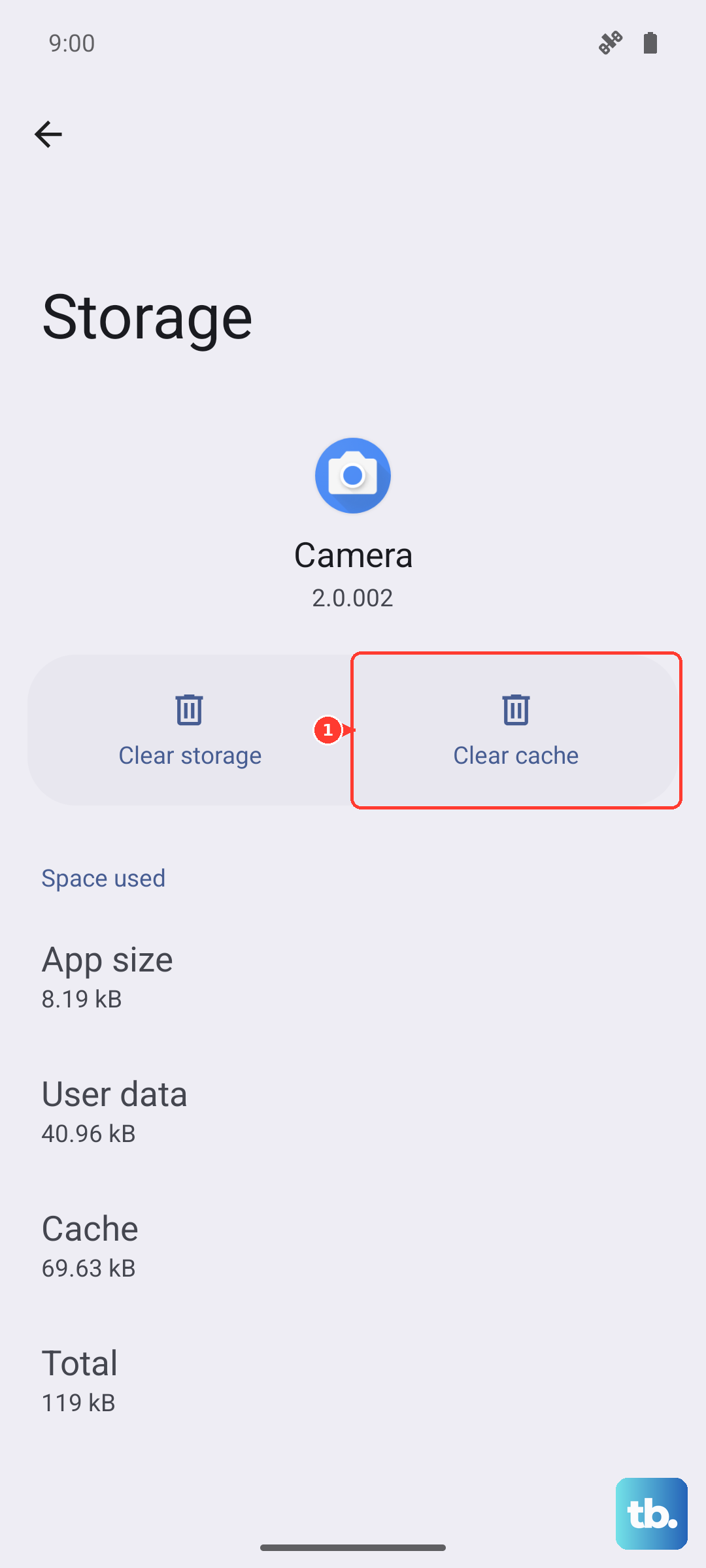
Over time, the Phone app can accumulate corrupted temporary files. Clearing this cache is safe and won't delete your call history or contacts. Go to Settings > Apps > Apps, find and tap 'Phone' in the list.
Tap Storage usage, then you'll see options for 'Clear data' and 'Clear cache'. Tap 'Clear cache' first and restart your phone. If the problem persists, you can go back and tap 'Clear data'. This will reset the Phone app to its default state, so you may need to re-grant any permissions it asks for.
Check for Problematic Third-Party Apps
Since the Pura 70 Pro doesn't have Google Play Services, you might be using apps from the AppGallery or sideloading them. Some apps, especially call recorders, battery savers, or aggressive security tools, can interfere with the phone's core functions.
Think about any apps you installed just before the calling issues started. Try uninstalling them one by one to see if the problem goes away. You can also boot into Safe Mode to test. Press and hold the power button, then on the power off prompt, press and hold 'Restart' until you see the Safe Mode option.
If calls work fine in Safe Mode, you know a third-party app is the cause. You'll need to find it by process of elimination after restarting normally.
Reinsert or Replace Your SIM Card
A faulty or old SIM card can cause intermittent calling problems. Power off your Pura 70 Pro completely. Use the SIM eject tool that came in the box to pop out the tray.
Carefully remove the SIM card and inspect the gold contacts for any dirt or scratches. Gently wipe it with a soft, dry cloth and blow into the SIM tray slot to remove any dust. Reinsert the SIM, making sure it's seated correctly in the tray, and push the tray back in until it clicks.
Power the phone back on. If you still have issues, contacting your carrier for a replacement SIM card is a very common and effective fix. They can often activate a new one for you in minutes.
Perform a Factory Reset
This is your last resort before looking at hardware. A factory reset will wipe your Pura 70 Pro back to its original out-of-the-box state. You must back up everything important first. Use Huawei's built-in backup tool by going to Settings > System & updates > Backup and restore.
Once backed up, go to Settings > System & updates > Reset > Factory data reset. Read the warning carefully, then tap 'Reset phone' and follow the prompts. After the reset is complete, set up the phone as new without restoring your apps and data immediately. Test if you can make and receive a call on the fresh system.
If calls work now, the issue was with your software configuration. You can then choose to restore your backup, though be mindful that you might restore the problematic setting or app. If calls still don't work on a completely fresh system, it may indicate a deeper hardware issue with the antenna or related components.