
If your Huawei Pura 70 Pro is struggling to find your location or keeps dropping GPS signal, it can leave you stranded, especially since you can't rely on Google Maps. The good news is that most location problems are software-related and can be fixed without a trip to a service center.
I'd start with the simplest solutions first, as they often clear up temporary glitches in the EMUI 14.2 software. These quick actions can save you a lot of time.
Refresh Your Location Services
Pull down the notification shade twice to open the full Quick Settings panel. Look for the location icon, which looks like a teardrop-shaped pin. Tap it once to turn location services off, wait about 15 seconds, and then tap it again to turn it back on. This forces the GPS hardware to reinitialize its connection.
If that doesn't help, try toggling Airplane mode. Swipe down again and tap the airplane icon to enable it, wait 10 seconds, and disable it. This resets all the phone's wireless radios, including the one for GPS, which can clear up interference.
Restart Your Pura 70 Pro
A simple restart clears out temporary system bugs and resets all connections. Just press and hold the power button until the power off menu appears, then tap "Restart." If the screen is unresponsive, you can force a restart by holding the power button down for about 10 seconds until you feel a vibration and see the Huawei logo.
Give the phone a full minute to boot back up completely before testing the GPS again in an app like Petal Maps, which you can get from the Huawei AppGallery.
Check Your Location Accuracy Mode
Huawei's EMUI has different modes that balance accuracy with battery life. For the best GPS performance, you need to be in the right mode. Open Settings and go to Privacy & security > Location services.
First, make sure the master switch at the top is on. Then, tap on "Location mode" or "Improve accuracy." You'll want to select "High accuracy" or the equivalent. This mode uses GPS satellites, Wi-Fi, and mobile networks together to pin down your location as fast and precisely as possible.
Review App Permissions
Since your Pura 70 Pro doesn't have Google Play Services, apps you've sideloaded or installed from third-party stores might not handle permissions correctly. You need to manually ensure your mapping app can use your location.
Go to Settings > Apps. Find your navigation app, like Petal Maps or an installed alternative, and tap on it. Select Permissions and make sure "Location" is set to "Allow all the time" or at least "Allow only while using the app." Some apps won't work properly if this is set to "Ask every time."
Disable Power Saving Modes
The Kirin 9010 chip is efficient, but the phone's aggressive power saving features can severely limit background processes, including GPS. To check this, go to Settings > Battery.
Make sure "Power saving mode" is switched off. Also, look for an option called "App launch" or "Manage app auto-launch." Find your maps app here and ensure its setting is set to "Manage automatically" or "Allow" so it can run in the background to maintain your location.
Update Your Apps and System
Outdated software is a common culprit. First, open the Huawei AppGallery and tap on "Me" in the bottom corner, then "Update management." Install any pending updates for your mapping and navigation apps.
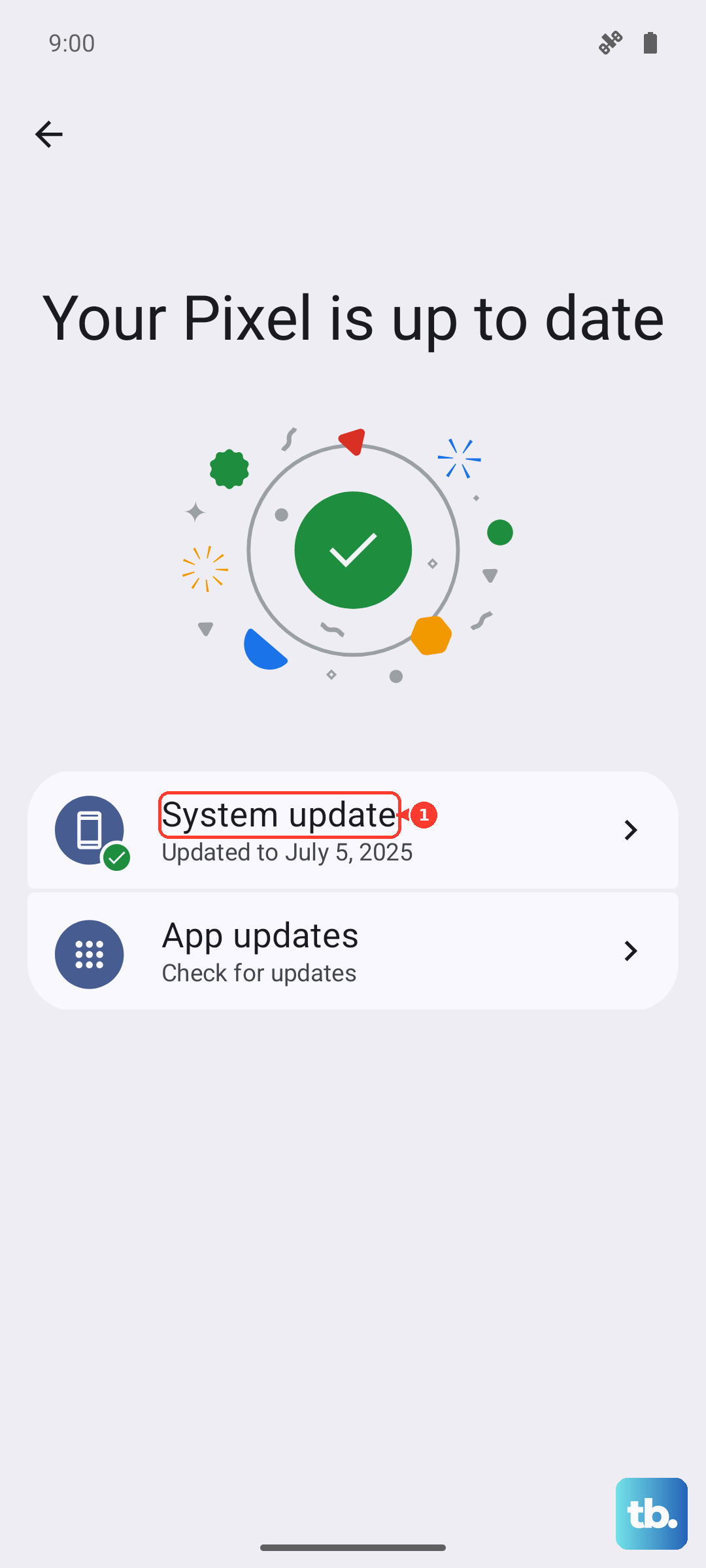
Next, check for a system update. Go to Settings > System & updates > Software update. Huawei frequently releases updates that improve system stability and hardware performance, which can include fixes for GPS and connectivity modules.
Clear the App's Cache and Data
Corrupted temporary files can break location functionality. Go to Settings > Apps, select your navigation app, and then tap Storage. First, tap "Clear cache." This deletes temporary data without affecting your saved places.
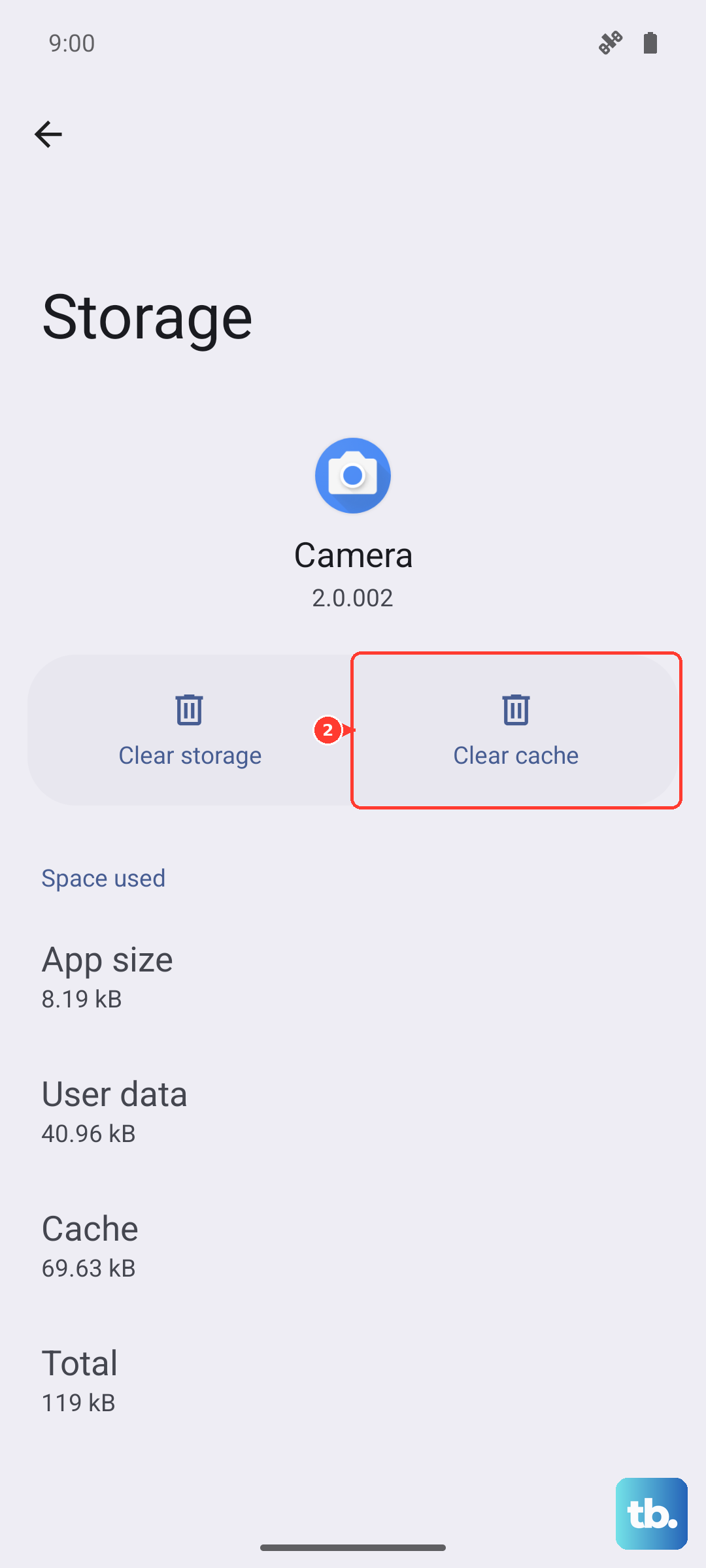
If the GPS is still broken, you can tap "Clear data" or "Delete data." Be warned, this will reset the app to its default state, erasing any offline maps or saved favorites. It's a more thorough reset that often solves persistent glitches.
Check for Physical and Environmental Issues
GPS signals are line-of-sight and can be blocked by all sorts of things. Thick metal phone cases, especially ones with magnetic clasps for the included 80W wireless charger, can sometimes interfere. Try removing the case temporarily.
Move to an open area away from tall buildings and dense tree cover. Using GPS indoors, in a basement, or in a car with a metallic tinted windshield will always result in a weak or lost signal. The phone needs a relatively clear view of the sky.
Test in Safe Mode
This helps you figure out if a recently installed third-party app is causing a conflict. To boot into Safe Mode, press and hold the power button until the "Power off" icon appears on screen. Then, press and hold the "Power off" text until a prompt for Safe Mode pops up. Tap "OK."
Your phone will restart with "Safe Mode" in the bottom corner. In this mode, only pre-installed system apps run. Try your GPS now. If it works perfectly, a downloaded app is the problem. Restart normally to exit Safe Mode and consider uninstalling apps you added around the time the GPS trouble started.
Reset Your Network and Location Settings
If you're still having trouble, this step resets all your network-related configurations without deleting personal data. Go to Settings > System & updates > Reset.
Tap on "Reset network settings" and confirm. This will erase all Wi-Fi passwords, Bluetooth pairings, and mobile network settings. It also resets the location service configurations to their defaults, which can clear deep-seated software conflicts. You'll need to re-enter Wi-Fi passwords and re-pair Bluetooth devices afterward.
For a final diagnostic, try a dedicated GPS test app from the AppGallery, like "GPS Test." Open it outdoors and see if it can "see" and connect to satellites. If it shows plenty of satellites but your maps app still fails, it's a software or app issue. If it can't find any satellites at all after all these steps, there may be a hardware problem with the antenna.