
When your HP Spectre x360 14 starts to drag, it feels like you're wading through digital mud. The good news is that this is almost always a software or configuration issue you can fix yourself. I'd start with a simple restart, as it clears out memory leaks from weeks of using sleep mode.
Perform a Full Restart
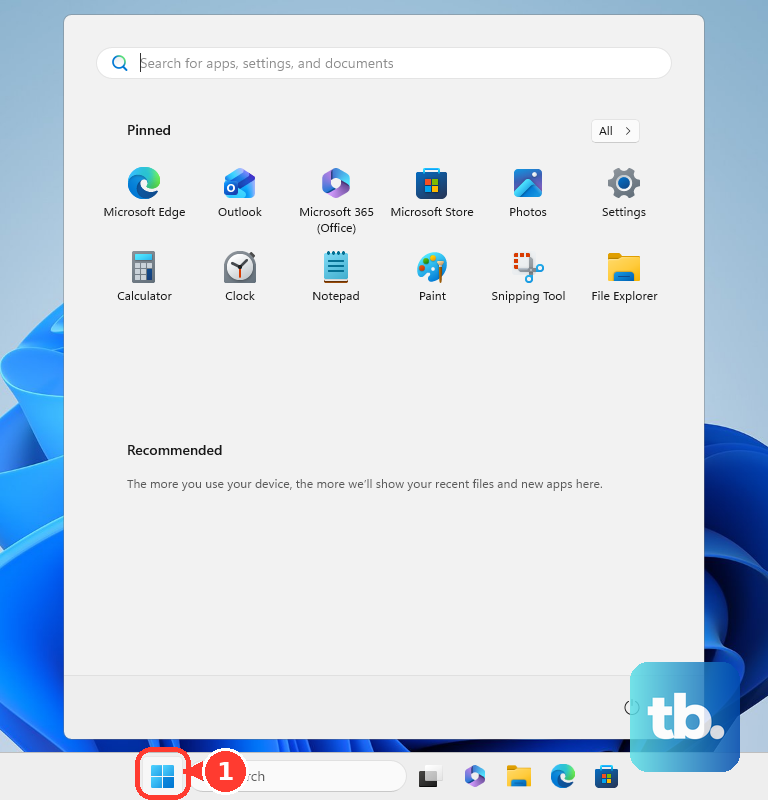
Click the Start menu > Power icon > Restart. Don't just choose "Shut down," because Windows Fast Startup doesn't fully clear your system's memory. A full restart flushes out temporary files and stops any background processes that have gotten stuck, which often provides an immediate speed boost.
Use Task Manager to Find the Culprit
Press Ctrl + Shift + Esc to open Task Manager directly. Click on the CPU, Memory, or Disk columns to sort by what's being used the most. You might find a single app, like a web browser with too many tabs or the Windows Search Indexer, is hogging all your resources. Right-click on any non-essential, high-usage process and select End task.
Stop Apps from Launching at Startup
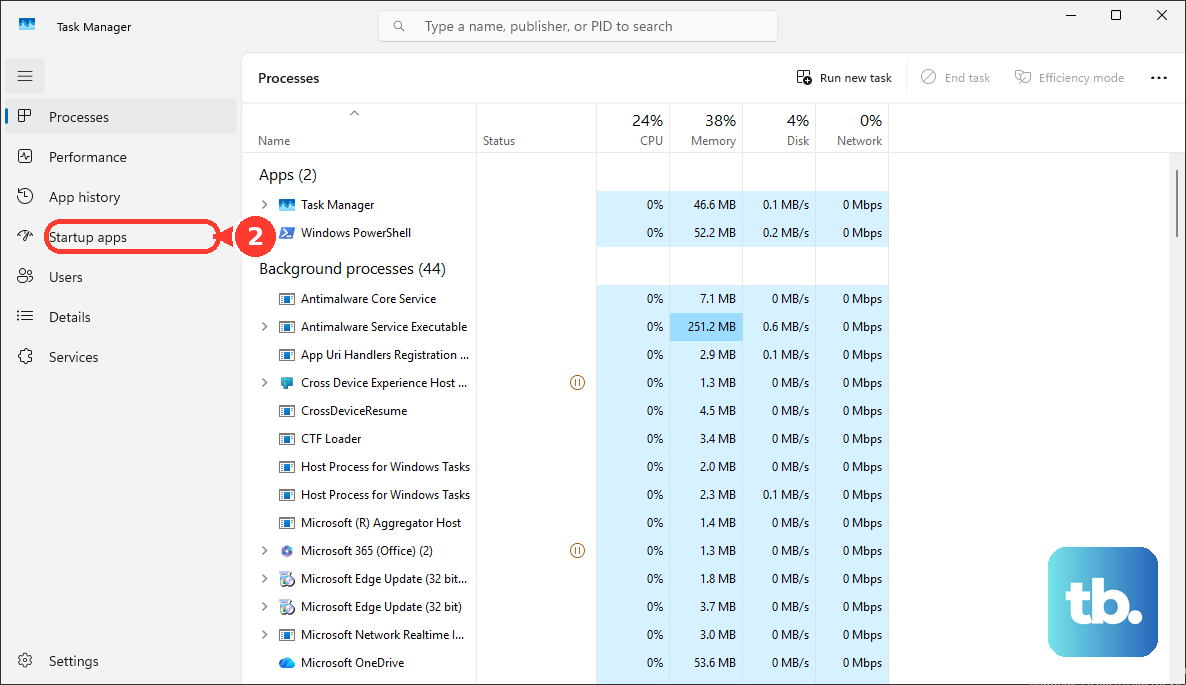
Still in Task Manager, click the Startup apps tab. Here you'll see everything that loads when you turn on your Spectre. Right-click and Disable applications like Spotify, Steam, or messaging apps that you don't need immediately. This makes your boot time faster and frees up RAM for the tasks you actually care about.
Free Up Storage Space on Your SSD
Open Settings > System > Storage. If your drive is over 85% full, performance will suffer. Click on Temporary files and check the boxes for items like "Windows Update Cleanup" and "Delivery Optimization Files." You can also enable Storage Sense here to have Windows automatically clean these files for you in the future.
Run a Full Malware Scan
Type "Windows Security" into the Start menu and open it. Go to Virus & threat protection and click on Scan options. Choose Full scan and let it run. While the Spectre x360 is a premium device, no computer is immune to malware that can silently drain your system's performance in the background.
Update Everything with HP Support Assistant
This is a key tool for your specific laptop. Open the HP Support Assistant app. It will check for critical firmware, BIOS, and driver updates from HP that aren't always delivered through Windows Update. Outdated chipset or graphics drivers are a common source of lag. Also, check Settings > Windows Update to ensure your OS is current.
Change Your Power Plan to Best Performance
Go to Settings > System > Power & battery. For the "Power mode" setting, change it from "Balanced" to Best performance. When set to balanced or power saver, your CPU throttles down to conserve battery, even when you're plugged in. The "Best performance" plan keeps the processor running at its intended speed.
Reduce Windows Visual Effects
Search for "Adjust the appearance and performance of Windows" in the Start menu. In the Visual Effects tab, select Adjust for best performance. This turns off animations, shadows, and transparency effects. On the Spectre's high-resolution display, rendering these effects can use more GPU power than you'd think.
If you want to keep some polish, you can choose "Custom" and manually disable just the heaviest effects, like "Animate windows when minimizing and maximizing" and "Transparency effects."
Consider a Hardware Refresh
If your Spectre is a few years old and still feels slow after all the software fixes, it might be a hardware limit. The most impactful upgrade is ensuring you have an SSD and enough RAM. While some models have soldered RAM, if yours is upgradeable, moving from 8GB to 16GB can transform multitasking. Also, a fresh thermal paste application can help if the laptop is overheating and throttling.
Reset Your PC with HP Cloud Recovery
As a last resort, you can reinstall Windows. On your HP, the best method is often HP Cloud Recovery. You can access this by searching for "HP Cloud Recovery" in the Start menu or by pressing F11 repeatedly as the laptop boots up. This process downloads a clean, official version of Windows with all the necessary HP drivers. Choose Keep my files to preserve your personal data while removing all apps and settings.