
That constant screen blinking on your HP OmniBook 5 14 is more than just annoying, it makes the laptop unusable. The display might flash, show horizontal lines, or go black for a split second. Let's get it fixed.
Update Your Display Drivers
Outdated or incompatible drivers are the most common cause of screen flickering on new laptops. Since the OmniBook 5 14 runs on a Qualcomm Snapdragon ARM chip, you need the correct drivers for this specific hardware. Don't just rely on Windows Update for this one.
Open the HP Support Assistant app that came pre-installed on your laptop. Run a check for updates, as it will find the latest drivers certified by HP for your exact model. This is the safest first step for a device with a new architecture.
Check Task Manager to Pinpoint the Problem
Press Ctrl + Shift + Esc to open Task Manager. Watch it closely. If Task Manager itself blinks or flickers along with everything else, the issue is almost certainly a system-level driver problem.
If Task Manager remains perfectly stable while your desktop and other windows blink, the culprit is likely a specific application running in the background. This simple test tells you exactly where to focus your efforts.
Adjust Your Display's Refresh Rate
Right-click on your desktop and select Display settings. Scroll down and click Advanced display. Look for the Refresh rate dropdown menu.
Try switching to a different rate. If it's set to 60Hz, see if 59.94Hz is available and select it. Sometimes a slight mismatch between the display panel and the graphics driver can cause persistent flickering that this simple change resolves.
Disable Hardware Acceleration in Apps
Many apps, especially web browsers like Chrome and Edge, use your laptop's graphics hardware to speed up rendering. On the ARM-based OmniBook, this can sometimes lead to conflicts.
In Chrome, go to Settings > System and turn off Use hardware acceleration when available. Restart the browser. Do the same for any other app where the flickering seems most prominent, like Discord or Slack.
Uninstall Problematic or Incompatible Software
If Task Manager was stable, a third-party app is likely interfering. Security software, cloud storage apps, or older utilities not designed for Windows on ARM can be common triggers.
Go to Settings > Apps > Installed apps and sort by installation date. Uninstall any non-essential apps you installed just before the blinking started. I'd pay extra attention to any x86 (32-bit) apps running through emulation, as they can sometimes cause display glitches.
Boot Into Safe Mode
If the blinking is constant and severe, booting into Safe Mode will load Windows with only the essential drivers. To do this, go to Settings > System > Recovery and click Restart now next to "Advanced startup."
After the restart, choose Troubleshoot > Advanced options > Startup Settings > Restart. Press 4 or F4 to enable Safe Mode. If the screen is perfectly stable here, you've confirmed a driver or startup app is at fault.
Roll Back a Recent Display Driver
Did the blinking start right after a driver update? You can revert to the previous version. Type "device manager" into the Windows search bar and open it. Expand Display adapters, right-click on the Qualcomm Adreno or other listed adapter, and select Properties.
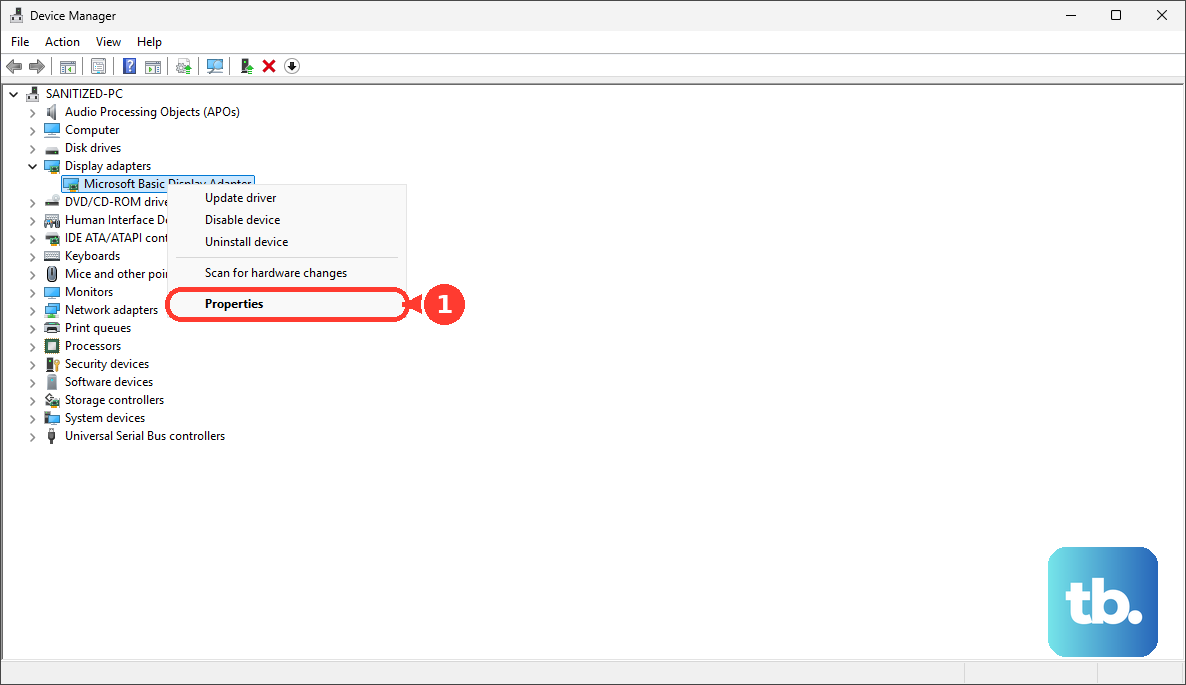
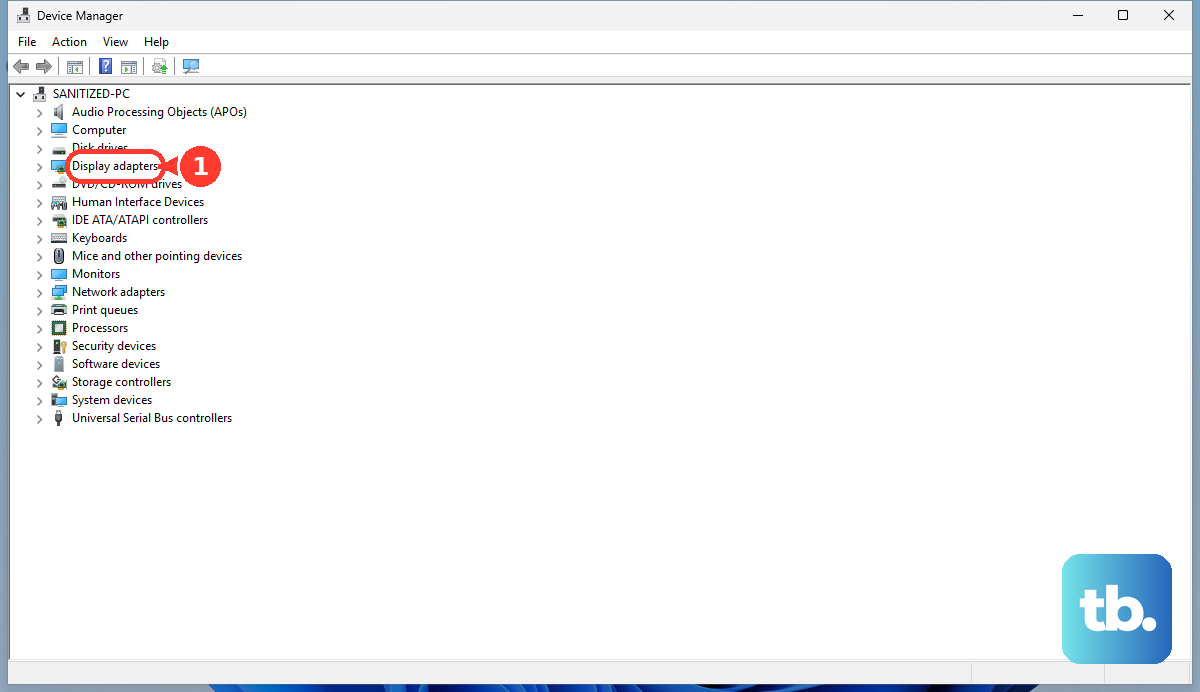
Go to the Driver tab. If the Roll Back Driver button is clickable, select it and follow the prompts. This often fixes issues introduced by a problematic update.
Run HP Hardware Diagnostics
HP builds diagnostic tools right into the BIOS. Restart your OmniBook 5 14 and immediately press the F2 key repeatedly as it boots. This will launch the HP PC Hardware Diagnostics UEFI menu.
Run the System Fast Test first, then proceed to the Video Display Test. These tests check your hardware independently of Windows and can tell you if there's a physical problem with the display or its connection.
Check for a Loose Internal Cable
This is a less common but possible hardware cause. If the blinking gets worse when you open or close the lid, or if you see flickering lines in a specific area of the screen, the internal display ribbon cable might be slightly loose.
This cable connects the screen to the motherboard and runs through the hinge. Over time, movement can loosen it. Fixing this requires opening the laptop chassis, which I'd only recommend if you're comfortable with hardware repair, as it could void your warranty.