
When Bluetooth stops working on your HP OmniBook 5 14, it can leave your wireless mouse, headphones, or speakers useless. The issue might be a missing toggle, a device that won't pair, or a connection that keeps dropping. Here are the steps to get your Bluetooth working again.
Toggle Bluetooth On and Off
First, check the quick action center. Click the network, sound, and battery icon in the taskbar and make sure the Bluetooth tile is turned on. If it's missing from there, go directly to Settings > Bluetooth & devices and flip the main Bluetooth switch off, wait a moment, and turn it back on. This simple reset often clears up minor glitches.
Restart Your OmniBook
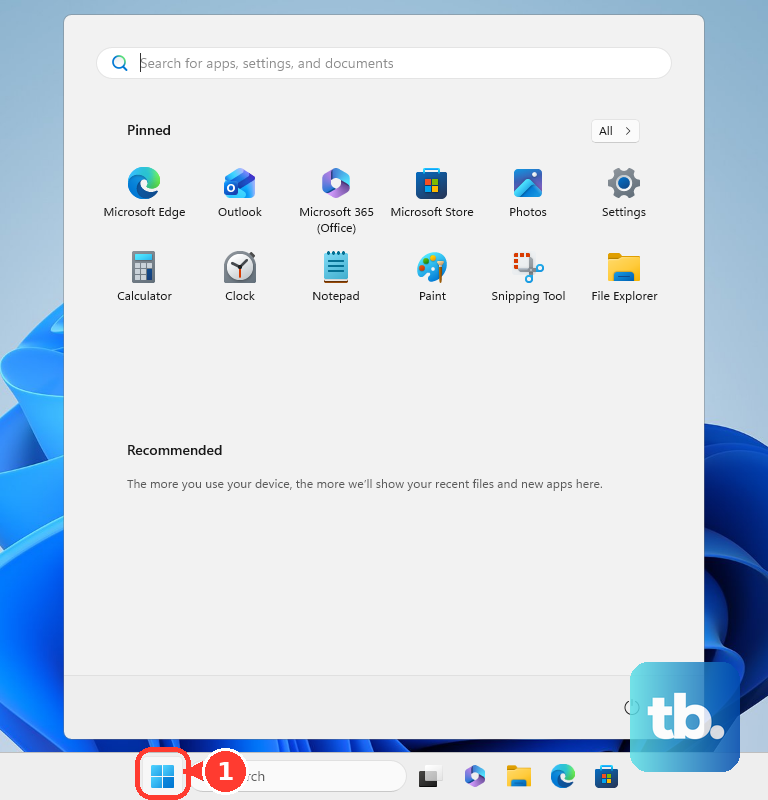
A full restart is a reliable fix for many software hiccups, especially after the laptop wakes from sleep. It reloads the Bluetooth driver and all related Windows services. Just click Start, select Power, and choose Restart to give it a fresh start.
Forget and Re-Pair Your Device
Corrupted pairing data is a frequent culprit. Go to Settings > Bluetooth & devices > Devices. Find the problematic device in the list, click the three dots next to it, and select Remove device. Then, put your Bluetooth accessory into pairing mode and click Add device to pair it from scratch.
Run the Built-in Bluetooth Troubleshooter
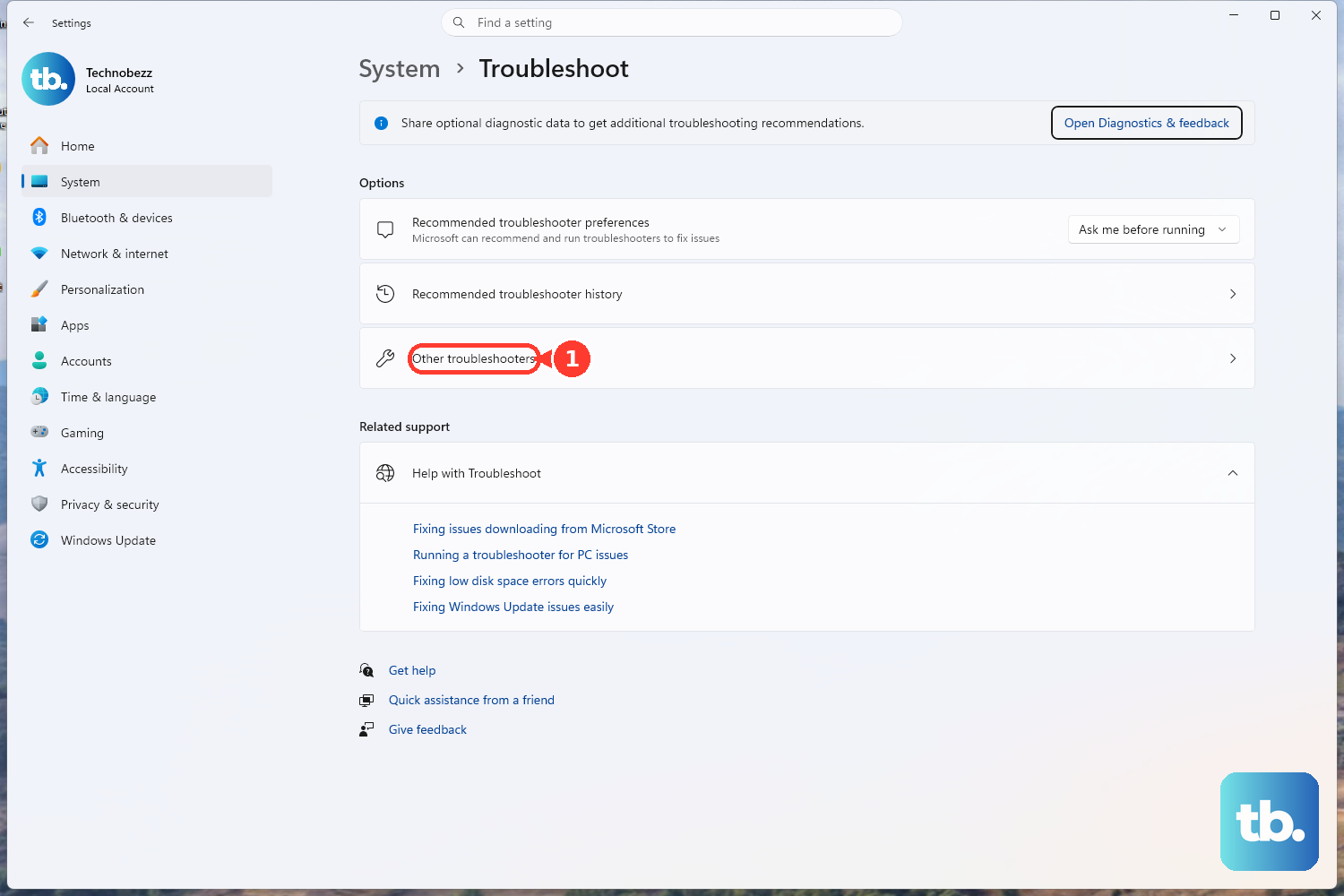
Windows has a dedicated tool for this. Go to Settings > System > Troubleshoot > Other troubleshooters. Find the Bluetooth troubleshooter in the list and click Run. It will automatically check for common problems and try to apply fixes.
Update Your Bluetooth Drivers
Since the OmniBook 5 14 is a new model with a Qualcomm Snapdragon chip, getting the latest drivers is crucial. Open Device Manager by right-clicking the Start button. Expand the Bluetooth section, right-click your adapter (it may be listed as a Qualcomm device), and choose Update driver > Search automatically for drivers.
For the most reliable driver, I'd also check HP Support Assistant. This app is tailored for your specific laptop and will offer the latest, certified drivers directly from HP, which is important for Windows on ARM systems.
Check for Windows Updates
Microsoft regularly releases patches that fix connectivity issues. Head to Settings > Windows Update and click Check for updates. Install any available updates, especially quality or feature updates, as they can contain important fixes for the Bluetooth stack.
Restart the Bluetooth Support Service
If the Bluetooth service itself has stopped, nothing will work. Press Windows Key + R, type services.msc, and hit Enter. Scroll down to find Bluetooth Support Service, right-click it, and select Restart. Ensure its Startup type is set to Automatic.
Reinstall the Bluetooth Adapter
This gives you a completely clean driver installation. In Device Manager, right-click your Bluetooth adapter and select Uninstall device. Check the box that says "Attempt to remove the driver for this device" if it appears. After uninstalling, restart your laptop. Windows will automatically detect the hardware and install a fresh driver on startup.
Check for App and Interference Issues
Remember, the OmniBook 5 14 runs Windows on an ARM processor. Some older Bluetooth management utilities or companion apps designed for x64 PCs might not work correctly through emulation. Try pairing without any third-party Bluetooth software running.
Also, Bluetooth shares the 2.4GHz band with WiFi. If you're in a crowded wireless environment, try moving closer to your device. USB 3.0 hubs and cables can sometimes cause radio frequency interference, so unplugging them temporarily is a good test.
Use HP Hardware Diagnostics
If you suspect a deeper hardware issue, HP's built-in diagnostics can check the Bluetooth radio. Restart your laptop and immediately press the F2 key repeatedly to launch HP PC Hardware Diagnostics. From there, you can run a system test that includes checking the wireless components.