
Seeing a blue screen on your new HP OmniBook 5 14 after an update is a jarring experience. This crash, officially called a stop error, happens when Windows encounters a problem so severe it has to shut down to protect your system. On a device like the OmniBook 5 14, which runs Windows on a Qualcomm Snapdragon ARM processor, these crashes can sometimes be related to driver compatibility or app emulation issues. The fixes below will help you get back up and running.
Restart and See if the Problem Returns
The first thing to do is simply restart your laptop. A single blue screen can be a one-time glitch, often tied to a temporary driver hiccup. If your OmniBook 5 14 boots normally and operates without another crash, you can likely carry on. If the blue screen reappears immediately or soon after logging in, you have a recurring issue that needs addressing.
Write Down the Stop Code
When the blue screen appears, look for the all-caps error code near the bottom. Common ones include DRIVER_IRQL_NOT_LESS_OR_EQUAL, SYSTEM_SERVICE_EXCEPTION, or KERNEL_SECURITY_CHECK_FAILURE. This code is your biggest clue. Jot it down on your phone or a piece of paper so you can reference it later, as it points to the category of the problem.
Boot Into Safe Mode
If crashes prevent you from reaching the desktop, you'll need to boot into Safe Mode. On your OmniBook, you can do this by holding the Shift key while you click the Restart option in the Windows power menu. After it reboots, navigate to Troubleshoot > Advanced options > Startup Settings > Restart. Once your laptop restarts again, press the 4 key to enable Safe Mode. This loads Windows with only essential drivers, which can help you bypass the cause of the crash.
Uninstall the Problematic Update
Since the crash followed an update, that's a prime suspect. From Safe Mode or a normal boot, go to Settings > Windows Update > Update history > Uninstall updates. Look for the most recent quality update or feature update, click Uninstall next to it, and restart. This can immediately resolve conflicts introduced by the update.
Update Drivers via HP Support Assistant
Outdated or incompatible drivers are a leading cause of blue screens, and this is especially important for a new ARM-based laptop. I'd start by opening the HP Support Assistant app. It's tailored for your specific OmniBook 5 14 and will check for the latest drivers from HP, including critical chipset and firmware updates that improve stability with the Snapdragon processor.
You should also check Device Manager for any devices with a yellow warning icon. Right-click them and select Update driver. Pay close attention to drivers for your display adapter, network devices, and any peripherals you've connected.
Run System File Checker and DISM
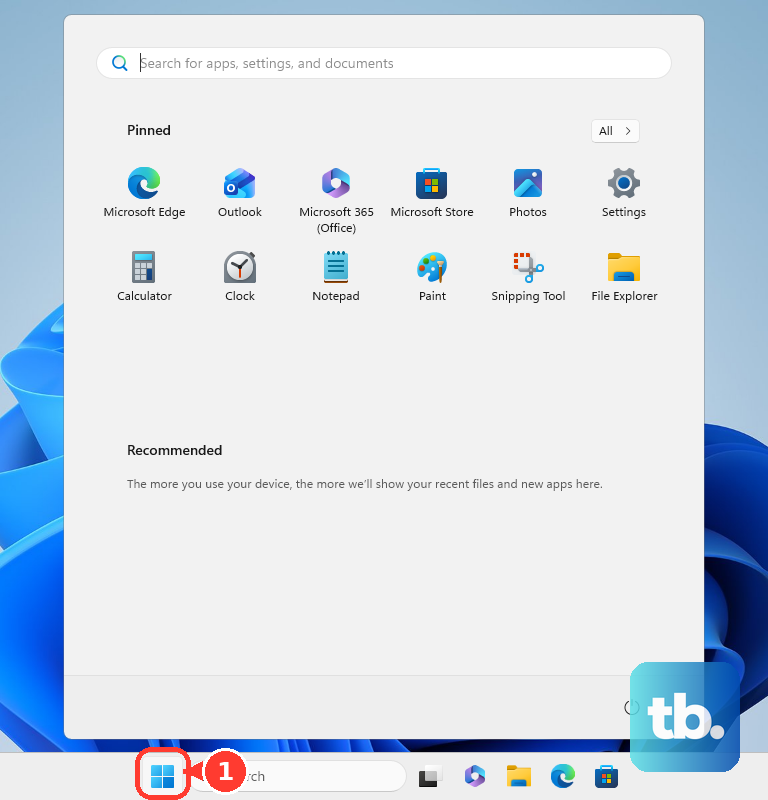
Corrupted Windows system files can trigger crashes. To check for this, open the Start menu, type cmd, right-click Command Prompt, and select Run as administrator. In the window, type sfc /scannow and press Enter. This scan will look for and repair corrupted protected files.
If SFC finds problems it can't fix, run a deeper repair first. In the same admin command prompt, type DISM /Online /Cleanup-Image /RestoreHealth and press Enter. After it completes, run the sfc /scannow command again.
Check for App Compatibility Issues
The OmniBook 5 14's ARM architecture means some older x86/64 apps run through an emulation layer. While generally seamless, this can sometimes cause instability. If the blue screen tends to occur when launching a specific application, check the developer's website for a native ARM64 version. You can also try running the app in compatibility mode by right-clicking its shortcut, selecting Properties, and then the Compatibility tab.
Test Your Memory and Storage
Hardware faults can also be to blame. To check your RAM, type Windows Memory Diagnostic into the Start menu and run the tool. Select Restart now and check for problems. Your laptop will reboot and run the test, showing results when Windows loads again.
To check your SSD for errors, go back to your admin Command Prompt. Type chkdsk C: /f /r and press Enter. It will schedule the scan for the next restart. Type Y to confirm, restart your laptop, and let the check run. This looks for and repairs file system errors on your drive.
Access the HP BIOS and Diagnostics
HP includes built-in hardware diagnostics. Restart your OmniBook 5 14 and repeatedly press the F2 key as it boots to launch the HP PC Hardware Diagnostics UEFI. From here, you can run comprehensive tests on your system memory, hard drive, and other components to rule out a hardware failure.
You can also press F10 during startup to enter the BIOS setup. While here, a simple step is to load default settings. Look for an option like Restore Defaults or Load Setup Defaults, save and exit. Sometimes an incorrect BIOS setting can cause instability.
Reset Your PC
If all else fails and the blue screens continue, resetting Windows is a powerful solution. Go to Settings > System > Recovery and click Reset PC. Choose Keep my files to reinstall Windows while preserving your personal documents, photos, and other data. This will remove all installed apps and drivers, giving you a fresh, stable system foundation. Remember to back up anything critical before proceeding, just to be safe.