
Your HP OfficeJet Pro 9120e shows offline in Windows or macOS even though the printer screen looks fine. Print jobs sit in the queue forever. The HP Smart app can't see it. This is fixable in five minutes if you know which symptom maps to which fix.
The fastest fix for the 9120e specifically is the dual restart: power-cycle the printer (unplug for 30 seconds, plug back in) AND restart your computer. The Wi-Fi 5 radio in this model can stick in a half-connected state where the printer thinks it's online but Windows or macOS gives up on it. A clean restart on both ends clears the simplest version of this.
If that didn't do it, here's what's actually going on and how to walk through the rest.
Disable SNMP Status Enabled in Windows
This is the single most overlooked fix for the 9120e on Windows. The TCP/IP standard port polls the printer over SNMP to confirm it's reachable. If those SNMP responses time out, even briefly, Windows marks the printer offline and refuses to send jobs even though the printer is fine. Open Settings > Bluetooth and devices > Printers and scanners. Click your 9120e, then Printer properties > Ports. Highlight the active TCP/IP port and click Configure Port. Uncheck SNMP Status Enabled and click OK.
Send a print job. If the printer goes from offline to online the moment you uncheck this, SNMP polling was the cause.
Restart the Print Spooler
The most-common Windows-side fix. Open Command Prompt as Administrator. Run net stop spooler then net start spooler. The spooler service restarts cleanly. Now check Windows Settings > Printers and Scanners; the 9120e should be marked online again.
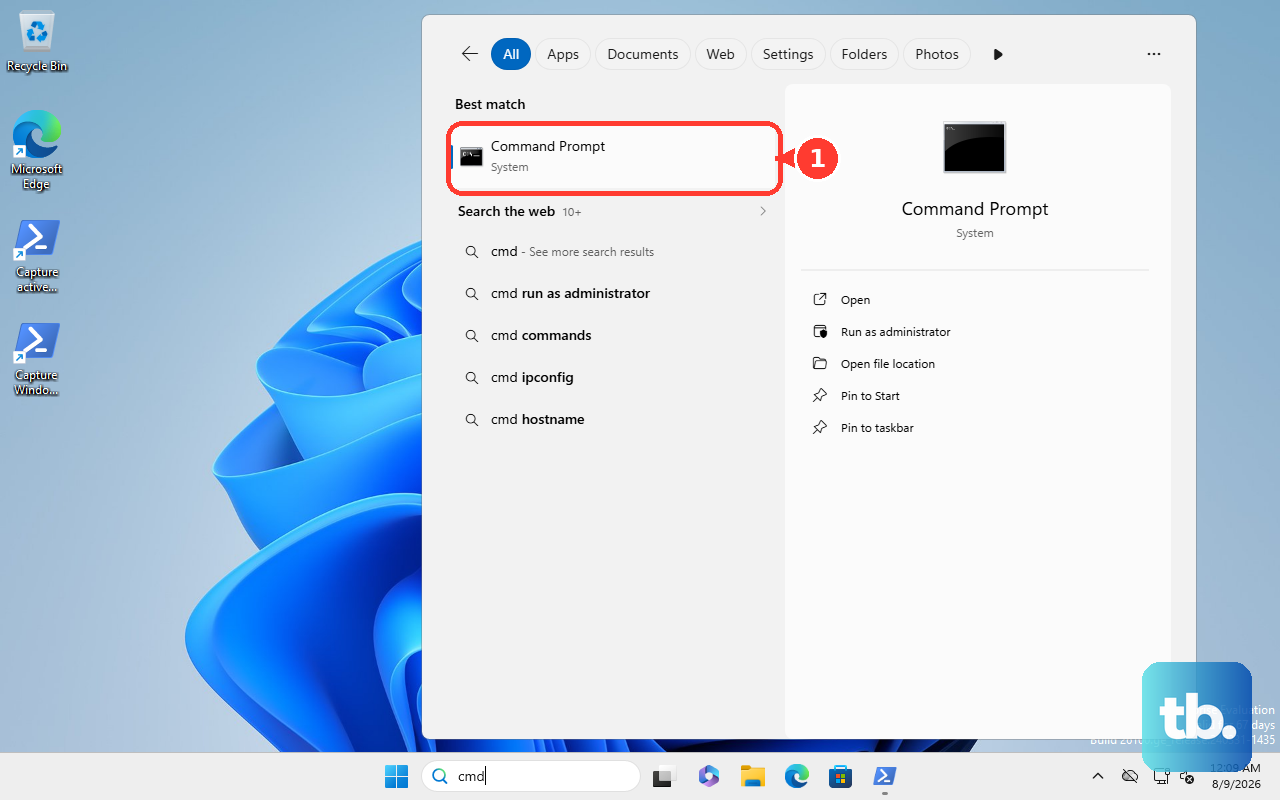
If the spooler refuses to start with an error, you have a stuck print job blocking it. Open %windir%\System32\spool\PRINTERS in File Explorer (after stopping the spooler), delete all files inside, then start the spooler.
Run HP Print and Scan Doctor
HP's official self-diagnostic. Download HP Print and Scan Doctor from HP's support site and run it. The tool resets the spooler, validates port settings, checks driver state, and applies fixes automatically in about 60 seconds. If the offline state was caused by anything in the spooler/driver/port stack, this catches it without manual digging.
Check the Use Printer Offline Toggle
Windows has a manual offline toggle that's easy to flip accidentally. Open the legacy Control Panel > Devices and Printers. Right-click the 9120e. If Use Printer Offline has a checkmark next to it, click it once to uncheck. The printer comes back online instantly. No other fix in this guide will work while this toggle is on.
Reset the Printing System on macOS
macOS-side equivalent. Open System Settings > Printers and Scanners. Right-click (or Control-click) anywhere in the printer list and choose Reset printing system. This wipes all configured printers. Confirm, then re-add the 9120e via the + button. The fresh add usually fixes the offline state immediately.
Print a Network Configuration Page
Get the printer's current IP. On the 9120e touchscreen, tap Setup (gear icon) > Reports > Network Configuration Page. The printer prints a sheet showing its IP address, subnet, gateway, and signal strength. Compare the IP to what your computer thinks the printer's IP is (in Windows: control panel printer properties; in macOS: Printers and Scanners > printer > Options).
If they don't match, the printer's IP changed via DHCP. Two fixes: either set a DHCP reservation in your router so the IP stays fixed, or update the computer's printer config to the new IP.
Temporarily Switch to WPA2 for Mesh WiFi
The 9120e is Wi-Fi 5 only and struggles with WPA3-only or WPA3 PMF-required mesh networks. If you have Eero, Orbi, TP-Link Deco, or similar mesh, log in via the manufacturer's app and switch the security mode from WPA3 to WPA2 or WPA2/WPA3 transitional. Re-pair the printer (HP Smart app guides you). Once paired, you can re-enable WPA3 and the printer holds the connection.
This is a known weak spot on the 9120e. The Wi-Fi 5 radio just doesn't handle WPA3 PMF well. If pairing stalls during initial setup, temporarily switching to WPA2 almost always gets it through.
Re-Add the Printer via HP Smart
If the printer's IP keeps changing or the connection feels flaky, re-add the printer fresh through the HP Smart app. Open HP Smart on your phone or computer, remove the existing 9120e entry, then tap Add Printer. The app re-discovers it on your network and reinstalls the driver. This is usually faster than fixing a broken existing config.
Check Your HP+ Enrollment Status
If you enrolled in HP+ during setup, the printer needs constant internet to work. Open HP Smart, tap your printer, then look at the HP+ section. If it shows "Disconnected" or "Cloud unreachable," the printer can't authenticate with HP's servers and may mark itself offline locally as a safety measure. The fix is to confirm the printer can reach the internet (test by browsing to it via a web browser using its IP) and that your HP account is still valid.
Note that HP+ permanently locks the printer to original HP cartridges. If you're trying to use third-party cartridges, the printer will refuse and may go offline. The 9120e uses HP 936 standard or 936e high-yield cartridges, not the older 902 series.
Set the 9120e as the Default Printer
Windows 11 sometimes auto-switches the default printer to whatever you used last, including "Microsoft Print to PDF." Open Settings > Bluetooth and devices > Printers and scanners. Toggle off Let Windows manage my default printer. Then click your 9120e and choose Set as default. This locks it in.
Update the Printer Firmware
Outdated firmware causes spooler protocol mismatches with newer Windows or macOS versions. Open HP Smart, tap your printer, scroll to Advanced Settings > Firmware Update. If an update is available, install it. The update takes about 5 minutes and the printer restarts automatically. After the restart, the offline issue often clears.
A known issue with the 9120e: AirPrint can disappear after a firmware update. If that happens, re-adding the printer via HP Smart usually brings AirPrint back.
Switch to Ethernet for a Stable Connection
If WiFi has been unreliable, the 9120e has an Ethernet port for wired connection. Run a Cat 5e or better cable from the printer to your router. Within 30 seconds the printer picks up an IP via Ethernet (printer screen shows the new IP). On your computer, re-add the printer using the new Ethernet IP. Wired connections never go offline due to WiFi issues.
Factory Reset the Printer
If nothing else worked, restore the 9120e to factory settings. On the printer touchscreen, swipe down the dashboard and tap Setup (gear icon) > Tools > Restore > Restore Factory Defaults. Confirm. The printer wipes all WiFi config, custom settings, and HP Smart pairings. You'll need to set up WiFi from scratch via HP Smart, but offline issues caused by deep config corruption clear completely.
There's also a hardware shortcut if the touchscreen is unresponsive: hold the Wireless and Cancel buttons together for 5 seconds for a network-only reset, or hold Power and Cancel for about 10 seconds for a full power-cycle reset.