
Screen flickering on your HP Envy x360 15 is incredibly distracting, whether it's a rapid flash, intermittent blackouts, or horizontal lines dancing across your display. It can make work or watching videos a real chore. Let's get it sorted out.
Use HP Support Assistant First
HP includes a great tool for this exact scenario. Open the HP Support Assistant app from your Start menu. Click on Updates or Troubleshooters and run the display diagnostics. I've seen this auto-fix common driver conflicts and install the correct Intel or AMD graphics driver for your specific convertible model with a single click.
Update Your Graphics Drivers Manually
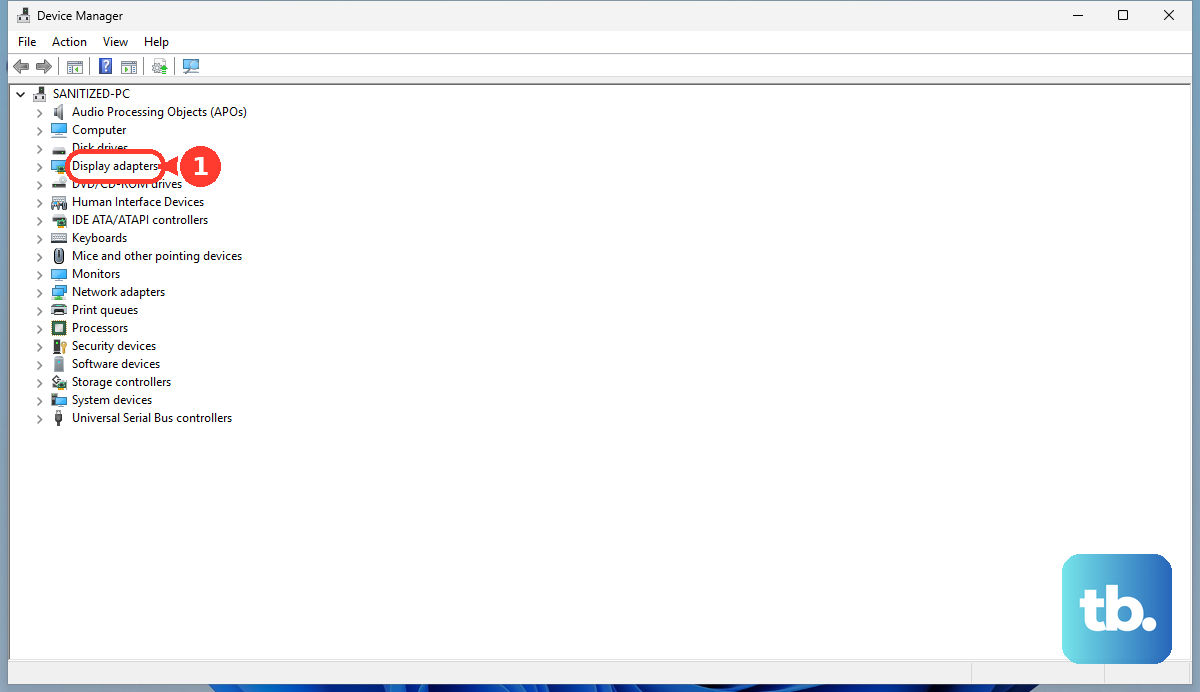
For a more direct approach, open Device Manager from the Start search bar. Expand Display adapters, right-click your GPU (likely Intel Iris Xe or AMD Radeon Graphics), and select Update driver. Choose "Search automatically for drivers." For the absolute latest, I'd go directly to the Intel or AMD website and use their auto-detect tool, as Windows Update can sometimes lag behind with the optimal driver for a 2-in-1.
Check the Refresh Rate Setting
Right-click your desktop and select Display settings. Scroll down and click Advanced display. Look at the refresh rate dropdown. If it's set to 60Hz, try switching it to 59.94Hz, or vice versa. This small change can resolve flickering caused by a slight mismatch between the display panel and the graphics output.
Disable Hardware Acceleration in Apps
This is a frequent culprit, especially in web browsers. In Chrome, go to Settings > System and turn off Use hardware acceleration when available. Do the same in Discord, Spotify, or any other app that has the option. This tells the app to stop using your GPU directly, which can clear up flickering caused by software conflicts.
Boot into Safe Mode to Isolate the Cause
If the flickering is constant, restart your Envy x360. As soon as the HP logo appears, press and hold the power button for 10 seconds to force it off. Turn it on, and as soon as the logo appears again, force it off. Do this one more time. On the fourth boot, it should enter the Windows Recovery Environment, where you can select Troubleshoot > Advanced options > Startup Settings > Restart, then press 4 or F4 for Safe Mode. If the screen is stable in Safe Mode, a third-party driver or startup app is to blame.
Roll Back a Recent Display Driver
If the flickering started right after a Windows or driver update, you can revert. Go back into Device Manager, double-click your display adapter, and go to the Driver tab. Click Roll Back Driver. This will reinstall the previous driver version that was working correctly. It's a quick fix that often works immediately.
Run the Built-in HP Hardware Diagnostics
This tests the physical display hardware. Restart your laptop and immediately press the F2 key repeatedly until the HP PC Hardware Diagnostics UEFI menu loads. From there, run the System Tests and choose the Video Memory Test and Video Display Test. If these tests show flickering or fail, it points to a potential hardware issue.
Check for a Loose Internal Cable
The Envy x360's convertible hinge puts extra stress on the internal display ribbon cable over time. If the flickering gets worse when you physically rotate the screen into tablet mode or open/close the lid, the cable connection might be loose. This isn't a simple fix and usually requires opening the chassis, which I'd leave to a professional if you're not comfortable.
Adjust Power Settings for the Display
Sometimes aggressive power-saving features can cause the screen to act up. Open the Windows Control Panel, go to Hardware and Sound > Power Options. Next to your selected plan, click Change plan settings > Change advanced power settings. Expand Display and then Adaptive brightness. Set both "On battery" and "Plugged in" to Off. Also, under Intel Graphics Settings or similar, look for display power saving options and disable them temporarily as a test.