
When Bluetooth stops working on your HP Envy x360 15, it cuts you off from your wireless mouse, headphones, and speakers. The connection might drop, a device won't show up, or the Bluetooth toggle itself can vanish. I'd start with the quick fixes below, as they resolve most pairing problems on this model.
Toggle Bluetooth and Restart
First, click the notification icon in your taskbar and make sure the Bluetooth tile is turned on. If it's missing from there, go to Settings > Bluetooth & devices and enable it. If that doesn't work, just restart your laptop. A full reboot clears out temporary driver glitches that often happen after the Envy x360 wakes from sleep.
Use the HP Support Assistant
HP includes a handy tool for this. Open the HP Support Assistant app from your Start menu. Look for a section like "Updates" or "Troubleshoot," and run any checks it recommends for connectivity or drivers. It can automatically find and fix common driver conflicts, including those with Realtek audio, which is a known issue for Bluetooth audio on these laptops.
Remove and Re-Pair Your Device
Go to Settings > Bluetooth & devices and find the problematic device in the list. Click the three dots next to it and select Remove device. Now, put your Bluetooth headphone or mouse into its pairing mode. On your Envy, click Add device and select Bluetooth to search for it again and create a fresh connection.
Update Your Bluetooth Drivers
Outdated or corrupted drivers are a frequent culprit. Press the Windows key + X and choose Device Manager. Expand the Bluetooth section, right-click on your adapter (it might be listed as Intel or Realtek), and select Update driver. Choose Search automatically for drivers. For the best results, you can also download the latest driver directly from the HP support website using your laptop's serial number.
Run the Windows Bluetooth Troubleshooter
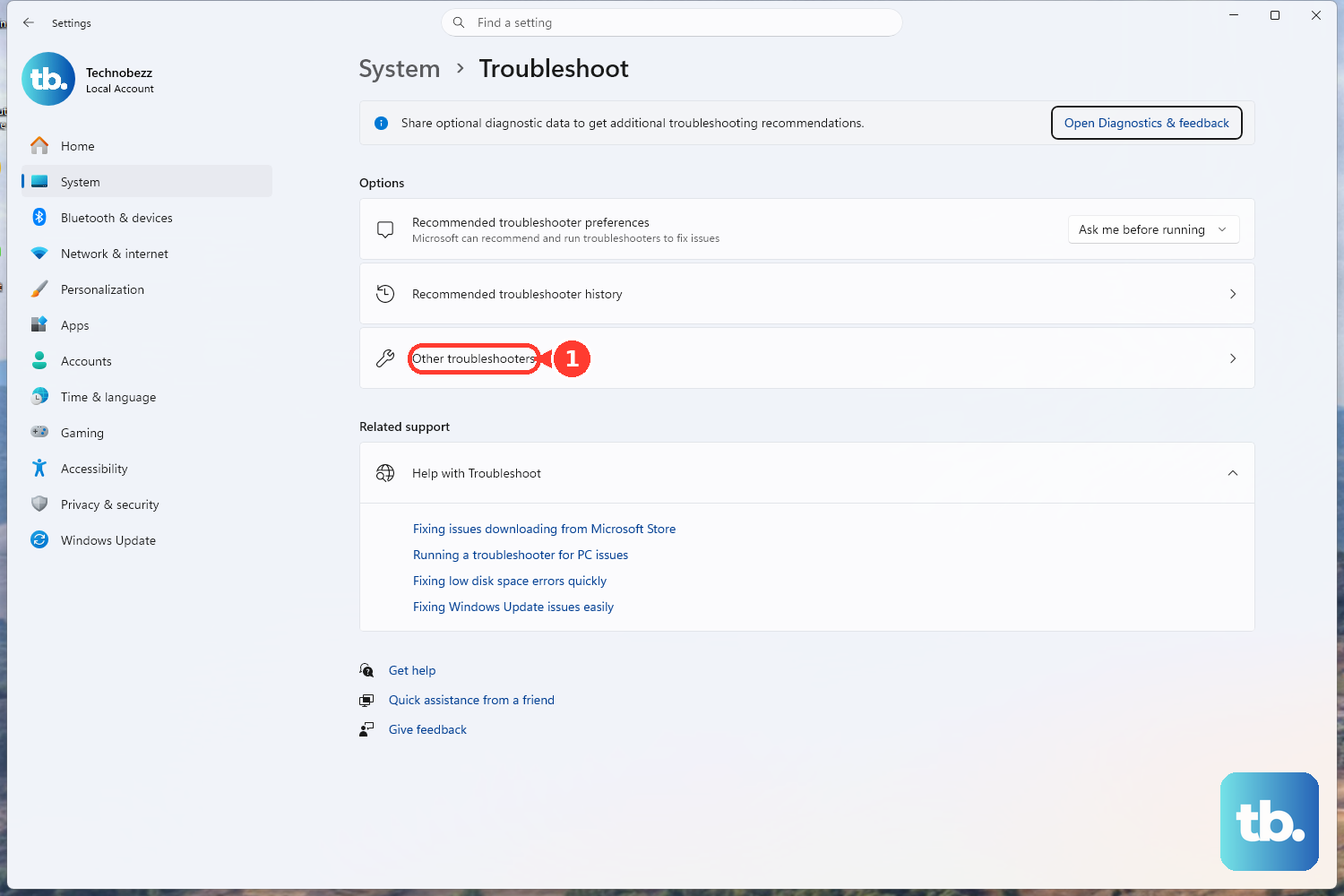
Windows has a built-in tool for this. Go to Settings > System > Troubleshoot > Other troubleshooters. Find the Bluetooth troubleshooter in the list and click Run. It will scan for configuration problems and attempt to apply fixes automatically, which can save you a lot of manual digging.
Restart the Bluetooth Support Service
Sometimes the background service that manages Bluetooth stops running. Press Windows key + R, type services.msc, and hit Enter. In the list, find Bluetooth Support Service. Right-click on it and select Restart. While you're there, double-click it to open its properties and ensure the Startup type is set to Automatic.
Check for Physical and Wireless Interference
The Envy x360's convertible design means the antennas are in the display. If you're in laptop mode, try opening the lid fully. Also, Bluetooth uses the 2.4GHz band, which can get crowded. Move other wireless devices like routers or USB 3.0 hubs away from your laptop, as they can cause signal interference that breaks the connection.
Check for Windows Updates
Microsoft regularly releases patches that fix connectivity issues. Go to Settings > Windows Update and click Check for updates. Install any available feature or quality updates. After the update installs and your laptop restarts, try pairing your Bluetooth device again.
Reinstall the Bluetooth Adapter in Device Manager
This gives you a completely clean driver installation. Open Device Manager again, find your Bluetooth adapter under the Bluetooth section, right-click it, and choose Uninstall device. Check the box that says "Attempt to remove the driver for this device" if you see it. Restart your Envy x360. Windows will detect the hardware on boot and reinstall the default driver.
Reset Your Laptop's BIOS/UEFI Settings
In rare cases, a BIOS setting can affect hardware radios. To check, restart your Envy x360 and immediately press the F10 key repeatedly to enter the BIOS setup. Look for a menu like "System Configuration" or "Advanced." Find an option related to wireless or Bluetooth and ensure it is enabled. Finally, select "Exit > Exit Saving Changes." If you're unsure, there's often a "Load Setup Defaults" or "Restore Defaults" option you can use safely.