
The Blue Screen of Death on your HP Envy x360 15 is Windows hitting the emergency stop button. It's usually a driver conflict, a hardware hiccup, or a corrupted system file. The specific error code on the screen gives you a clue, but the fixes below work for most of them.
Restart and See if It Happens Again
A single crash can be a random glitch. Restart your laptop normally. If it boots up fine and runs without another blue screen for a while, you can probably chalk it up to a one-off event. If it crashes again right away or within a few minutes of use, you've got a recurring problem to solve.
Write Down the Stop Code
When the blue screen appears, look for the all-caps error code. Common ones include DRIVER_IRQL_NOT_LESS_OR_EQUAL, SYSTEM_SERVICE_EXCEPTION, or KERNEL_SECURITY_CHECK_FAILURE. Jot it down. This code points to the category of the failure and is useful for searching later, but the general steps here will tackle most causes.
Boot Into Safe Mode
If the laptop crashes before you can even log in, you'll need to boot into Safe Mode. From the sign-in screen, hold the Shift key and click the power icon, then select Restart. After it reboots to a blue menu, go to Troubleshoot > Advanced options > Startup Settings > Restart. When it restarts again, press the 4 key. Safe Mode loads with minimal drivers, which can help you isolate a problematic software or driver.
Use HP Support Assistant
Your Envy x360 comes with a useful tool pre-installed. Open HP Support Assistant and run a system check. It can often identify and automatically fix common driver issues, including known audio conflicts with Realtek drivers that have caused crashes on these models. I'd start with this one, as it's the easiest path to a fix.
Update or Roll Back Drivers
Outdated or faulty drivers are the top cause of BSODs. Pay special attention to graphics, chipset, and audio drivers. You can update them through Device Manager or by downloading the latest packages directly from HP's support site for your specific model. If the crashes started right after a driver update, go back to Device Manager, right-click the device, select Properties > Driver > Roll Back Driver.
Uninstall Recent Windows Updates
If the blue screens began after a Patch Tuesday, that update might be the culprit. Go to Settings > Windows Update > Update history > Uninstall updates. Look at the most recently installed updates and uninstall them one at a time, restarting after each, to see if the problem stops.
Run System File Checker and DISM
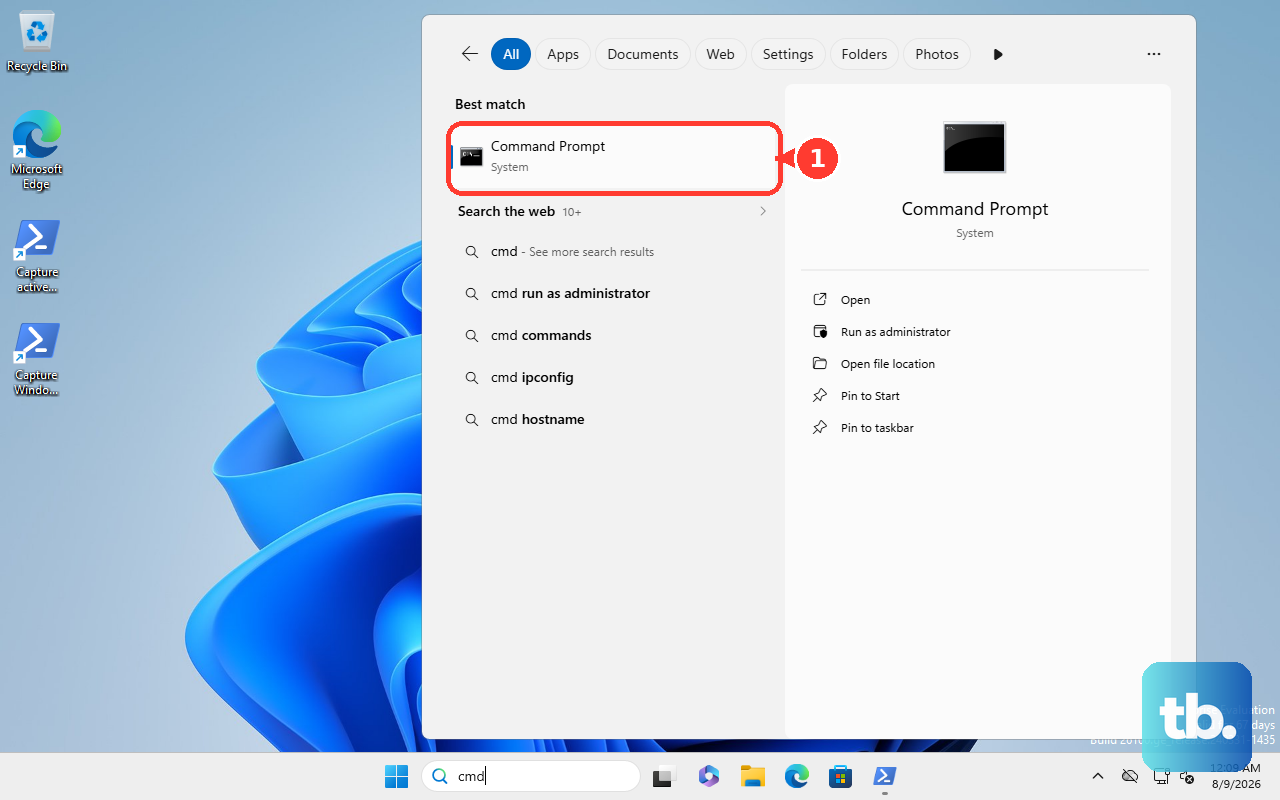
Open Command Prompt as an administrator. Type sfc /scannow and press Enter. This command scans for and repairs corrupted Windows system files. If SFC finds problems it can't fix, run the Deployment Image Servicing tool first by typing DISM /Online /Cleanup-Image /RestoreHealth. After it completes, run the sfc command again.
Check Your Memory with HP Diagnostics
Faulty RAM is a classic cause of random crashes. Your HP has a built-in hardware test. Restart your laptop and immediately press the F2 key repeatedly to launch the HP PC Hardware Diagnostics UEFI. From there, you can run a comprehensive memory test. If it finds errors, the RAM modules might need to be reseated or replaced.
Check for Disk Errors
Open Command Prompt as an administrator. Type chkdsk C: /f /r and press Enter. It will schedule a check for the next restart. Say yes, restart your laptop, and let it run. This looks for bad sectors on your SSD and repairs file system errors, which can be a source of crashes.
Reset Your PC
If you're still facing crashes, a reset can clear out deep-seated software corruption. Go to Settings > System > Recovery and click Reset this PC. Choose Keep my files to reinstall Windows while preserving your personal data. This is a nuclear option, but it often resolves persistent driver conflicts and system file issues that other tools miss.