
When your HP EliteBook 840 starts to lag, it feels like you're wading through molasses. Files take forever to open, and switching between applications becomes a chore. I've found that on business laptops like the EliteBook, the slowdown is often tied to background enterprise processes or driver conflicts, and you can usually fix it yourself.
Perform a Full Restart
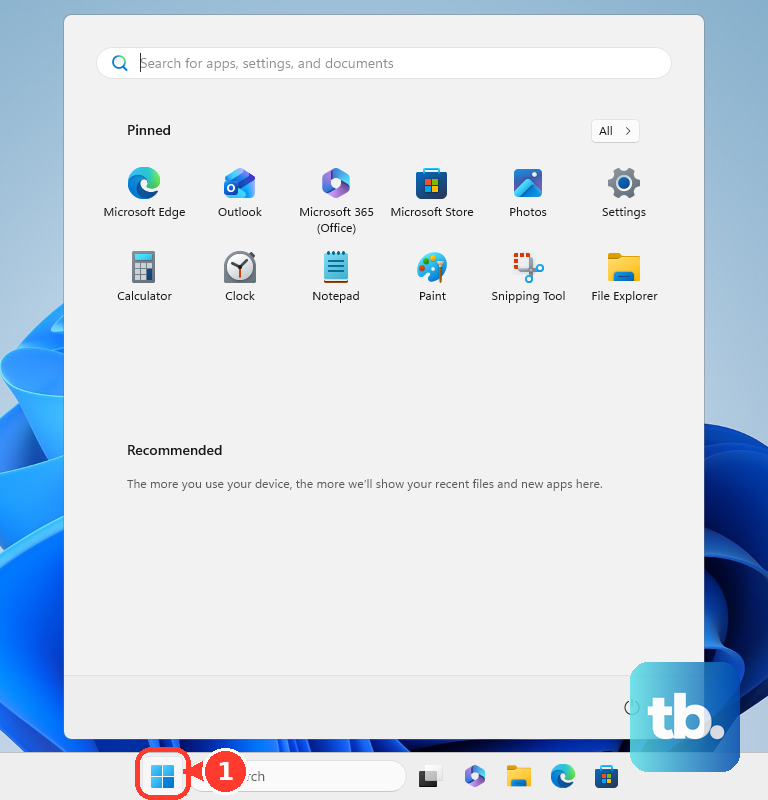
Don't just close the lid. Click Start > Power > Restart to give your system a fresh start. This clears out temporary memory leaks from applications and services that can build up over days of use, especially from corporate security software.
Use HP Support Assistant for Drivers
Outdated or conflicting drivers are a common culprit for EliteBook lag. Open the HP Support Assistant app, which comes pre-installed, and run a check for updates. It's particularly good at managing enterprise-grade driver packages for your specific model, which can be more reliable than Windows Update for critical components.
Check Task Manager for Resource Hogs
Press Ctrl + Shift + Esc to open Task Manager. Click the CPU, Memory, or Disk columns to sort by usage. Look for processes consuming a high percentage. Corporate antivirus scans, Windows Search indexing, or a stalled Windows Update can often be the hidden cause of slowdowns.
Manage Startup Programs
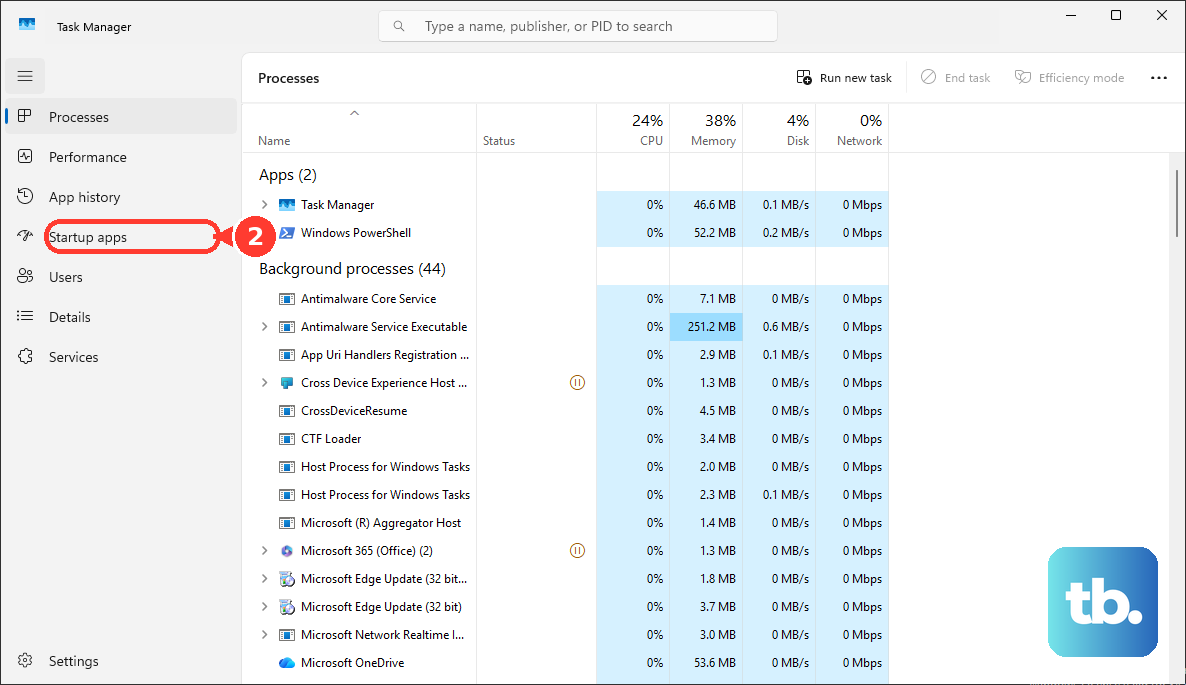
In Task Manager, click the Startup apps tab. You'll likely see several corporate applications set to launch at boot. Right-click and disable any you don't need immediately upon startup, like communication apps or cloud storage services. This significantly reduces boot time and frees up RAM.
Run HP PC Hardware Diagnostics
To rule out a hardware issue, restart your laptop and immediately press F2 repeatedly to launch the HP PC Hardware Diagnostics (UEFI). Run the system quick test, and if prompted, the extensive memory test. This can identify if failing RAM or storage is behind the performance problems.
Verify Power Plan Settings
Windows might be throttling your CPU to save battery. Click the battery icon in the system tray and move the slider to Best Performance. For more control, go to Control Panel > Hardware and Sound > Power Options and ensure the "High performance" plan is selected when plugged in.
Inspect for Docking Station Conflicts
If you use a USB-C docking station, try undocking and running the laptop on its own power for a while. Some users report performance lag and USB issues when connected to certain docks due to driver or firmware conflicts. Updating your dock's firmware can resolve this.
Free Up Storage Space on Your Drive
Open Settings > System > Storage. A drive that's over 85% full can severely slow down any computer. Use the "Temporary files" cleaner and consider moving large documents to a network drive or external storage. For EliteBooks with smaller SSDs, this is a crucial step.
Disable Unnecessary Visual Effects
Search for "Adjust the appearance and performance of Windows" in the Start menu. In the Visual Effects tab, select Adjust for best performance to turn off all animations. This frees up CPU and GPU resources for your actual work, which can be noticeable on models with integrated graphics.
Check BIOS Settings and Update
Restart and press F10 to enter the BIOS Setup. Look for any performance-related settings that may have been changed. More importantly, check the HP Support website for a BIOS update for your exact EliteBook 840 model. BIOS updates often include performance and stability improvements.
If your EliteBook has HP Sure Start enabled and you see a recovery message, let the process complete. It's designed to automatically recover a corrupted BIOS, which can sometimes cause boot-time lag. Just follow the on-screen prompts.
Perform a Clean Boot
This helps identify if a background service is causing the lag. Type msconfig into the Run dialog (Win + R). Go to the Services tab, check Hide all Microsoft services, then click Disable all. On the Startup tab, click "Open Task Manager" and disable all startup items. Restart and see if performance improves.
Reset or Refresh Your Windows Installation
If software clutter is the issue, a reset can help. Go to Settings > System > Recovery and click Reset PC. Choose Keep my files to reinstall Windows while preserving your personal data. Remember, this removes all your applications, so you'll need to reinstall work software.