Windows 10 can start behaving badly when protected system files are missing or corrupted. The System File Checker command, often searched as sfc/scannow win 10, scans those files and repairs what Windows can fix. Start with the normal admin Command Prompt method, then move to Safe Mode or recovery only when Windows blocks the scan or will not boot.
1. Run the main SFC scannow repair
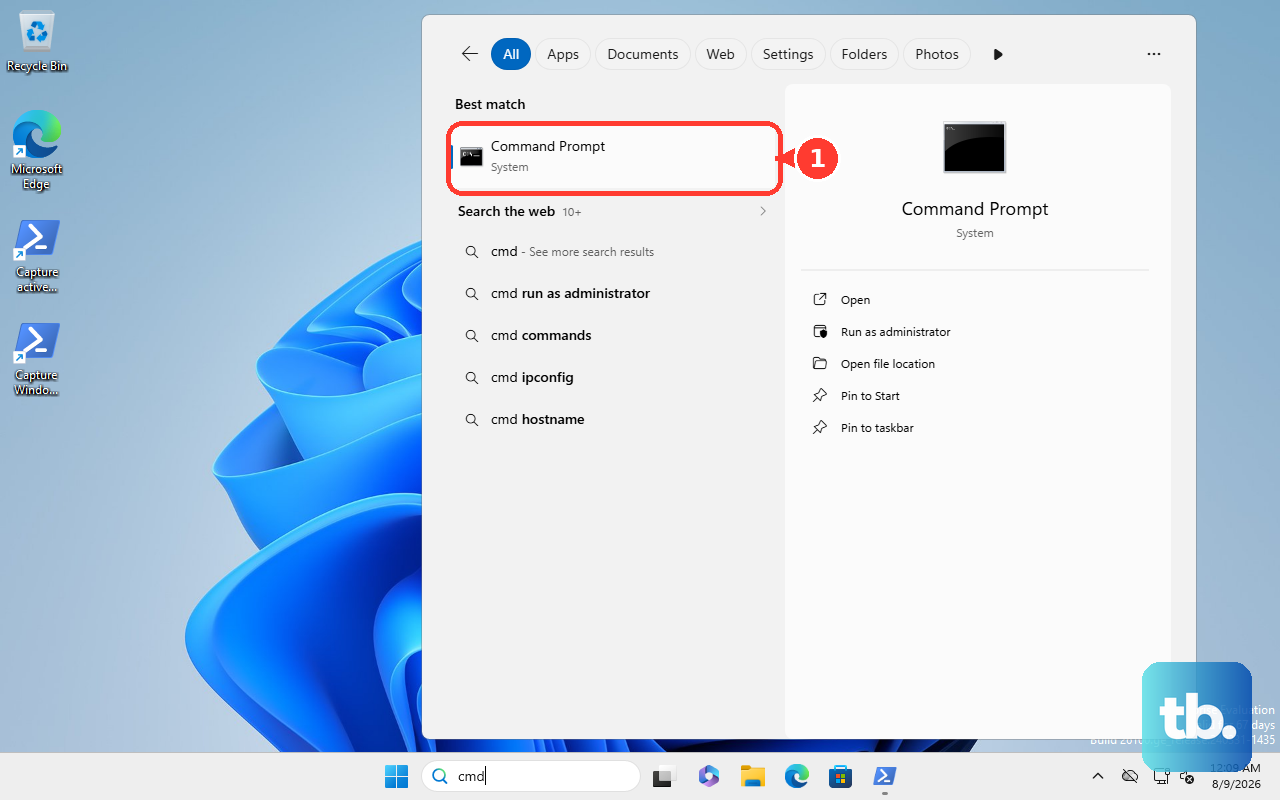
This fixes missing or corrupted protected Windows system files from inside your normal Windows session. Select the search box on the taskbar and type command prompt. Right-click or press and hold Command Prompt, then select Run as administrator. Select Yes when Windows asks for permission.
Type DISM.exe /Online /Cleanup-image /Restorehealth and press Enter. Wait until you see The operation completed successfully. Then type sfc /scannow and press Enter. Wait for Verification 100% complete, then type exit and press Enter.
2. Confirm the admin prompt requirement
SFC must run from an elevated command-line window, so the normal path is taskbar Search > Command Prompt > Run as administrator. You need an administrator account or administrator credentials before Windows will let the repair scan run. If you are using a standard account, sign in with an admin account or ask the device owner for the credentials.
3. Use Windows Terminal when it is installed
This fixes the same system-file problems, but it gives you another supported way to open an administrator command line. Press Windows key + X, then select Windows Terminal (Admin). Approve the User Account Control prompt.
Open a Command Prompt or PowerShell profile if you need to switch shells. Run DISM.exe /Online /Cleanup-image /Restorehealth. After DISM finishes successfully, run sfc /scannow.
4. Read the scan results correctly
The scan is not done until the Command Prompt window reaches Verification 100% complete. A successful DISM run should show The operation completed successfully before you start SFC. Microsoft also supports related SFC commands such as sfc /verifyonly, but the repair path most Windows 10 consumers need is Command Prompt > Run as administrator > sfc /scannow.
5. Save the SFC details to your desktop
This does not repair anything, but it exports the SFC details from your CBS log so you can see which files were repaired or could not be repaired. Sfcdetails.txt contains details from every time System File Checker has been run on the PC, so check the date and time entries to pick out your most recent scan.
Open Command Prompt with Run as administrator.
Run findstr /c:"[SR]" %windir%\Logs\CBS\CBS.log >"%userprofile%\Desktop\sfcdetails.txt". After that, open Sfcdetails.txt from your desktop.
6. Try Safe Mode when SFC cannot perform the operation
Open Windows Recovery Environment. Select Troubleshoot, then select Advanced options. Select Startup Settings, then select Restart. Choose Enable Safe Mode or Safe Mode with Command Prompt using the number keys or F1-F9.
In Safe Mode, open an elevated Command Prompt if needed and run sfc /scannow. Use this route when Windows reports Windows Resource Protection could not perform the requested operation.
7. Run offline SFC from recovery tools
If Windows 10 still starts but SFC will not run inside your normal session, use Settings > Update & Security > Recovery > Advanced startup > Restart now to enter Windows Recovery Environment. That route needs a working Windows sign-in, so if the PC will not boot at all, use one of the routes in the next section instead.
Then select Troubleshoot, Advanced options, and Command Prompt. From there, run an offline command such as sfc /scannow /offbootdir=D:\ /offwindir=D:\Windows, replacing the drive letters with the actual offline Windows partition.
8. Reach recovery when Windows will not open
- 1.Hold Shift while selecting Power and Restart, then go to Troubleshoot, Advanced options, and Command Prompt.
- 2.If the PC fails to start correctly, start it, wait for the Windows logo or manufacturer logo, hold the power button until it shuts down, repeat once, then turn it on a third time. On Automatic Repair, select Advanced options, then open Command Prompt.
- 3.If you already have a USB recovery drive or Windows Repair Disc, boot from it, enter Windows Recovery Environment, and open Command Prompt.
- 4.If you need installation media, use Microsoft’s Windows 10 download page to create it, boot the nonworking PC from the media, select Next, then choose Repair my PC.
- 5.In the recovery Command Prompt, run sfc /scannow /offbootdir=<drive>\ /offwindir=<drive>\Windows with the correct offline drive letter.
9. Skip outdated launch methods
Do not rely on older Cortana or voice-assistant instructions for SFC. Microsoft retired Cortana voice assistance in Windows as a standalone app in spring 2023, so use Search, Command Prompt, PowerShell, Windows Terminal, or Windows Recovery Environment instead.
Skip older Start-menu directions such as Start > All Programs > Accessories > Command Prompt > Run as administrator. Current Windows 10 SFC guidance uses taskbar Search and Run as administrator.
On a work or school PC, contact your IT administrator when the elevation prompt is blocked or you do not have admin credentials. The terminal choice changes where the command opens, not what sfc /scannow does.
Frequently Asked Questions
Should I run DISM before sfc scannow in Windows 10?
Yes. Microsoft’s current consumer steps run DISM.exe /Online /Cleanup-image /Restorehealth first, then run sfc /scannow after DISM completes successfully.
Which Windows 10 account do I need for SFC?
Use an administrator account or enter administrator credentials at the User Account Control prompt. SFC repairs protected Windows files, so a standard account cannot run it by itself.
What does sfc /verifyonly do?
The sfc /verifyonly command checks protected Windows files without repairing them. Use sfc /scannow when you want Windows to scan and repair supported file problems.
Can I run sfc scannow if Windows 10 will not boot?
Yes. Enter Windows Recovery Environment, open Command Prompt, and run offline SFC with /offbootdir and /offwindir pointing to the offline Windows installation.