You want to use your iPhone for a computer video call, but it isn't showing up as a camera. A compatible Mac uses Apple's built-in Continuity Camera; Windows needs a companion app such as Camo. Here's how to connect your phone, select it in your calling app, and sort out blocked video or missing audio.
Connect your iPhone to a Mac wirelessly
Check your devices first: you need an iPhone XR or later running iOS 16 or later and a Mac running macOS Ventura 13 or later. Both must use the same Apple Account with two-factor authentication.
On your iPhone, open Settings > General > AirPlay & Continuity and turn on Continuity Camera.
Enable Wi-Fi on both devices.
Enable Bluetooth on both devices.
Mount your iPhone near the Mac with its rear cameras facing you. Landscape positioning allows automatic camera selection.
Lock the iPhone.
Open FaceTime on your Mac.
If FaceTime still shows another camera, choose Video > your iPhone's name.
Keep internet sharing off on both devices, and end AirPlay or Sidecar sessions on the Mac before using wireless Continuity Camera.
Set up Camo on Windows
Camo Studio requires Windows 10 version 2004 (build 19041) or later, or macOS 12.3 or later. The current Camo Camera app requires iOS 15.6 or later.
- 1.Install Camo Studio on your computer from Camo's official download page.
- 2.Install Camo Camera on your iPhone using the linked iPhone download.
- 3.Complete the onboarding, including the compatibility-component installation.
- 4.Open Camo Studio on the computer and Camo Camera on the iPhone.
- 5.Connect the devices with a USB data cable. Camo connects automatically. Camo says its connection does not require you to accept the iPhone's Trust prompt.
- 6.Select Camo Camera in your meeting app's camera selector.
Make your calling app use the right camera and microphone
This fixes calls that still show your computer's original webcam after the iPhone connects.
In Zoom Workplace, choose Settings > Video & effects > your iPhone's name or Camo Camera.
In Microsoft Teams, open Settings and more > Settings > Devices.
Under Camera, select your iPhone's name or Camo Camera.
In Google Meet, choose Settings > Video > Camera > your iPhone's name or Camo Camera.
For Teams audio, choose your desired microphone separately on the Devices page. Selecting the iPhone camera does not automatically guarantee selection of its microphone.
To select the Continuity Camera microphone on your Mac, choose Apple menu > System Settings > Sound > Input > your iPhone's name.
Use a USB connection for Continuity Camera
Prefer a cable between your iPhone and Mac? USB works too, with the same device, software, and Apple Account requirements as wireless Continuity Camera.
On your iPhone, turn on Settings > General > AirPlay & Continuity > Continuity Camera.
Connect the iPhone to your Mac with a data-capable Lightning or USB-C cable, depending on your phone.
If the iPhone displays Trust This Computer?, tap Trust.
If the Mac displays Allow accessory to connect?, click Allow.
Mount the iPhone with its rear cameras facing you.
Lock the phone.
Select your iPhone's name using your calling app's camera path above.
Check connection requirements and camera permissions
If your iPhone is missing from the camera list, start with the connection requirements. For wireless Continuity Camera, confirm that both devices use the same Apple Account with two-factor authentication.
Enable Wi-Fi on both devices.
Enable Bluetooth on both devices.
Stop internet sharing on either device.
End any AirPlay or Sidecar session on the Mac before reconnecting wirelessly.
If a Mac app cannot access the camera, enable it under Apple menu > System Settings > Privacy & Security > Camera. Built-in apps such as FaceTime already have camera access.
On Windows 11, open Start > Settings > Privacy & security > Camera.
Turn on Camera access.
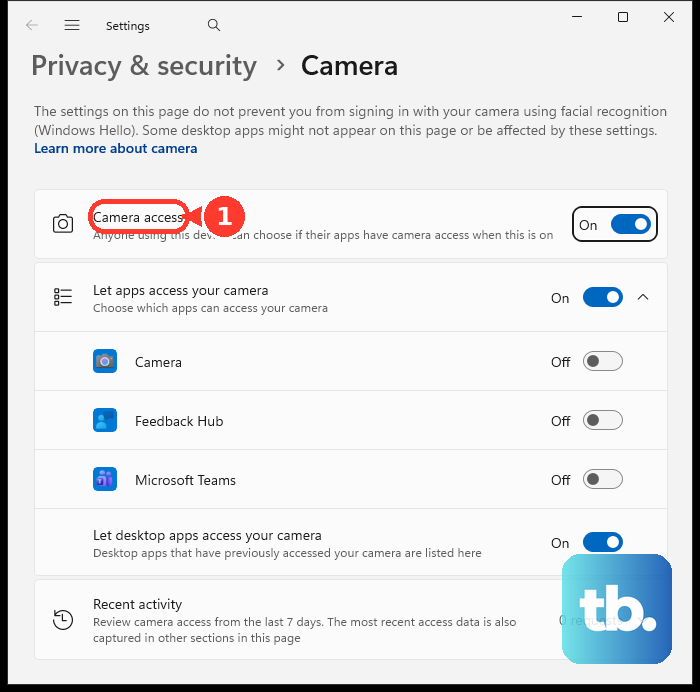
Turn on Let apps access your camera.
Enable Let desktop apps access your camera for desktop conferencing apps and browsers.
For a website requesting camera access in Chrome, choose Allow while visiting the site.
In Safari, set the relevant site to Allow under Safari > Settings > Websites > Camera.
If Camo lacks camera access on your iPhone, enable it under Settings > Privacy & Security > Camera.
For Camo audio access, enable it under Settings > Privacy & Security > Microphone.
If Screen Time blocks the camera, enable Camera under Settings > Screen Time > Content & Privacy Restrictions > Allowed Apps & Features.
Enter the Screen Time passcode if prompted, or ask the parent managing the restriction to change it.
If wireless Continuity Camera still fails, try the USB setup above. If your devices don't meet Continuity Camera's requirements, try Camo within its supported software requirements.
Adjust the picture during a Mac call
Once your camera feed works, use the Mac's menu-bar Video menu for effects on current macOS. Available effects depend on your iPhone and Mac.
With an iPhone XR or later, choose Video > Portrait to apply the portrait effect.
With an iPhone 12 or later, choose Video > Studio Light to apply that lighting effect.
Expand the arrow beside Portrait or Studio Light to adjust its intensity.
On an Apple-silicon Mac running macOS Tahoe 26.2 or later, choose Video > Edge Light to add an on-screen light. With Continuity Camera, the light appears on your Mac's primary display.
Expand the arrow beside Edge Light to adjust brightness and color temperature.
Pause the feed or finish using your iPhone
These controls pause your Continuity Camera feed or stop your Mac from discovering the phone.
Tap Pause on your iPhone to pause the feed.
Tap Resume to continue.
If you unlocked your iPhone, lock it again. Unlocking pauses the session.
Remount the phone to resume the camera feed.
Quit the receiving app when you finish using the camera.
To remove the iPhone from your Mac's camera list, tap Disconnect on the phone.
Reconnect it by USB when you want to use it again.
To disable discovery, turn off Settings > General > AirPlay & Continuity > Continuity Camera on your iPhone.
Frequently Asked Questions
Can Windows Phone Link use my iPhone as a webcam?
No. Microsoft's connected-camera feature requires Android 10 or later. A USB cable alone does not turn an iPhone into a Windows webcam; you need a companion app or another configured camera connection.
Can Camo connect wirelessly instead of using USB?
Yes. In Windows Camo Studio, click + beside Device. On Mac, choose Pair a device from the device dropdown. In Camo on your iPhone, tap the wireless button. Scan the computer's QR code. Select Camo Camera in your calling app. Mac wireless pairing requires macOS 12.3 or later and iOS 15 or later.
Do I need a paid Camo subscription for webcam use?
No. Camo's free and paid editions both support using your phone as a webcam.
Can I use my iPhone as a webcam on Windows without installing an iPhone app?
Yes, through VDO.Ninja in your iPhone browser and OBS on the computer. On your iPhone, open VDO.Ninja and choose Add your Camera to OBS. Grant camera and microphone access. Press Start. Copy the VIEW link into an OBS Browser Source. In OBS, click Start Virtual Camera. Select OBS Virtual Camera in your meeting app. This supplies video; microphone routing is separate.