Command Prompt looks unfamiliar when you're staring at a blinking cursor with a command to enter. Getting started takes just a few basics: where to type, how to choose a folder, and where to find help. Here's how to run your first commands on Windows 11 and Windows 10, with administrator access when a task requires it.
Open Command Prompt and try your first command
Select Start.
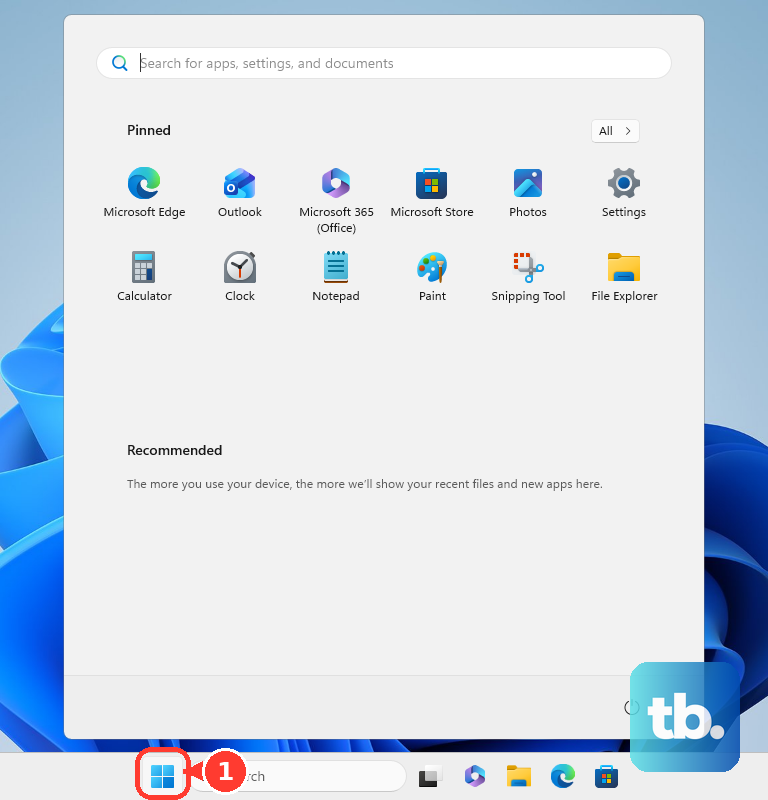
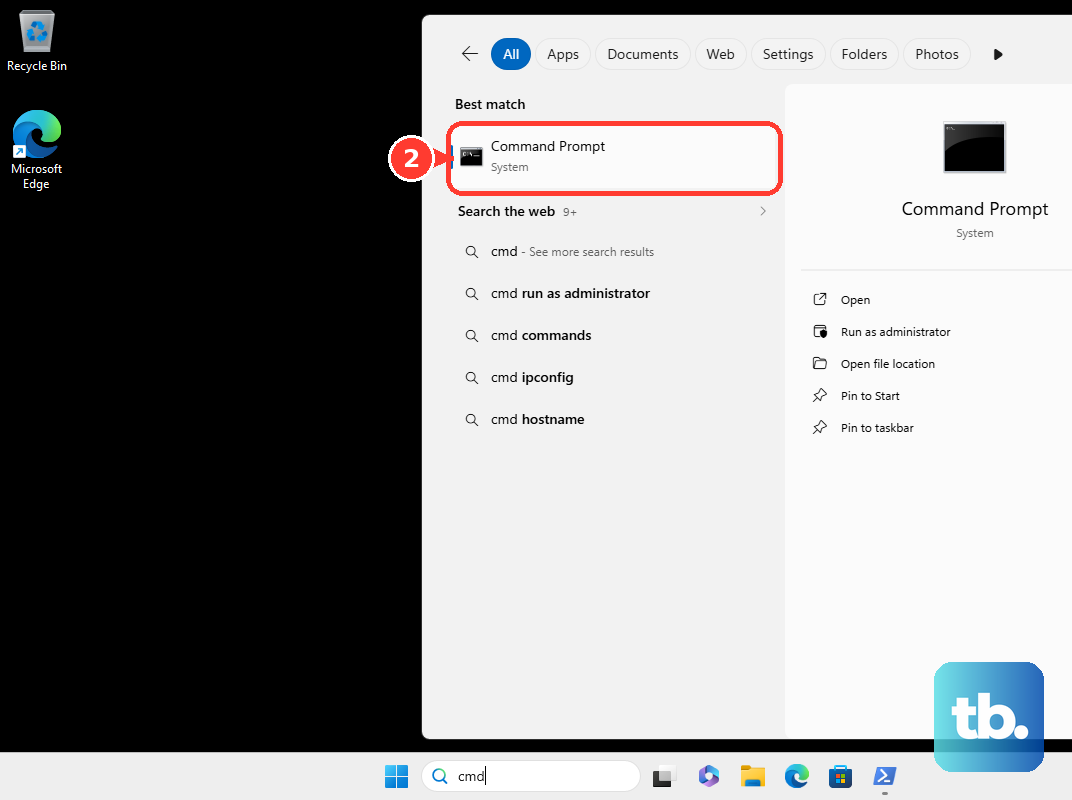
Type cmd into search.
Select Command Prompt from the results.
Enter dir and press Enter to list the files and folders in your current folder.
For a long listing, enter dir /p and press Enter to pause between screens of results.
For a compact listing, enter dir /b and press Enter.
Tip: Type only the command, without copying the location and prompt shown before the cursor.
Choose Command Prompt inside Windows Terminal
Seeing tabs around Command Prompt? That's Windows Terminal, an app that hosts Command Prompt and PowerShell sessions. The terminal application controls the window; the profile selects the shell.
On Windows 11 with Terminal installed, right-click Start and select Terminal. To open a Command Prompt session, select the down arrow beside +, then select Command Prompt.
To make it your default shell, open the down arrow menu and select Settings. Under Startup, set Default profile to Command Prompt, then select Save.
With that default set, select + or press Ctrl+Shift+T to open another Command Prompt tab. The shortcut uses Terminal's default key bindings.
Move to the folder you need
Changing folders fixes commands looking in the wrong location.
Enter cd and press Enter to display your current location.
Enter cd .. and press Enter to move up one folder.
Enter cd \ and press Enter to reach the root of the current drive.
Enter cd /d "D:\My Folder", replacing the example path with an existing folder's path, and press Enter to switch both drives and folders. Keep quotation marks around paths containing spaces.
Enter dir and press Enter to see what's in the folder you selected.
Keep everyday commands and shortcuts handy
Use these controls to get help, reuse commands, and finish your session.
Enter help and press Enter for a command list, or enter help dir for help with that command.
Press Up or Down to recall previous commands.
Press Esc to clear the input line.
To display the session's history as text, enter doskey /history and press Enter.
In the traditional console, select text and press Ctrl+C to copy, or press Ctrl+V to paste.
In Windows Terminal, right-click to copy selected text or paste when nothing is selected.
Press Ctrl+C while a command runs to interrupt compatible commands. This does not undo changes already completed.
Enter cls and press Enter to clear the display.
Enter exit and press Enter to end the session. If you started Command Prompt inside another shell, this returns you to that parent shell.
Run Command Prompt as an administrator
When a task requires administrator access, search for cmd. Right-click Command Prompt and select Run as administrator.
Approve the User Account Control prompt or enter administrator credentials when requested. This elevated session requires administrator authorization.
Prefer the keyboard? Press Windows+R and enter cmd. Press Ctrl+Shift+Enter, then approve the User Account Control prompt.
Work and school PCs are subject to organization policies that restrict Command Prompt access. If access is blocked or you need administrator authorization, contact your IT team.
Frequently Asked Questions
Do I need to download Command Prompt?
No. Command Prompt is included with Windows. Windows Terminal is a separate host app, and you do not need to download it to use Command Prompt.
Can I open Command Prompt directly in a specific folder?
Yes. Open the folder in File Explorer, select the address bar, type cmd, and press Enter. This works with ordinary filesystem folders on Windows 11 and Windows 10.
How do I save command output to a text file?
Enter dir > listing.txt and press Enter to save a folder listing. The > operator overwrites an existing destination file. To append output instead, use dir >> listing.txt.
Why can't I use Command Prompt in S mode?
S mode restricts Command Prompt. To leave S mode, open Microsoft's Switch out of S mode page in Microsoft Store and select Get. Switching is free and permanent. Organization policies can prevent switching on managed devices.