
Keeping your Vivo X200 Pro updated is the best way to ensure you're getting the most from its hardware, from the Zeiss camera system to the 90W fast charging. Updates deliver new features, performance tweaks, and crucial security patches for Funtouch OS 15.
Check for an Update Over Wi-Fi
Open your Settings app and scroll down to System management. Tap on Software update. Your X200 Pro will immediately check Vivo's servers for any available updates.
If an update is found, you'll see a prompt to download it. I'd recommend connecting to a stable Wi-Fi network first. Make sure your battery is above 50% or plug in the included 90W charger to be safe.
Large OS upgrades or major security patches can be several gigabytes. The download speed will depend on your internet connection.
Install the Update
Once the download finishes, tap Install now. Your phone will reboot into the update process. You'll see the Vivo logo with a progress bar.
Do not interrupt this process by pressing buttons or disconnecting power. The installation usually takes 10 to 20 minutes. Your phone will restart normally when it's complete.
After booting up, you might see a message that the system is optimizing apps. This is normal and can take a few extra minutes depending on how many apps you have installed.
Enable Automatic Updates
To save yourself the hassle of manual checks, you can set your X200 Pro to handle updates automatically. Go back to Settings > System management > Software update.
Tap the three-dot menu in the top right and select Settings. Here, you can toggle on Download automatically over Wi-Fi and Intelligent update.
With these on, your phone will download updates overnight when it's idle, connected to Wi-Fi, and charging. You'll still get a notification to approve the installation.
If an Update Fails or Gets Stuck
A failed download is often a network issue. Try switching from Wi-Fi to mobile data just to start the download, then pause it and switch back to Wi-Fi to continue. Sometimes clearing the cache for the update service helps.
Go to Settings > Apps > Manage apps. Tap the three-dot menu, select Show system, and find the app called Software Update. Tap on it, then go to Storage > Clear cache.
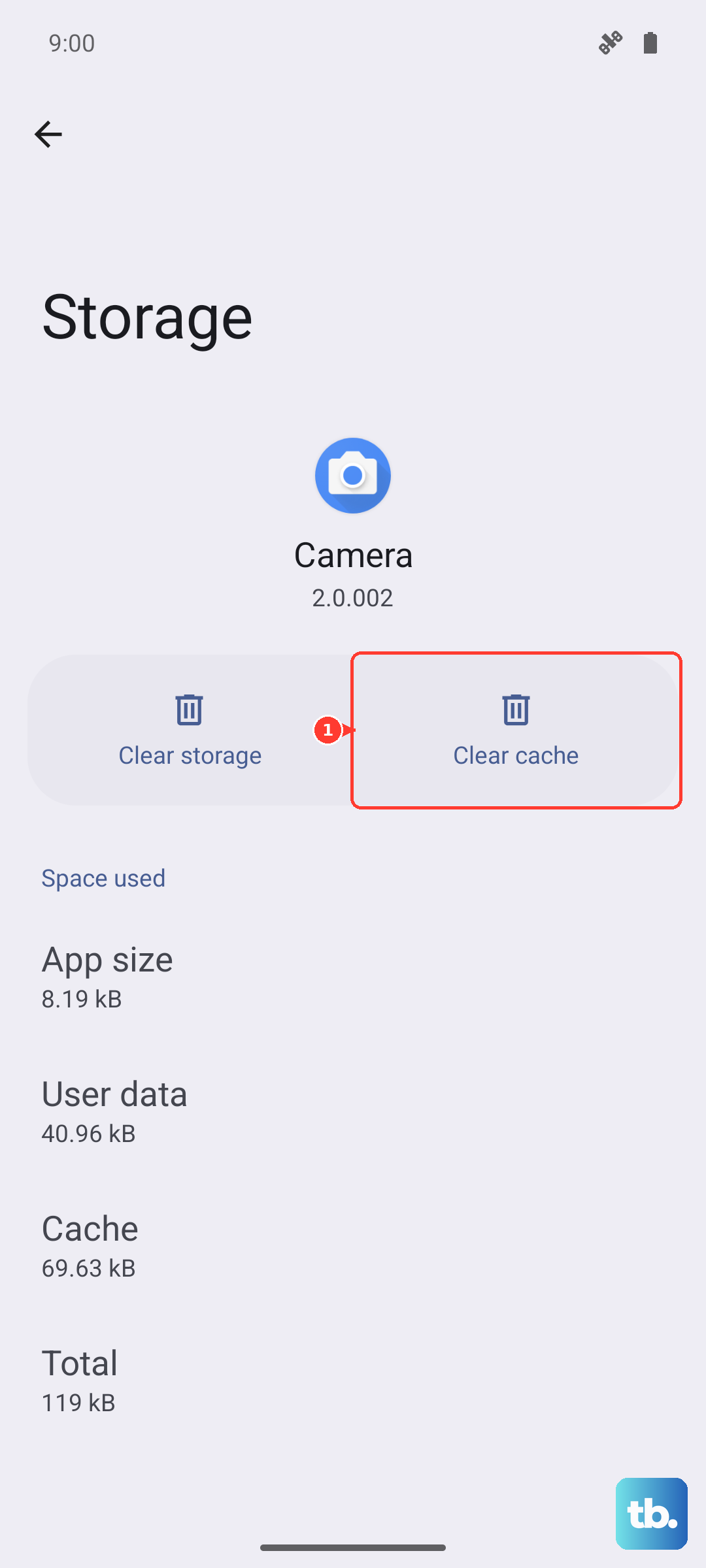
If the installation itself is frozen, a force restart is the next step. Press and hold the Power button for about 12 seconds until you feel the phone vibrate and the Vivo logo reappears. This reboots the system and may clear the hang-up.
Verify Your Current Software Version
It's good to know what version you're running, especially if you're troubleshooting an issue. Go to Settings > System management > About phone.
Look for Software version and the Android security patch level. This tells you the exact build of Funtouch OS and how recent your security updates are. Vivo's update commitment can vary by region, so this is your ground truth.
Don't Forget App and Play System Updates
Your system software is one part of the puzzle. Open the Google Play Store, tap your profile icon, and go to Manage apps & device. Under the "Updates available" section, tap Update all.
Also, Google releases important modular updates through the Play Store. Check for these by going to Settings > Security & privacy > System & updates > Google Play system update.
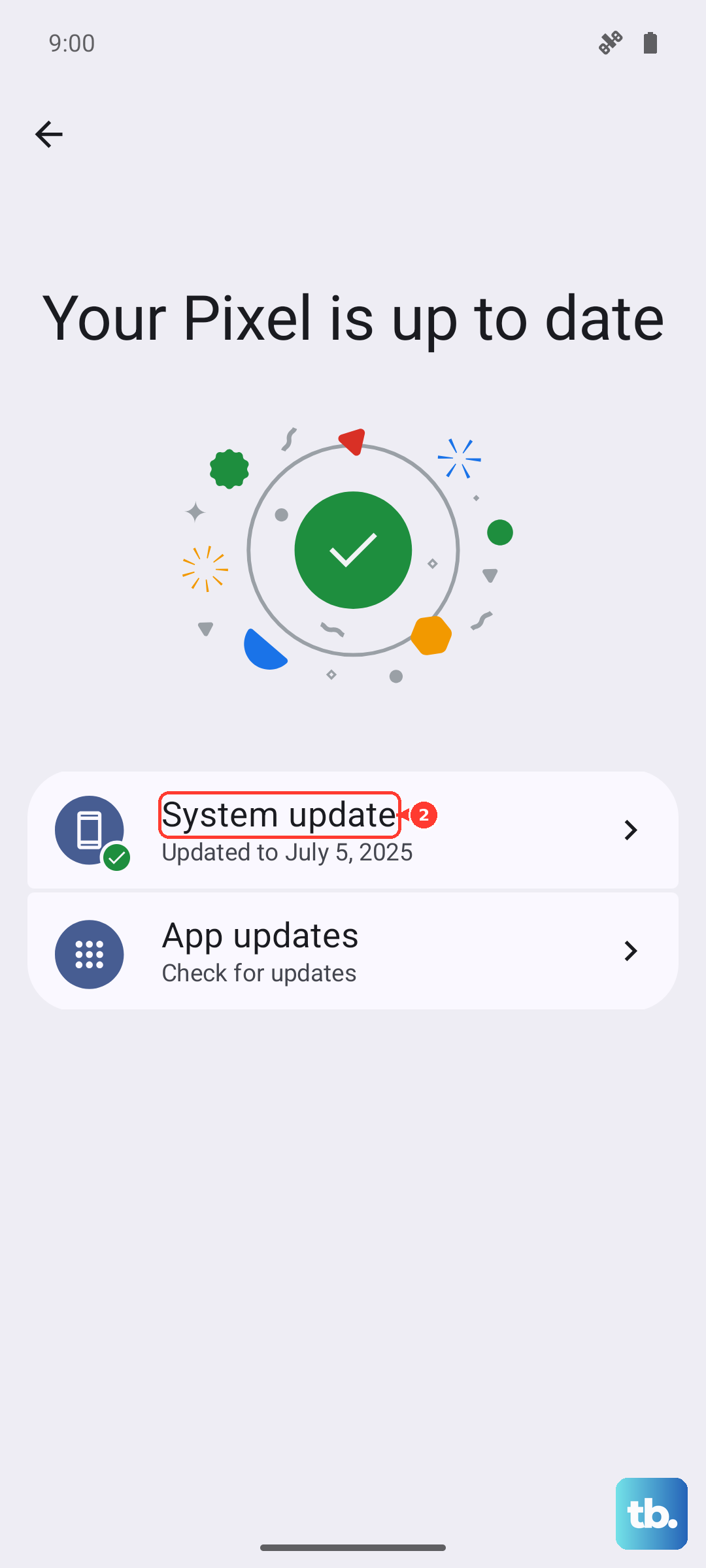
Installing this ensures core Android services are patched independently, which is helpful during gaps between Vivo's own OS updates.
Why Updates Matter for the X200 Pro
For a phone with a 6000mAh battery and advanced charging, updates often include optimizations that improve battery health and longevity. They can also refine camera processing for that Zeiss-tuned system.
Most critically, every update contains security patches that protect your personal data. Given the limited availability of the X200 Pro outside main markets, staying updated is a key part of maintaining the phone yourself.