Updating your Steam Deck means dealing with separate controls for SteamOS, games, and desktop apps. Start with the system update, then tackle the other downloads you need using the steps below. The instructions cover both LCD and OLED models running SteamOS, with recovery options if an update breaks startup.
Install the SteamOS update in Gaming Mode
Connect your Steam Deck to the internet. Then press STEAM and open Settings > System > Software Updates. Install the available update.
Restart your Deck to finish the installation. SteamOS updates also deliver BIOS, built-in controller firmware, and graphics-driver changes. Those components don't need a separate driver-download utility.
If the update leaves your Deck unable to start normally, try the rollback procedure below. If rollback doesn't resolve the failed update or damaged installation, move on to repairing SteamOS with Valve's recovery media.
Choose a different update channel
Use the channel selector when you want to switch between Stable, Beta, and Preview releases. Preview contains unfinished changes.
Open STEAM > Settings > System > System Update Channel. Select the channel you want. Install the offered update. Complete the requested restart.
To return from Beta or Preview, select Stable in the same System Update Channel menu. Install the offered Stable update. Complete the requested restart.
Get a waiting game update moving
Steam schedules game updates automatically, leaving pending downloads waiting for their scheduled time. Launch the game to force its pending update before you play. A game launch or manual download overrides the scheduled update time.
To reach the download queue in Desktop Mode, select STEAM > Power > Switch to Desktop. Open Steam's View > Downloads, or select Downloads at the bottom of the client.
For a game's future update behavior, open its Library page. Select Manage > Properties > Updates > Automatic updates. Choose whether to keep the game updated, update it at launch, or prioritize its updates.
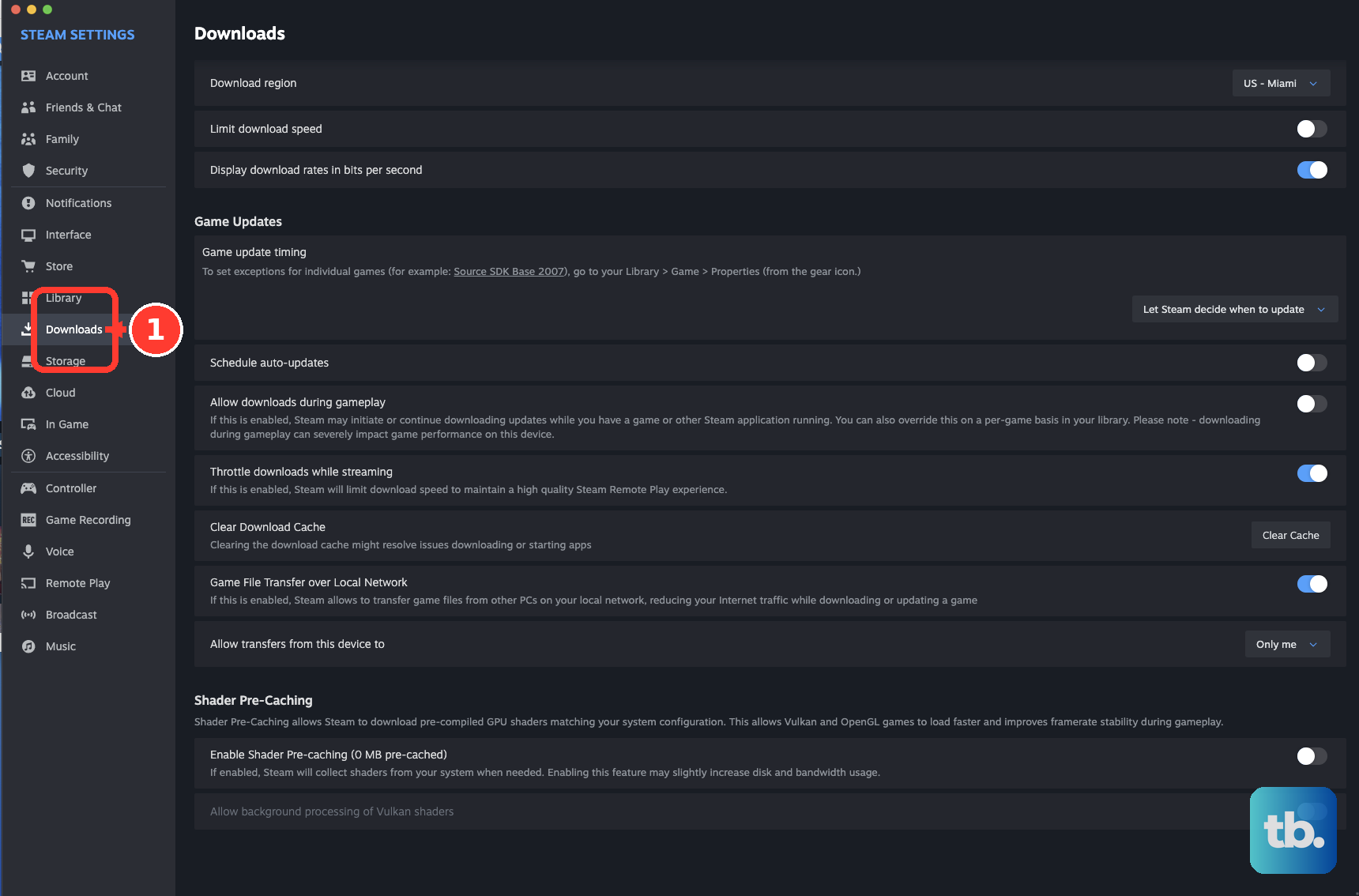
For download scheduling and bandwidth controls, open Steam > Settings > Downloads. These settings control game downloads, not SteamOS updates.
Refresh desktop apps through Discover
Select STEAM > Power > Switch to Desktop. Open Discover Software Center from the taskbar. Select Updates. Choose Update All.
Review any prompts about replacing or removing software before approving them. Reopen the updated applications afterward. Use Discover for the applications and runtimes it manages, and Gaming Mode's system updater for SteamOS.
Trigger the official dock's firmware update
Valve's Steam Deck Docking Station has its own firmware-update procedure. For a third-party dock, use its manufacturer's instructions.
Connect both the power supply and your Steam Deck to the dock. Restart the Deck. Disconnect both the Deck and the power supply from the dock. Wait 10 seconds.
Reconnect both to trigger the firmware update. If the update doesn't appear, try the alternate trigger with both connections attached again: disconnect only the dock's power supply.
Roll back an update that breaks startup
Power off your Steam Deck. Hold the … button while pressing Power. Keep holding … until the SteamOS menu opens.
Select the previous OS entry. Valve's example labels the second entry Previous B; selecting it restores an available previous SteamOS installation while retaining your user data.
After the Deck starts successfully, check STEAM > Settings > System > Software Updates for a corrected update. Use rollback when a previous installation is available and you need to recover from a broken update.
Repair a damaged SteamOS installation
Recovery media repairs a damaged installation or failed update, with an attempt to preserve games and personal content. Open Valve's SteamOS download page. Select the Steam Deck recovery image.
Write the image to an 8GB-or-larger USB drive using Rufus on Windows or Balena Etcher on macOS or Linux. Shut down your Steam Deck. Connect the recovery USB drive to the Deck.
Hold Volume Up while pressing Power. Release Volume Up when you hear the chime. Select Boot Manager. Choose EFI USB Device.
Select Repair SteamOS in the recovery environment. This option attempts to preserve your content. The separate Wipe Device & Install SteamOS and Re-image Device choices erase the installation and user content.
After recovery, open STEAM > Settings > System > Software Updates. Install the available update. Restart the Deck to complete the installation.
Frequently Asked Questions
Can Steam Deck download game updates with the screen off?
Yes. With the current Steam client, press Power during a content download. Select Continue in the download prompt. The Deck completes content downloads before sleeping. Plugged-in operation is enabled by default. To enable battery operation, open Settings > Power. This feature does not perform an unattended SteamOS installation.
Do the same update controls work for games on a microSD card?
Yes. Steam's game-update controls cover games on both internal storage and microSD cards. There is no separate update procedure for games stored on a card.
Can I get game-update files from my PC instead of downloading everything again?
Yes. Keep both Steam clients online on the same local network. Set their game-transfer permissions to allow the connection; Only my own devices permits devices using your account. Update the source game on the PC. Leave that Steam client idle. Start the game update on your Deck. Steam automatically transfers eligible local files and downloads the remainder from its servers. Transfers exclude SteamOS, Workshop, shader, and Cloud files.
How do I update a Steam Deck running Windows 11?
For a supported Windows 11 installation, open Start > Settings > Windows Update > Check for updates. Install the offered updates. Restart when requested. For hardware drivers, open Valve's Windows Resources page. Use the LCD or OLED section matching your Deck and follow its installation instructions. Valve supplies these drivers as-is and does not provide Windows-on-Steam-hardware support.