
Keeping your Samsung Galaxy Tab A9+ updated is one of the best ways to ensure it runs smoothly and stays secure. Samsung typically sends out monthly security patches and major One UI upgrades annually, which can also help with the performance quirks of the Snapdragon 695 chipset.
Check for and Install an Update
Open your tablet's Settings app and scroll down to Software update. Tap on Download and install. Your Tab A9+ will check Samsung's servers for any available updates.
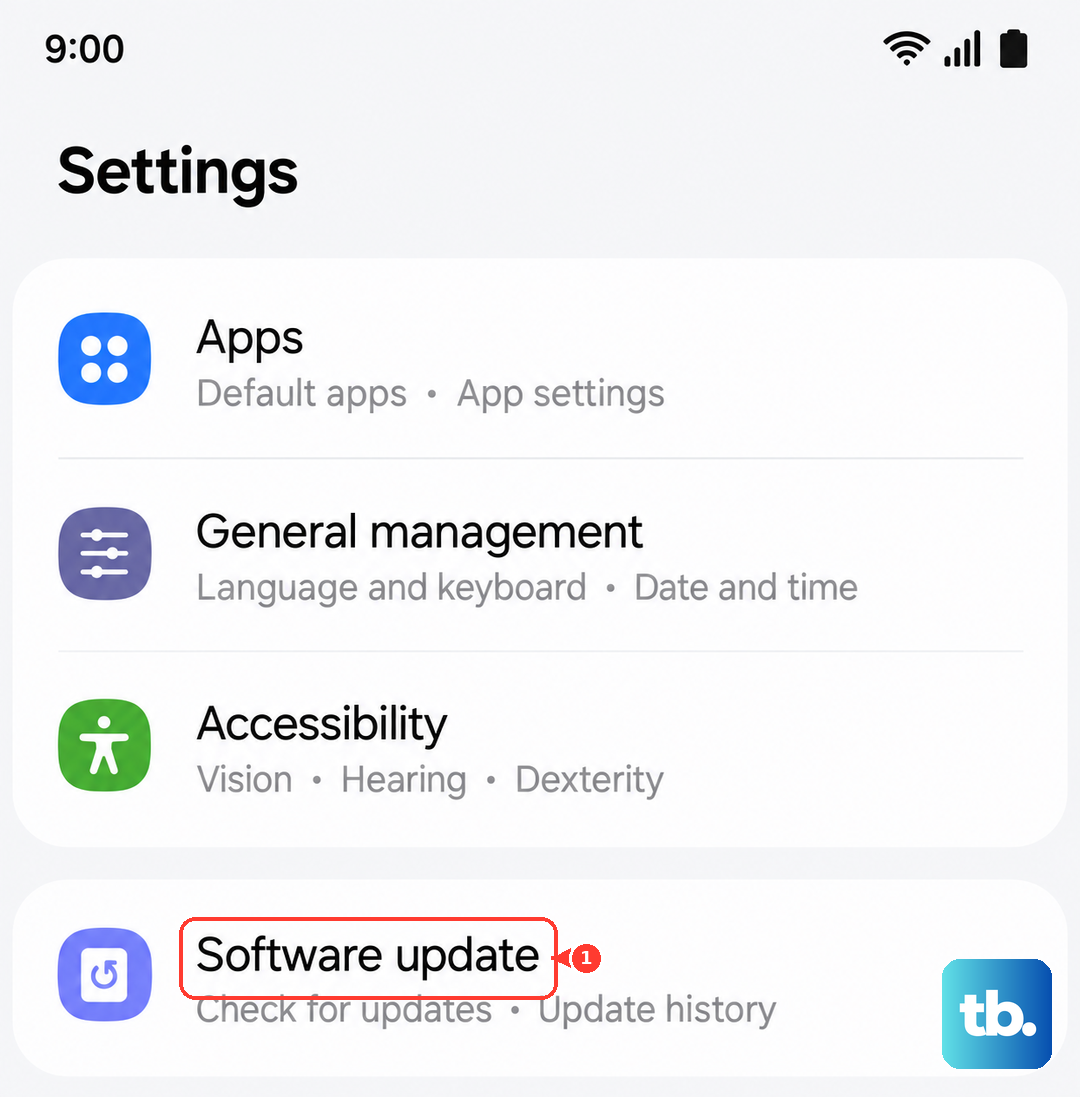
If an update is found, tap Download. Once it's downloaded, you'll be prompted to Install now. I'd recommend plugging in your charger for this, as the 7040mAh battery takes a while to fill and you don't want it dying mid-update.
Set Up Automatic Downloads
To make things easier, you can have your tablet handle the download part automatically. Go back to Settings > Software update. Here, you can toggle on Auto download over Wi-Fi.
With this on, your Galaxy Tab A9+ will download updates in the background whenever it's on a Wi-Fi network. You'll still need to tap to install it, but you won't have to wait for the download. This is a good habit, especially for those crucial security patches.
Use Samsung Smart Switch on a PC
If an over-the-air update fails or you're having storage issues, updating via a computer is a reliable alternative. First, download and install the Samsung Smart Switch application on your Windows PC or Mac from Samsung's official website.
Connect your Tab A9+ to the computer using a USB-C cable. Launch Smart Switch, and it should detect your tablet. The program will check for any available firmware updates and guide you through installing them directly from your computer.
If an Update Gets Stuck or Fails
A force restart often clears up a frozen update process. Press and hold the Volume Down and Power buttons together for about 10 seconds until you see the Samsung logo. This will reboot the tablet without affecting your data.
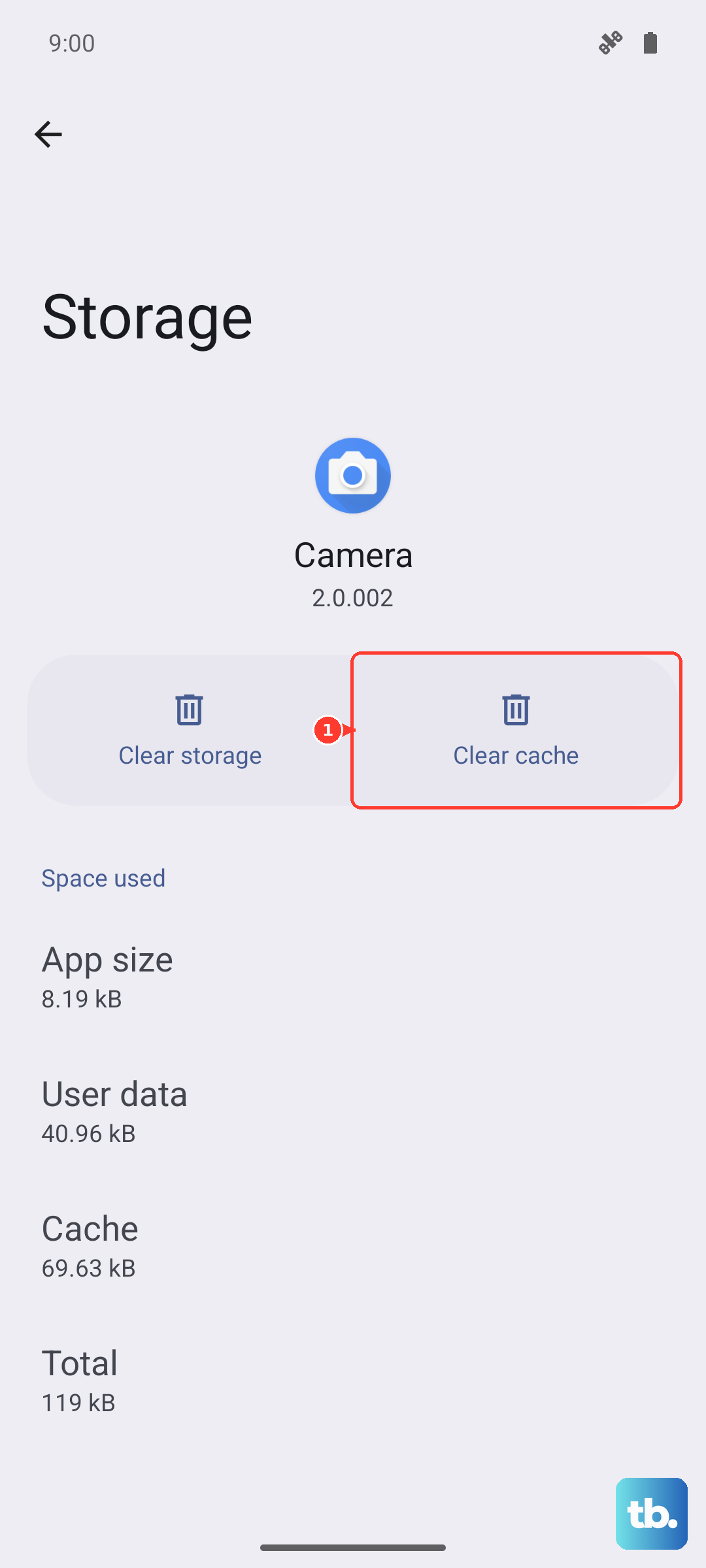
If the update still won't proceed, you can clear the cache for the update service. Go to Settings > Apps, tap the three-dot menu, select Show system apps, and find Software update. Tap Storage, then Clear cache. Try checking for the update again.
Check Your Current Software Version
It's useful to know exactly what version you're running. Head to Settings > About tablet > Software information. Here you'll see your Android version, One UI version, and the all-important security patch level.
This info is handy if you're reading about a specific new feature or patch online and want to see if your tablet has received it yet. For the Tab A9+, you should be on Android 14 with One UI 6.
Prepare Your Tablet Before a Major Update
Before installing a large One UI version upgrade, it's smart to back up your data. You can do this by going to Settings > Accounts and backup > Back up data. Choose what you want to save to your Samsung Cloud or Google account.
Also, ensure you have plenty of free storage. Major updates can require 5GB or more. Given the tablet's performance profile, keeping background apps to a minimum before and after the update can help the installation and optimization process go smoother.
Regular updates bring more than just new features. They include critical security fixes and performance tweaks that can help optimize battery life and system stability. For a device like the Tab A9+, these optimizations are key to getting the best daily experience.