
Keeping your Realme GT 7 Pro updated is the best way to get the most out of its hardware. You'll get the latest Android features, important security patches, and optimizations for that Snapdragon 8 Elite chip and 120W charging system. The process is straightforward, but there are a few things specific to Realme UI 6.0 that are good to know.
Check for and Install an Update
Open your phone's Settings app and scroll down to About device. Tap on it, and you'll see the Realme UI version option at the top. Tap that, and then hit the Check for updates button.
If an update is available, you'll see a prompt to download it. I'd recommend plugging in your 120W charger for this, as large OS updates can take a while. The phone will download the update file and then ask you to restart to install it.
Enable Automatic Updates
To make sure you never miss a security patch, you can set updates to install automatically. After you tap Check for updates in the settings, look for a gear icon or a menu labeled Advanced settings.
Inside, you should find toggles for Auto download over Wi-Fi and Auto install at night. With these on, your GT 7 Pro will handle everything in the background when you're connected to Wi-Fi and not using the phone.
What to Do If an Update Fails
Sometimes a download gets stuck or the installation won't start. The first thing to try is a force restart. Just press and hold the Power button for about 10 seconds until you feel the phone vibrate and the Realme logo appears.
If that doesn't clear it, check your network connection. Switch to a different Wi-Fi network if possible, as some routers can interfere with large file downloads. Also, make sure you have several gigabytes of free storage space, as a full Android 15 update is quite large.
Update Your Apps from the Play Store
System updates are crucial, but your apps need love too. Open the Google Play Store and tap your profile picture in the top right corner. Go to Manage apps & device, and under the "Updates available" section, tap Update all.
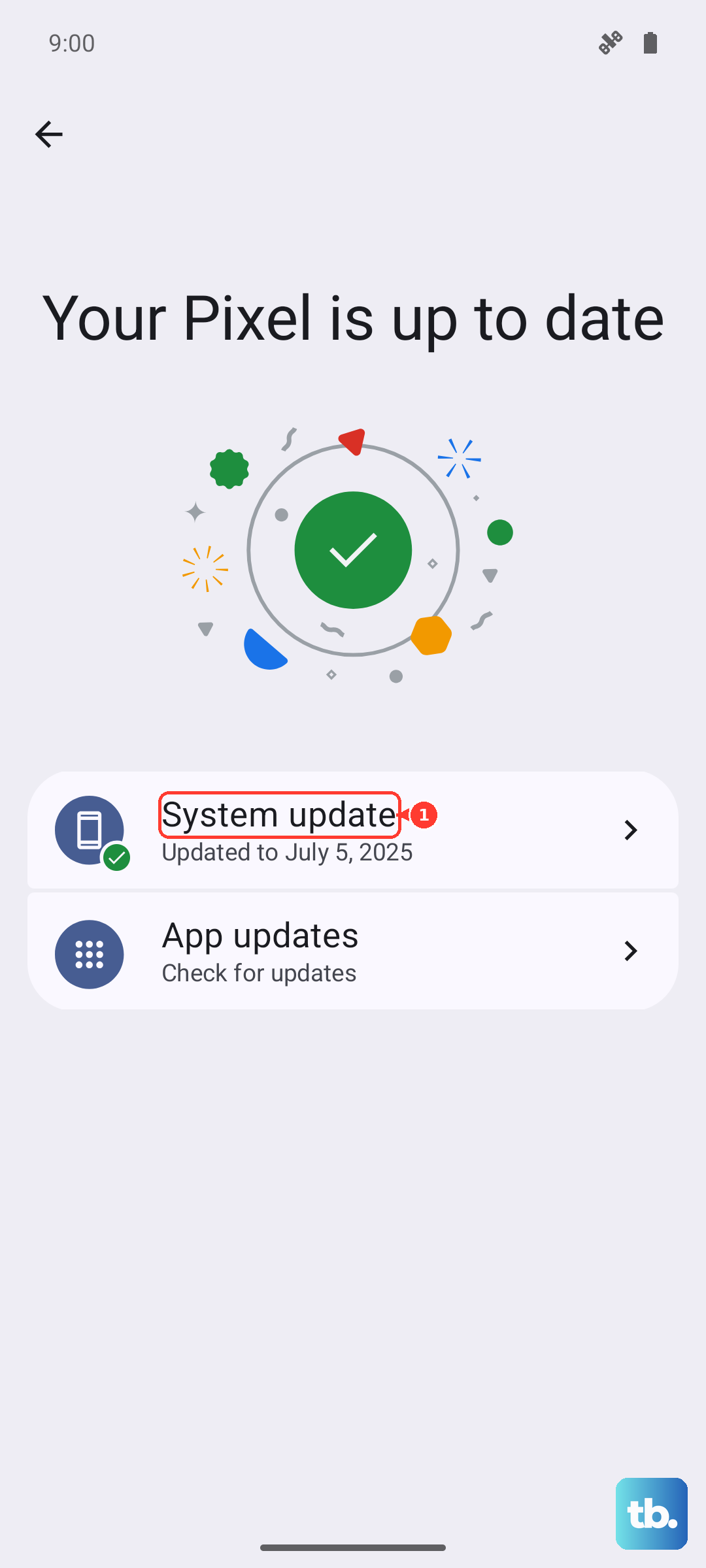
Doing this regularly can fix app crashes and improve battery life. It also patches security holes that might exist in older versions of your social media, banking, or messaging apps.
Check Your Google Play System Update
This is a separate update channel from Google that can deliver security fixes faster than a full Realme UI update. To check it, go to Settings > Security & privacy.
Scroll down and tap on More security settings. Here, you'll find the Google Play system update option. Tap it to check for and install any available updates. It's a good habit to check this every month or so.
Why Updates Matter for the GT 7 Pro
For a phone with this much power, software optimizations are key. Updates can improve how the Snapdragon chip manages heat during long gaming sessions and fine-tune the aggressive 120W charging to preserve your battery's long-term health.
They also bring critical security patches. Given how much we do on our phones, keeping the software locked down is non-negotiable. An update might also enable new camera features or interface tweaks that make Realme UI 6.0 feel smoother.
Verify Your Current Software Version
It's useful to know exactly what version you're running, especially if you're troubleshooting an issue. Head back to Settings > About device.
On this screen, you'll see your Android version, Realme UI version, and the Android security patch level. This information tells you if you're running the latest software and how recently your phone's security was updated.