
Keeping your OnePlus 13 Pro updated is the best way to ensure it runs smoothly, gets new features, and stays secure. With OxygenOS 15 based on Android 15, updates come from both OnePlus and Google. Here's how to manage them all.
Check for an OxygenOS Update
Open your Settings app and navigate to About device > OxygenOS version. Tap the top banner where it says "OxygenOS" and your version number. Your phone will immediately check for any available system updates.
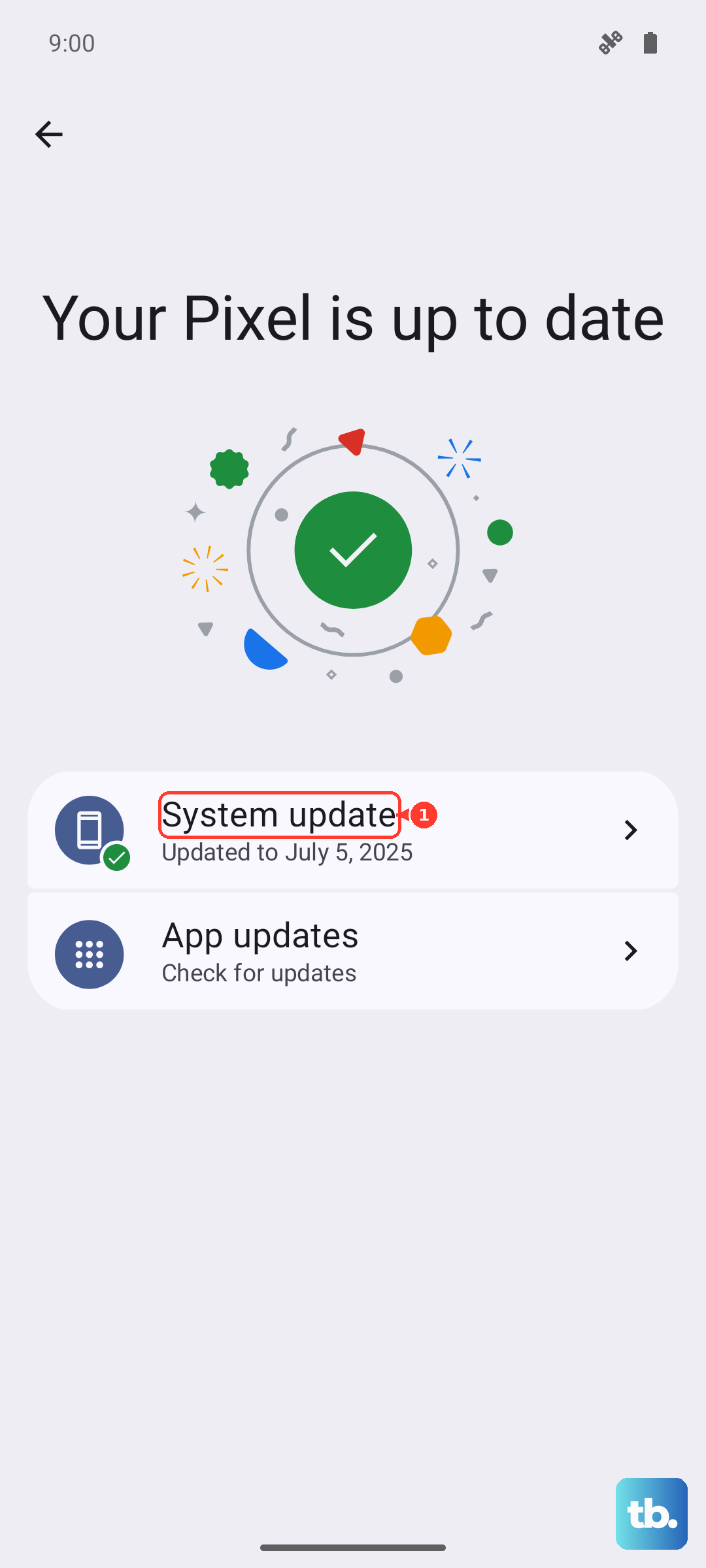
If an update is found, tap Download. I'd recommend doing this while connected to Wi-Fi and with your phone plugged into the charger, especially for a large OS upgrade. The download and installation process can take anywhere from ten minutes to over an hour.
Install the Update
Once the update file is downloaded, your phone will prompt you to install it. Tap Install now. Your device will reboot into the update screen, showing a progress bar. It's crucial not to interrupt this process by pressing buttons or disconnecting power.
After the installation is complete, your OnePlus 13 Pro will restart normally. You might see an "Optimizing apps" screen, which is perfectly normal. The first boot after a major update can take a few minutes longer than usual.
Set Up Automatic System Updates
To make sure you never miss a critical security patch, you can enable automatic downloads. Go back to the update screen by following the path in the first section. Look for a three-dot menu in the top right corner and tap it, then select Settings.
Here, you can toggle on Auto download over Wi-Fi. With this on, your phone will automatically download updates when it's connected to Wi-Fi and charging. You'll still get a notification to approve the installation, giving you control over when the phone restarts.
Update Your Apps via Google Play
System updates are important, but your apps need love too. Open the Google Play Store app and tap your profile icon in the top right. Select Manage apps & device. Under the "Overview" tab, you'll see if any updates are available.
You can tap Update all to handle everything at once, or review them individually. For truly automatic updates, go to your Play Store profile settings, tap Network preferences > Auto-update apps, and choose "Over any network" or "Over Wi-Fi only."
Check for Google Play System Updates
This is a layer of updates that many people miss. Google can update core Android components independently of OnePlus's OxygenOS updates. To check, go to Settings > About device > OxygenOS version.
Instead of tapping the banner, look for the line that says Google Play system update and tap it. Your phone will check for updates. If one is available, follow the prompts to download and install it. These updates often contain important security fixes.
What to Do If an Update Fails
If an update download gets stuck or fails to install, the first step is a force restart. Press and hold the Volume Down button and the Power button simultaneously for about 10 seconds until the device vibrates and the OnePlus logo appears. This can clear a temporary glitch.
Next, try switching to a different Wi-Fi network. Sometimes, router firewalls or settings can block the large update file. Also, ensure you have several gigabytes of free storage space, as major updates require room to unpack and install.
Verify Your Current Software Version
It's helpful to know exactly what version you're running. Go to Settings > About device. Here you'll see your OxygenOS version, Android version, and the Android security patch level.
This information is useful if you're troubleshooting a bug or checking if a specific feature you read about should be available on your device. OnePlus typically details what's in each update in the community forums or update log.
Why Updates Matter for Your OnePlus 13 Pro
Beyond the obvious new features, updates deliver essential security patches that protect your personal data. Hackers constantly find new vulnerabilities, and these patches are your phone's primary defense. Ignoring them leaves your device exposed.
Updates also include performance tweaks and battery optimizations specific to your hardware. OnePlus engineers use data from devices in the wild to fine-tune how OxygenOS 15 runs on the 13 Pro, fixing bugs and improving efficiency with each release.