
Keeping your Motorola Razr Plus (2024) updated is the best way to ensure it runs smoothly and securely. With its unique foldable design and cover screen, updates often include important optimizations specifically for the hardware. The process is straightforward, but there are a few things to know for this particular model.
Check for Updates on Your Razr Plus
Open the Settings app on your phone. Scroll down and tap on System, then select System updates. Your phone will immediately check with Motorola's servers to see if an update is available.
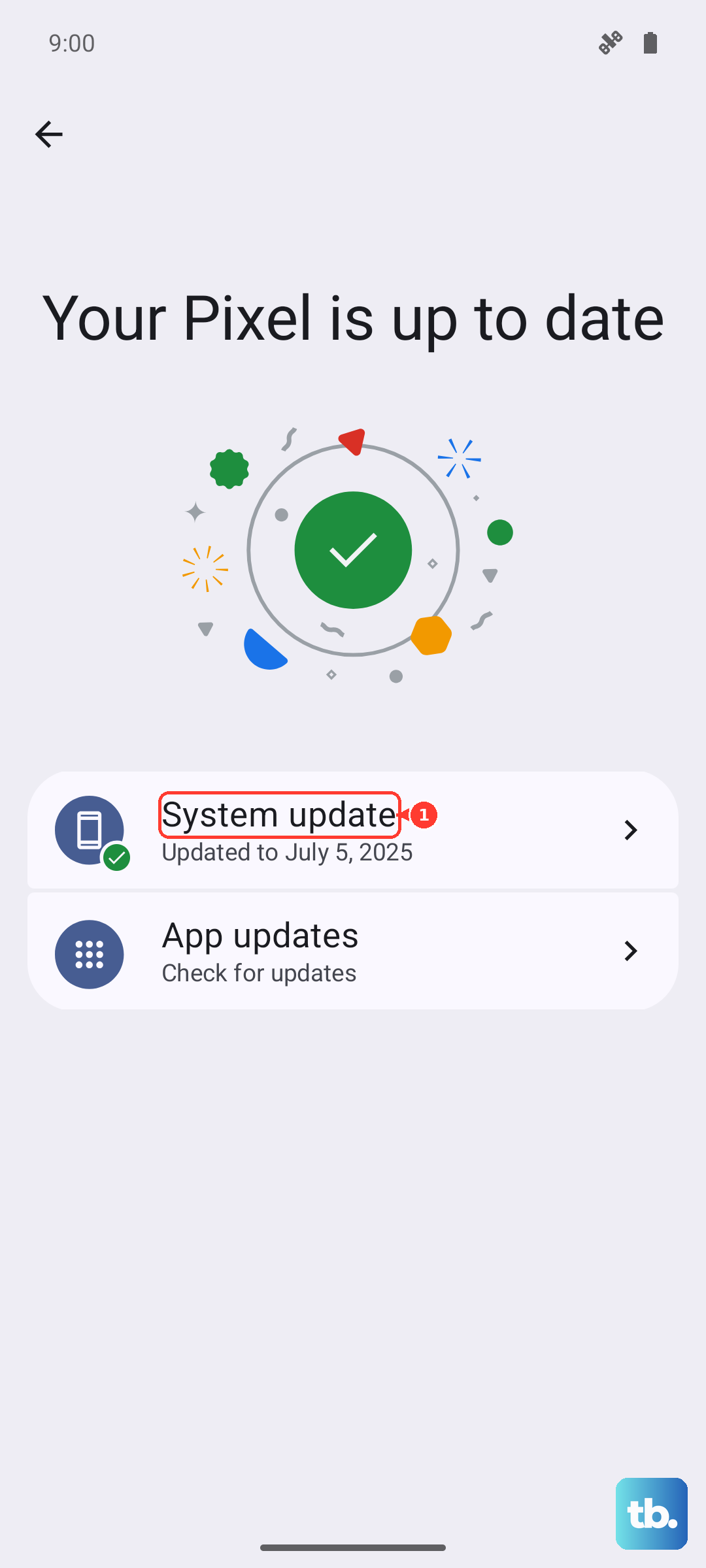
If an update is ready, you'll see a prompt to download and install it. I'd recommend making sure your phone is connected to a stable Wi-Fi network and has at least a 50% charge, or better yet, is plugged in. For the Razr Plus, it's a good practice to keep the phone unfolded during the update process to prevent any potential overheating in the compact chassis.
Enable Automatic Updates
You can set your Razr Plus to handle updates automatically. After navigating to Settings > System > System updates, look for the three-dot menu in the top right corner and tap it. Select Preferences.
Here, you can toggle on Auto-download over Wi-Fi. With this enabled, your phone will automatically download updates when connected to Wi-Fi. You'll still get a notification to approve the installation, which gives you control over when the phone restarts.
If an Update Fails or Gets Stuck
Update issues are usually related to connectivity or a glitch in the update service. First, try a simple force restart by pressing and holding the Power button for 10-15 seconds until the screen goes black and the Motorola logo reappears.
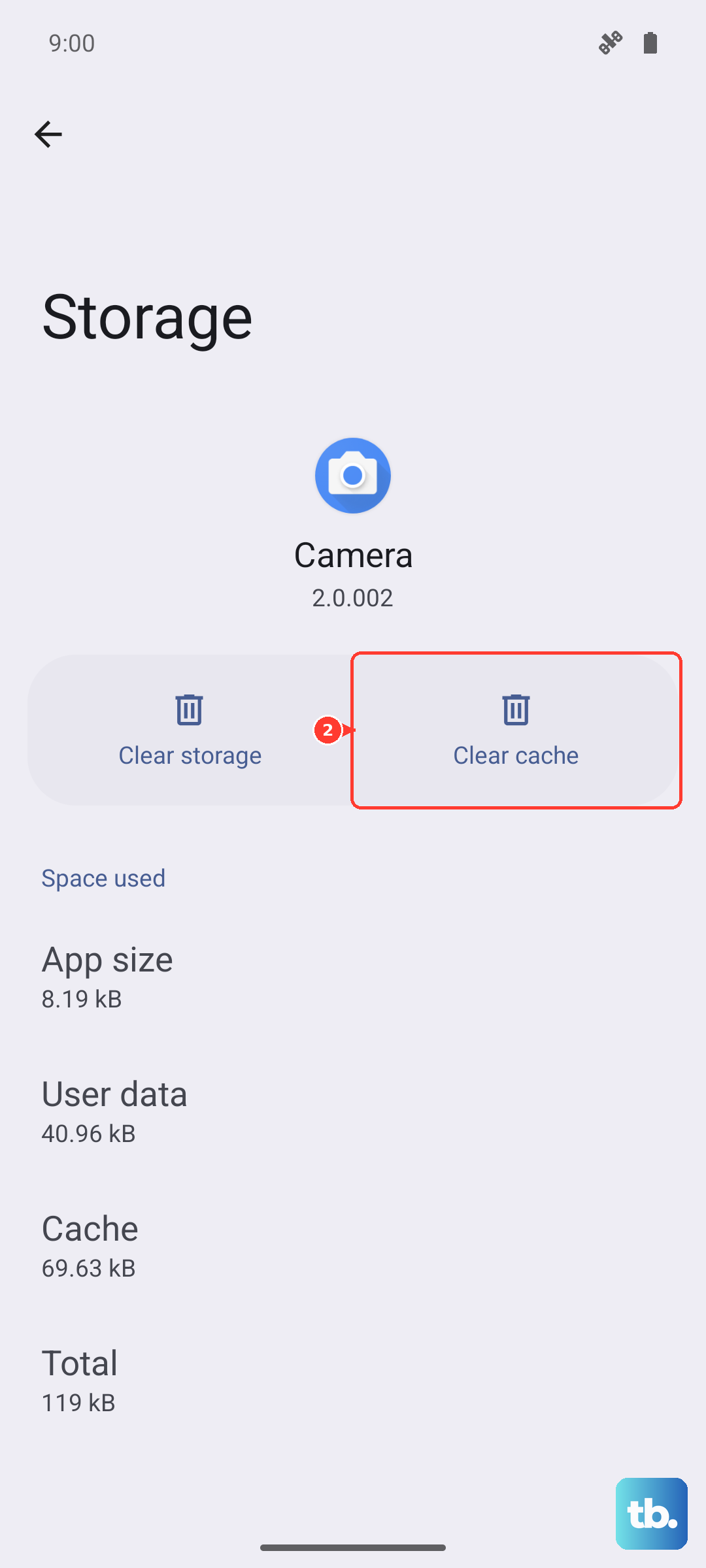
If the download keeps failing, try switching to a different Wi-Fi network. You can also clear the cache for the update process. Go to Settings > Apps, tap See all apps, find and select Motorola Update Services. Tap Storage & cache, then Clear cache. Retry the update check afterward.
Verify Your Current Software Version
It's helpful to know exactly what version you're running, especially if you're troubleshooting a known issue. Go to Settings > About phone. You'll see details like your Android version (it launched with Android 14), the Android security patch level, and the specific software build number from Motorola.
This information is useful for community forums or when checking Motorola's official update notes to see if a fix for a particular problem has been released for your device.
Don't Forget App and Google Play System Updates
Operating system updates are crucial, but your apps need love too. Open the Google Play Store, tap your profile icon in the top right, and go to Manage apps & device. Under the "Updates available" section, you can tap Update all.
There's another layer of updates that's important. Google can update core Android components independently through Google Play system updates. To check for these, go to Settings > Security & privacy. Scroll to the "Device security" section and tap Google Play system update. Install any available updates here as well.
Why Updates Matter for Your Foldable
For a device as specialized as the Razr Plus, updates are particularly important. Motorola frequently releases optimizations for the folding mechanism, the cover screen software, and camera performance. Each update also bundles the latest Android security patches, which are essential for protecting your personal data.
Staying current ensures you get the best battery life and the smoothest experience when using the unique form factor. An outdated phone, especially one with novel hardware, can miss out on stability improvements that make a big difference in daily use.