Microsoft Edge usually updates itself, but the update can sit unfinished until you open the right screen or restart the browser. Start with the built-in updater on desktop, then use Windows Update, the official installer, or your phone’s app store when that matches your device.
These are the current Microsoft, Apple, and Google update paths verified in August 2026.
Update Edge from the browser menu
Use this first on a Windows PC or Mac when Microsoft Edge still opens normally. Microsoft lists the browser’s own About page as the standard desktop update path.
Open Microsoft Edge, select Settings and more, then go to Help and feedback. Choose About Microsoft Edge; Edge checks for updates automatically on that page. If an update appears, select Download and install. When Edge asks, select Restart so the update can finish.
Use the About page shortcut
This is the fastest route to the same update screen.
- 1.Open Microsoft Edge.
- 2.Select the address bar.
- 3.Type edge://settings/help and press Enter.
- 4.Select Download and install if Edge offers an update.
- 5.Select Restart when prompted.
Turn on automatic Edge updates
Edge can handle future updates from the same About Microsoft Edge page. Open Settings and more, select Help and feedback, then choose About Microsoft Edge.
Turn on Download and install updates automatically. If you want Edge to update on a metered connection too, turn on Download updates over metered connections.
If those switches are missing or dimmed, update from About Microsoft Edge manually and then contact the school, employer, or organization that manages the device.
Finish an update that already downloaded
This fixes Edge when the update is already downloaded but not installed. Open About Microsoft Edge and check the update status. If the page says the update is downloaded, select Restart.
If there is no restart button, close every Microsoft Edge window. Open Microsoft Edge again, then return to About Microsoft Edge and confirm that Edge checks cleanly.
Update Edge through Windows Update
On Windows, Microsoft says Edge updates may also come through Windows Update.
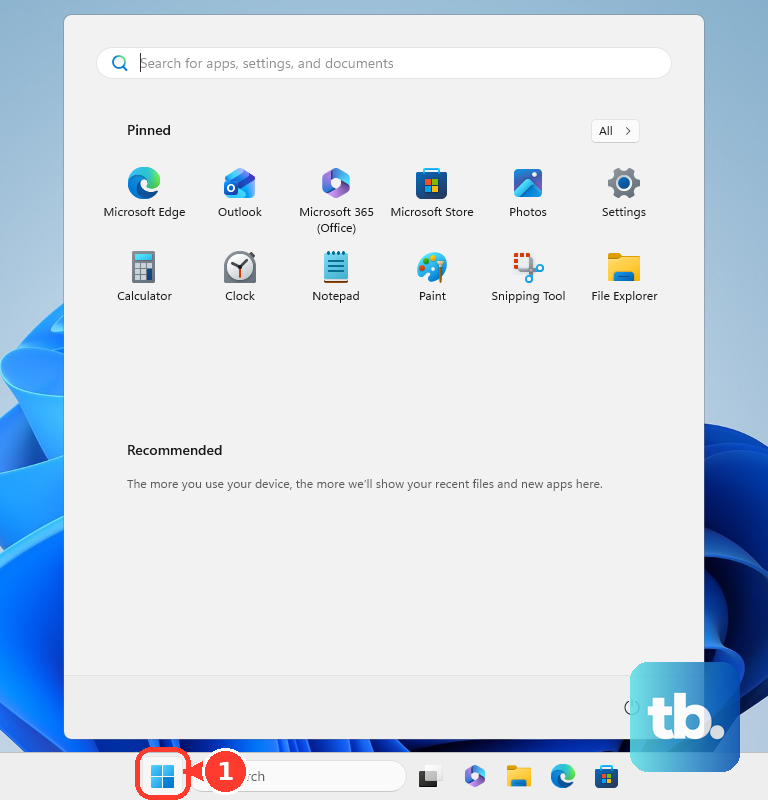
- 1.Select Start.
- 2.Open Settings.
- 3.Select Windows Update.
- 4.Choose Check for updates.
- 5.Install available updates and restart the device if Windows asks.
Install the latest Edge from Microsoft
This fixes Edge when the browser updater or Windows Update cannot complete the update. Open any working browser, then go to Microsoft’s official Edge download page at microsoft.com/edge/download.
Choose the download for your device, such as Download for Windows, Download for macOS, Download for Linux, iOS, or Android. Run the installer or continue through the official app-store path shown for your device. On desktop, Microsoft says updating this way keeps your favorites, passwords, and settings.
Update Edge on iPhone iPad or Android
On iPhone or iPad, open the App Store, tap the My Account button or your photo, then find App Updates. Tap Update next to Microsoft Edge, or tap Update All.
To keep Edge updating automatically on iPhone or iPad, open Settings, go to Apps, then App Store, and turn on App Updates.
On Android, open Google Play Store, tap your profile icon, choose Manage apps and device, then tap See details under Updates available. Tap Update next to Microsoft Edge, or tap Update all.
For automatic updates on Android, open Google Play Store, tap your profile picture, go to Settings, then Network Preferences, then Auto-update apps. To turn it on only for Edge, go to Manage apps and device, choose Manage, open Microsoft Edge, tap More, and enable Enable auto update.
If the app-store update fails, use Microsoft’s official Edge download page and follow the store or installer path it provides.
Repair Edge when updating keeps failing
A broken Edge install is a common cause when the update page will not load or updates repeatedly fail on Windows. Microsoft’s built-in repair fixes it.
Close Microsoft Edge for every user on the PC. Open Start, go to Settings, then select Apps. Choose Installed apps, then select Microsoft Edge.
Choose Modify, approve with Yes, then select Repair. Microsoft says repair requires admin rights and internet access, and browser data and settings should not be affected.
Frequently Asked Questions
How do I know Microsoft Edge updated successfully?
Open Microsoft Edge and go to edge://settings/help. Edge checks automatically on that page and shows the current update status.
Will updating Edge delete my favorites or passwords?
No. Microsoft says using the latest installer to update Edge keeps your favorites, passwords, and settings.
Can I uninstall and reinstall Edge to update it?
Use reinstalling as a recovery step, not the normal update method. On Windows 10 and Windows 11, Microsoft says Edge is an essential component and generally cannot be uninstalled.
Should I use Microsoft AutoUpdate to update Edge on Mac?
No. Microsoft says Edge for macOS started switching to EdgeUpdater with Edge 113, so use About Microsoft Edge or Microsoft’s official Edge download page instead.