
Keeping your iPad Pro M5 updated is one of the easiest ways to get new features, fix bugs, and patch security holes. Apple releases iPadOS updates a few times a year, with smaller fixes in between. Here's how to make sure your 11-inch or 13-inch model stays current.
Update Wirelessly
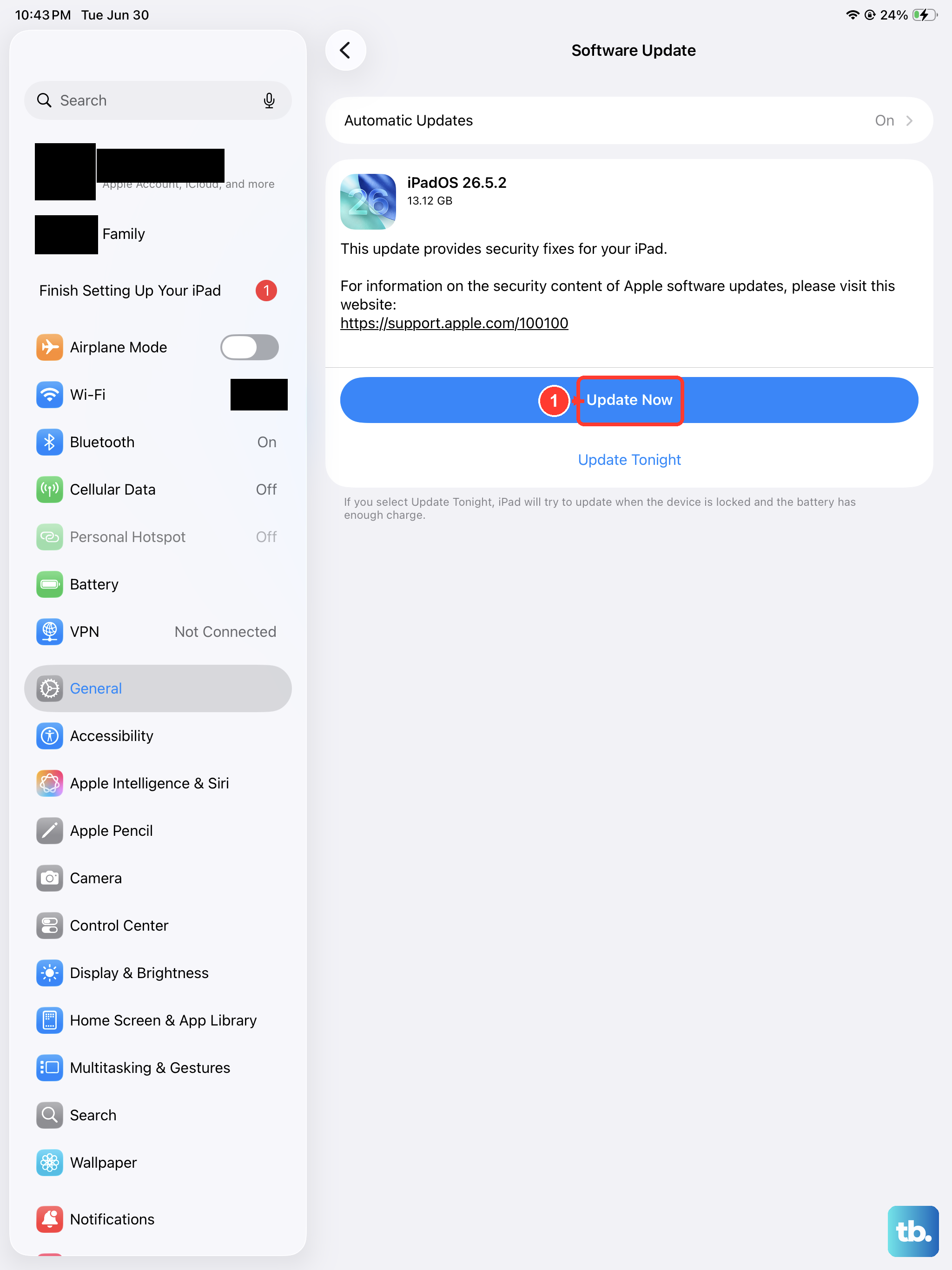
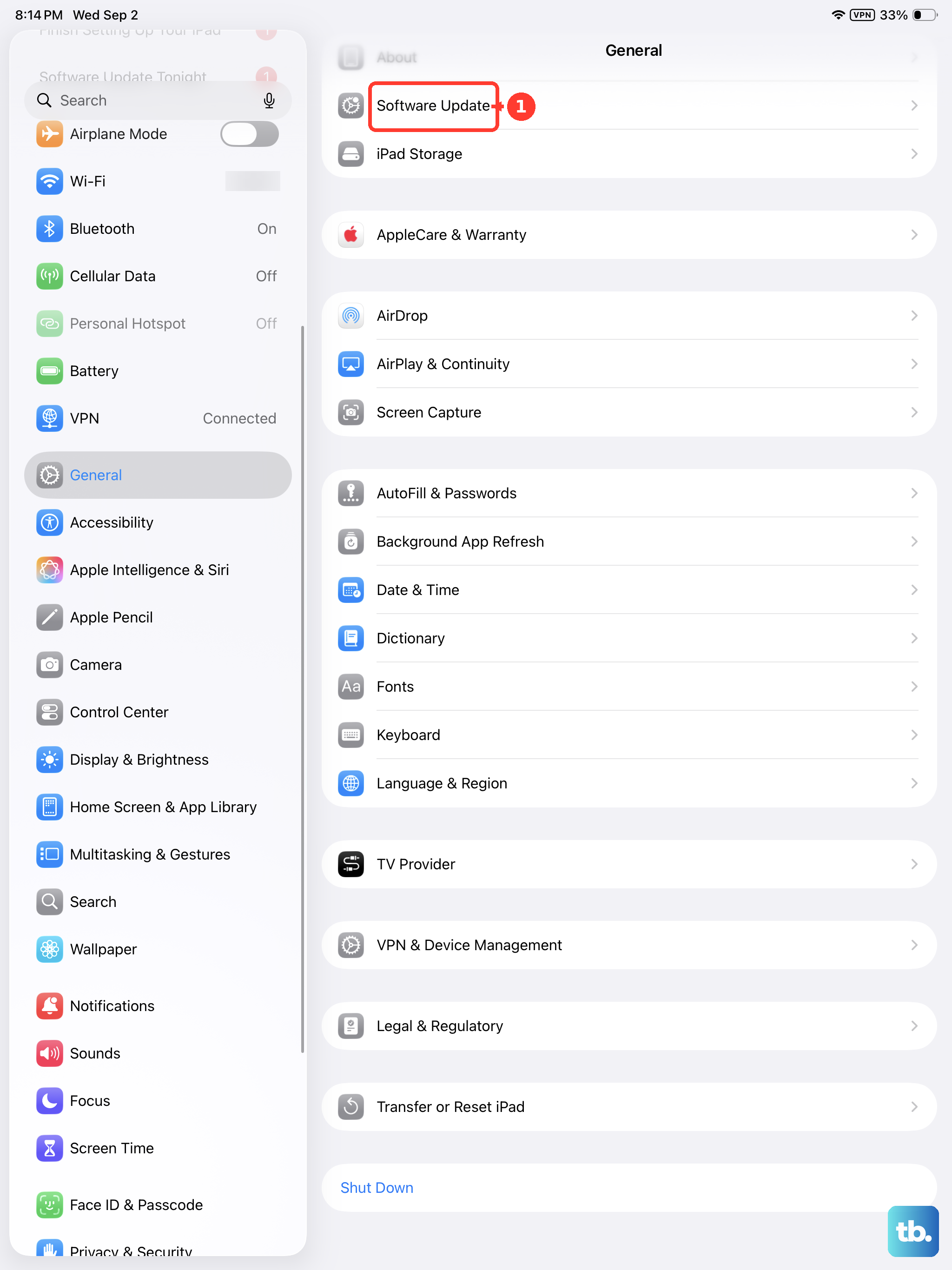
This is the simplest method. Go to Settings > General > Software Update. Your iPad will check for available updates automatically. If one shows up, you'll see the version number and a short summary of what's included. Tap Download and Install.
Make sure your iPad Pro M5 has at least 50% battery or is plugged into a power source. A solid Wi-Fi connection is essential, the download can be a few hundred megabytes for minor updates or several gigabytes for major iPadOS releases. Your iPad will restart during the process.
Turn On Automatic Updates
If you'd rather not think about updates, enable automatic installation. Go to Settings > General > Software Update > Automatic Updates. Toggle on both Download iPadOS Updates and Install iPadOS Updates. Your iPad will download new versions in the background and install them overnight when it's charging and connected to Wi-Fi.
You'll still get a notification before the update installs, so you can postpone it if the timing is bad.
Use a Computer to Update
If the over-the-air update gets stuck or won't download, try using a computer. Connect your iPad Pro M5 to a Mac or PC with a USB-C cable. On a Mac, open Finder. On a PC, open iTunes. Select your iPad, then click Check for Update. If an update is available, click Download and Update.
This method is handy when your iPad doesn't have enough free storage for the OTA update, since the computer handles the download and streams the installation to the device.
Fix a Failed Update
If the update gets stuck on the Apple logo or a progress bar, force restart your iPad Pro M5. Press and quickly release the Volume Up button, then press and quickly release the Volume Down button, then press and hold the Top button until the Apple logo appears. This doesn't erase your data, it just forces the device to reboot.
If the update still won't complete, connect to a computer and try updating through Finder or iTunes. For errors like "Unable to Check for Update," check your Wi-Fi connection or switch to a different network. You can also go to Settings > General > iPad Storage, delete the downloaded update file, then re-download it.
Check Your Current iPadOS Version
To see what version you're running, go to Settings > General > About. The iPadOS version is listed near the top. Knowing your current version helps you confirm whether a specific update or feature is compatible with your iPad Pro M5.
Prepare for an Update
Before installing any major update, back up your iPad. Go to Settings > [Your Name] > iCloud > iCloud Backup > Back Up Now. This way, if something goes wrong, you can restore your iPad to its previous state. Make sure you have enough free storage on the device and enough iCloud space for the backup.
Also check your USB-C cable and power adapter for damage. If your iPad isn't charging properly during the update, inspect the cable for fraying and the port for dust or debris. A clean connection keeps the process smooth.
Why You Should Keep Your iPad Updated
Every iPadOS update includes security patches that protect your iPad Pro M5 from newly discovered vulnerabilities. Skipping updates leaves your device exposed. Beyond security, updates often bring performance improvements, battery optimizations, and new features like the ones in iPadOS 18. Unless a critical app requires an older version, there's little reason to stay behind.