To update a desktop copy of Firefox installed from Mozilla, open About Firefox, let the update download, then select Restart to update Firefox. For Microsoft Store, mobile, and Linux package installations, use the store or package manager that supplied Firefox. The update route depends on how you installed the browser.
The short version
- Desktop update: For a Mozilla installation, open About Firefox and restart when prompted.
- Store installations: Update through Microsoft Store, your mobile app store, or your Linux package manager.
- Failed update: Restart your computer and retry before reinstalling Firefox.
- Fresh installer: Installing an official desktop copy over your existing installation preserves your user data.
| Your installation | Where to update | What to do |
|---|---|---|
| Mozilla desktop installation | About Firefox | Download the update and restart Firefox |
| Microsoft Store edition | Microsoft Store | Select Check for Updates |
| Linux distribution package | Distribution software updater | Install the available Firefox package update |
| Linux Snap installation | Terminal | Close Firefox and run sudo snap refresh firefox |
| Linux Flatpak installation | Terminal | Run flatpak update and approve the updates |
| Android Google Play installation | Google Play Store | Open Firefox’s listing and tap Update |
| Samsung Galaxy Store installation | Galaxy Store > Menu > Updates | Tap the update arrow beside Firefox |
| iPhone or iPad | App Store > App Updates | Tap Update beside Firefox |
Update Firefox on Windows or Mac
On Windows, open Firefox’s menu, choose Help, then select About Firefox. Some Firefox menus call the same category Help and Report. On a Mac, use the menu bar and choose Firefox > About Firefox.
Opening this window checks for updates and downloads an available update. When the download finishes, select Restart to update Firefox to apply it. Return to About Firefox after the restart to check the update status.
For Firefox installed from Microsoft Store, open Microsoft Store and select Check for Updates, then install the available Firefox update. The alternate Store layout uses Library > Get updates. This edition receives updates through the Store instead of Firefox’s internal updater.
Turn on automatic Firefox updates
Open Firefox’s menu and select Settings > General, then find Firefox Updates. In the alternate settings layout, select About Firefox in the sidebar. Choose Automatically install updates (recommended).
To approve installation yourself, select Check for updates but let you choose to install them. The alternate wording is Check for updates, but choose when to install. Firefox still checks for updates, but you decide when to install them.
On Windows, you can also enable When Firefox is not running to allow updates while the browser is closed. Mozilla requires automatic updates, an installer-based installation, a usable Mozilla Maintenance Service, and a default profile used at least once after enabling the option. This setup also requires system-proxy configuration and no installed language pack.
For the Microsoft Store edition, open Microsoft Store > Profile > Store Settings and turn on App updates. That setting controls automatic updates for Store applications. Use the Store’s manual update check when you want to request an update immediately.
Update Firefox on Android or iPhone
On Android, open Google Play Store, tap your profile icon, and choose Manage apps & device. Under Updates available, tap See details, find Firefox, and tap Update. You can also open Firefox’s Play Store listing and tap Update directly.
To enable automatic updates for Firefox, go to Manage apps & device > Manage and select Firefox. Open More and enable Enable auto update. For download preferences, use the profile menu’s Settings > Network preferences > Auto-update apps, then choose whether updates use Wi-Fi only or also mobile data.
For a Galaxy Store installation, open Galaxy Store > Menu > Updates and tap the update arrow beside Firefox. To automate future updates, open Menu, select the settings gear, and choose a network option under Auto update apps. Use the store that supplied your Firefox installation.
On iPhone or iPad, open App Store, tap My Account or your profile photo, then select App Updates. Tap Update beside Firefox, or choose Update All. For automatic updates, open Settings > Apps > App Store and enable App Updates, which applies to App Store apps collectively.
Update Firefox on Linux
Use your distribution’s software-update application or package manager for a distribution-installed copy of Firefox. These builds do not expose Firefox’s normal internal update controls, and the updated package must reach your distribution’s repository first. A Mozilla installation with its own updater uses Help or Help and Report > About Firefox.
For a Firefox Snap, close every Firefox window before requesting the update. Run this command in your terminal:
sudo snap refresh firefoxWhen Snap reports running Firefox processes, close the remaining processes identified in the error and retry. A pending-update notification is also a prompt to close Firefox so the update can proceed. Snap updates automatically as well.
For a Flatpak installation, run the following command and approve the listed updates. This updates other installed Flatpak applications and runtimes as well as Firefox:
flatpak updateAn inconsistent Flatpak installation may need a repair before updating succeeds. Run the repair command, then retry the update:
flatpak repairRestart and retry a failed desktop update
When Firefox reports an update failure, restart your computer, reopen Firefox, and check About Firefox again. Restarting clears interference from a Firefox process that did not close completely or a copy running in another signed-in user account. If the update fails again, close other running programs, including applications that start automatically with the computer, and retry.
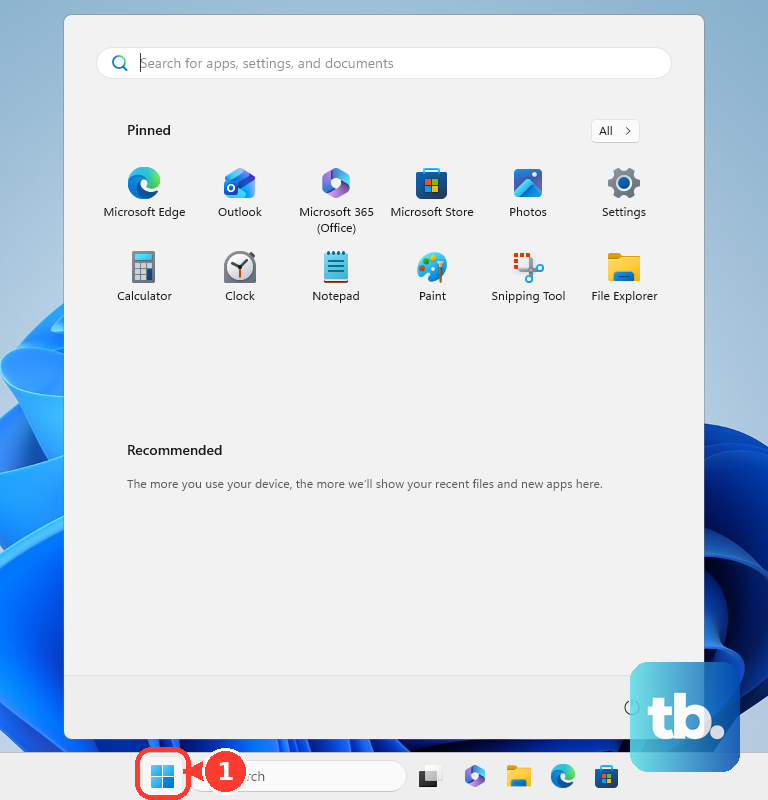
On Windows, a permission-related failure may require administrator access. Restart Windows, open Start, search for Firefox, right-click its entry, and select Run as administrator. Approve the permission prompt, provide administrator credentials when requested, and check for the update again.
If that attempt fails, restart again and use Run as administrator on firefox.exe in Firefox’s installation folder. On macOS, authorize the Helper tool with valid administrator credentials when the update requests them. A standard Mac user may need this authorization for each update.
Check policies when update controls are blocked
If management settings prevent updates, enter about:policies in Firefox’s address bar to view active policy names and values. On a work or school device, give the update-policy details to your administrator. Management software can also apply these policies to a personal installation.
Your administrator should check DisableAppUpdate and AppAutoUpdate, along with any AppUpdatePin or AppUpdateURL configuration. A version pin or custom update server can explain why Firefox does not offer a newer public release. Correcting the controlling policy addresses that block; reinstalling Firefox does not change the policy.
Reinstall Firefox when updates still fail
Download a fresh installer from the official Firefox download page, close Firefox, and run the installer over your existing Mozilla installation. Mozilla says this preserves your existing user data. It is also an option when Firefox no longer opens.
Repeated Mac Helper tool prompts or permission failures may require reinstalling Firefox with administrator rights. If updates still fail after authentication, remove the application and install a fresh official copy. Keep the separately stored Firefox profile, which contains your personal browser data.
For a Windows 11 application removal, open Start > Settings > Apps > Installed apps, find Mozilla Firefox, open its three-dot menu, and select Uninstall. On Windows 10, use Settings > Apps > Apps & features > Mozilla Firefox > Uninstall. Reinstall the official copy without deleting your profile.
On a Mac, open Finder’s Applications folder and drag Firefox to Trash before reinstalling. A “XULRunner” version mismatch also calls for removing Firefox and installing a fresh copy. For “Failed to read the configuration file” on Windows, Mozilla additionally directs you to remove the remaining Firefox installation directory before reinstalling, while preserving the separate profile directory.
Fix problems that begin after an update
If Firefox opens but stops loading websites while another browser still works, update your security software first. In that software’s trusted-program or application-permission list, remove Firefox and add the updated Firefox application again. The exact controls depend on your security product.
For startup problems, close Firefox and try Troubleshoot Mode. On Windows, hold Shift while starting Firefox; on macOS, hold Option while starting it. This diagnostic startup does not download an update.
On Linux, you can request the same diagnostic startup from a terminal. Close Firefox first, then run:
firefox -safe-modeFor persistent profile problems, a Firefox refresh preserves essential information such as bookmarks and passwords but removes extensions and resets customizations. Open Firefox’s menu, choose Help or Help and Report, then select More troubleshooting information > Refresh Firefox…. Confirm with Refresh Firefox, then select Finish. The Troubleshoot Mode window also offers the refresh action; profiles using the newer profile-management system require Firefox 150 or later.
Fix app store update failures
For a Microsoft Store update failure, sign in to your Microsoft account, close and reopen Firefox, and update Windows. On Windows 11, open Start > Settings > Windows Update > Check for updates. Then update the Store through Library > Get updates and retry Firefox’s update.
On Android, check your connection and available space under Settings > Storage, then close and reopen Play Store. Restart the device if the download still stalls. Check for system updates under Settings > System > Software update > System update; manufacturer labels can differ.
Next, check your device’s time settings under System > Date & time. Enable Set time automatically and the automatic time-zone setting. Resolve any Google-account sign-in error if automatic updates have stopped.
When multiple Play Store apps fail to update, touch and hold Play Store, select App info > Storage & cache, and tap Clear cache. If necessary, follow with Clear storage > Delete. Recheck parental controls and password-protection settings afterward.
If the Store itself still prevents updates, touch and hold Play Store and choose App info > More > Uninstall updates > OK. Reopen Play Store, tap your profile picture, and select Settings > About > Update Play Store. Retry Firefox after the Store update.
On iPhone or iPad, touch and hold the downloading Firefox app on the Home Screen and select Prioritize Download. Restart the device and retry if it remains stuck. Resolve any Apple-account billing or verification request, since Apple says a valid payment method can be required even for a free app.
Frequently Asked Questions
Why does an older computer receive Firefox ESR instead of the newest feature release?
Windows 7, 8, and 8.1, along with macOS 10.12, 10.13, and 10.14, use the Firefox 115 ESR branch. Mozilla’s download page offers the appropriate ESR installer for these systems, and you can update that branch through Firefox’s normal updater. Moving to the newest Firefox feature release requires a newer supported operating system.
Should you downgrade Firefox after an update causes problems?
Mozilla advises against installing an older release to solve update problems. Downgrade protection may also require a new profile. Repair or reinstall a supported release instead.
Does changing app.update.enabled restore Firefox update controls?
No, Mozilla removed the app.update.enabled preference and the associated never-check option beginning with Firefox 63. Creating that preference does not restore the removed control. Use Firefox’s supported update settings or administrative policies.
Can you remove Mozilla Maintenance Service?
Yes, Mozilla supports removing it, but removal is not an update repair. The service lets downloaded updates install without a separate Windows administrator approval each time. Removing it also prevents updates while Firefox is closed from working.
Can you choose a different Firefox installer language or edition?
Yes, Mozilla’s download selector lets you choose the edition, operating system, and language. Use it when the main download page’s automatic platform selection does not provide the installer you need.