Trying to unpair your Apple TV remote, but it keeps connecting again? Apple's button reset unpairs a compatible physical remote, but pressing a button afterward can reconnect it. Start with the reset below, then use the method that fits what you want to disconnect, whether that's an old Siri Remote or an iPhone used as a remote.
Reset your physical Apple TV remote
Use this reset on Apple TV 4K with a compatible Siri Remote or Apple TV Remote that has TV and Volume Down buttons.
- 1.Locate the TV and Volume Down buttons.
- 2.Hold TV and Volume Down together for at least five seconds.
- 3.Release both buttons. Pressing a button afterward can reconnect the remote, so this reset does not guarantee permanent disconnection.
Replace an old remote that keeps reconnecting
Apple's user guide calls the TV and Volume Down combination an unpairing reset, but its troubleshooting instructions describe the same combination as a restart and say the remote can reconnect when you press a button.
If you're replacing it, pairing another compatible Siri Remote or Apple TV Remote automatically unpairs the previous one. Apple TV 4K supports only one of these physical remotes paired at a time.
Turn on your Apple TV 4K.
Aim the replacement remote at the front of the Apple TV from three to four inches away.
Hold Volume Up and Back together for two seconds, as Apple's user guide instructs. For an older compatible remote with a Menu button, use Volume Up and Menu instead.
Wait for the pairing confirmation.
If pairing fails, hold the same buttons for five seconds, the timing Apple gives in its troubleshooting instructions.
Place the remote on the Apple TV if prompted.
Remove an iPhone, iPad, or Apple Watch remote
This removes the selected device's remote connection while leaving your physical Siri Remote paired.
On Apple TV 4K, open Settings > Remotes and Devices > Remote App and Devices.
Select the name of the iPhone, iPad, or Apple Watch you want to remove.
Choose Forget This Device.
Disconnect a Bluetooth keyboard or game controller
Use this method for a paired accessory, such as a keyboard or game controller, listed under Bluetooth. Apple documents this removal option for Bluetooth accessories, not as the physical Siri Remote unpairing procedure.
Open Settings > Remotes and Devices > Bluetooth.
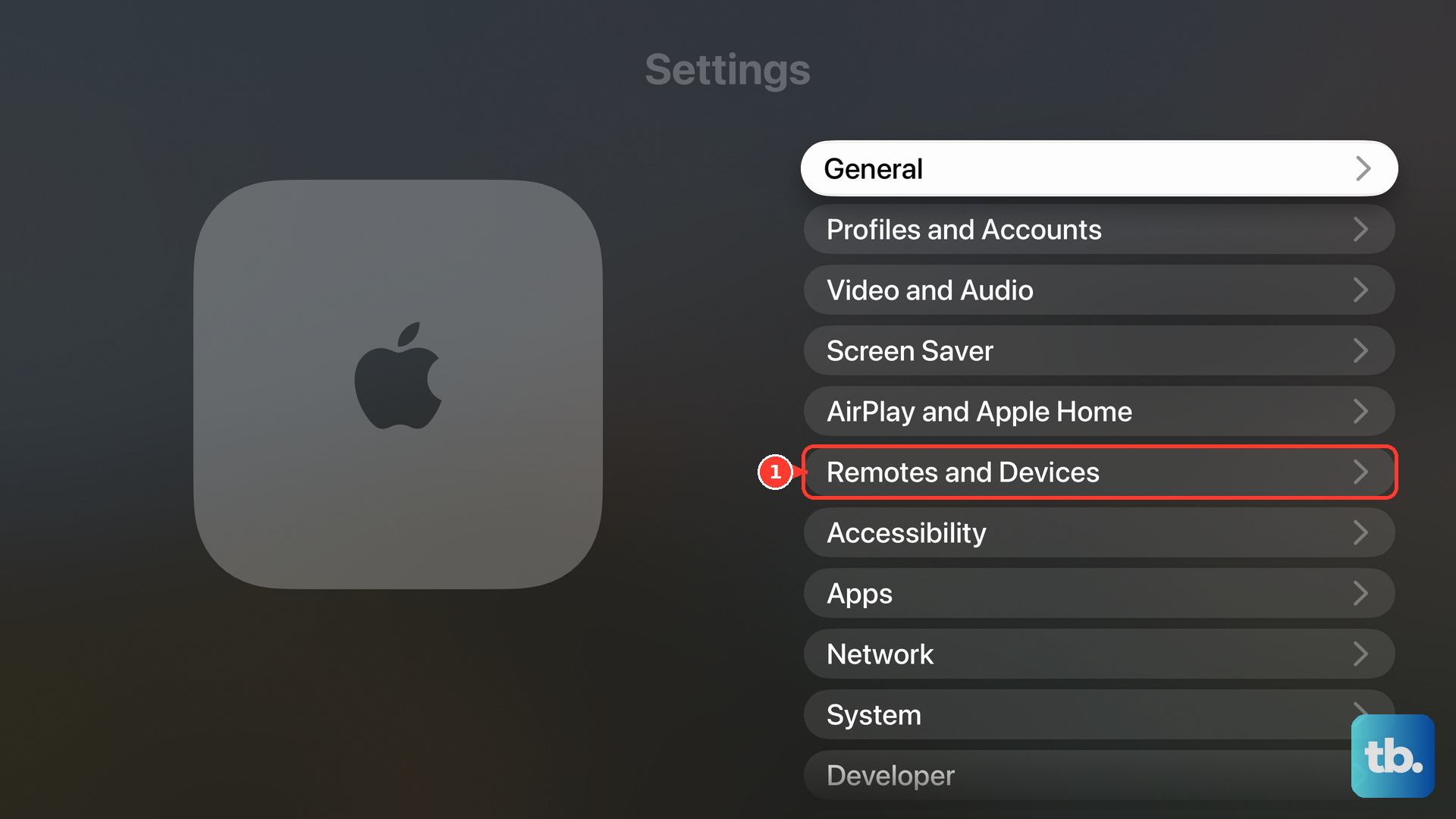
Select the name of the accessory you want to disconnect.
Choose Forget this Device.
Stop the remote from changing your TV's volume
Open Settings > Remotes and Devices on Apple TV 4K.
Under Home Theater Control, select Volume Control.
Choose Off to stop the remote from controlling the volume of your TV, receiver, or sound bar.
Tip: Use this setting when volume control is the problem, since it leaves the remote paired with Apple TV.
Frequently Asked Questions
Why don't I see an Unpair Apple Remote option in Settings?
The Unpair Apple Remote command belongs to older Apple TV hardware. Older infrared remote button shortcuts also apply to different hardware; they are not current Siri Remote instructions.
Does removing the Apple TV Remote shortcut from Control Center unpair my iPhone?
Apple doesn't document removing the Apple TV Remote shortcut from Control Center as a way to unpair. To remove the iPhone's remote connection, open Settings > Remotes and Devices > Remote App and Devices on Apple TV, select the iPhone, then choose Forget This Device.
Do I need to download an app or update Apple TV to unpair a remote?
No software download, installation, or update is required for these unpairing procedures.
Can a school or workplace block Remote app control?
Yes. On a supervised Apple TV running tvOS 10.2 or later, an administrator can disallow Remote app control using the Pair with Remote app device-management restriction. This restricts app control; it does not unpair a physical remote.