VALORANT is easy to remove when Windows, Riot Client, and Riot Vanguard are all handled in the right order. The common snag is removing the game while Riot software is still running, then finding Vanguard or Riot folders left behind. Follow the current Riot, Microsoft, Epic, and Xbox removal paths below to uninstall the game cleanly and clear the pieces that remain.
1. Stop Riot Client and Vanguard before you uninstall
Start here if VALORANT refuses to uninstall, the Riot Client is still open, or Vanguard is sitting in the system tray.
- 1.Close VALORANT and any other game launched from Riot Client.
- 2.Close Riot Client.
- 3.If Riot Client stays in the Windows system tray, right-click it and select Exit.
- 4.Right-click the red Riot Vanguard icon in the Windows system tray.
- 5.Select Exit Vanguard, then click Yes.
- 6.If Riot software is still running, press Ctrl + Shift + Esc, select Riot Games-related software, and choose End task.
Use a Windows account with administrator access for Vanguard removal and app removal prompts.
2. Remove VALORANT from Installed apps
Press the Windows key, type Installed apps, and open Installed apps. Find and choose VALORANT, then select Uninstall. Follow the on-screen prompts, and restart your computer when Riot or Windows prompts you to restart.
This is the main Windows path for uninstalling VALORANT from a standard Riot install. You can reach the same removal surface from Start > Settings > Apps > Installed apps > VALORANT > More > Uninstall.
3. Uninstall Riot Vanguard after the game
VALORANT uses Riot Vanguard, and Vanguard has its own removal paths. Use one of these after the main VALORANT uninstall.
From the system tray, right-click the Riot Vanguard icon, choose Advanced, and select Uninstall Vanguard. Follow the on-screen prompts.
If the tray icon is not available, use Windows Settings instead. Press the Windows key, type Add or Remove programs, and press Enter. Find Riot Vanguard in the app list, then select Uninstall. Restart the PC.
After that, check the system tray and confirm Riot Vanguard no longer appears.
4. Clear the leftover Riot folders
After the normal uninstall, this cleanup gives you a clean removal or prepares the PC to reinstall VALORANT.
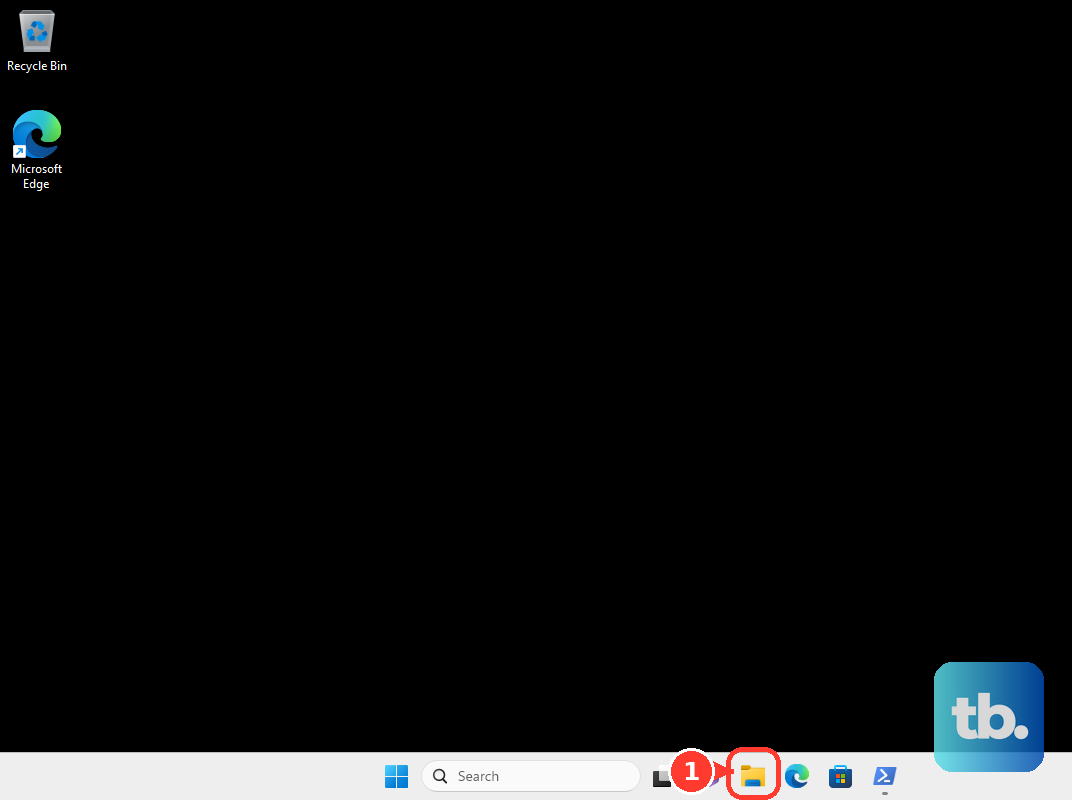
Open File Explorer, go to C:\Riot Games, and delete the VALORANT folder. Then delete the Riot Client folder and empty the Recycle Bin.
Press Windows + R, type %localappdata%, and press Enter. In AppData\Local, delete the Riot Games folder and the VALORANT folder. Restart your computer.
5. Use Epic Games Launcher for Epic installs
Open Epic Games Launcher, select Library, and find VALORANT. Click the three dots next to the title, select Uninstall, and choose Uninstall in the pop-up window.
If VALORANT was installed through Epic Games Launcher, remove the game from Epic first. If Epic does not show Uninstall, remove VALORANT from Start > Settings > Apps > Installed apps > VALORANT > Uninstall. If a paused Epic update blocks removal, open the Download Manager in the lower-left corner of Epic Games Launcher, cancel the paused VALORANT update, and run the uninstall again.
6. Choose the Xbox app path for Xbox installs
For VALORANT entries that appear through the Xbox app for Windows, remove the game in Xbox app for Windows first.
Press the Windows logo key, enter Xbox, and open Xbox app for Windows. Select My Library, then filter My PC Games by selecting the Installed checkbox. Right-click VALORANT and select Uninstall.
After the Xbox app removes the game, uninstall Riot Vanguard with the Vanguard tray icon or Windows Settings steps above.
7. Fix a blocked VALORANT uninstall
Restart your PC, then open Start > Settings > Apps > Installed apps. Select VALORANT, Riot Client, or Riot Vanguard, then select Uninstall. Follow any Windows troubleshooter prompt.
When Windows blocks removal, reset the uninstall attempt before moving to deeper fixes. If Windows asks for administrator approval, use an administrator account.
Go to Settings > Accounts > Other user, select the account flyout, choose Change account type next to Account options, choose Administrator, then select OK. Run the uninstall again from that administrator account or approve the prompt.
On Windows 10, use Microsoft’s Program Install and Uninstall troubleshooter for programs that cannot be installed or removed. Run it, follow the prompts, and enter the program product code if Microsoft asks for it.
8. Delete Vanguard services only when normal removal fails
Use this advanced administrator fallback for Riot Vanguard only after the tray icon and Windows Settings removal paths fail.
Press the Windows key, type cmd, and right-click Command Prompt. Choose Run as administrator, then run sc delete vgc. Run sc delete vgk, and restart your computer.
Once the PC restarts, press the Windows key, type File Explorer, and press Enter. Go to C:\Program File or C:\Program Files, right-click the Riot Vanguard folder, and select Delete for any remaining files.
To install VALORANT again later, use the official VALORANT download page or select Play For Free on the official VALORANT site. That page is for reinstalling VALORANT, not removing it.
Frequently Asked Questions
What should I uninstall first, VALORANT or Riot Vanguard?
Uninstall VALORANT first, then uninstall Riot Vanguard. Close Riot Client and exit Vanguard before starting either removal path.
Where are VALORANT leftover files stored?
Riot documents leftover cleanup in C:\Riot Games and AppData\Local. Delete the VALORANT, Riot Client, and Riot Games folders listed in those locations after the normal uninstall.
Do I need administrator access to remove Riot Vanguard?
Yes. Use a Windows administrator account or approve the administrator prompt when removing Riot Vanguard.
Can I uninstall VALORANT from Epic Games Launcher?
Yes. Open Epic Games Launcher, go to Library, click the three dots next to VALORANT, select Uninstall, then confirm Uninstall.