Want Google Drive off your computer? Start by protecting unsynced files, then disconnect your accounts and remove the app through Windows Settings or Mac Finder. Your cloud files stay accessible through Drive on the web.
Prepare your files and disconnect Drive
Let Google Drive finish syncing before you start. Then copy any unsynced recovery files from Drive’s Lost & Found folder to another location. Disconnecting your account deletes that folder.
Click the Google Drive icon in the Windows system tray or Mac menu bar. Open Settings > Preferences > Advanced Settings. Select the account you want to disconnect.
Click Disconnect account. Confirm with OK. Repeat the disconnect process for every other connected account.
Return to the Drive menu and choose Settings > Quit. Tip: Disconnecting leaves the app installed, so continue with the removal steps for your computer below.
Remove Google Drive through Windows Settings
On Windows 11, use the installed-apps page once you’ve disconnected your accounts and quit Drive. Open Start > Settings > Apps > Installed apps. Find Google Drive in the app list.
Select More, the three-dot button beside the app. Choose Uninstall. Follow the confirmation prompts to complete removal.
If Windows removal gets stuck
A Drive app left running is the first thing to check when Windows removal gets stuck. Open the Google Drive system-tray menu and choose Settings > Quit. Then try the Windows Settings uninstall again.
For another removal route on Windows 11 or Windows 10, search for Control Panel from the taskbar. Open Control Panel. Select Programs > Programs and Features.
Right-click Google Drive. Choose Uninstall, or Uninstall/Change when that label appears. Follow the uninstall prompts.
Prefer to start from the app list? Open Start and find the app list under All, or All apps on older Windows builds.
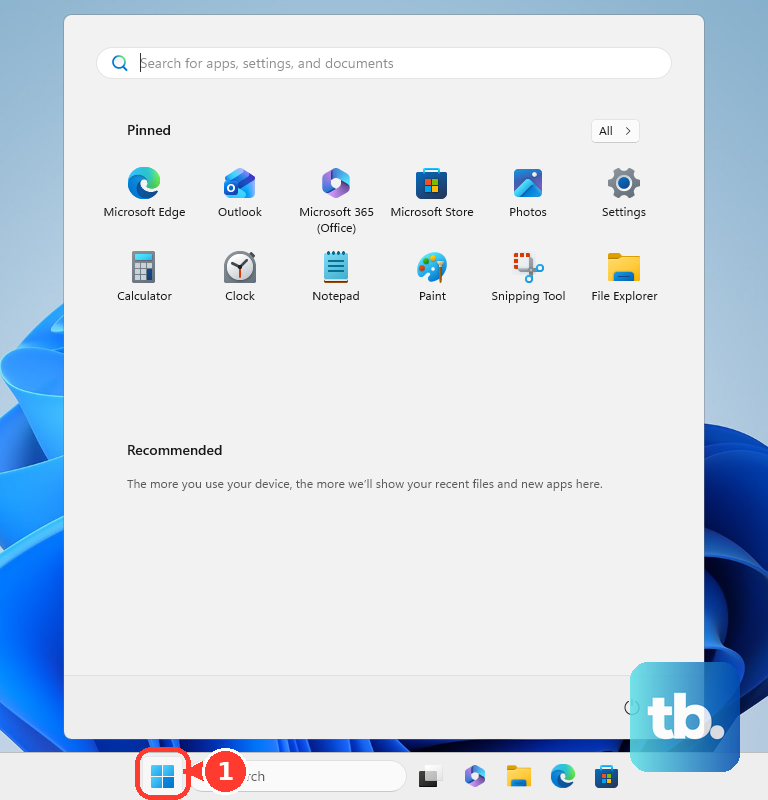
Right-click Google Drive. Choose Uninstall. If Windows opens Programs and Features, select Google Drive there. Choose Uninstall to continue.
Move Google Drive to Trash on a Mac
Disconnect your accounts using the preparation steps above. Quit Drive through Settings > Quit in its menu. Open Finder > Go > Applications. Drag Google Drive to Trash.
For the menu-based alternative, select Google Drive in Applications. Choose File > Move to Trash. Authenticate with an administrator account if prompted.
Review the other contents of Trash, since emptying it removes those items too. Choose Finder > Empty Trash to finish. Tip: With the application selected in Finder, Command-Delete also moves it to Trash.
Remove a separately installed Drive web app
Still have a Drive website app to remove? Browser-installed apps are separate from Drive for desktop and need their own removal. For a Chrome-installed app, open the Drive web app.
Select More > Uninstall [app name]. The command shows the installed app’s name. Select Also delete data from Chrome if you want to remove that data too. Click Remove.
For an Edge-installed app, open Microsoft Edge. Enter edge://apps in the address bar. On the Drive app card, select Details > Uninstall.
Choose whether to delete the app’s history and data. Select Uninstall to confirm.
For a Drive web app created with Safari’s Add to Dock feature on macOS Sonoma 14 or later, quit the web app first. In Finder, choose Go > Home. Open Applications.
Drag the Drive web app to Trash. If Google Drive remains installed after removing the web app, use the Windows or Mac desktop uninstall steps above to remove the desktop client.
Frequently Asked Questions
How do I remove the Google Drive web app from a Chromebook?
Right-click the Drive web-app icon in the launcher and select Uninstall. Select Also delete browsing data if you want that data removed, then select Uninstall again. This applies to an uninstallable web app and leaves the Files app’s Google Drive integration in place.
Can I stop Google Drive syncing without uninstalling it?
Yes. Open the Drive menu and choose Settings > Pause syncing. Choose Resume syncing when you want syncing to continue. The app remains installed.
How do I stop Google Drive from opening when I sign in?
In the Drive menu, open Settings > Preferences > Advanced Settings. Clear Launch Google Drive when you login to your computer. This changes startup behavior without uninstalling Drive.
Can I free up space without removing Google Drive?
Yes, if you use Mirror files. Let syncing finish. Open Drive > Settings > Preferences > Folders from Drive. Under My Drive syncing options, select Stream files. Quit Drive, then delete the previously mirrored folder. Google specifically requires quitting Drive on Windows before deleting that folder.