Chrome froze, and now the page, app, or whole window will not respond. Start with the stuck tab, then move to the browser, the device, and finally the deeper cleanup steps that stop the freeze from coming back.
These fixes cover Chrome on Windows, Mac, Linux, Chromebook, Android, iPhone, and iPad.
Start with the frozen tab
Click Reload this page at the top left of Chrome. If the page wakes up, keep browsing.
When Chrome shows a Page unresponsive box, select the frozen webpage and click Kill pages. Open the page again in a fresh tab.
On a Chromebook, press Ctrl + Shift + r when the tab keeps crashing or freezing.
If the same tab freezes again, close unused tabs and stop heavy Chrome tasks next.
Free up Chrome memory
This fixes freezes caused by too many open pages, extensions, or background Chrome tasks using memory.
Close tabs you are not using. On Windows, Linux, or ChromeOS, press Ctrl + w; on Mac, press Command + w.
Open Chrome Task Manager with Shift + Esc, or open Chrome's More menu.
Choose More tools, then select Task Manager.
Select Memory footprint to sort the list when you need to find the heaviest tab or extension. JavaScript memory is a separate column you can turn on by right-clicking the column headers.
Click the task you want to stop, then select End Process.
Quit Chrome and open it again
The most common fix after one bad tab is a clean Chrome restart.
On Windows, press Ctrl + q, or open Chrome's More menu and choose Exit.
Reopen Chrome from the Start menu or your desktop shortcut.
On Mac, press Command + q, or use the menu bar path Chrome > Quit Google Chrome.
Open Chrome again from the Dock or Applications folder.
On Chromebook, select Close at the top right of the Chrome window.
Reopen Chrome from the Launcher or Dock.
Force close Chrome when it will not respond
On Windows, press Ctrl + Alt + Delete and select Task manager.
You can also right-click Start and choose Task Manager, or press Ctrl + Shift + Esc.
Under Processes, click Google Chrome or chrome.exe.
Select End task.
Reopen Chrome.
On Mac, press Option + Command + Esc, or open the Apple menu and choose Force Quit.
Select Google Chrome.
Click Force Quit.
Open Chrome again.
Use force close only when normal quitting does not work, because unsaved work in tabs can be lost.
Fix the Chrome app on a phone or iPad
Use this when Chrome is stuck on Android, iPhone, or iPad instead of a desktop computer. Closing the app clears the current stuck session without changing your Chrome data.
On Android, swipe up from the bottom, hold, then let go.
Swipe up on the Chrome app to close it.
On Android Go with 3-button navigation, tap Recent apps.
Close Chrome from the app switcher.
If Chrome still will not respond on Android, open Settings.
Tap Apps, then See all apps.
Select Chrome.
Tap Force stop, then confirm with OK.
On iPhone X and later, start from the Home Screen, swipe up from the bottom, and pause in the middle.
Find Chrome, then swipe up on its preview.
On iPhone SE, iPhone 8 and earlier, and iPod touch, double-click the Home button.
Find Chrome and swipe up on its preview.
On iPad, open Expose.
Swipe up on Chrome, then reopen it from the Home Screen, App Library, or Dock.
Restart the device
When Chrome keeps freezing after you close it, restart the device itself. This clears stuck system resources that Chrome may be waiting on.
Restart your Windows PC, Mac, Linux computer, Android phone or tablet, iPhone, or iPad, then try Chrome again.
On Chromebook, turn the Chromebook off, then turn it back on.
If ChromeOS itself stays frozen, use the Chromebook hardware reset next.
Use the Chromebook hardware reset
Use this reset when a Chromebook remains frozen or keeps crashing after a normal restart.
- 1.Turn off the Chromebook.
- 2.Press and hold Refresh.
- 3.Tap Power.
- 4.When the Chromebook starts, release Refresh.
For ChromeOS tablets, press and hold Volume Up + Power for at least 10 seconds, then release.
Remove what keeps freezing Chrome
The most common repeat causes are extensions, old browsing data, an outdated Chrome build, and desktop performance settings.
Open the problem page in Incognito.
If the page works there, close Incognito and check extensions or browsing data.
On desktop, open Chrome's More menu, then Extensions.
Select Manage extensions.
Turn off an extension, or select Remove and confirm with Remove.
To clear data on desktop, open Chrome's More menu and choose Delete browsing data.
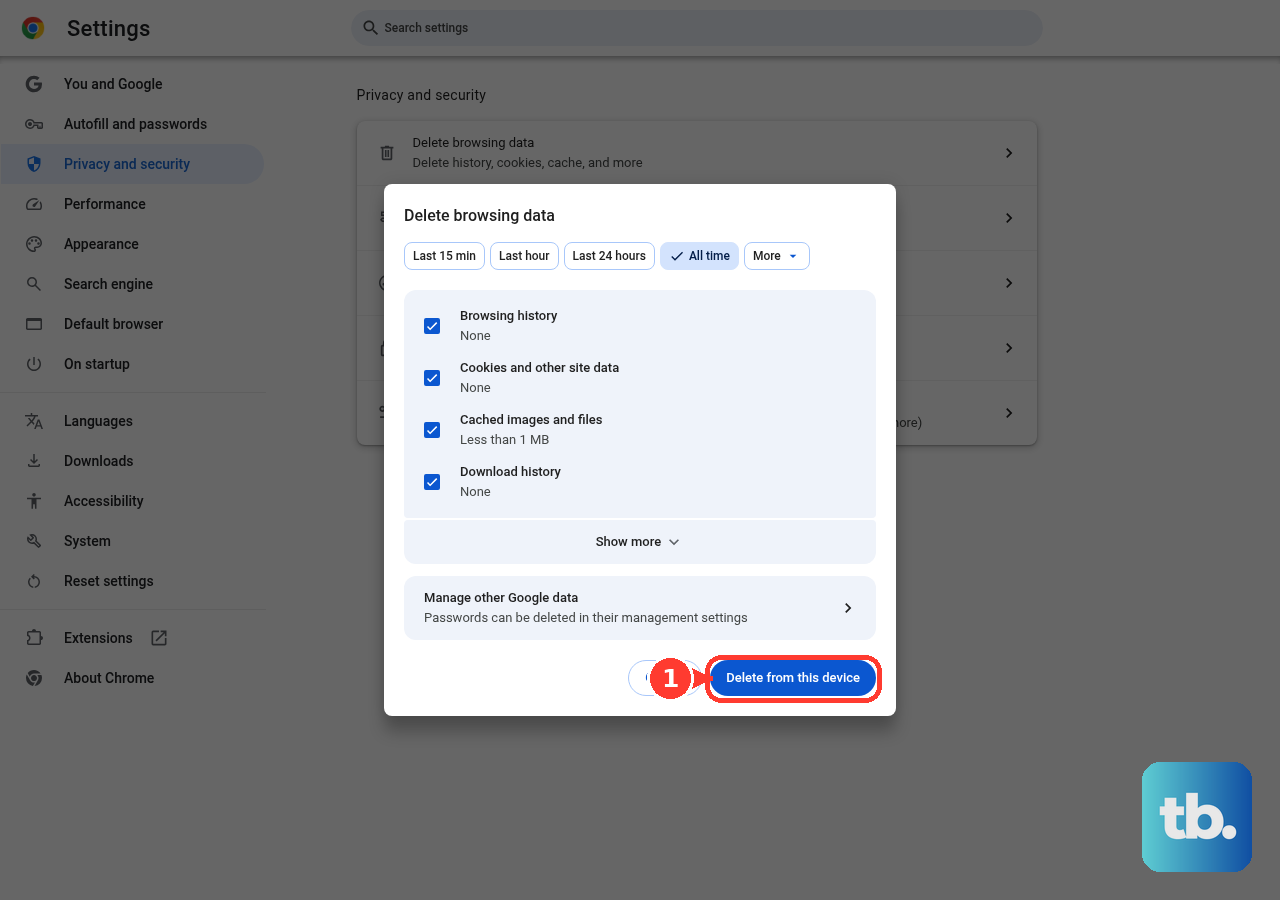
Choose a time range and the data types you want to remove.
Select Delete data.
On Android, open Chrome's More menu and tap Delete browsing data.
Choose a duration, then tap Delete data.
On iPhone or iPad, open Chrome's More menu and tap Delete Browsing Data.
Set Time Range, tap Browsing Data to choose the data types you want to delete, then tap Confirm.
Tap Delete Browsing Data.
Update Chrome on desktop through More > Help > About Google Chrome.
Select Relaunch; if Relaunch is not shown, Chrome says you are on the latest version.
On Android, open the Play Store, tap your profile icon, then tap Manage apps & device.
Find Chrome under Updates available, then tap Update.
On iPhone or iPad, open the App Store, tap your profile, then scroll to Available Updates.
Find Chrome and tap Update.
On desktop, open More > Settings > Performance.
Turn Memory Saver on and choose Balanced, or click Fix now if Chrome shows a performance notification.
If Memory Saver reloads a site you need to keep active, open Performance and select Add next to Always keep these sites active.
Choose Add current sites or Add sites manually, then select Add.
If video, games, or visual pages keep freezing on desktop, open More > Settings > System.
Turn off Use graphics acceleration when available, also labeled Use hardware acceleration when available in some Chrome builds.
Restart Chrome.
If Energy Saver makes video or games feel stuck on a Windows laptop, MacBook, or Chromebook with a battery, open More > Settings > Performance.
Turn Energy Saver off, or select the Energy Saver icon next to the address bar and choose Turn off now for the current session.
Reset or reinstall Chrome as a last resort
This fixes Chrome problems that survive tab cleanup, extension checks, updates, and normal restarts.
On desktop, open Chrome's More menu and select Settings.
Choose Reset settings.
Select Restore settings to their original defaults.
Click Reset settings.
To reinstall Chrome on Windows 11, close all Chrome windows and open Start > Settings > Apps > Installed apps.
Next to Google Chrome, choose More.
Select Uninstall, confirm with Uninstall, then approve with Yes.
On Windows 10, open Start > Settings > Apps, select Google Chrome under Apps & features, then choose Uninstall.
Reinstall Chrome from Google's official Chrome page.
On Mac, quit Chrome from the Dock.
Open Finder and go to the folder that contains Google Chrome, usually Applications.
Drag Google Chrome to the Bin.
Reinstall Chrome from Google's official Chrome page.
On Linux, open a terminal with Ctrl + Alt + t on GNOME, Unity, or Cinnamon.
On KDE, open Application menu > System > Konsole.
On Debian-based systems, run sudo dpkg -r google-chrome-stable.
On other systems, run sudo rpm -e google-chrome-stable.
Reinstall Chrome with Google's official .deb or .rpm package.
On iPhone or iPad, touch and hold Chrome, tap Remove app, then tap Delete app.
Reinstall Chrome from the App Store.
On Android, open the Google Play Chrome page and choose Update or Install.
If Chrome is preinstalled and cannot be removed, open Settings > Apps > All apps > Chrome and tap Disable. Google says only some phones offer this, so ask your device manufacturer if Disable is not there. Disabling takes Chrome off the app list until you turn it back on with Enable; it is not a reinstall.
On Chromebook, use Storage management when low storage is causing loading problems.
Select the time at the bottom right, open Settings, and choose Storage management in the Device section.
Free space by deleting unneeded files, clearing browsing data or download history, uninstalling unused apps, or removing extra user accounts.
For persistent Chromebook freezing, sign out and press Ctrl + Alt + Shift + r.
Select Restart, choose Powerwash, select Continue, and follow the prompts to sign in with your Google Account.
Chrome's old Clean up computer scan under Reset and clean up is no longer available in current Chrome versions, so use Chrome reset, security software, Play Protect on Android, or a reinstall instead.
On a work or school device, your organization may block ending processes in Chrome Task Manager, which still opens but leaves End process dimmed, and it may also restrict extensions or control updates. Ask your IT admin to check those controls if the usual Chrome options are missing or greyed out.
Frequently Asked Questions
Why does Chrome freeze on only one website?
A single site can overload its tab or clash with an extension. Reload the page, end that tab in Chrome Task Manager, then test the site in Incognito.
Will clearing browsing data delete my bookmarks?
Clearing browsing data removes only the data types you select, such as cookies, cache, or history. Chrome reset is a separate option.
Why does Chrome keep reloading tabs that seem frozen?
Memory Saver can deactivate inactive tabs on desktop. Add key sites under Always keep these sites active when reloads interrupt a web app.
What should I do if Chrome freezes my whole Chromebook?
Restart the Chromebook first. If it remains frozen, use the hardware reset with Refresh and Power, then use storage cleanup or Powerwash only if freezing continues.