Need a degree symbol for 72°F or a 90° angle, but can't find it on your Mac keyboard? Press Option-Shift-8 on a U.S. input layout to type °. For other layouts or frequent typing, try the options below.
Type ° with Option-Shift-8
Click where you want the degree symbol in your text. Then press Option-Shift-8 to insert °. Add C or F after the symbol when you need °C or °F. Tip: This shortcut uses the U.S. input layout; check Keyboard Viewer below for the right key on another layout.
Find the symbol in Character Viewer
Can't remember the shortcut? Character Viewer lets you look up the degree sign, including when your keyboard layout assigns symbols to different keys.
Open Edit > Emoji & Symbols, or press Control-Command-Space bar. Search for “degree” or the character code 00B0. Click ° to insert it, or double-click it when the viewer is expanded.
To save it for repeated use, select ° in the expanded viewer. Click Add to Favorites. Next time, select the degree sign from Favorites.
Copy and paste for a quick one-off
Copy and paste gets ° into your text without a symbol shortcut or settings change.
Select just this character: °. Press Command-C to copy it. Click the destination in your document, message, or editable browser field. Then press Command-V to paste the degree sign.
Check your layout if the shortcut produces a different character
On macOS Tahoe 26, Keyboard Viewer shows the symbol keys for your active input layout.
- 1.Open the Apple menu > System Settings > Keyboard.
- 2.Under Text Input, click Edit.
- 3.Turn on Show Input menu in menu bar.
- 4.Open the Input menu and choose Show Keyboard Viewer.
- 5.Press Option and Shift to reveal additional symbols.
- 6.When ° appears, press its corresponding physical key or click its onscreen key.
Create a text replacement for frequent typing
Go to the Apple menu > System Settings > Keyboard > Text Replacements.
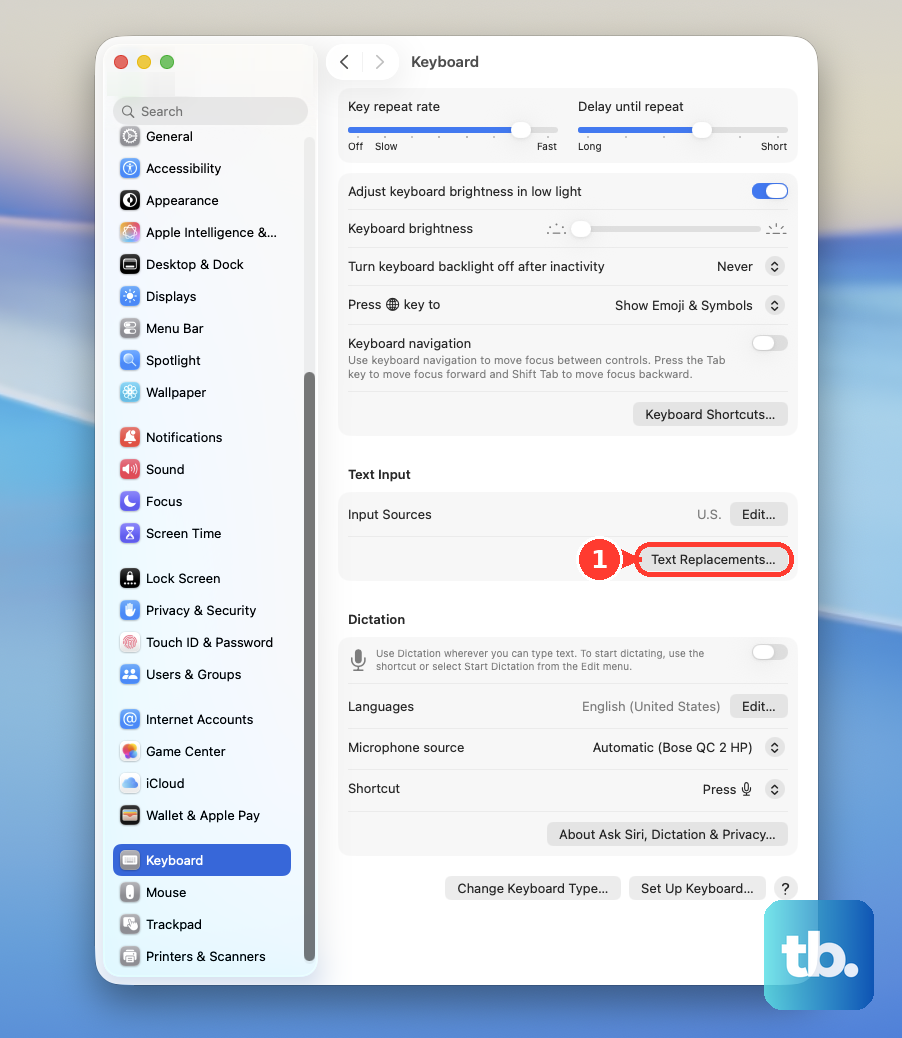
Click + to create an entry. Enter a distinctive abbreviation such as “;deg”. Set its replacement to °. Click Add.
Click Done to finish. In a supporting app, enable Edit > Substitutions > Text Replacement. Type “;deg” to use your replacement. Tip: Text replacement doesn't work in every app or browser field, so use Option-Shift-8 on a U.S. input layout or Character Viewer when the abbreviation stays unchanged.
Make the shortcut easier with Sticky Keys
Sticky Keys lets you enter the U.S. layout shortcut one key at a time. Open the Apple menu > System Settings > Accessibility > Keyboard. Turn on Sticky Keys.
Click the text field where you want the symbol. Press Option. Press Shift. Press 8 to insert °.
Use the symbol menus in Word and Google Docs
Already working in Microsoft Word, Google Docs, or Google Slides? Each has a symbol menu for inserting °.
In Microsoft Word for Mac, choose Insert > Advanced Symbol > Symbols. Select ° to insert it.
In Google Docs or Slides, open Insert > Symbols > Special characters. Locate the degree sign using its Unicode value, 00B0. Click ° to add it to your document or presentation.
For Google Sheets, which has no equivalent direct special-character picker, copy the inserted symbol with Command-C. Select the destination cell in Sheets. Press Command-V to paste it.
Frequently Asked Questions
Are °, º, and ˚ the same character?
No. ° is the degree sign, U+00B0. º is the masculine ordinal indicator, and ˚ is a ring above. Use ° for temperatures and angles.
How do I paste the degree symbol without bringing over its formatting?
After copying °, choose Edit > Paste and Match Style in apps that offer it. This matches the pasted symbol to the surrounding formatting.
Do I need to download anything to type the degree symbol?
No. The keyboard shortcut, Character Viewer, copy and paste, and macOS text replacements are built-in options.