Need an em dash on your Mac but can't find it on the keyboard? Press Option + Shift + Hyphen to insert one on a compatible keyboard layout. If your layout uses different keys, Character Viewer and automatic replacements give you other ways to enter it.
Type an em dash with your keyboard
Use this shortcut when your keyboard layout supports it. It also works in Word for Microsoft 365, Word 2024, and Word 2021 for Mac.
Click where you want the em dash to go.
Hold Option and Shift, then press the Hyphen (-) key. Keep Shift held down: Option + Hyphen produces the shorter en dash.
Already have an em dash in another document? Select that character.
Press Command + C to copy it.
Click your destination.
Press Command + V to paste it. In apps that support it, Edit > Paste and Match Style pastes without bringing over the original formatting.
Find the character in Character Viewer
No need to memorize a shortcut here. Click in your text, then choose Edit > Emoji & Symbols or press Fn/Globe + E.
Search for “em dash” or its Unicode code, 2014. Click the — character to insert it, or double-click it when the viewer is expanded.
For quicker access next time, select the character in the expanded viewer and click Add to Favorites. In Pages, Control + Command + Space also opens Character Viewer.
Check your layout if the shortcut produces the wrong character
A different keyboard layout changes which characters your keys produce.
Open Apple menu > System Settings > Keyboard.
Under Text Input, click Edit.
Enable Show Input menu in menu bar.
Choose Input menu > Show Keyboard Viewer.
Hold Option and Shift to see the characters available on your active layout.
Click the key displaying the em dash, or press its physical counterpart. Keyboard Viewer is particularly useful with a non-US layout or an external keyboard.
Let two hyphens become an em dash
Smart dashes turns two hyphens into an em dash as you type in supporting apps. Some browser fields and editors don't support this conversion.
Go to Apple menu > System Settings > Keyboard.
Under Text Input, click Edit.
Enable Use smart quotes and dashes.
Click Done.
Type two hyphens (--) in a supporting app to insert an em dash.
For Pages, Numbers, or Keynote, open Pages > Settings > Auto-Correction, Numbers > Settings > Auto-Correction, or Keynote > Settings > Auto-Correction, respectively.
Under Formatting, enable Use smart quotes and dashes. This affects new typing; existing double hyphens need a separate replacement action.
Create your own typing abbreviation
Open System Settings > Keyboard > Text Replacements.
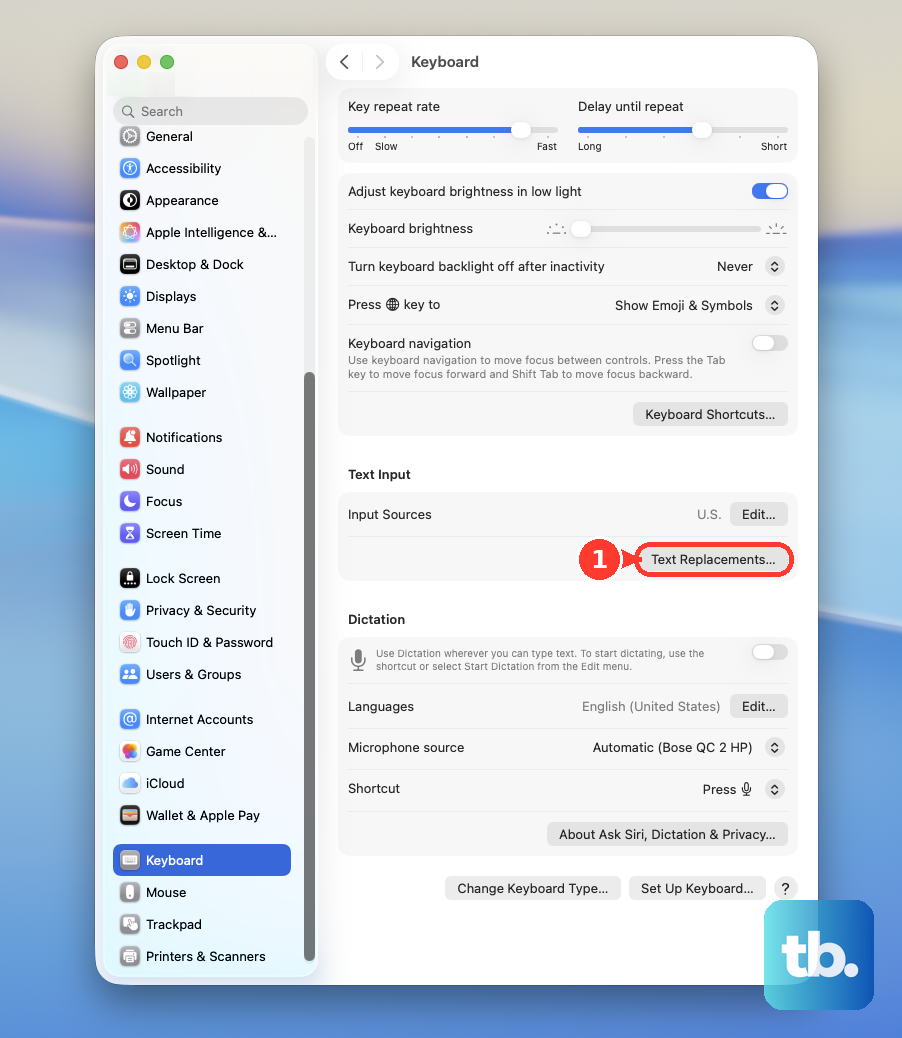
Click + to create a replacement.
Enter a distinctive abbreviation such as “;emd”.
Enter an em dash as the replacement, using Option + Shift + Hyphen on a compatible layout or pasting a character you've already copied.
Click Add.
Click Done.
In a supporting app, enable Edit > Substitutions > Text Replacement.
Type your abbreviation in the document.
Choose an abbreviation you wouldn't normally type, and use it in an app that supports macOS text replacement.
Insert an em dash in Google Docs and Slides
Google Docs and Slides have their own special-character picker in the desktop browser editor. Open your document or presentation, then choose Insert > Symbols > Special characters.
Enter the Unicode value 2014 to find the em dash. Click the — character to insert it.
Google Sheets doesn't have this picker. Copy the character from your document, then paste it into a spreadsheet cell.
Frequently Asked Questions
Can I turn double hyphens already in a document into em dashes?
Yes, in apps with a Substitutions window. Select the text. Choose Edit > Substitutions > Show Substitutions. Select Smart Dashes. Click Replace in Selection, or choose Replace All to apply it throughout the document.
Does Alt + 0151 work on a Mac?
Alt + 0151 is a Windows method, not a native macOS Option-key shortcut.
Can I generate an em dash with a spreadsheet formula?
Yes. In Excel for Microsoft 365, Excel 2024, or Excel 2021 for Mac, enter =UNICHAR(8212) in a cell. In Google Sheets, enter =CHAR(8212) instead. Press Return to produce the character.
Can I make the Fn or Globe key open Character Viewer?
Yes. In macOS Tahoe 26, open Apple menu > System Settings > Keyboard. Set Press fn key to or Press Globe key to to Show Emoji & Symbols. Press that key to open the viewer. Search for “em dash”. Click the character to insert it, or double-click it in the expanded viewer.