To turn on the keyboard light on your MacBook Air, open the Apple menu > System Settings > Keyboard, then move the Keyboard brightness slider right from its minimum position. You can also put a brightness control in Control Center or the menu bar for quicker access.
The short version
- Turn it on: Increase the Keyboard brightness slider in System Settings > Keyboard.
- Quick access: Open Control Center, select Keyboard Brightness, and move the slider right.
- Automatic adjustment: Enable Adjust keyboard brightness in low light and keep the sensor near the camera clear.
- Stay lit longer: Choose a longer interval under Turn keyboard backlight off after inactivity.
| Method or option | Where to find it | What it does |
|---|---|---|
| Keyboard brightness slider | System Settings > Keyboard | Turns on and adjusts the light |
| Control Center slider | Menu bar on macOS Golden Gate 27 or Tahoe 26 | Provides quick brightness adjustment |
| Dedicated menu bar control | Keyboard Brightness in the menu bar | Opens the brightness slider directly |
| Edit Controls | Control Center | Adds a brightness control to Control Center or the menu bar |
| Automatic adjustment | Adjust keyboard brightness in low light | Adjusts illumination for surrounding light |
| Inactivity timeout | Turn keyboard backlight off after inactivity | Changes when the light switches off |
| Fn + C | Keyboard shortcut on current macOS | Opens Control Center |
| Keyboard navigation | System Settings > Keyboard | Lets you adjust the slider with keys |
| Voice Control | Onscreen brightness slider | Uses spoken commands to operate the slider |
| Sequoia control setup | System Settings > Control Center | Shows brightness controls on macOS Sequoia 15 |
Turn on the light in Keyboard settings
Open the Apple menu > System Settings, then select Keyboard. Find Keyboard brightness and drag its slider right until the keys have the illumination you want. This path works on current macOS and recent versions that use System Settings.
Use the same slider to make the keys brighter or dimmer later, or move it all the way left to switch the light off. If the light turns off too soon after you stop typing, adjust the inactivity setting below.
Add keyboard brightness to Control Center
On macOS Golden Gate 27 or Tahoe 26, click Control Center in the menu bar, then select Keyboard Brightness. Move the slider right to turn on or brighten the keyboard.
If Keyboard Brightness is missing, open Control Center and click Edit Controls. Drag Keyboard Brightness into Control Center, then click Done. Open the added control and increase its slider.
You can also press Fn + C to open Control Center on current macOS. Select Keyboard Brightness from there and increase the slider. The shortcut opens the controls; it does not directly toggle the keyboard light.
Keep a brightness control in the menu bar
On macOS Golden Gate 27 or Tahoe 26, hold Control and click the Keyboard Brightness item in Control Center. Choose Copy to Menu Bar or Add to Menu Bar, using the wording shown on your Mac. Once the icon is in place, click Keyboard Brightness in the menu bar and move its slider right.
You can also click Control Center in the menu bar, click Edit Controls, then drag Keyboard Brightness to the menu bar. Open the resulting control and increase the slider to light the keys.
Show brightness controls on macOS Sequoia
On macOS Sequoia 15, open the Apple menu > System Settings > Control Center. Under Other Modules, find Keyboard Brightness. Enable Show in Control Center or Show in Menu Bar, depending on where you want the control.
Next, open the brightness control in your chosen location and move its slider right. Enabling the display option only makes the control accessible; increasing the slider turns on the backlight.
Let the keyboard adjust to low light
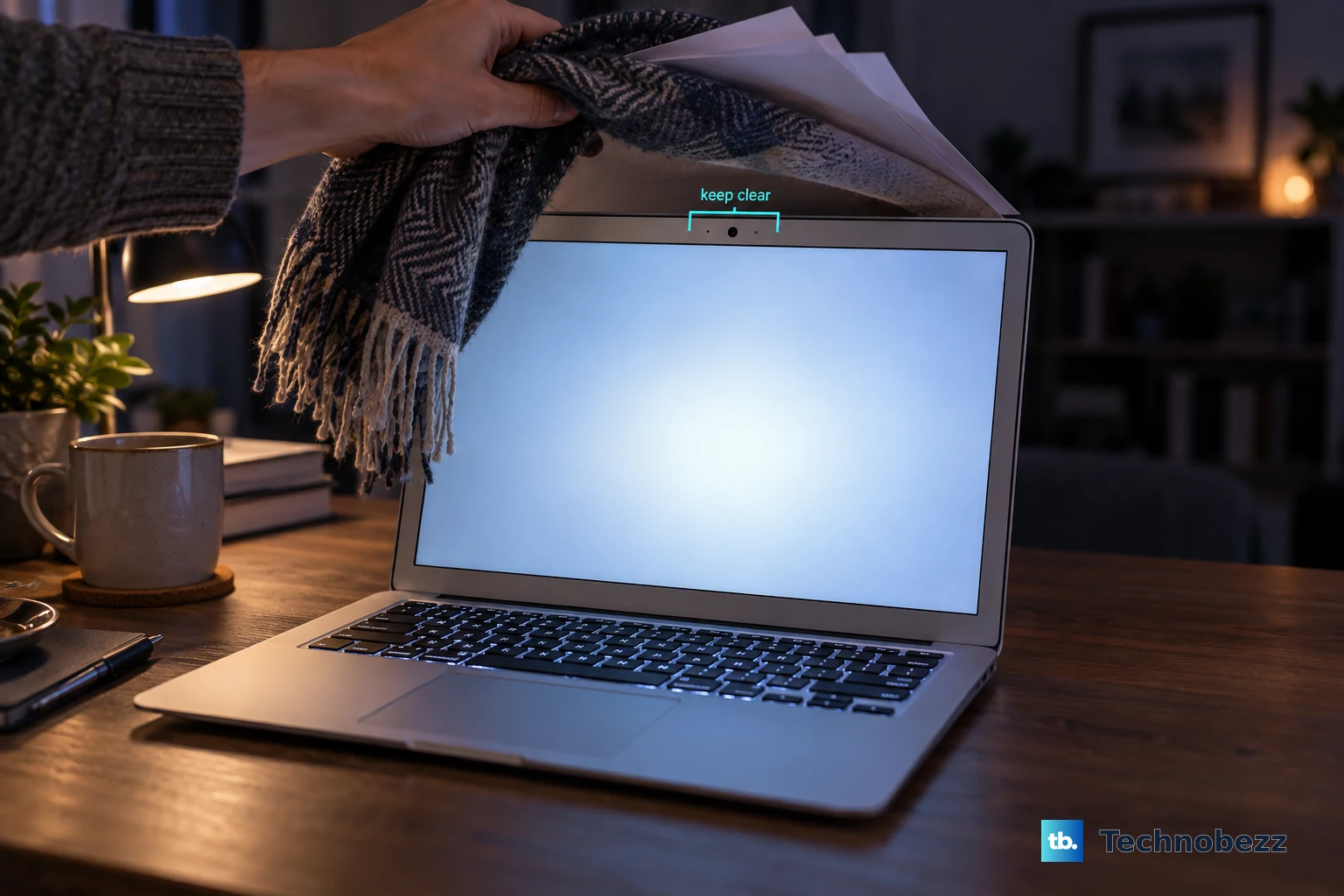
Open the Apple menu > System Settings > Keyboard and enable Adjust keyboard brightness in low light. Keep the sensor area near the camera unobstructed so your Mac can detect the surrounding light.
If automatic illumination is not behaving as expected, check that nothing covers that sensor. Then return to Keyboard settings and confirm that Adjust keyboard brightness in low light is enabled. For a manual adjustment, move the Keyboard brightness slider right.
Keep the light on longer between keystrokes
If the keyboard goes dark too soon after you stop typing, open the Apple menu > System Settings > Keyboard. Find Turn keyboard backlight off after inactivity and choose a longer interval from the options displayed on your Mac.
This setting controls automatic shutoff after inactivity; it does not turn on a backlight whose brightness is at minimum. If the light is off, increase the Keyboard brightness slider first, then adjust the timeout.
Adjust brightness using keyboard navigation
To operate the slider with keys, open System Settings > Keyboard and enable Keyboard navigation. Press Tab, or Shift + Tab to move backward, until the Keyboard brightness slider has focus. Once the slider is focused, press Up Arrow to increase its value.
Operate the brightness slider with Voice Control
With Voice Control enabled, navigate to System Settings > Keyboard. Say “Show numbers” to identify onscreen controls, or “Show grid” to locate the brightness slider. Say “Click” followed by a displayed number to select the corresponding control.
To move the slider, say “Drag” followed by the item name or number, then “to” and the destination name or number. Choose a destination to the right to increase brightness. These are general Voice Control commands for operating onscreen controls; Apple does not document a dedicated keyboard light voice command.
Frequently Asked Questions
Why do the brightness keys change my screen instead of my keyboard light?
On current MacBook Air keyboards, F1 and F2 control display brightness. The keyboard backlight has a separate brightness control, so changing screen brightness does not adjust the illumination under the keys.
Can changing the function key setting create a keyboard light shortcut?
Changing function key behavior does not create missing keyboard light functions. You can change that behavior under System Settings > Keyboard > Keyboard Shortcuts > Function Keys. On current MacBook Air layouts, F5 handles Dictation or Siri and F6 handles Do Not Disturb.
Does MacBook Air have a Touch Bar control for keyboard brightness?
MacBook Air does not have a Touch Bar. Touch Bar instructions apply to MacBook Pro models equipped with one.
Do I need to install an app to turn on the keyboard backlight?
You do not need to install an app or download a tool. macOS includes the controls required to turn on and adjust the keyboard backlight.
Why do older instructions tell me to open System Preferences?
System Preferences is the older interface used by macOS versions such as Monterey 12. Current macOS uses System Settings, so those older interface names do not match your current settings layout.