Your iPhone vibrates for calls, notifications, typing, Face ID, music, and emergency alerts, so the right fix depends on what is buzzing. Start with the broad switch if you want every vibration off, or use the narrower controls when only calls, Messages, the keyboard, or one app is the problem. On current iOS, the main controls live in Accessibility and Sounds & Haptics.
Turn Off Every iPhone Vibration
For the broadest shutoff, open Settings, go to Accessibility, tap Touch, then turn off Vibration. This is the device-level iPhone vibration control, so use it when you want the phone to stop buzzing altogether.
This also disables vibrations for earthquake, tsunami, and other emergency alerts. Use it only if you accept that safety tradeoff.
Turning off Vibration is the all-vibrations switch, and it takes the separate haptics with it: Apple notes that keyboard haptics will not play unless Vibration is turned on in Settings > Accessibility > Touch. If you would rather keep general vibration and silence only one source, leave Vibration on and use the narrower controls below for keyboard feedback, Face ID, Music Haptics, and the app that is buzzing.
Stop Calls And Alerts Buzzing
Use this for incoming calls and alerts; keyboard feedback, Music Haptics, and Face ID haptics have their own controls.
- 1.Open Settings.
- 2.Tap Sounds & Haptics.
- 3.Tap Haptics.
- 4.Select Never Play.
Fix Silent Mode Vibration
The most common cause is that Silent mode is on, but Haptics is still set to play while the phone is silent.
Open Settings, tap Sounds & Haptics, tap Haptics, and choose Don't Play in Silent Mode.
Put the iPhone in Silent mode. On models with a Ring/Silent switch, flip the switch so orange is showing.
On models with an Action button, press and hold it when it is assigned to Silent Mode. To assign it, open Settings, tap Action Button, and swipe to Silent Mode.
On models with a Control Center silent control, open Control Center and tap Mute or Silent Mode.
If you want no call or alert vibration in either Ring or Silent mode, go back to Settings > Sounds & Haptics > Haptics and choose Never Play.
Remove Vibration From One Alert Type
When only one built-in alert is the problem, change that alert's haptic pattern instead of muting the whole iPhone. Open Settings, tap Sounds & Haptics, choose Ringtone, Text Tone, or another alert option, then tap Haptics and choose None.
Apple puts alert-level vibration choices in Sounds & Haptics. The available categories vary by iOS version and installed apps, including voicemail, mail, calendar, and reminders.
If that alert still vibrates, open Settings > Sounds & Haptics > Haptics and choose Never Play.
Silence Messages By Contact Or Chat
To stop all Messages vibration, open Settings > Notifications > Messages > Sounds > Haptics and choose None. This affects incoming and outgoing sounds and vibrations for Messages.
For one saved contact, open Messages, choose a one-person conversation, tap the contact icon at the top, then tap Info > Edit > Edit Contact Info > Text Tone > Haptics and choose None. Set Alert Tones to None too if that contact should be fully silent.
To mute a chat without changing vibration-only settings, swipe left on it in the Messages conversation list and tap Mute. You can also open the conversation, tap the contact or icon at the top, and turn on Hide Alerts.
Disable Keyboard, Face ID, And Music Haptics
This fixes vibrations that continue after call and notification haptics are already off.
To stop typing vibration, open Settings > Sounds & Haptics > Keyboard Feedback.
Turn off Haptic.
To stop the Face ID confirmation tap, open Settings > Accessibility > Face ID & Attention.
Turn off Haptic on Successful Authentication. That haptic plays when Face ID unlocks iPhone, authorizes Apple Pay, or verifies iTunes and App Store purchases.
To stop Music Haptics, open Settings > Accessibility > Music Haptics.
Turn off Music Haptics.
Quiet One Noisy App
When one app is responsible, stop its notification alerts first, then handle vibration built into the app itself.
- 1.Open Settings > Apps, tap the app name, then tap Notifications.
- 2.Turn off Allow Notifications.
- 3.For a temporary mute, swipe left on the app's notification or notification group, tap Options, and choose the one-hour or one-day mute option.
- 4.To undo a temporary mute, open Notification Center, swipe left on that app notification, tap Options, then tap Unmute.
- 5.When the vibration happens only inside the app, open the app's own Settings, Notifications, or Preferences screen. To remove the app, touch and hold the app, tap Remove App, tap Delete App, then tap Delete.
Use Do Not Disturb Temporarily
Do Not Disturb is the cleanest option when you want vibrations and alerts paused for a while without changing every haptic setting. Open Control Center, touch and hold Focus or Do Not Disturb, then tap Do Not Disturb.
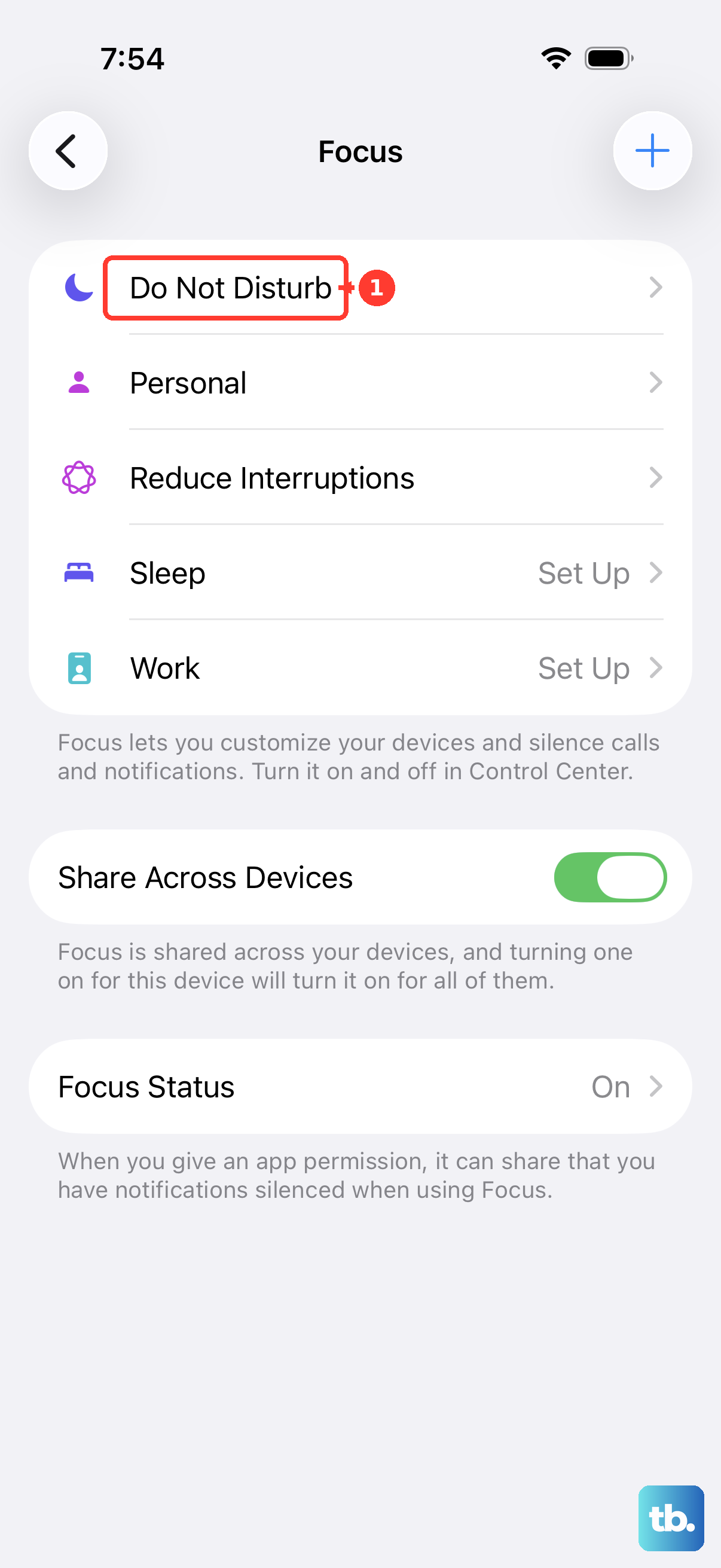
You can also ask Siri to turn Do Not Disturb on or off. For longer-term rules, open Settings > Focus > Do Not Disturb and customize allowed People, Apps, schedules, and other options.
Alarms still sound, and critical or emergency alert behavior varies by alert type and settings. If your iPhone still vibrates during Focus, check the allowed People and Apps exceptions first.
Handle Emergency Alerts And Managed iPhones
This fixes adjustable alert categories and keeps you away from outdated vibration directions.
Open Settings > Notifications.
Scroll to Government Alerts and turn off the alert types you do not want. Some government alerts cannot be turned off in some countries or regions.
Inside Emergency Alerts, tap Emergency Alerts.
Adjust available options such as Emergency Alerts, Local Awareness, and Always Play Sound.
For Enhanced Safety Alerts in the United States and Taiwan, go to the bottom of Notifications.
Tap Enhanced Alerts > Enhanced Safety Alerts, then turn off Earthquake Alerts or Imminent Threat Alerts. Enhanced Safety Alerts require iOS 26.2 or later and do not affect government alerts delivered by carrier networks.
For a supervised or managed iPhone, ask the organization that manages the device to change its notification policy. Managed-device controls cover per-app notification settings, not a universal iPhone vibration-off switch.
Skip older directions that mention Vibrate on Ring and Vibrate on Silent. Current iOS uses Settings > Sounds & Haptics > Haptics, including Always Play, Play in Silent Mode, Don't Play in Silent Mode, and Never Play.
Frequently Asked Questions
What is the difference between Vibration and Haptics on iPhone?
Vibration in Accessibility is the broad device-level switch. Haptics in Sounds & Haptics controls incoming calls and alerts, while keyboard feedback, Face ID, Music Haptics, and some apps have separate controls.
Can I turn off vibration but keep emergency alert vibrations?
Yes. For regular calls and alerts, use Settings > Sounds & Haptics > Haptics > Never Play. Do not turn off Settings > Accessibility > Touch > Vibration, because that broader switch also disables vibrations for earthquake, tsunami, and other emergency alerts.
Why does my iPhone still vibrate when I type?
Keyboard vibration is controlled separately. Go to Settings > Sounds & Haptics > Keyboard Feedback and turn off Haptic.
Why is my wrist vibrating after I changed iPhone vibration settings?
Apple Watch haptics are separate from iPhone vibration. Change them from Apple Watch Settings or the Watch app instead of the iPhone vibration menus.