A bank login, school portal, tax form, or checkout page can fail when Microsoft Edge blocks a pop-up the site needs. The fastest fix is to change Edge’s pop-up setting, and the safer everyday fix is to allow pop-ups only for the site you trust. Use the steps below for current Microsoft Edge on desktop, Android, and iPhone.
1. Disable Edge pop-up blocking on desktop
This fixes pop-ups being blocked across current Microsoft Edge on Windows and Mac.
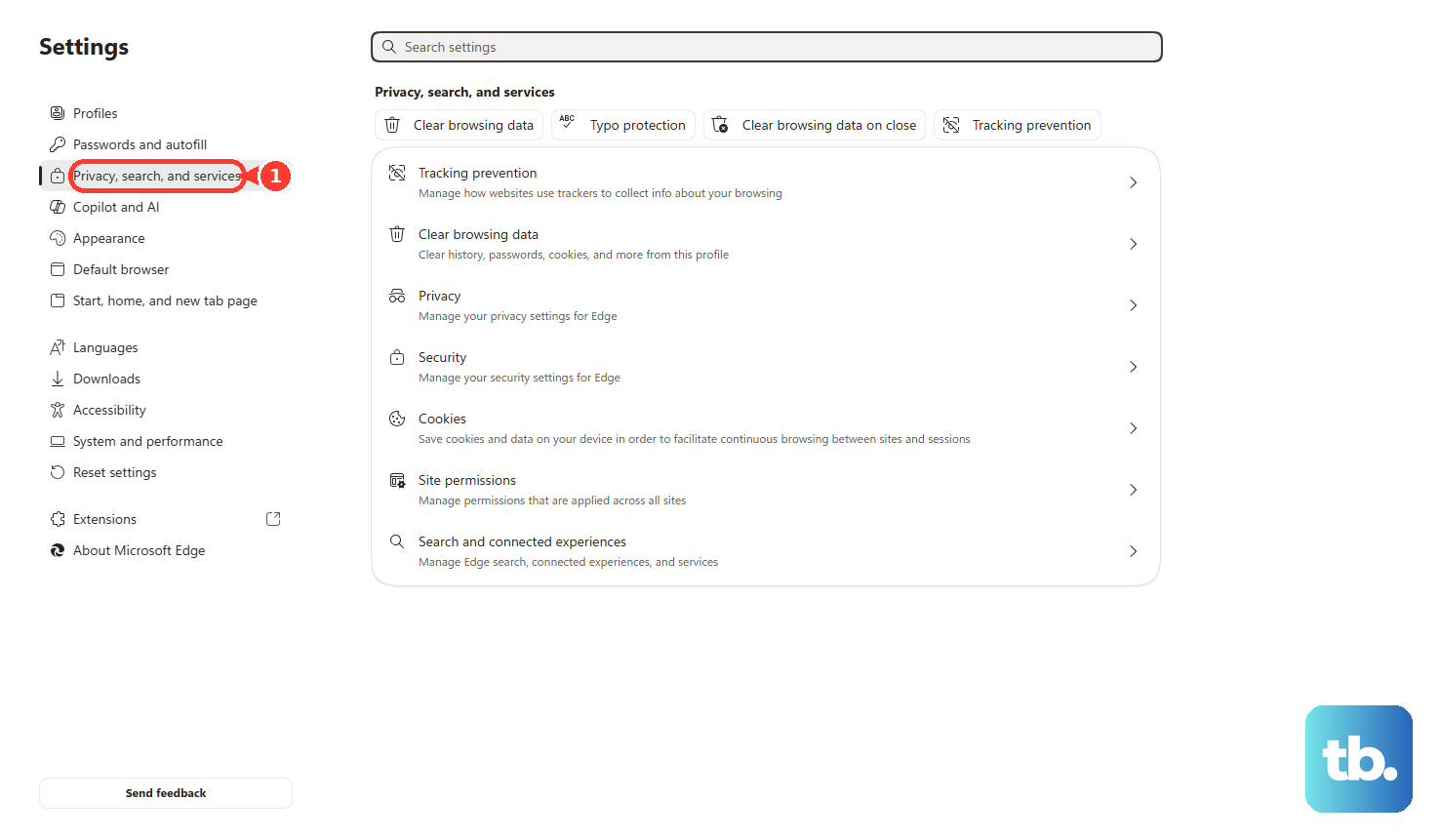
Open Microsoft Edge. Select Settings and more, then select Settings. Go to Privacy, search, and services, then select Site permissions. Select All permissions, select Pop-ups and redirects, and turn off Blocked (recommended).
2. Allow one trusted website instead
For one bank, school, tax, checkout, or sign-in site, keep the blocker on and allow only that site. Open Settings and more > Settings > Privacy, search, and services > Site permissions > All permissions > Pop-ups and redirects > Allowed to send pop-ups and use redirects > Add site, enter the site URL starting with https://, then select Add. Edge keeps blocking pop-ups on other sites.
3. Switch pop-ups on in Edge for Android
- 1.Open Microsoft Edge on your Android phone.
- 2.Tap menu.
- 3.Tap Settings.
- 4.Tap Site permissions.
- 5.Tap Pop-ups and redirects.
- 6.Turn on Pop-ups and redirects.
4. Stop blocking pop-ups in Edge for iPhone
Open Microsoft Edge on your iPhone, then tap menu. Tap Settings and choose Privacy and security. Turn off Block pop-ups, then finish by tapping Done. Turn Block pop-ups back on after the site finishes its sign-in, payment, or form step.
5. Turn off a pop-up blocking extension
This fixes pop-ups blocked by an extension instead of Edge’s built-in setting.
Select Extensions, then select Manage extensions. Find the extension that blocks pop-ups or ads, and turn off the toggle next to that extension. If Extensions is not visible next to the address bar, open Settings and more, then select Extensions.
6. Remove the extension when you no longer need it
To uninstall it from the toolbar, right-click or select and hold the extension icon next to the address bar, then choose Remove from Microsoft Edge > Remove. You can also open Extensions > More actions > Remove from Microsoft Edge > Remove. Use removal when you want the extension gone instead of temporarily turned off.
7. Navigate with the keyboard on desktop
Press Alt+F. After the menu opens, press the Down arrow until you reach Settings, then press Enter. Press Tab to move to the settings categories. Use the Down arrow to select Cookies and site permissions, then press Enter.
Press Tab to reach Pop-ups and redirects, then press Enter. Continue with Tab to reach Block (recommended). Press Spacebar to clear or select the checkbox.
8. Separate pop-ups from other Edge settings
Skip old Edge Legacy instructions that use Settings, Advanced settings, and Block pop-ups. Microsoft Edge Legacy support ended on March 9, 2021.
Treat website notifications as a separate permission. The pop-up blocker setting does not control notification prompts. Treat page-embedded ads as a separate problem. Edge’s built-in pop-up blocker does not remove ads that only look like pop-ups.
Use the site’s button or link when a pop-up is supposed to open from your click. Edge does not block pop-ups opened after you select a button or link. For current Edge, use Pop-ups and redirects, not Edge Legacy’s old Advanced settings path.
9. Handle managed work or school devices
This fixes pop-up settings controlled by an organization instead of your personal Edge settings.
For all managed sites, the admin can set Default pop-up window setting to AllowPopups (1). On Windows Group Policy, the admin opens Administrative Templates > Microsoft Edge > Content settings and configures DefaultPopupsSetting. For specific managed sites, the admin configures Allow pop-up windows on specific sites with PopupsAllowedForUrls.
For managed Edge on iOS and Android through Intune, the admin opens Intune admin center > App Configuration policies > Add > Managed apps > Basics > Public apps > Edge for iOS and Android > Settings > Edge configuration settings. For global mobile allow in Intune, the admin sets com.microsoft.intune.mam.managedbrowser.DefaultPopupsSetting to 1. For site-only mobile allow in Intune, the admin sets com.microsoft.intune.mam.managedbrowser.PopupsAllowedForUrls with URLs separated by |.
Frequently Asked Questions
Is it safer to allow pop-ups for one site in Edge?
Yes. Use the allowed list when only one trusted bank, school, tax, checkout, or login site needs pop-ups. Turning the blocker off globally allows pop-ups for all sites.
Why are pop-ups still blocked after I changed Edge settings?
A third-party extension can still block them. Open Extensions, choose Manage extensions, and turn off the extension that blocks pop-ups or ads.
Are website notifications the same as pop-ups in Edge?
No. Website notifications are a separate Edge permission, so changing Pop-ups and redirects does not manage notification prompts.
Does Edge block pop-ups opened by a button or link?
No. Edge does not block pop-ups that open after you select a button or link.
Should I use old Edge Advanced settings instructions?
No. Microsoft Edge Legacy support ended on March 9, 2021. Use the current Pop-ups and redirects path in Microsoft Edge.