Instagram auto follow back usually means one of two things: your private account is automatically confirming people you follow, or an outside tool has access to your account. Start with Instagram's own auto-confirm setting, then shut down apps, sessions, passwords, and browser extensions that keep acting for you.
Turn Off Instagram's Auto Confirm Setting
This applies when your Instagram account is private and Instagram shows the auto-confirm follow-request setting. Public accounts do not approve followers, so this setting matters when you want control over who follows you.
Open the Instagram app and go to your Profile. Tap Menu, then open Follow and invite friends.
Find Automatically confirm anyone you follow. Tap Off. After that, following someone will not automatically approve that person as one of your followers.
Remove Followers Who Were Already Approved
Turning the setting off stops future automatic confirmations, but it does not clean up people who were already approved. Open Instagram and go to your Profile, then tap Followers.
Find the person you do not want following you, tap Remove next to their name, then tap Remove again to confirm. If new followers still appear after you have turned off the setting and removed people, check connected apps next.
Remove Connected Apps In Instagram
Open Instagram and go to your Profile. Tap Menu. Open Website permissions. Tap Apps and websites.
Open Active. Tap Remove next to any suspicious app you do not recognize or no longer use. Use Your app and media if your account places Website permissions there.
Check Connected Apps On Instagram Web
Use the website route when you manage Instagram from a computer or cannot find the app permissions screen on your phone.
- 1.Go to instagram.com and select More.
- 2.Open Settings, then choose Website permissions.
- 3.Select Apps and websites, then open Active.
- 4.Choose Remove next to the app you want to disconnect.
Change Your Password If You Used A Growth Tool
This applies when a follower, growth, or automation service asked for your Instagram password instead of sending you through Instagram's authorization screen. Removing app access does not stop a tool that still signs in directly.
In Instagram, go to your Profile. Tap Menu, then open Accounts Center. Choose Password and security, tap Change password, and select your Instagram profile.
Enter your current password and your new password, then tap Change password. Use a password you have not used with any third-party service.
Log Out Unknown Sessions
This fixes account access from a phone, browser, or computer you do not recognize.
Open Instagram and go to your Profile. Tap Menu. Open Accounts Center. Choose Password and security.
Tap Where you're logged in. Select your Instagram account. Choose the unknown device or session, then tap Log out.
Turn On Two Factor Authentication
Go to your Instagram Profile. Tap Menu. Open Accounts Center.
Choose Password and security. Tap Two-factor authentication.
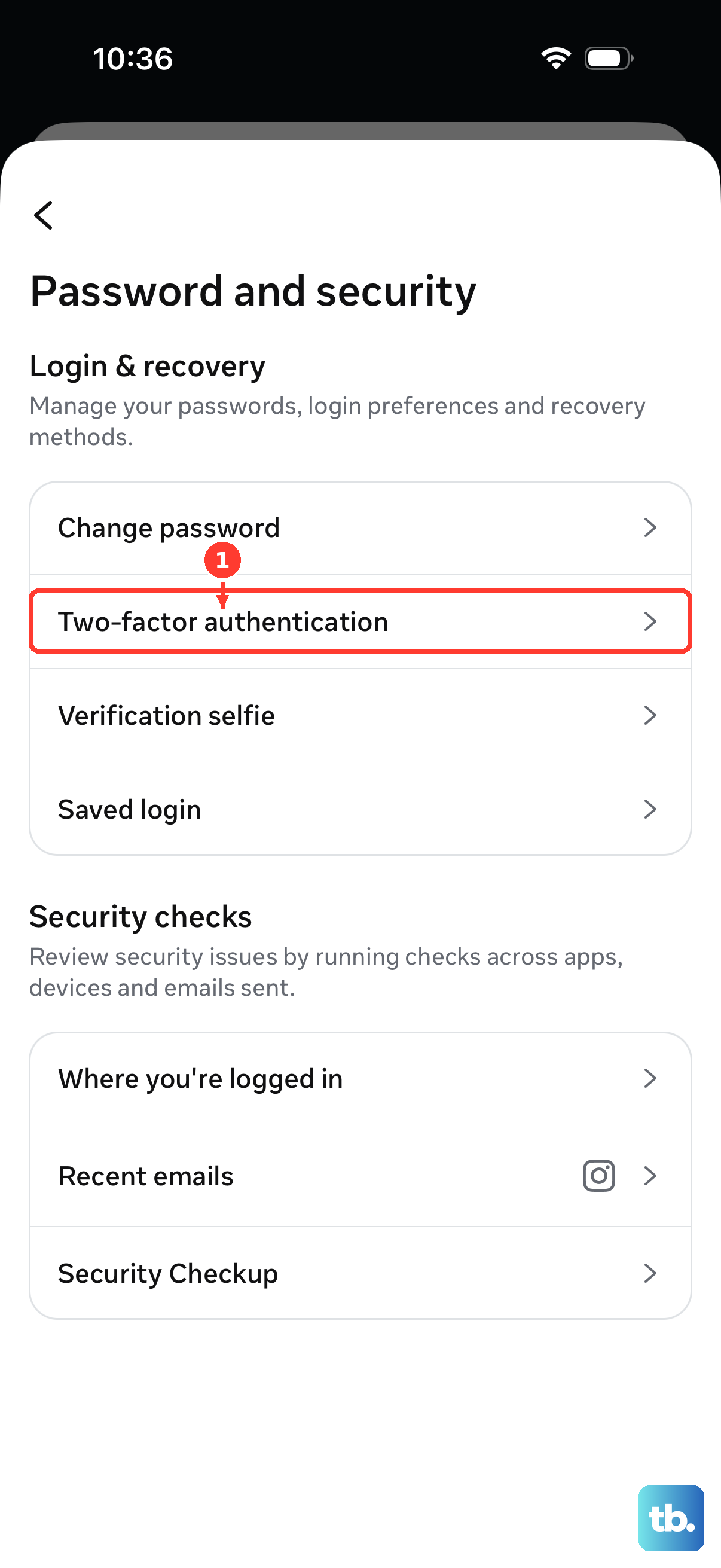
Select your Instagram profile, choose an authentication method, and follow the prompts. This does not turn off auto follow back by itself, but it helps keep removed bots and unknown users from signing back in.
Remove Browser Extensions That Automate Instagram
This applies when unwanted follows happen while you use Instagram in a desktop browser. A browser extension can automate Instagram activity even after you fix the Instagram app settings.
In Chrome, open More, go to Extensions, then Manage extensions. Select Remove on the extension, then confirm with Remove.
In Microsoft Edge, select the Extensions icon and open Manage extensions. Turn the extension off, or open More actions, choose Remove from Microsoft Edge, then select Remove.
In Safari on Mac, open the Safari menu, choose Settings or Preferences, then open Extensions. Deselect the extension checkbox to turn it off, or select the extension and choose Uninstall.
In Firefox, open Menu, choose Add-ons and themes, then open Extensions. Use the three-dot menu next to the add-on and choose Remove, or turn off its extension toggle.
Skip Old Instagram API Fixes
The most common bad advice is to follow older app paths or API automation tutorials that no longer match Instagram's consumer settings.
Older guides point to Settings, then Security, then Apps and Websites. Use Website permissions and Apps and websites instead.
Older automation tools also mention Instagram API relationship or follow endpoints. Those are not current consumer fixes. Meta announced the old Instagram API Platform deprecation before its full shutdown in early 2020.
Frequently Asked Questions
Why is Instagram automatically approving people I follow?
On private accounts, Instagram has an option called Automatically confirm anyone you follow. Turn it off from Profile, Menu, Follow and invite friends.
Does turning off auto follow back remove existing followers?
No. It only stops future automatic confirmations. Remove existing followers from Profile, Followers, Remove.
Can a third-party app cause Instagram to follow people for me?
Yes. Remove suspicious active apps from Apps and websites, then change your password if any service had your Instagram password.
Should I make my Instagram public to stop auto follow back?
No. A public account removes follower approval, which is the opposite of controlling who can follow you.