An Instagram Business account turns off when you switch the profile back to a personal account. You can also switch to Creator, hide the profile temporarily, delete it, or remove it from a Meta business portfolio, depending on what you want changed.
Start with the Instagram app if you want the direct fix. The account-type controls are inside the business profile, and confirmation finishes the switch.
Switch Back to Personal in the Instagram App
Open Instagram and make sure you are on the business or professional profile you want to change.
Tap Profile or your profile picture in the bottom right, then tap Menu in the top right.
Open Account type and tools, tap Account type, then tap Switch account type.
Choose Switch to personal account, then tap Switch to personal to confirm.
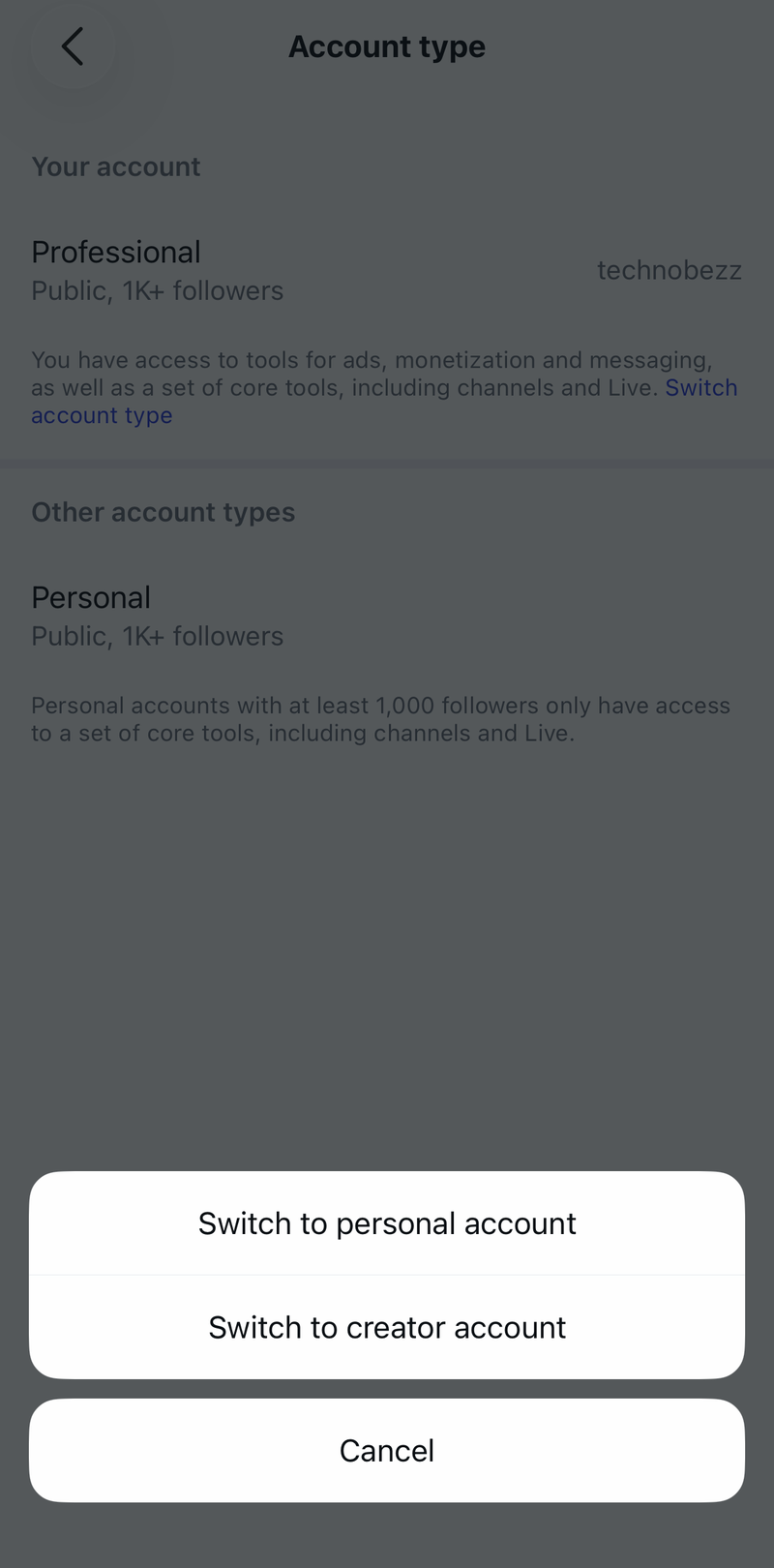
Find the Current Account Menu
The most common cause is that Instagram has moved the account-type controls away from older menu paths.
Use Account type and tools, then Account type, then Switch account type. Skip older instructions that send you through Settings, then Account, then Switch Account Type; Instagram’s current path uses the newer account-type menu.
Some layouts have shown a Professional Dashboard shortcut in the past. Use the main app path above when you want the supported Business-to-Personal switch.
Use Instagram on a Computer
Desktop works when you prefer a browser or the app layout is getting in the way.
Go to Instagram.com and sign in to the business or professional account.
Click More, then choose Settings.
Click Switch account type, choose the personal account option, then click Switch.
If this method fails, switch the account in the Instagram mobile app instead.
Move From Business to Creator
Use Creator when you want to stop being a Business account but keep the profile professional.
- 1.Open Instagram on the business profile.
- 2.Tap Profile or your profile picture in the bottom right.
- 3.Tap Menu in the top right.
- 4.Open Account type and tools, then tap Account type.
- 5.Tap Switch account type, choose Creator, and confirm.
A Creator account is still a professional account. It stops the profile from being a Business account, but it does not make the account private.
Hide the Profile Temporarily
The most common cause for choosing deactivation is that you want the business profile hidden, not converted.
Deactivation temporarily disables the Instagram profile. Logging back in can reactivate it, and the account type does not change to personal.
Open Instagram, go to Profile, tap Menu, then open Accounts Center.
Tap Manage account, tap Manage next to the profile, then tap Deactivation or deletion. Choose the Instagram profile, select Deactivate account, and continue through the confirmation prompts.
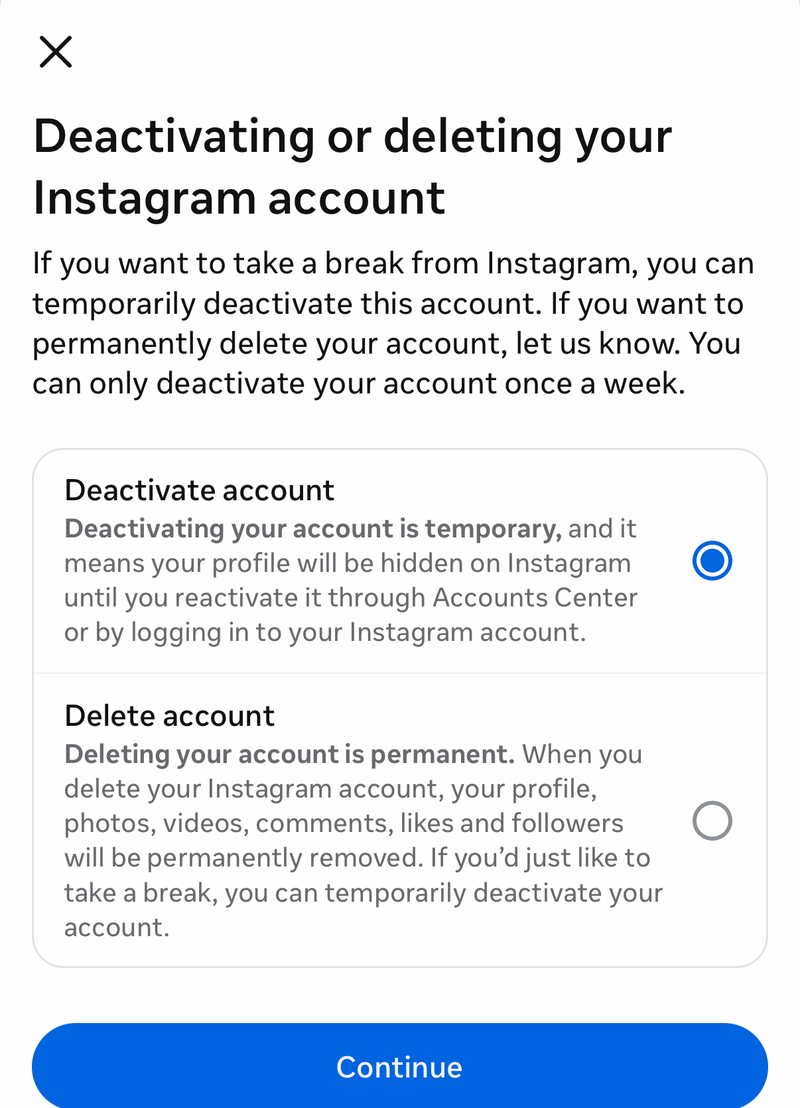
Delete the Instagram Account Completely
Choose deletion only when you want to remove the Instagram profile instead of changing its account type.
- 1.Open Instagram and go to Profile.
- 2.Tap Menu, then tap Accounts Center.
- 3.Tap Profiles and personal details, then tap Manage next to the account type you want to delete. If your Accounts Center shows Accounts instead, tap Personal details, then tap Account ownership and control.
- 4.Tap Deactivation or deletion, choose the Instagram profile, select Delete account, and follow the confirmation prompts.
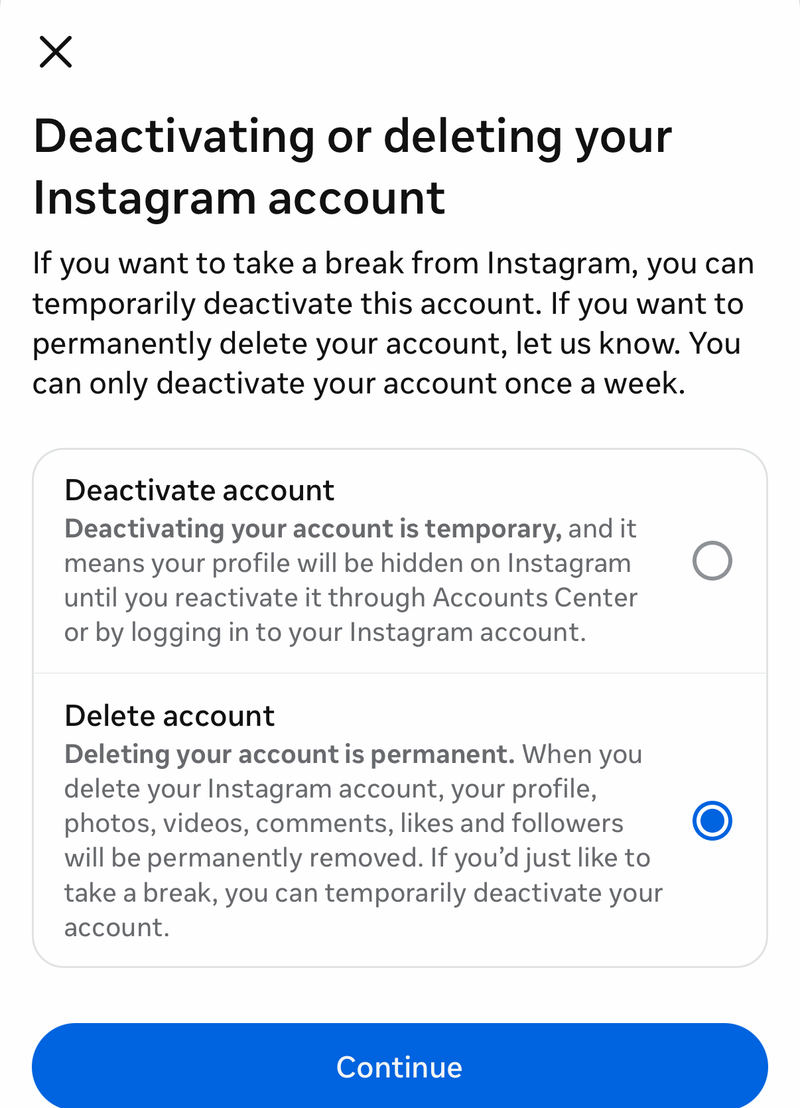
Remove It From a Meta Business Portfolio
Open Meta Business Suite and go to Settings for your business portfolio.
Click Instagram accounts under Accounts in the left menu.
Select the Instagram account you want to remove.
Click Remove, then click Remove again to confirm.
This only removes the Instagram asset from the business portfolio. Switch the Instagram profile to Personal in the app or on Instagram.com when you want to turn off the Business account type itself.
Skip Device Fixes That Do Nothing
Uninstalling Instagram or removing saved login information from your device does not turn off the Business account type.
Those actions only remove local app access or saved login state. The account remains a Business account until you switch its account type, move it to Creator, deactivate it, delete it, or remove it from a business portfolio for portfolio access.
If this method fails, stop troubleshooting the device and use Account type and tools in Instagram or Switch account type on Instagram.com.
Frequently Asked Questions
Can I make my Instagram Business account private by switching to Creator?
No. Switching from Business to Creator stops it being a Business account, but it remains a professional account and still cannot be made private.
Does deactivating my Instagram account switch it back to personal?
No. Deactivation hides the profile temporarily. It does not convert the account type, and logging back in can reactivate the profile.
Can I switch off a business account from Instagram.com?
Yes. Sign in on Instagram.com, open More, then Settings, click Switch account type, choose the personal account option, and click Switch.
Does removing Instagram from Meta Business Suite make it a personal account?
No. It removes the Instagram account from the business portfolio, but you still need to switch the profile to Personal in Instagram or on Instagram.com.