Your Samsung Galaxy Note 8 screen is blank, flickering, or ignoring your taps. Start with a restart, then work through the checks that match what you're seeing. You'll also find steps to access your files and back up your data before a reset or repair.
Restart a frozen screen first
Start here if your Note 8 has stopped responding. Hold Power and Volume down together for more than seven seconds, until the phone restarts. Use the separate Power button, not Bixby.
When touch still works, hold Power, tap Restart, then tap Restart again.
If restarting doesn't help, try the charging checks below for a black display. If you can see the screen but taps or flickering remain a problem, move on to the touch and display checks.
Check power if the display stays black
Rule out charging trouble and visible damage before moving to software fixes.
- 1.Remove accessories that obstruct the phone or its connections.
- 2.Inspect the phone, charging port, cable, and charger for damage or corrosion. Seek service for damage or evidence of liquid exposure.
- 3.If you find no damage, connect a suitable charger and charge for at least one hour. The charging indicator can take ten minutes to appear.
- 4.Disconnect the charger, then hold Power for 15 to 20 seconds.
- 5.If the display remains blank, contact Samsung Support or a service center.
Get cases and moisture out of the way
If the screen misses taps or responds erratically, check what's touching it. Start here when the screen is damp or you're using a case or screen protector.
Remove the screen protector and case, then test the touchscreen again. Wipe away moisture with a soft, dry cloth, and try the screen with clean, bare fingers.
If only S Pen input is affected, remove any magnetic case or cover. Magnetic materials interfere with the Note 8's S Pen.
Retest the S Pen without the magnetic accessory. Then try holding the S Pen more upright instead of at a shallow angle.
Adjust settings for flickering or delayed touch
If flickering or erratic touch happens while charging, disconnect the charger and retest. If that stops the problem, check the connections and try an undamaged, compatible Samsung charger and cable.
For flickering, open Settings > Display > Adaptive brightness and switch it off temporarily. Adjust brightness manually with the brightness slider in the Quick panel.
Try another resolution through Settings > Display > Screen resolution. Select another available resolution and apply it.
For delayed or ignored taps, open Settings > Accessibility > Interaction and dexterity. Review Touch and hold delay, Tap duration, and Ignore repeated touches, and undo unintended changes. These settings deliberately delay or suppress touches when enabled.
Use Safe mode to isolate an app
Hold Power to open the power menu. Touch and hold Power off, then tap Safe mode.
If touch prevents you from using the power menu, use the button method instead: start with the phone switched off. Press Power to turn it on. When the Samsung logo appears, hold Volume down until startup finishes. Check that Safe mode appears at the bottom of the screen.
Test for the same flickering, freezing, or missed taps. Restart normally to leave Safe mode.
If the fault disappeared in Safe mode, touch and hold the icon of a recently installed or updated app. Tap Uninstall, then confirm the removal. Retest after each removal before moving to another suspect app.
Tip: A problem that continues in Safe mode does not, by itself, prove the screen has a hardware fault.
Target an app that keeps misbehaving
If just one app freezes or displays incorrectly, open Settings > Apps, select the affected app, and choose Storage > Clear cache. Reopen the app and test it again.
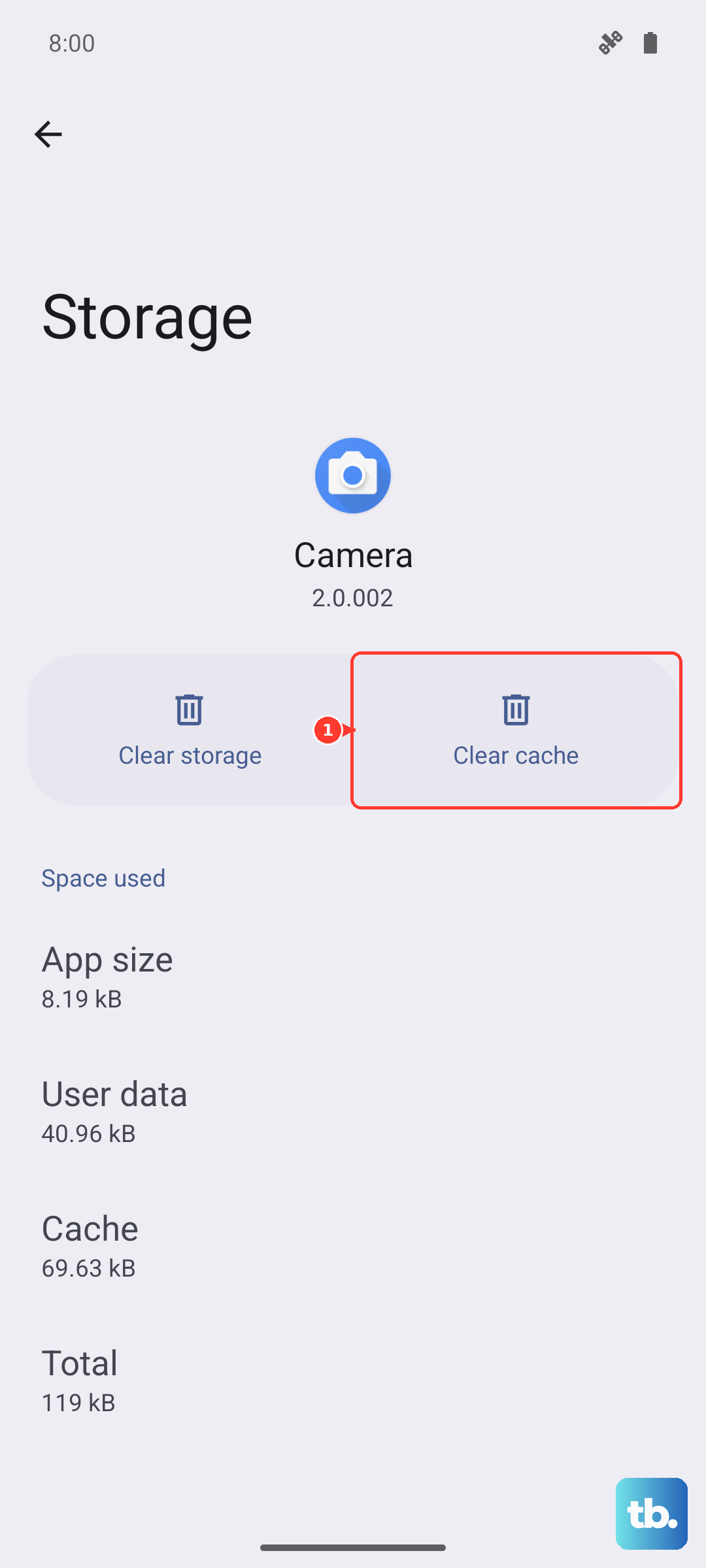
If clearing the cache doesn't help, back up that app's information before clearing its data. This next step removes the app's local data and settings.
Return to Settings > Apps, select the app, and choose Storage > Clear data. Confirm the deletion and retest. Some system apps do not allow data clearing.
For floating bubbles, screen filters, or overlay errors, open Settings > Apps > More options > Special access > Appear on top and disable the suspect app's permission. Test again. Depending on the software, this permission is labeled Appear on top, Apps that can appear on top, or Draw over other apps.
Protect your data before a reset or repair
If the screen still fails after these checks, back up accessible data before proceeding. Cracks, liquid exposure, persistent dead areas, and a display that stays black warrant service.
When the display works but touch doesn't, connect a USB mouse through a USB-C OTG adapter or compatible dock. This requires working USB connectivity.
Use the pointer to access settings or start a backup. A USB keyboard also lets you enter your PIN or password.
For an unreadable display, connect the phone to a TV or monitor with an HDMI cable and a compatible USB-C-to-HDMI adapter. A basic HDMI adapter has no ports for a wired mouse and keyboard, so use a DeX dock or multi-port adapter with USB ports, or a Bluetooth mouse and keyboard already paired with the phone. This provides another way to access the phone; it does not repair the screen.
Select the display's HDMI input.
On the Note 8, Samsung DeX asks you to tap Continue and then Start on the phone's own screen before its desktop appears on the external display. If you can't complete those prompts or nothing appears on the display, contact Samsung Support or a service center for help accessing your data.
Unlock the phone, then complete any on-device access prompts. To start a computer backup, connect the unlocked phone to the computer by USB. Open Smart Switch on the computer, then choose Backup.
Select the data to copy. Some protected app data cannot be copied. Choose Backup to begin copying, then complete any permission prompts on the phone. Select Done when the backup finishes.
Reserve a factory reset for problems that remain after the less destructive checks. It erases personal data, so confirm your backup is complete and you know your account credentials before proceeding.
Open Settings > General management > Reset > Factory data reset. Tap Reset, then tap Delete all. Authenticate when prompted.
If the screen problem continues, contact Samsung Support or a service center. Describe the symptoms, including any damage and whether the problem continued in Safe mode. Confirm local repair acceptance and replacement-part availability for the Note 8.
Frequently Asked Questions
Why does my Note 8 screen stay sideways or refuse to rotate?
Swipe down with two fingers. Tap Portrait or Landscape to enable Auto rotate. Test an app that supports rotation without keeping a finger on the screen. Some apps support only one orientation.
Can I test a dead area of the touchscreen?
On firmware that exposes Samsung's diagnostic menu, open Phone and enter *#0*#. Select Touch and trace the displayed pattern. Areas that fail to register need further assessment. Press Volume up to exit if you cannot complete the pattern. Carrier and regional restrictions limit menu availability. This test checks touch response; it does not calibrate the screen.
How can I check for liquid damage?
Power off the phone. Eject the SIM/microSD tray, then illuminate the slot to inspect the liquid-damage indicator. Samsung identifies a solid pink, purple, or red indicator as evidence of liquid exposure requiring service.