Roblox Account Manager won't sign in, opens a black window, or refuses to launch your accounts. Start with a quick Roblox test, then jump to the fix that matches what you're seeing. The manager settings below apply to the niccsprojects v4.7.15-beta continuation on Windows unless a paragraph specifically names the separate Vaelixx edition.
Start with a quick Roblox test
First, find out whether Roblox works without Account Manager.
- 1.Open Roblox Status. If authentication, website, or game-joining services have an incident, wait for recovery before retrying.
- 2.Sign into the Roblox website in Chrome, Edge, or Firefox. Open an experience and select Play, then complete any installation or browser launch prompt.
- 3.Close Account Manager completely, including its system-tray instance or its process in Task Manager.
- 4.Restart Windows, then retry Roblox and Account Manager. If Roblox also fails on its own, use the connection and installation fixes below. If it launches from the website, focus on the manager's settings.
Refresh an account that will not sign in
An invalid saved session blocks account access even when Roblox itself launches normally.
Select Add > Browser Login in the manager.
Sign into the affected account, completing Roblox's CAPTCHA and verification prompts. Signing into an existing account again replaces its saved session.
For several accounts with still-valid sessions, select those accounts.
Open Batch Actions > Refresh Cookies (count) in the sidebar.
If refresh fails, sign into each affected account again through Add > Browser Login. Refreshing does not guarantee recovery of a revoked session.
Once login works, enable Settings > General > Auto Cookie Refresh to maintain valid sessions.
If the login browser won't open, go to Settings > General > Login Browser > Bundled Browser.
Select the button displayed there: Download, Retry Download, or Reinstall.
For repeated CAPTCHAs, enable Persistent login profile under Settings > General > Login Browser. This retains the browser's trusted-device profile and is designed to reduce repeated challenges.
In the separate Vaelixx edition, select Add account > Browser.
Complete Roblox's login and verification prompts in that browser.
Use the update controls for your edition
If the manager's controls or launch behavior stop working, check for an application update. Match the instructions to your app's publisher, because these editions use different menus.
For niccsprojects v4, select Settings > General > Manual Update Check > Check Now.
If the release channel is wrong, set Settings > General > Update Release Channel to Beta for v4.7.15-beta.
For ordinary builds, set Update Feature Channel to Standard (Non-Nexus/WebServer) in the same settings.
If the app won't open, fully exit it before downloading a replacement build.
Open the continuation's release page.
Expand Assets.
Download the Windows installer, MSI, or portable build. The maintainer recommends builds without _full-nexus-ws in their filenames.
Install the downloaded build, or open the portable edition.
Vaelixx users should open Settings > Updates to check for an update.
Follow the update flow shown there.
If a Vaelixx update caused the failure and the app retains a previous version, select Settings > Updates > Roll back. This restores that version and restarts the app.
Skip the old .NET Framework and x86 Visual C++ dependency advice for v4. Those instructions belong to the archived original 3.x manager; the niccsprojects continuation uses WebView2 for its interface.
Recover a blank or black manager window
Fully exit niccsprojects v4.
Start the app while holding Shift, keeping the key held until its window appears. This starts graphics safe mode in v4.7.11-beta and later Windows builds.
If the window stays blank, exit the manager completely again.
Open File Explorer.
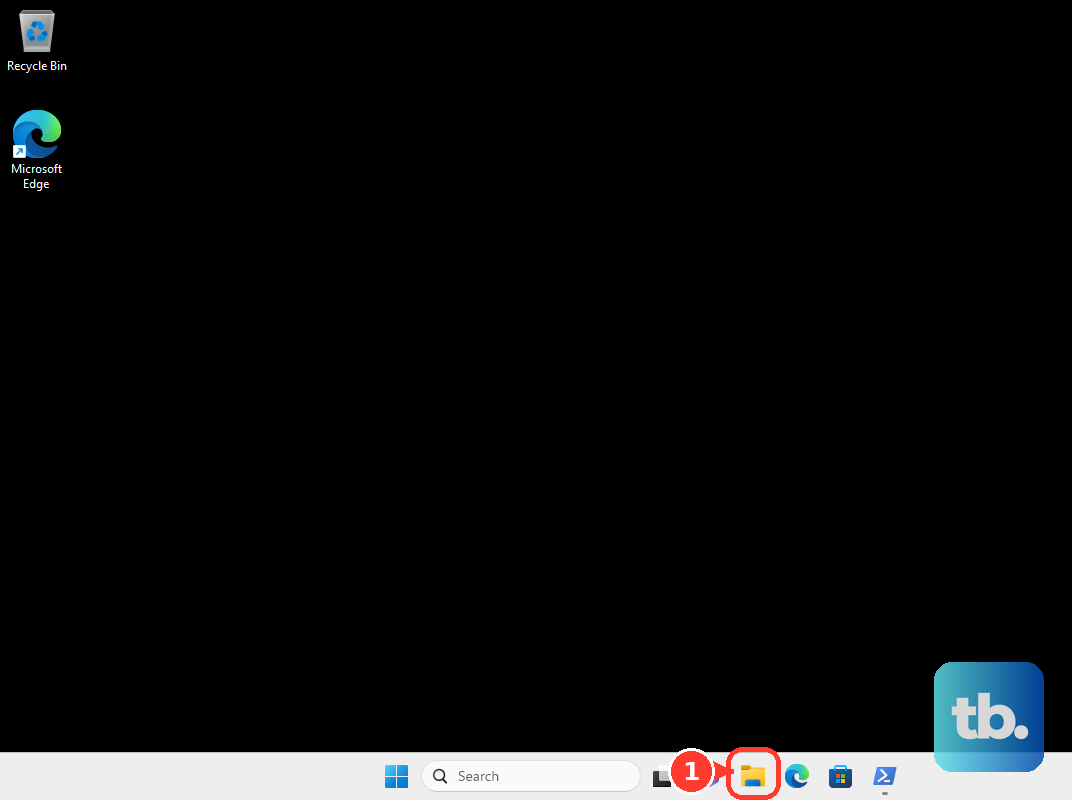
Enter %LOCALAPPDATA%\com.niccdevs.roblox-account-manager in the address bar.
Rename EBWebView to a unique backup name, such as EBWebView-backup-1. Resetting this profile carries a risk of losing favorites and recent-game history.
If Windows reports that the folder is still in use, restart Windows before retrying the rename.
Reopen the manager.
For a persistent black screen on Windows 11, select Settings > Apps > Installed apps > Microsoft Edge WebView2 Runtime > Modify > Repair.
If the runtime is missing or repair fails, open Microsoft's WebView2 download page.
Download the matching architecture under Evergreen Standalone Installer.
Run the installer as administrator.
Restart Windows.
Open the manager again.
Keep this distinction in mind: reinstalling the manager alone does not reset its WebView2 runtime or profile.
Get multiple accounts launching again
These controls address disabled multi-client mode, conflicting clients, and rapid batch launches.
Close Roblox before changing multi-client settings.
Enable Settings > General > Multi Roblox. The maintainer provides this control without a Roblox compatibility guarantee.
If another application blocks launches, select Settings > Developer > Launch Diagnostics > Diagnose mutex holder.
Select Close legacy Account Manager if the diagnostic offers it.
To clear conflicting running clients, select multiple accounts in the manager.
Select Close All Roblox in the sidebar. This closes running Roblox clients.
Retry the launch.
For batches that encounter rate limiting, enable Settings > General > Async Launching.
Increase Account Join Delay in the same settings.
Avoid repeatedly launching large batches.
Correct launches that fail or close immediately
A stale installation path sends the manager to the wrong location, while automatic closing rules shut down clients after launch.
Open Settings > Versions.
Under Default Roblox version, set Default to Default Roblox install.
For a missing or outdated path, select Settings > Versions > Roblox installation > Clear override.
Select Auto-detect to locate Roblox again.
If detection fails, use Browse… to select the actual Roblox installation folder.
If Full isolation keeps triggering cleanup and reinstalls, select Off under Settings > Isolation.
Retry the launch with the normal Roblox installation.
For clients that disappear after launch, temporarily turn off Settings > Watcher > Enable Roblox Watcher to test the automatic closing rules.
If launching an account replaces its existing client and you want to keep that client open, disable Settings > Misc > Auto Close Last Process.
For failures after enabling custom optimization, open the affected Normal, Main, or Alts profile under Settings > Optimization.
Disable Enable Windows process optimization.
Disable Enable job CPU limit.
Disable Enable job memory limit.
Relaunch Roblox to test without those limits.
If only a saved server destination fails, select the affected account.
Enter a valid Place under Launch.
Clear Job to test without the saved specific-server ID.
Clear unnecessary Data.
Disable Shuffle Job ID.
Select Join Server.
Check connection failures and Windows blocks
For joining failures outside the manager too, test another network or connect by Ethernet instead of Wi-Fi. To restart the router, unplug it for approximately 30 seconds. Reconnect power and wait for connectivity before retrying.
For a firewall block, open Windows Security > Firewall & network protection > Allow an app through firewall > Change settings. Select the blocked application, or use Allow another app to choose its executable.
If the manager's executable disappeared, inspect its event under Windows Security > Protection history. Use Actions > Restore or Actions > Allow on device, as offered, only for a confirmed false positive. Being open source does not prove that a detection is false.
For a Roblox anti-cheat error naming incompatible software, close the application identified by its path, including Account Manager if named. On a managed PC, ask the administrator to permit RAM and msedgewebview2.exe to create child processes and write to RAM's WebView profile directory.
Repair Roblox when the website test also fails
Installation loops and missing or corrupted Player files call for a Roblox reinstall, especially when the website test fails too.
Close other programs.
Reinstall Roblox from its official download page. Roblox says uninstalling first is usually unnecessary.
If that fails, uninstall Roblox through Windows 11's Start > Settings > Apps > Installed apps > Roblox > More > Uninstall.
Restart the computer.
Reinstall the official Roblox Player.
Test an experience from the Roblox website using Play.
If that works, retry the manager.
For persistent installation problems, uninstall Roblox again before removing leftover files.
Open %LOCALAPPDATA% in File Explorer.
Preserve any Studio work you deliberately stored in the Roblox folder.
Delete that Roblox folder.
Reinstall Roblox once more.
If this method fails, contact Roblox support for a failure that also occurs without the manager, or report a manager-only failure through the continuation's issue tracker.
Recover missing accounts or use a fallback
Use account-data recovery when accounts are missing and you have an existing backup. For an unresolved manager problem, Roblox's website also offers account switching while you seek help.
Select Add > Import Old Account Data > Choose AccountData.json in niccsprojects v4.
Choose your backup. The import starts as soon as you select the file.
Enter the backup's encryption password if prompted. Recovery requires a readable, decryptable backup.
If the interface displays Something went wrong, select Reload App.
For a reproducible manager-only bug, open the continuation's issue tracker.
Submit the publisher, build version, exact error text, reproduction steps, and relevant screenshots with account secrets removed.
For login or Player failures outside the manager, open Roblox Help's Contact Us page.
Follow its support-form link.
Submit your username, device, help category, exact error, and reproduction details.
To switch accounts without the manager, open the Roblox website's Home page.
Select the top-right gear.
Select Switch Account to add or switch accounts. This feature supports up to five accounts per device for users aged 13 or older without parent privileges; it does not launch simultaneous clients.
Frequently Asked Questions
Is Roblox Account Manager an official Roblox app?
No. Roblox Account Manager is third-party software. The original ic3w0lf22 project is archived, with 3.7.2 as its final listed release. Publisher download pages do not establish Roblox endorsement.
How do I fix private-server error 524 for one account?
Have the server owner open the experience's Servers > Private Servers, open the server's three-dot menu, and select Configure. The owner must add the username under Server Members or enable Friends Allowed. On the affected account, check the website's gear menu under Settings > Privacy and content restrictions > Visibility & private servers > Private servers and choose a permitted membership preference. Under-13 accounts remain restricted to friends' private servers.
What should I do if Roblox rejects my verification code?
Check the correct email account and its spam folder. Select Resend Code or Start Over. For an authenticator, enter its currently displayed code. If necessary, use another verification method already configured on the account.
How do I update the graphics driver for rendering problems?
For v4 WebView rendering failures or Roblox graphics problems on Windows 11, open Settings > Windows Update > Advanced options > Optional updates. Select an available graphics driver. Choose Download and install, then restart Windows.