The “subsystem crashed: modem” message leaves you dealing with a frozen phone or crashes that keep coming back. There’s no single manufacturer-documented fix for this exact error, but there are supported ways to recover the phone and narrow down the problem. Start with a restart, then work through software and cellular checks before trying anything that erases your data.
Get past the frozen screen first
Use the restart method for your phone, then check whether the crash returns.
- 1.On a frozen Samsung Galaxy, hold the Side and Volume down keys together for more than seven seconds, until the phone restarts.
- 2.On a frozen Pixel, hold the Power button for about 30 seconds.
- 3.If your Galaxy responds to touch, swipe down from the top right to open Quick settings, tap the Power off icon, then tap Restart.
- 4.If your Pixel restarts but still has mobile connectivity trouble, select Power off, wait 30 seconds, then turn it on and retest.
Install available system updates
The crash message alone doesn’t identify its cause, so check for an available system update next.
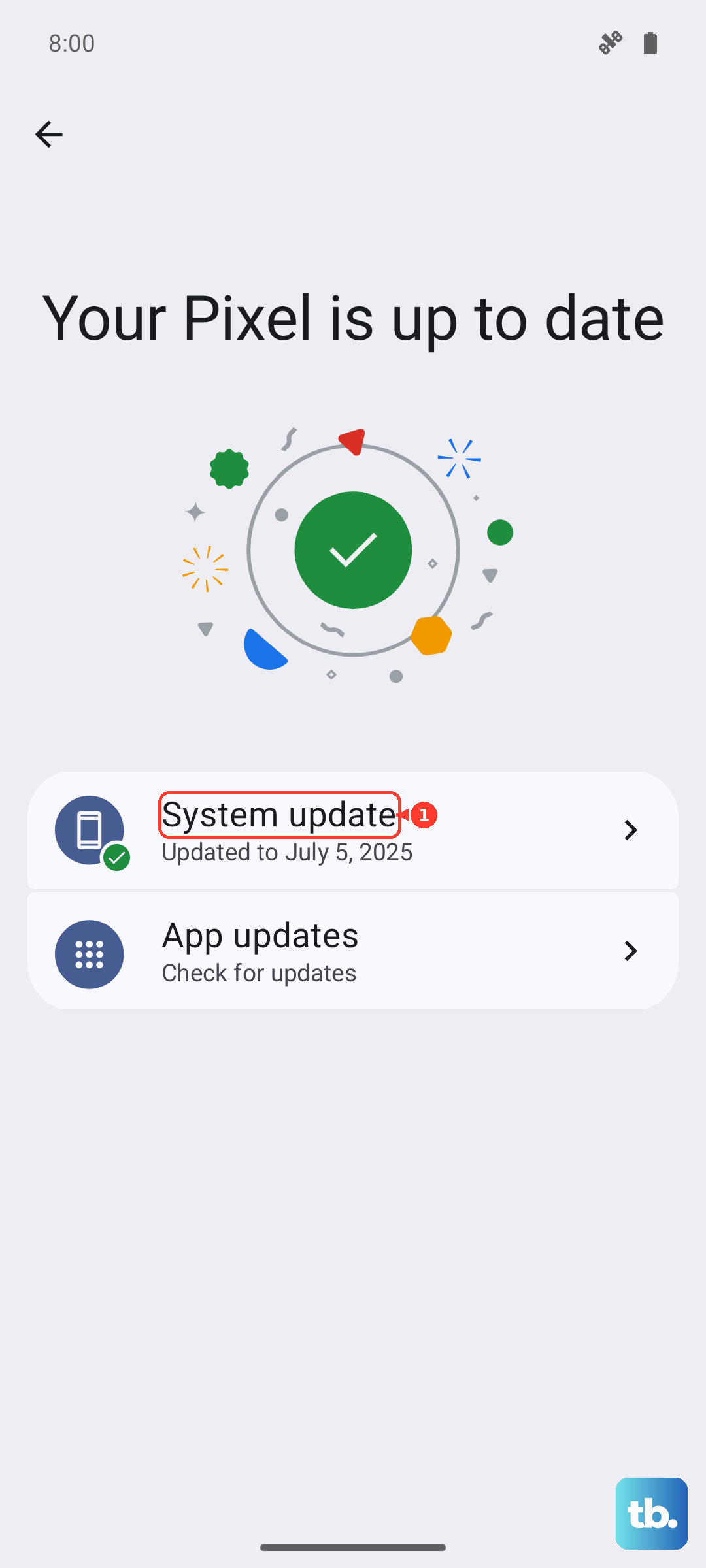
On Galaxy, open Settings > Software update. Depending on your model and carrier, this menu is labeled System updates. Select Download and install, Check for system updates, or Check for software updates, whichever your phone displays. Install any available update using the onscreen prompts.
On Pixel, open Settings > System > Software update. Follow the onscreen update instructions.
Check your Pixel’s available space under Settings > Storage. Nearly full storage belongs in general stability troubleshooting; freeing space is not a modem-specific repair. Remove unnecessary content if storage is nearly full.
Test recurring crashes in Safe mode
If the crash comes back, Safe mode helps check whether a downloaded app is involved. Keep cellular service enabled during the test so you’re testing the phone’s cellular behavior too.
On Galaxy, swipe down from the top right to open Quick settings. Tap the Power icon. Touch and hold Power off. Tap Safe mode.
On Pixel 6 and later, including Fold, hold Power and Volume up to open the power menu. Touch and hold Power off or Restart. Tap OK.
Once Pixel starts in Safe mode, turn off Airplane mode under Settings > Network & Internet. Pixel enables it when Safe mode starts. Retest the phone with cellular service enabled. Restart normally to leave Safe mode.
If your Galaxy works in Safe mode, swipe up to open the App drawer. Touch and hold a recently downloaded suspect app. Select Uninstall > OK. Test outside Safe mode after each removal before removing another app.
Check the SIM and cellular connection
On Galaxy, check for your carrier’s name under Settings > About phone > Status information > SIM card status > Network. This checks SIM recognition without establishing the cause of the crash.
For a Galaxy with a physical SIM, power off the phone. The physical SIM steps don’t apply to an eSIM-only setup. Remove the SIM tray. Clean dirty SIM contacts with a soft, dry cloth.
Reseat the card. If SIM trouble continues, try another active SIM from your carrier. Request a replacement SIM from your carrier if needed.
On Pixel, enable Mobile data under Settings > Network & Internet > SIMs.
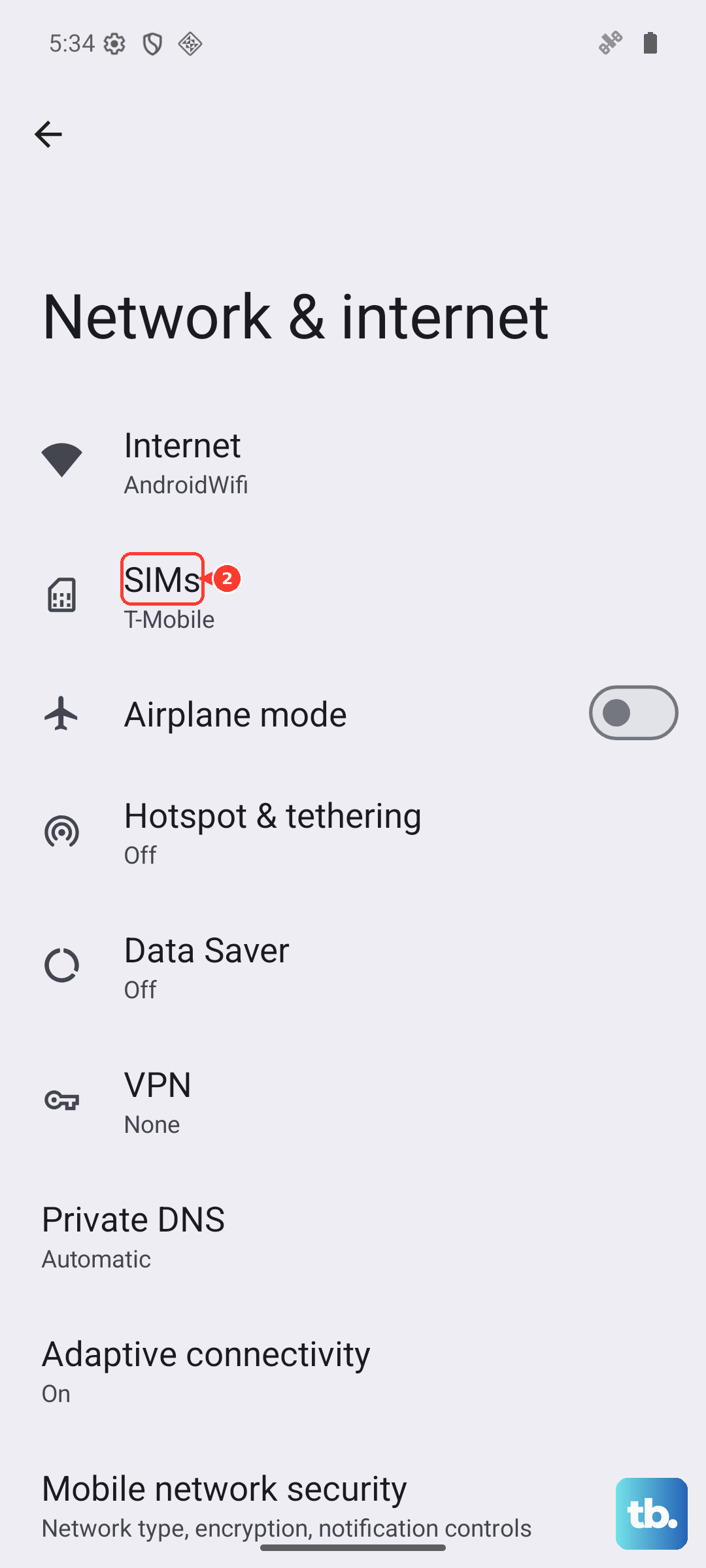
Select your carrier. Enable Use SIM.
For continuing Galaxy service problems, retest somewhere with better reception. Ask your carrier to check coverage, your active SIM and data plan, remaining allowance, and provisioning after a carrier change. Keep these results separate from the crash itself: restoring cellular service doesn’t establish that recurring modem crashes are fixed.
Reset mobile network settings for connection problems
This resets mobile network configuration; it isn’t an established cure for recurring modem crashes.
On Galaxy, open Settings > General management > Reset > Reset mobile network settings. Tap Reset settings. Confirm with Reset. Re-enter any custom carrier configuration required after the reset.
On Pixel, select Settings > System > Reset options > Reset mobile network settings.
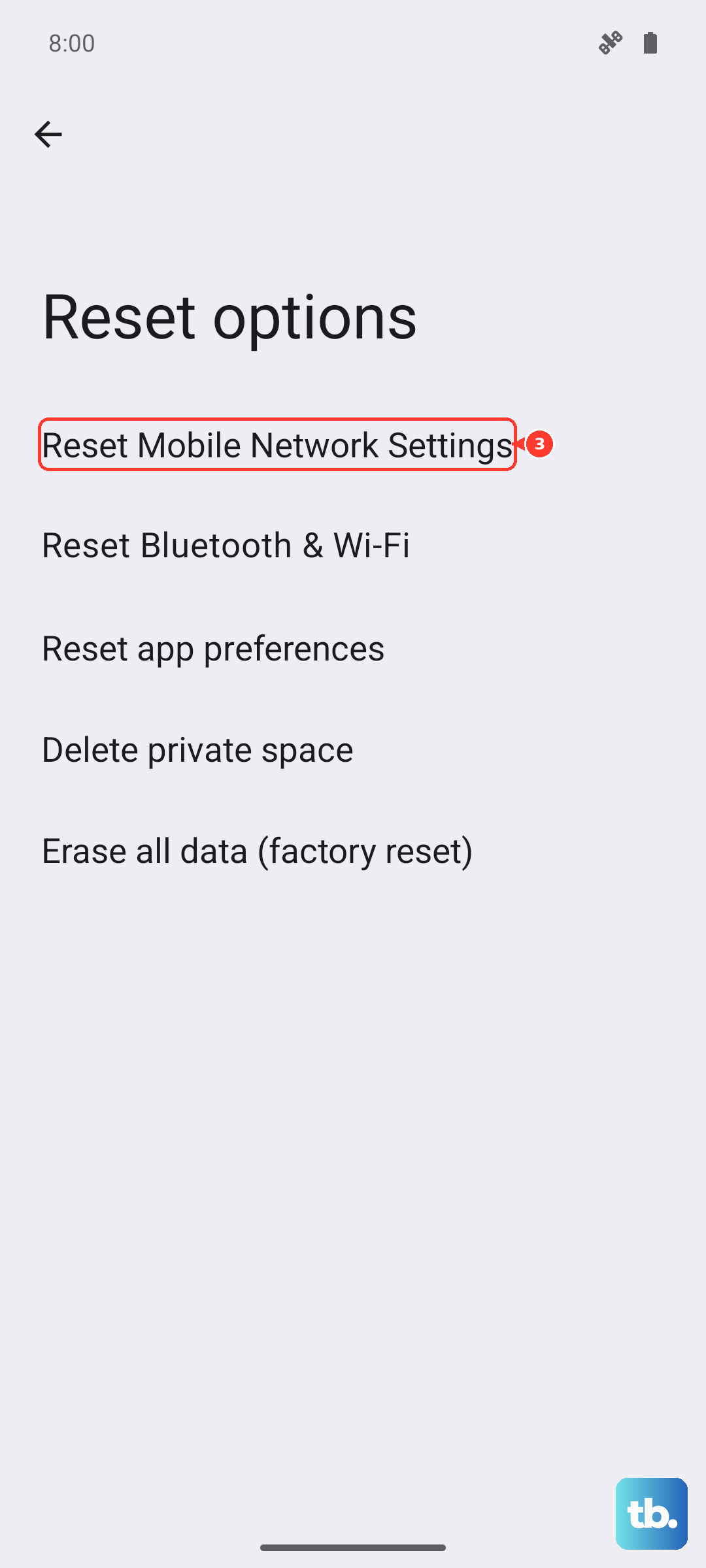
Retest your cellular connection after the reset.
Use your manufacturer’s computer repair option
Before using a software repair tool, back up your data and keep your account credentials handy.
For Galaxy, connect the phone by USB to a Windows PC or Mac with Samsung Smart Switch installed. Open Smart Switch. Select Update if offered after detection. Complete the prompts and keep USB connected.
For Pixel 4a and later, including Fold, connect the phone to a computer by USB. Open Google Pixel Update and Software Repair. Follow the device-specific instructions. Choose the update route if offered.
Reinstallation or reset erases data. Tool compatibility doesn’t extend an older phone’s update entitlement.
For supported Motorola devices, install Software Fix on a Windows PC. Sign in. Select Rescue > PHONES. Follow the recommended connection method.
Select Download. Then select Rescue. Keep USB connected until Finished.
Rescue erases personal data. If a Google account was signed in on the phone beforehand, you must sign in with that same account during setup afterward.
For supported Xperia devices, open Xperia Companion. Select Manage your Xperia > Software repair. Follow the prompts, choosing the option for an undetected or unstartable device when applicable. Software repair erases internal storage, so have your backup and Google credentials ready before starting.
Save a factory reset for the last software test
A factory reset deletes personal data. A backup and your account credentials are prerequisites, and this belongs after less disruptive troubleshooting. On Pixel, a factory reset doesn’t install a newer operating system.
On Galaxy, reset through Settings > General management > Reset > Factory data reset > Reset > Delete all, supplying any requested credentials.
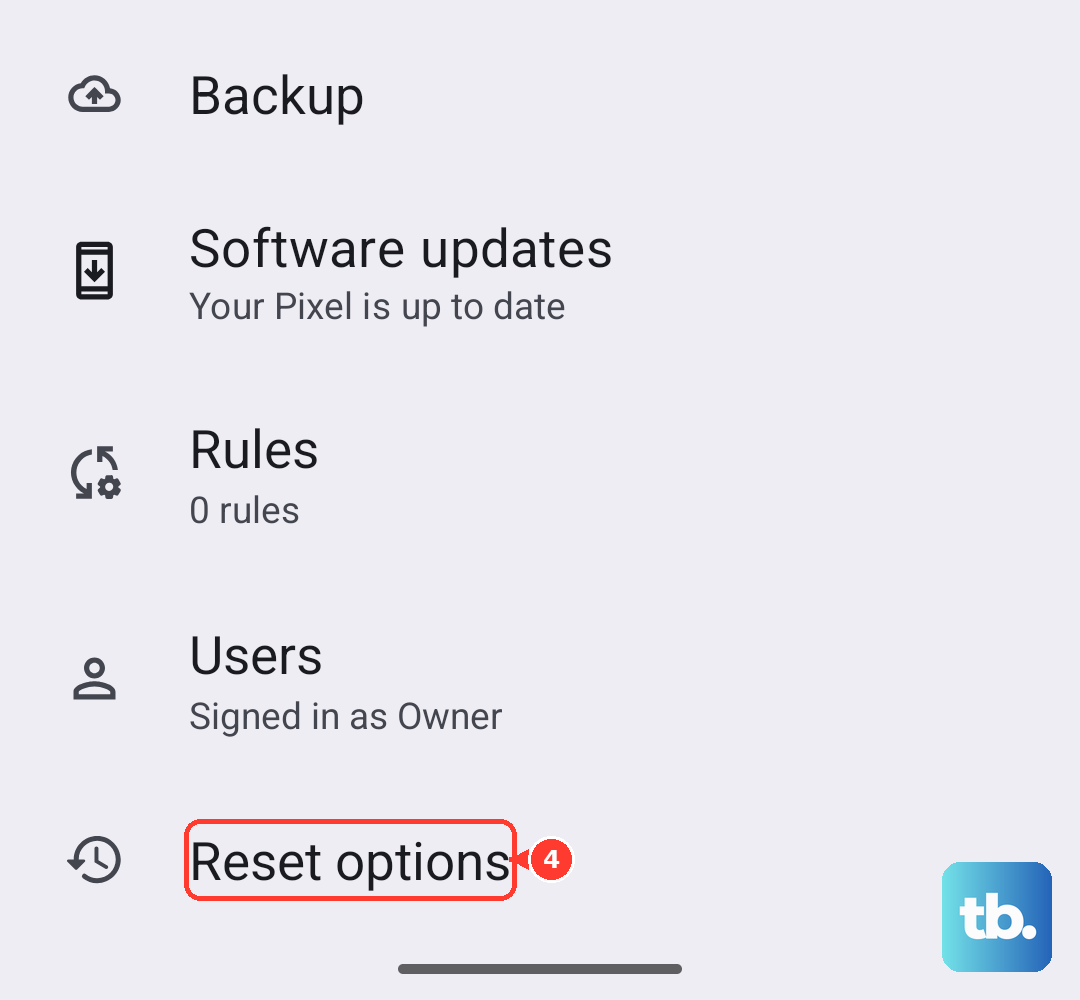
On Pixel, reset through Settings > System > Reset options > Erase all data (factory reset) > Erase all data, entering your PIN if requested and confirming the reset.
After resetting a Galaxy, test it before reinstalling apps. Whether the crash returns at this point is useful information for support.
Send a crash report and arrange support
For a Galaxy that keeps crashing, touch and hold Samsung Members. Select Error reports. Choose a category. Describe the crash.
Attach evidence of the problem. Select Send system log data. Submit the report. This gives Samsung diagnostic information; it doesn’t immediately fix the phone.
If reporting the problem doesn’t resolve it and crashes continue after a reset, arrange manufacturer service through Samsung’s walk-in service locator or online repair scheduling. Contact your carrier for continuing cellular-service problems.
Frequently Asked Questions
Does switching to LTE fix a modem subsystem crash?
Switching to LTE is a connectivity test, not an established cure for recurring modem crashes. On Pixel phones where the carrier exposes the option, select LTE under Settings > Network & Internet > SIMs > your carrier > Preferred network type.
Should I wipe the recovery cache partition?
Don’t rely on that older Samsung procedure for current phones. The recovery cache option is absent from some updated Galaxy software, so it isn’t a generally applicable troubleshooting step.
Why are troubleshooting options blocked on my work phone?
Device management policies can block network resets, Safe mode, app removal, and factory resets. Ask your administrator to review the restrictions. There’s no universal consumer menu for removing them.
Can I test a Galaxy SIM without replacing it?
Yes. Open Samsung Members > Support > Get started. Stop the full scan if needed. Select SIM and follow the test instructions.