Your Apple TV light keeps flashing, and you want to know whether something is wrong. Startup, remote commands, and software updates all trigger flashing, so the light alone doesn't mean the box is broken. Check the pattern and your television screen first, then follow the matching fix below.
Check whether the flashing is normal
On Apple TV 4K, slow flashing indicates startup, a single flash acknowledges a remote command, and quick flashing indicates a software update. The light may also flash slowly during an update, so the flashing speed alone doesn't tell you which one is happening. A steady light means the box is on; an unlit light means it's off or in standby.
Leave power connected during an update. If Preparing Update or Applying Update stays stalled for more than one hour, contact Apple Support before disconnecting power.
If the screen shows only an Apple logo and a stalled progress bar, with no text, wait more than one hour.
After that wait, unplug the box.
Reconnect its power.
If the flashing continues and an update isn't underway, try restarting your Apple TV. For a stalled update, follow the screen-specific instructions above before interrupting power.
Restart an unresponsive Apple TV 4K
Use the first restart option you can access, moving to the next only if needed.
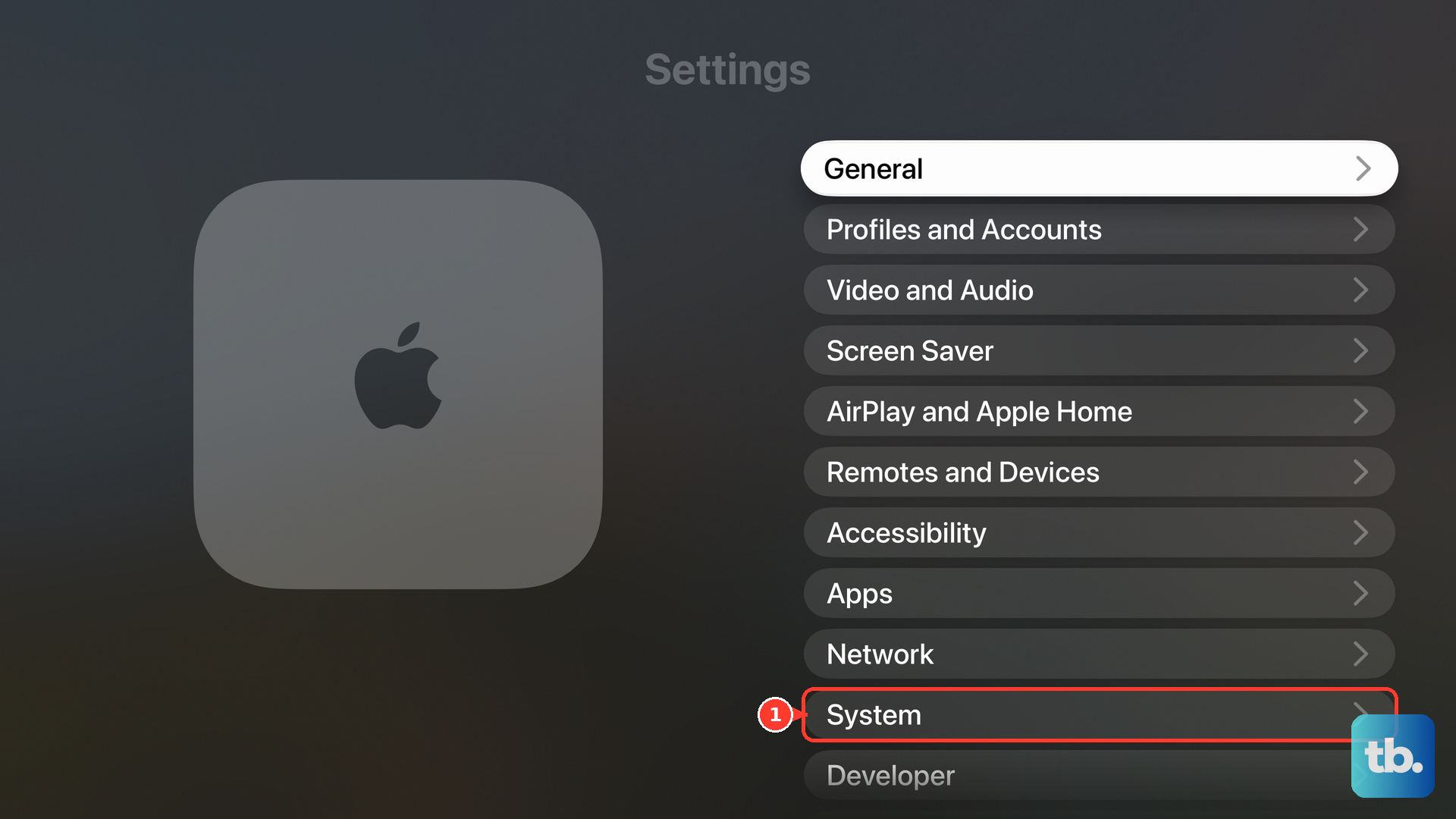
- 1.If the menus work, open Settings > System > Restart.
- 2.If you can't use Settings, hold TV and Back on a newer Siri Remote or Apple TV Remote until the box's light flashes rapidly, then release. On a first-generation Siri Remote, hold TV and Menu instead.
- 3.If you still can't restart it, disconnect Apple TV from the power outlet, wait five seconds, and reconnect. Follow the update precautions above before doing this.
Restore the picture when the screen stays black
A loose HDMI connection is one cause of a black screen even when Apple TV has power.
Reseat both ends of the HDMI cable between your Apple TV 4K or HD and the television.
Select the television input that matches the HDMI port you're using.
Try another HDMI cable that meets your setup's HDMI requirements.
Move the connection to another television HDMI port, beginning with HDMI 1.
Connect Apple TV directly to the television if it currently runs through an HDMI switch or AV receiver.
For Apple TV 4K or HD with a Menu-equipped remote, hold Menu and Volume Down for five seconds to cycle video resolutions. Resolutions change every 20 seconds.
Select OK when a picture becomes visible, or Cancel to stop.
Rule out a power problem
For Apple TV 4K or HD with startup or black-screen trouble, unplug the box for 30 seconds. Do this only after ruling out an active update or following the stalled-update precautions above.
Reconnect the box to power.
Try another outlet or power strip.
Test another compatible Apple TV power cord if changing the power source doesn't help.
If the problem continues, update the software when you can access Settings. If the box displays a recovery screen instead, follow the recovery options below.
Install an update when Settings works
You'll need working menus, a network connection, and uninterrupted power.
- 1.Open Settings > System > Software Updates.
- 2.Select Update Software.
- 3.If an update is offered, select Download and Install.
- 4.Keep the network and power connected until the update finishes. Flashing during the update is normal on Apple TV 4K.
Follow the recovery screen
If recovery choices appear after an update failure, select Restart first.
If restarting fails, select Reset All Settings.
If that doesn't resolve the problem, select Restore.
A picture of an iPhone beside an Apple TV calls for a different recovery method. It requires Apple TV HD or later running tvOS 17 or later, plus an iPhone with iOS 17 or later. The recovery illustration must appear on the television.
Unlock your iPhone near the Apple TV.
Follow the recovery prompts on the phone.
Keep Apple TV powered throughout recovery.
If iPhone recovery fails, retry using a 2.4GHz Wi-Fi network. Avoid networks with a sign-in portal and 802.1X networks.
If recovery still fails, use the model-appropriate reset or restore below. For an Apple TV 4K that can't reach Settings or complete recovery, contact Apple Support.
Try a factory reset as a last resort
A factory reset returns Apple TV 4K or HD to factory settings, erasing your information and configuration.
With the menus working, open Settings > System > Reset.
Select Reset to erase the box without installing an update. This option doesn't require internet access.
Alternatively, select Reset and Update to erase the device and install updates. This option requires internet access.
Keep Apple TV connected to power until the reset finishes.
Restore a supported model with a computer
Confirm your model using Apple's illustrated model list before connecting it to a computer. Apple TV HD is A1625, formerly called Apple TV fourth generation; Apple TV third generation is A1427 or A1469. Computer restoration supports these models. It does not apply to Apple TV 4K.
Disconnect the HDMI cable from Apple TV.
Disconnect Apple TV's power.
Connect the box to your computer with a data-capable USB-C cable for Apple TV HD or a data-capable Micro-USB cable for Apple TV third generation.
Reconnect Apple TV's power.
Select your Apple TV in Finder on a Mac, or in Apple Devices or iTunes on Windows.
Click Restore Apple TV.
Keep the connections intact until restoration finishes.
Disconnect the USB cable after restoration completes.
Disconnect Apple TV's power.
Reconnect the HDMI cable to use Apple TV with your television.
Reconnect Apple TV's power.
Tip: If the computer doesn't detect the box or shows error 1603 or 1611, check that your USB cable transfers data.
Contact Apple Support when recovery fails
Service is the next step when Apple TV 4K keeps flashing with a black screen or update warning after the applicable troubleshooting and recovery steps. It's also appropriate when a supported computer restore fails or you don't have the equipment to perform it.
Choose Get service on Apple's warning-symbol support page to reach Apple Support.
For help with an unsuccessful computer restore or unavailable equipment, arrange assistance through an Apple Store, Genius Bar, or Apple Authorized Service Provider. Service eligibility varies.
Frequently Asked Questions
What if my television picture flashes instead of the Apple TV light?
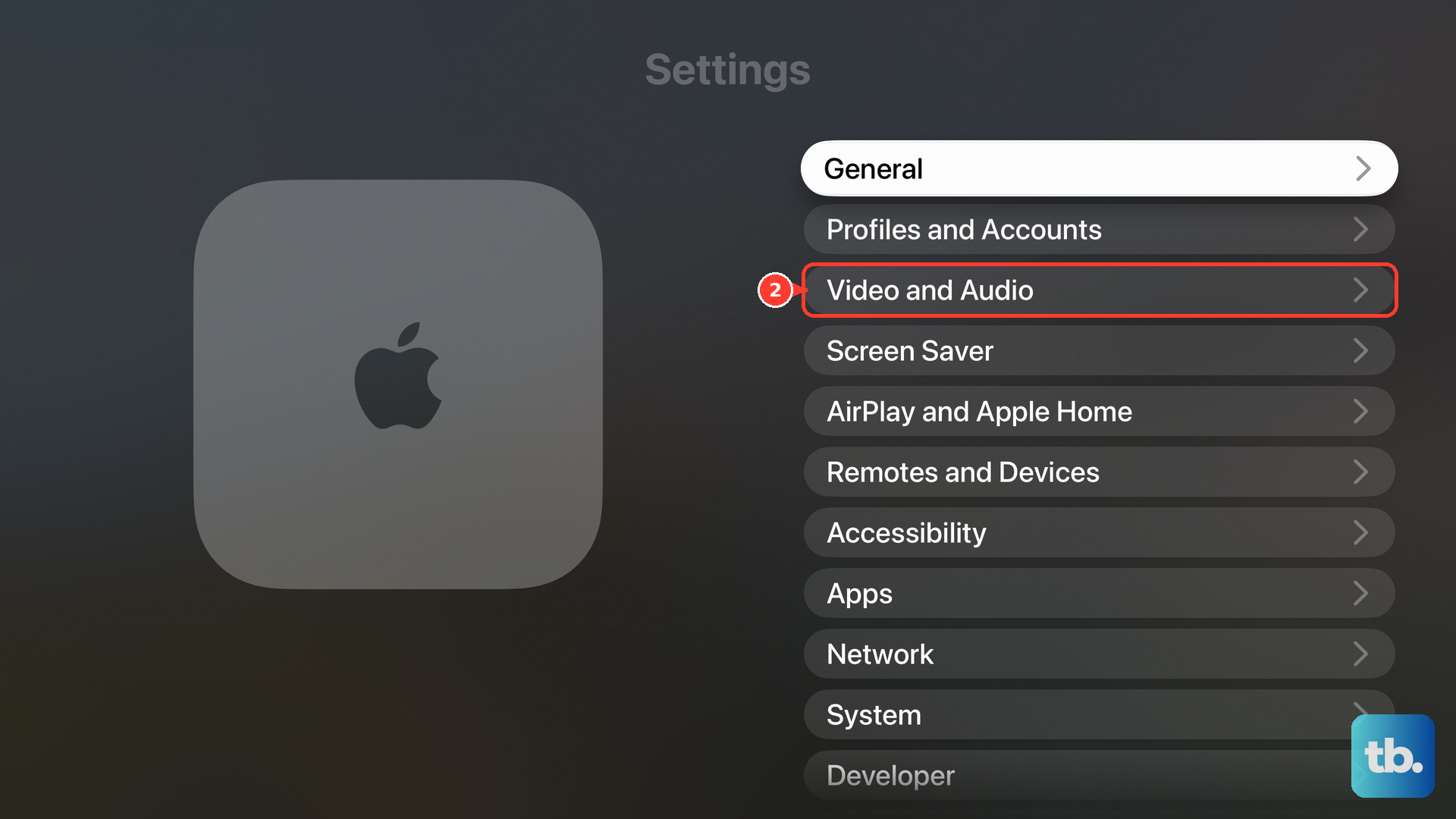
Switching video formats can briefly blank the picture. Open Settings > Video and Audio > Match Content. Inspect Match Dynamic Range and Match Frame Rate. These settings control content matching; they don't repair a flashing front status light.
Can I use my iPhone to reach Settings if the physical remote isn't working?
Yes, if your Apple TV HD or 4K is responsive and connected to the same Wi-Fi network as your iPhone. Open Control Center > Apple TV Remote. Select your Apple TV. Enter the displayed four-digit code if requested. Use those controls to navigate to Settings.
Will automatic updates repair an Apple TV that won't start?
No. Automatically Update maintains the software after recovery; it can't repair an unbootable box. Once the menus work again, open Settings > System > Software Updates. Enable Automatically Update.