Your Brother printer won't turn on, and the blank screen isn't giving you much to work with. Start with the power button and outlet, then try the reset that matches your model. These checks also separate a power failure from a sleeping printer or a display that stays blank while the machine runs.
Start with the printer's power button
Press the physical ⏻ button.
If nothing happens, check that the power cord is plugged into an electrical outlet.
Press ⏻ again.
Listen for operating sounds. If you hear the printer running, jump to the blank-display check below.
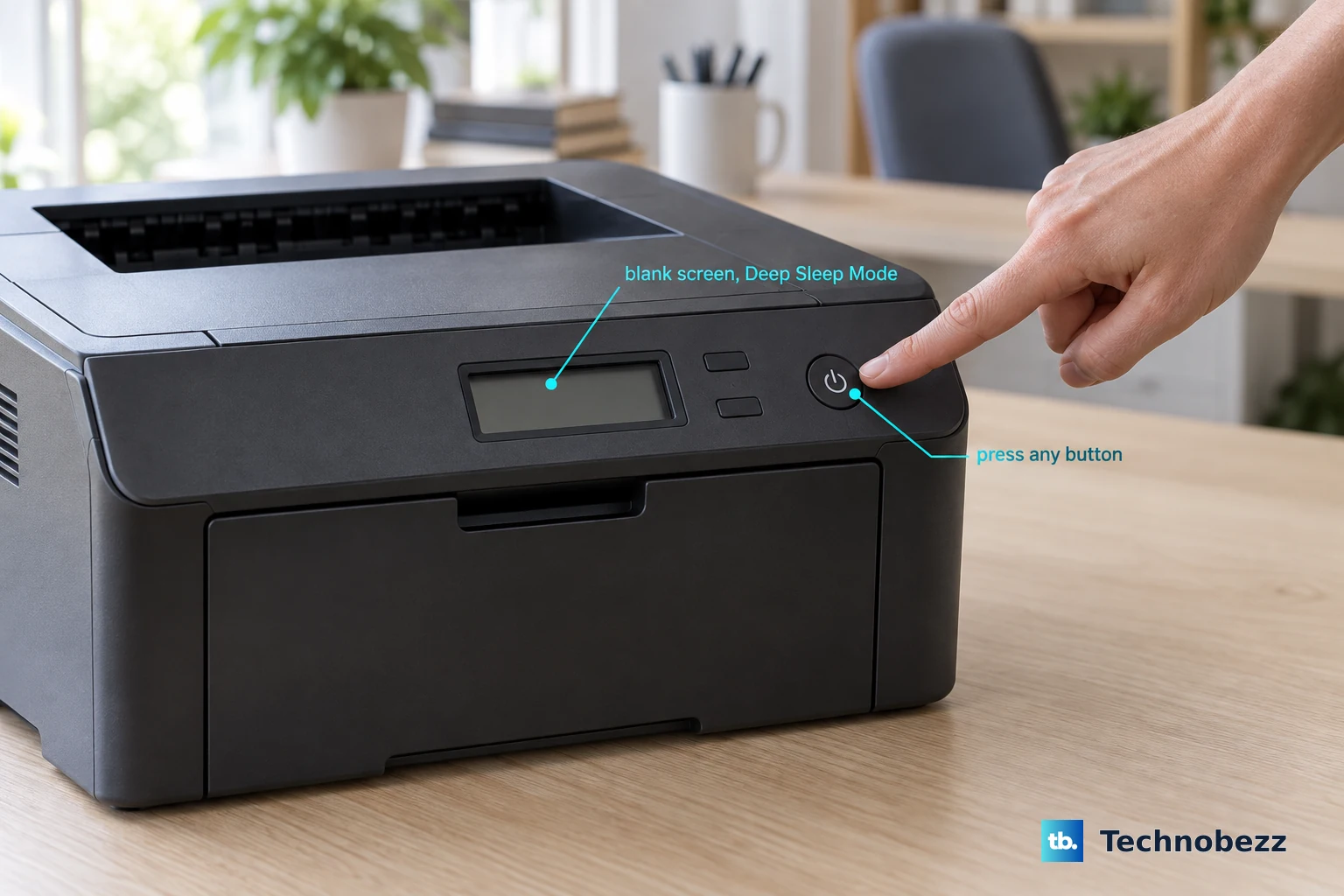
On an HL-L2460DW or HL-L2460DWXL with a blank screen or Deep Sleep Mode message, press any hardware button to wake it.
If the printer stays silent and unresponsive, test the outlet next.
Rule out the outlet and power strip
Check whether power is reaching the printer before trying a reset.
- 1.Unplug the printer and test the same outlet with another device.
- 2.Make sure any wall switch controlling that outlet is on.
- 3.Connect the printer directly to a different, known-working wall outlet, bypassing any power strip, surge suppressor, or external backup battery.
- 4.Press ⏻ and check for a response.
Reset internal protection after a power surge
This ten-minute reset addresses internal protection triggered by lightning or a power surge on the laser models below.
For the HL-L2400D, HL-L2405W, HL-L2420DW, HL-L2460DW, HL-L2460DWXL, and HL-L2865DW, unplug the power cord.
Leave it disconnected for ten minutes.
Reconnect the cord to a known-working wall outlet.
Press ⏻ to start the printer.
Try a compatible replacement power cord
Outlet checked? After testing a direct wall connection, try another compatible power cord if your printer has a replaceable cord and you have a replacement available. Use one appropriate for both the printer and your local electrical supply.
Brother includes this check for the DCP-L2640DW, HL-L2460DW and XL variant, HL-L3280CDW, HL-L5210DW, HL-L6415DW, MFC-L5915DW, and MFC-L6915DW.
If the replacement cord makes no difference, use the display check below if you hear operating sounds. If the printer remains completely unresponsive, move to the service steps.
Check a blank screen when the printer runs
For the MFC-J1360DW, MFC-J1365DW, MFC-J1410DW, MFC-J4355DW, MFC-J4555DW, MFC-T580DW, MFC-T780DW, and MFC-T980DW, press ⏻.
Listen for operating sounds.
If the machine makes sounds but its screen remains blank, unplug its power cord.
Wait 15 seconds.
Connect the printer to another known-working outlet.
Press ⏻ again.
Arrange service with Brother if the display stays blank.
Tip: Use this 15-second procedure for the named inkjets with operating sounds and a blank screen; the ten-minute protection reset applies to the listed laser models.
Adjust automatic shutdown once power returns
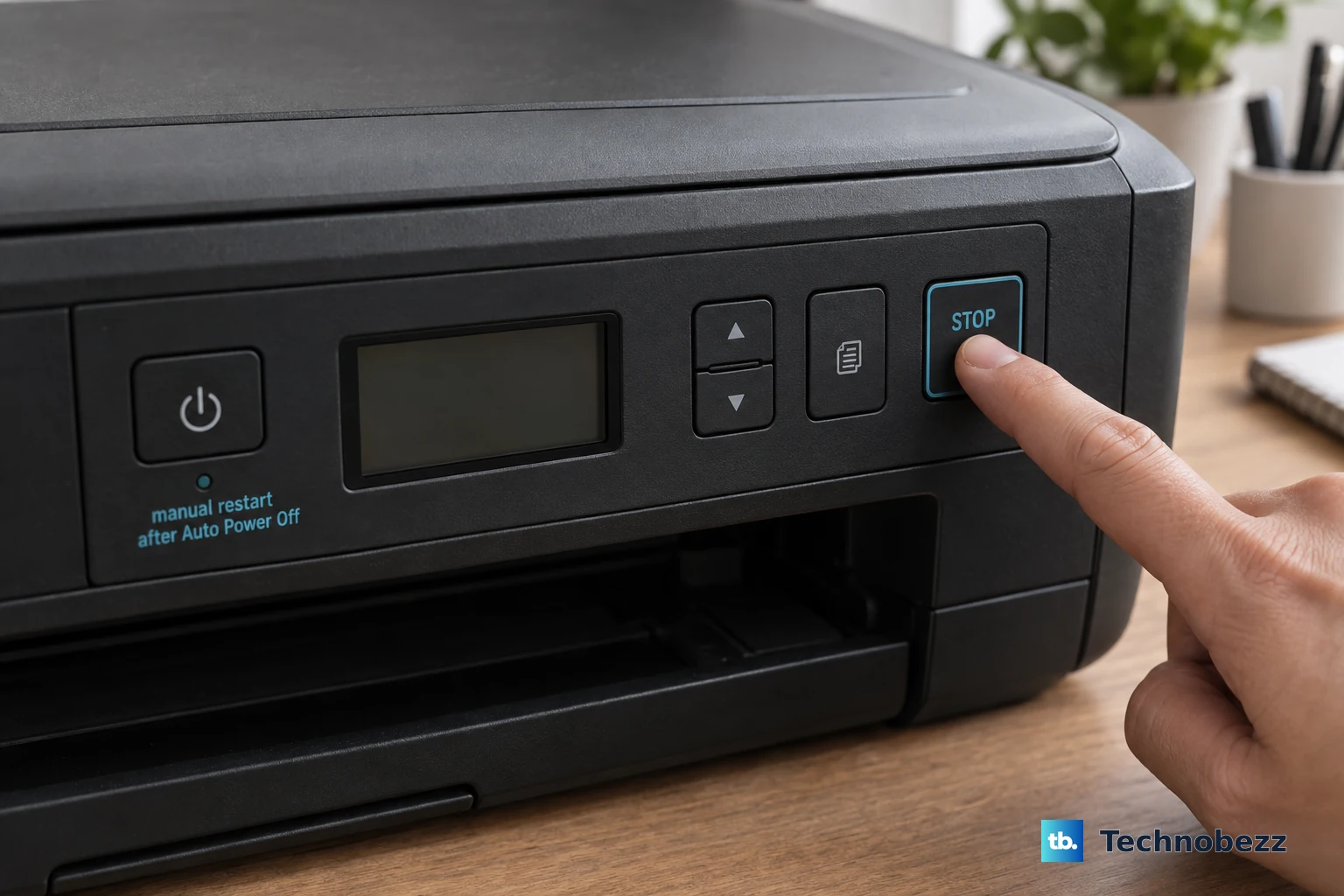
After Auto Power Off, restart the HL-L2400D, HL-L2405W, HL-L2420DW, HL-L2460DW, HL-L2460DWXL, or HL-L2865DW by pressing ⏻, then resend your print job. On the MFC-J1205W and MFC-J1215W, restart with STOP; on the DCP-J1260W, use Stop.
To extend the shutdown delay on those lasers except the HL-L2400D, use ▲/▼ > General Setup > OK > Ecology > OK > Auto Power Off > OK. Select 1, 2, 4, or 8 hours, then press Go. Brother's US instructions list no Off choice for these LCD models.
On the MFC-J1355DW, MFC-J1360DW, MFC-J1365DW, MFC-J1367DW, and MFC-J4355DW, press Settings, then use ▲/▼ to navigate through General Setup > OK > Ecology > OK > Auto Power Off > OK. Choose Off, 20 minutes, 1 hour, 2 hours, 4 hours, or 8 hours, then press OK followed by Stop/Exit.
For the touchscreen MFC-J1410DW and MFC-J4555DW, tap Settings > All Settings > General Setup > Ecology > Auto Power Off. Select Off or one of the same delays, then press Home. These settings control future shutdowns and require a working printer.
Get service when the power checks fail
A printer that stays unresponsive on a known-working outlet needs Brother's service route.
Open Brother's support page for your model, using the No Power page for the inkjets listed in the blank-display check.
Open Warranty and Service.
Use Machine Warranty Calculator to check coverage.
Contact Brother Support for warranty service or a Brother Authorized Service Center for repair options.
Frequently Asked Questions
Can a print job wake my Brother printer?
Yes. Send a print job to wake a printer in Sleep Mode. Brother documents this for the HL-L2400DW, HL-L2440DW, HL-L2445DW, HL-L2460DN, HL-L2460DW, HL-L2460DWXL, HL-L2461DN, HL-L2461DW, and HL-L2865DW. Receiving a print job ends Sleep Mode; Auto Power Off requires a manual restart.
Can I disable Sleep Mode completely?
Brother says Sleep Mode cannot be disabled on the laser models listed in the previous answer. To delay sleep, use ▲/▼ > General Setup > OK > Ecology > OK > Sleep Time > OK. Select a delay of up to 50 minutes. Press Go to save it.
Why won't my Brother P-touch label maker turn on?
For the PT-D410 and PT-D460BT, check that the batteries are installed correctly if the LCD stays blank after switching on. Check the connection of the supplied AC adapter. If the label maker stops while printing, replace all batteries or connect the AC adapter directly.
Why won't my PocketJet 8 print when connected to a USB-C power adapter?
The PJ-822, PJ-823, PJ-862, PJ-863, and PJ-883 require the rechargeable Li-ion battery to be installed when using a USB-C AC adapter. That connection charges the battery and cannot power printing without it. Install the battery if it is missing. Charge a depleted battery before retrying, or use the printer's AC adapter.