You want to translate something you hear, but Google Translate has different controls for a quick phrase, a conversation, and longer speech. A recording needs a different approach because there is no native audio-file upload option. Start with the speech controls below, then choose the listening or transcription mode that fits your audio.
Translate a spoken phrase on your phone
Open the Google Translate app on your Android phone, iPhone, or iPad. Choose the language you will speak and the language you want to translate into. On Android, the source language is at the bottom left and the destination language is at the bottom right; on iPhone and iPad, both selectors are at the bottom.
Tap Speak on Android or Dictation on iPhone and iPad. Speak when Android displays Speak now, or after the tone on iPhone and iPad. A disabled Speak button on Android means the selected language does not support speech input.
Follow conversations with live translation
For ongoing speech, open Translate, tap live translate, and select your languages. Choose Conversation for alternating speakers with audible translations, Listening for listening, or Text only for translated text. Use Custom settings to control output routing.
Connect ordinary headphones to listen; Pixel Buds are not required. For earpiece playback on an Android phone or iPhone, hold the phone to your ear during live translation. To follow a TV show or film, connect headphones and start Live translate with your preferred languages.
Tap translated text to hear it, Speak to pause or resume, and Back to exit. During a conversation, tap Face to face to give each person their language on their half of the screen. Tap Close to leave that display.
On Android, the session continues when you switch apps or lock the screen. Google’s September 2026 announcement describes iOS background support as coming soon.
Work with recorded audio
Google Translate has no native MP3 or WAV upload route. For a recording you already have as text, use that transcript as the translation input.
Select the source and destination languages in Translate. Then paste the transcript into the source field. Tap Listen to hear the translation in a supported spoken-output language.
For a microphone workaround, play the recording through a second device’s speaker while Translate listens through your phone’s microphone using the speech controls above. This feeds sound into the microphone; it does not import the recording. If microphone capture fails, paste a separately obtained text transcript into Translate instead.
Use your computer’s microphone
This translates spoken phrases on the website, which does not offer the mobile app’s simultaneous live-conversation interface. Open Google Translate in Chrome, Google’s fully supported browser for desktop speech input. Safari and Edge have limited support.
Select the source language explicitly. Website microphone input does not automatically detect the language you speak. Choose the destination language.
Click Microphone. Grant microphone permission when the browser requests it. Speak into your computer’s microphone. Click Stop when you finish.
Turn longer speech into a translated transcript
Open Translate on your phone or tablet. Tap Speak on Android or Dictation on iPhone and iPad. Select Transcribe. Grant microphone permission if prompted.
Choose the source and translation languages at the bottom on Android, or at the top on iPhone and iPad. Transcription requires a supported language pair. To stop transcription, tap the animated Speak button on Android or the blue microphone button on iPhone and iPad. Tap Save transcript after transcription to keep the text.
Retrieve an Android transcript through Menu > Saved transcripts, or an iPhone or iPad transcript through Saved > Transcripts. Touch, hold, and drag across the transcript text to select it, or tap Select all to select the whole transcript. Choose Copy or Share to reuse the selected text. Saved transcripts contain text, not downloadable translated audio.
Restore microphone access when Translate cannot hear you
A blocked microphone permission prevents Translate from capturing your speech. On Android, open the device’s Settings > Apps > Google Translate > Permissions > Microphone. Use See all apps after Apps if needed; manufacturer wording varies.
Select Allow only while using the app. On Android devices with a system microphone control, open Settings > Security & privacy > Privacy > Privacy controls. Turn on Microphone access.
On iPhone or iPad, open Settings > Privacy & Security > Microphone. Turn on Google Translate access after the app has requested permission.
In desktop Chrome, open More > Settings > Privacy and security > Site settings > Microphone. Allow translate.google.com to use the microphone. Select your input microphone from the dropdown. Turn off your headset’s physical mute switch if it is on.
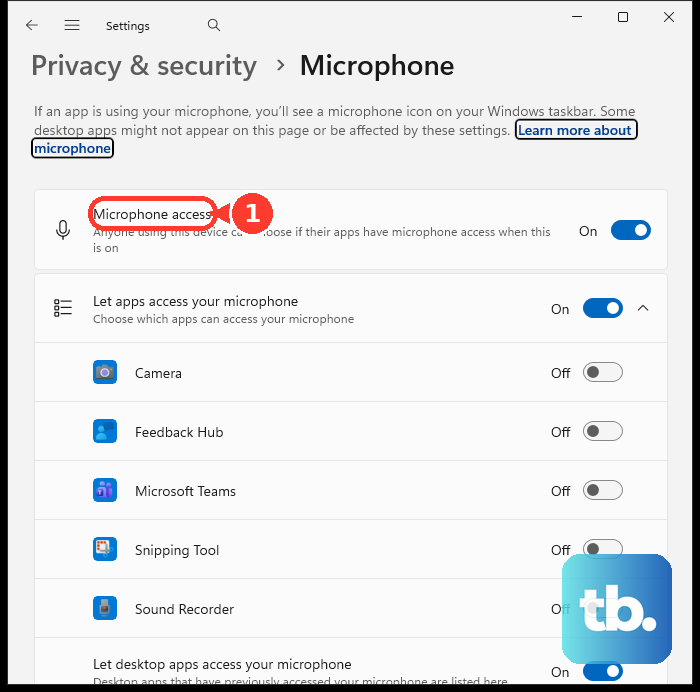
On Windows 11, open Start > Settings > Privacy & security > Microphone. Enable Microphone access. Enable Let apps access your microphone where applicable. Enable Let desktop apps access your microphone for your desktop browser.
On a Mac, open the Apple menu > System Settings > Privacy & Security > Microphone. Enable access for your browser. If managed work or school settings block permission changes, ask your administrator to allow microphone access.
Hear translated text aloud
This gives you spoken output from typed text or an existing audio transcript in supported languages. Open Translate on your phone or at translate.google.com. Select the source and destination languages. Enter or paste your text into the source field.
Tap or click Listen on the translation. For slower website playback, open Settings at the top right. Choose Slow or Slower; choose Normal to restore the standard speed.
Adjust speech output to suit you
Use speech settings when you want automatic playback, a slower voice, or a particular speaking region. Available dialects and voice tones depend on the language.
For automatic spoken translations on Android, open Translate’s Menu > Settings > Speech input. Turn on Speak output. To change Android playback speed, open Menu > Settings > Speed. Choose Normal, Slow, or Slower.
For a different Android dialect, open Region under Menu > Settings. Select the language and dialect. For a different Android voice tone, open Tone in the same settings. Select a male or female voice where available.
On iPhone and iPad, open Profile icon > Settings > Pronunciation Speed. Choose Normal, Slow, or Slower.
To change a supported speaking dialect on iPhone or iPad, open Profile icon > Settings > Speech region. Select the language. Select the region.
Frequently Asked Questions
Can Google Translate audio work offline?
Offline live translation supports Pixel 9, 10, and 11 users with English paired with Italian, Spanish, French, German, Portuguese, Hindi, Russian, Swedish, Japanese, or Indonesian. Open the live-translation language picker and tap Download beside an available language. The Live & Text label identifies support for both functions. An offline text download alone does not enable offline speech translation.
Can I download the translated speech as an audio file?
Google Translate has no current official method for downloading its spoken output as an MP3 file.
Can I translate audio playing in my computer’s browser?
Chrome offers a separate feature that translates browser audio into captions. On Windows or Mac, open More > Settings > Accessibility. Enable Live Caption, then Live Translate. Choose the destination language under Translate to. This feature supports selected source audio languages.
Can I still use Google Assistant interpreter mode?
Google has retired Assistant interpreter mode. Use Google Translate’s live translate interface for continuous translation. Assistant translation of individual words and phrases remains supported.