
Getting your new Xiaomi 14T Pro set up with all your old data is a straightforward process. Whether you're upgrading from another Android phone or making the switch from an iPhone, HyperOS and Google's tools make the transfer pretty seamless.
Start the Transfer During Initial Setup
The absolute best time to move your data is when you first power on your 14T Pro. After selecting your language and connecting to Wi-Fi, you'll hit a screen titled "Copy data". Tap on it to begin. You'll see options to copy directly from another phone or restore from a cloud backup.
If you have your old phone handy, choose "Copy from another phone". Your 14T Pro will then give you a choice: use a cable for the fastest transfer or connect wirelessly over a peer-to-peer Wi-Fi network. I'd recommend the cable method if you have the necessary adapters.
Use a USB Cable for a Fast, Complete Move
For the quickest and most reliable transfer, connect the two phones with a USB cable. You'll likely need a USB-C to whatever-port-your-old-phone-uses cable, or the appropriate adapters. The 14T Pro's setup wizard will detect the connection and guide you through selecting exactly what to bring over.
You can choose apps, call logs, contacts, messages, photos, videos, and even some system settings. This method doesn't rely on your internet speed, so it's great for moving large photo libraries. Just make sure both phones stay plugged in, as the process can use some battery.
Restore from a Google One Backup
If your old phone isn't available, you can restore from a backup you made to Google One. During the "Copy data" step on your 14T Pro, select "Restore from cloud backup" instead. Sign into your Google account and you'll see a list of available backups from your previous devices.
Pick the most recent one. Your apps will begin downloading from the Play Store, and your backed-up settings, SMS messages, and device preferences will be restored. Before you start, check your old phone's backup was recent by going to Settings > Google > Backup.
Switching from an iPhone to Your Xiaomi 14T Pro
Moving from iOS is handled right in the setup process. When you reach the "Copy data" screen, select "iPhone" as your source device. You'll be prompted to download the "Move to Android" app from the App Store on your iPhone if you haven't already.
Open the app on your iPhone and follow the on-screen instructions. It will create a private Wi-Fi network to transfer your contacts, calendar events, photos, videos, and even your free iTunes purchases. Remember, iOS apps won't transfer, so you'll need to download their Android equivalents from the Google Play Store afterward.
Let Your Google Account Handle the Sync
A huge amount of your important data syncs automatically once you sign into your Google account on the new phone. Your contacts, calendar, Chrome bookmarks and history, and notes from Google Keep will just appear.
You can manage exactly what gets synced by going to Settings > Accounts & sync > Google on your 14T Pro. Toggle the switches for Gmail, Drive, Photos, and other services to control the flow of data.
Transfer WhatsApp Chats Specifically
WhatsApp requires its own transfer step. On your old Android phone, open WhatsApp and go to Settings > Chats > Chat transfer. Tap "Start" and then use your 14T Pro to scan the QR code that appears. Your chat history will move over without needing a separate backup.
If you're coming from an iPhone, you'll need to use WhatsApp's "Move chats to Android" feature, which requires a USB-C to Lightning cable to connect the phones directly during the process.
Clean Up and Secure Your Old Phone
Once you're sure everything is working on your new Xiaomi 14T Pro, check your photos, messages, and a few key apps, it's time to deal with the old device. For security, perform a factory reset. On most Android phones, you'll find this in Settings > System > Reset options > Erase all data (factory reset).
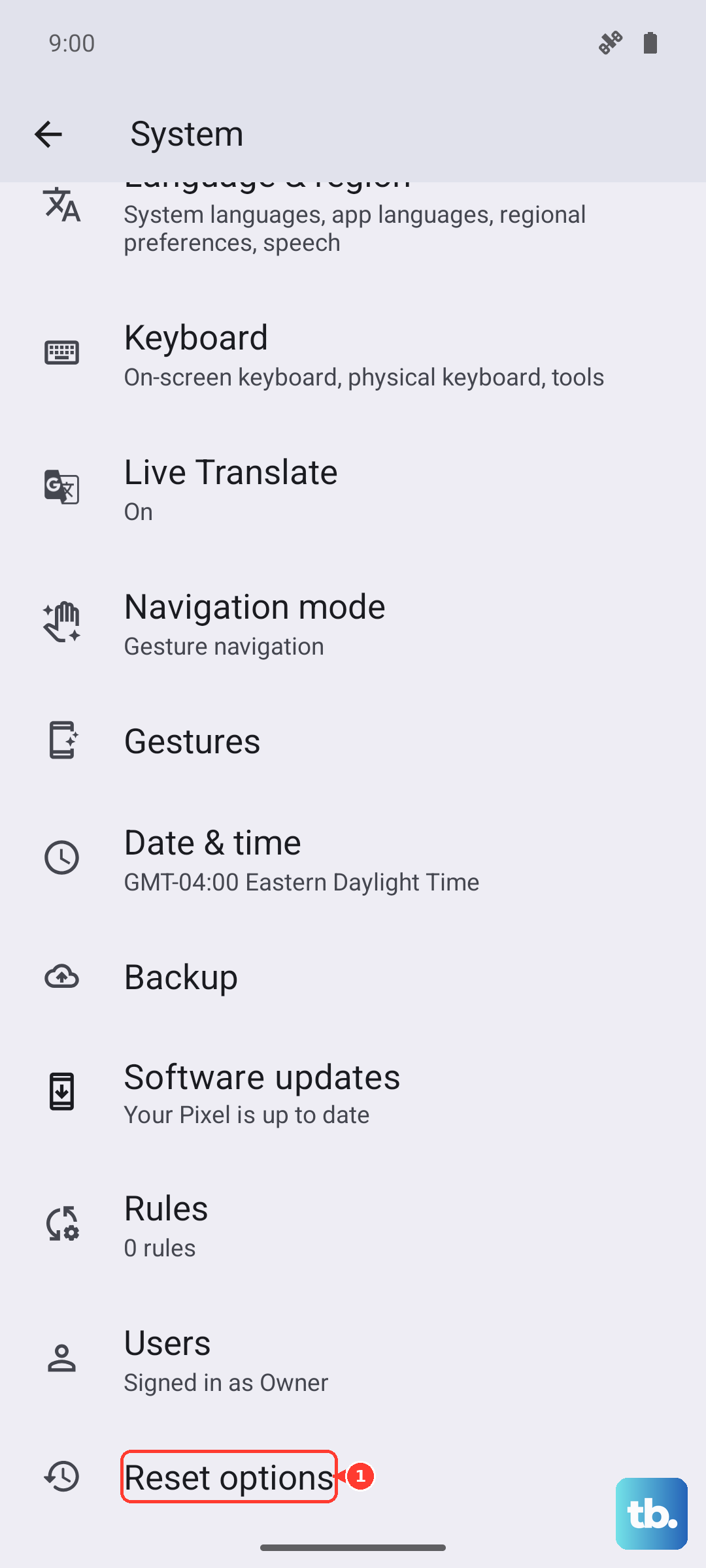
This wipes your personal information clean. After the reset, your old phone is ready to be traded in, sold, or recycled. With your data successfully moved, you can now enjoy that blazing-fast 120W charging and the Dimensity 9300+ performance on your new device.