A Windows 11 update sitting at the same percentage leaves you with a frustrating decision: keep waiting or intervene. Microsoft sets no universal number of minutes or hours that separates a slow update from a stuck one. Check the update stage, restart status, and error messages to find the right next step without interrupting an installation that is still running.
Identify which part of the update is taking time
Keep your PC connected to power while it updates.
Read the screen to distinguish downloading from installation or the restart phase. Download time depends on connection speed, network settings, and update size. Elapsed time alone does not establish a failure.
Look for an error message or a request for action. An unchanged percentage alone does not establish a hang.
Leave the PC on during installation. Microsoft's Windows 11 Installation Assistant instructions explain that installation takes time and includes several restarts; there is no universal rule to force a restart after one or two hours.
Use the desktop checks below only while Windows is accessible, not during the offline installation on the restart screen.
Check what Windows Update is waiting for
At the desktop, open Start > Settings > Windows Update.
Read the current status and available updates.
Open Update history to check installed updates and their installation dates. This tells you whether the update you have been waiting for is already installed.
Check Available updates for updates waiting to install together. On Windows 11 24H2, 25H2, and 26H1 devices with the experience introduced in updates released on or after July 28, 2026, driver, .NET, and firmware updates can wait for the monthly security update. This feature is rolling out gradually, and that waiting state does not establish an installation hang.
If the status does not explain the delay, check for a pending or scheduled restart next. For an error or a percentage persistently at 51–99% while the desktop remains accessible, use the troubleshooter below.
Complete a pending restart
Use this route when Windows requests a restart to finish updating. Active hours and a scheduled restart also explain why an update is waiting.
Select Restart now in Settings > Windows Update to complete a pending update.
Alternatively, select Start > Power > Update and restart when that action is offered.
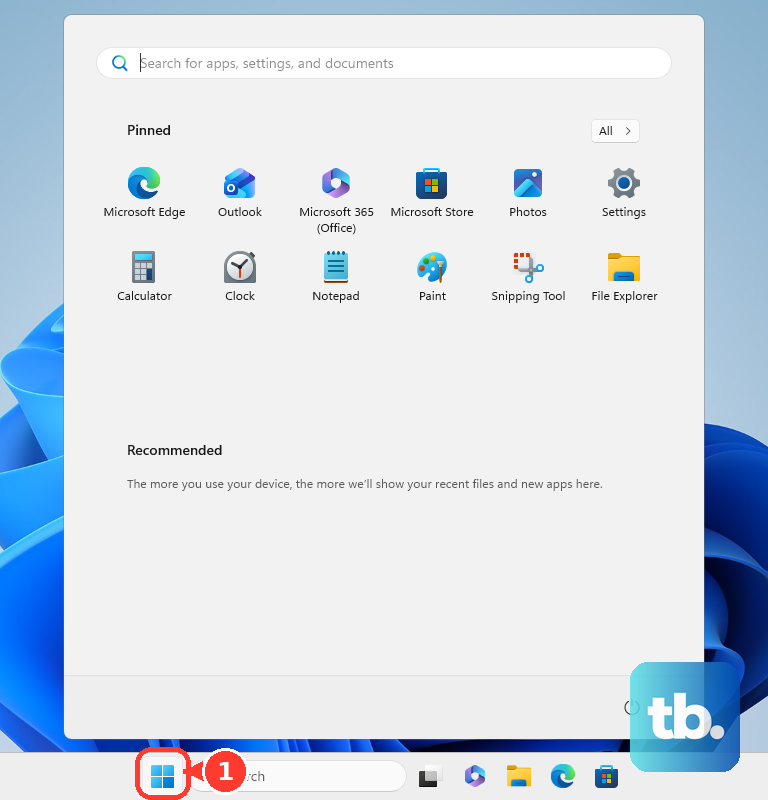
To check a planned restart, open Start > Settings > Windows Update > Schedule the restart.
Review or choose the restart time.
Check Windows Update > Advanced options > Active hours for the hours when Windows postpones automatic restarts.
Rule out a download restriction
These checks address disconnected Wi-Fi and settings that restrict downloads.
Open Settings > Network & internet > Wi-Fi to check your connection.
Reconnect to Wi-Fi if the PC is disconnected.
Select your connected network.
Check Metered connection.
To allow updates while keeping the connection metered, open Settings > Windows Update > Advanced options.
Turn on Download updates over metered connections. Your connection's data charges still apply.
For slow automatic downloads, open Settings > Windows Update > Advanced options > Delivery Optimization > Download options.
Review Limit bandwidth used for downloads by. Microsoft says these limits do not apply to downloads you manually initiate through Windows Update.
Look for activity without treating it as proof
Press Ctrl + Shift + Esc to open Task Manager while the desktop is accessible.
Review Processes for CPU, memory, disk, and network activity.
Switch to Performance for another view of resource use. Continuing activity is supporting evidence of work, but it does not prove that the update is progressing successfully.
For download statistics, open Start > Settings > Windows Update > Advanced options > Delivery Optimization > Activity monitor.
Review the download sources, average speed, and totals.
Remember that Activity monitor covers the current month and is not a live installation-progress meter.
Run troubleshooting when progress repeatedly stops
Use the Windows Update troubleshooter for persistent desktop stalls or update errors.
- 1.Record any error code. 0x800705b4 indicates a timeout or interruption; 0x80240034 indicates an incomplete update or connection issue.
- 2.Open Start > Settings > System > Troubleshoot > Other troubleshooters.
- 3.Find Windows Update and select Run.
- 4.Follow the diagnostic instructions in Get Help, the troubleshooting experience used on modern installations.
- 5.Restart through Start > Power > Restart after troubleshooting.
- 6.Return to Settings > Windows Update and select Check for updates.
Free space when Windows reports a shortage
This addresses an update blocked by insufficient storage.
Open Start > Settings > System > Storage to inspect available space.
Open Cleanup recommendations.
Review the proposed removals.
Select Clean up after checking what will be removed.
If Windows Update offers the external-storage workflow, connect an external drive with at least 10 GB free. That does not eliminate the update's requirement for internal free space.
Open Settings > Windows Update > Fix issues.
Select the external device from the drop-down menu.
Choose Next to continue.
Repair Windows after repeated update failures
If updates keep failing while Windows still starts, select Start > Settings > System > Recovery > Fix problems using Windows Update > Reinstall now.
Choose your restart preference.
Select OK.
Restart after completion if you did not select an automatic restart.
This repair option requires Windows 11 22H2 or later with the February 2024 optional update or later. Availability is restricted on devices whose updates are managed by an organization.
On a work or school PC, ask IT to review waiting updates, locked controls, or restart timing.
If Windows cannot start, use recovery troubleshooting. When a Windows power menu remains accessible, hold Shift while selecting Power > Restart to enter Windows Recovery Environment.
In Windows Recovery Environment, select Troubleshoot > Advanced options > Startup Repair > Restart. Have your BitLocker recovery key ready for an encrypted device. This procedure addresses failed startup; a slow update screen alone does not establish that failure.
If repair fails, enter the update problem and any error code in Get Help.
Select Contact Support when directed.
Select the affected product or service.
Select Confirm.
Choose an available contact method. If the affected PC is unavailable, try Microsoft's contact page from another device and enter the problem there.
Frequently Asked Questions
Does turning off download sharing stop updates from Microsoft?
No. Turning off downloads from other devices still permits downloads from Microsoft.
Do all Windows 11 feature updates take the same amount of time?
No. Microsoft describes the eligible transition from Windows 11 24H2 or 25H2 to 26H2 as a small enablement package with a quick installation and one restart. Availability depends on rollout and safeguards. That description is not a timing guarantee for every Windows 11 upgrade.
Does the 15-minute Windows Update timeout mean I should restart after 15 minutes?
No. Microsoft's approximately 15-minute timeout concerns a specific TrustedInstaller timeout-and-rollback failure. It is not a universal update completion limit or a reason to interrupt an installation.
What if the update screen is asking for a BitLocker recovery key?
The PC is waiting for recovery authentication. Record the displayed recovery-key ID. If the key was backed up to your Microsoft account, visit aka.ms/myrecoverykey on another device and sign in. For a work or school device, sign in at aka.ms/aadrecoverykey with that account or contact your organization's IT support. The key may also be on a printout or a USB flash drive saved when BitLocker was turned on. Match the ID to the stored key, then enter that key on the affected PC.