Windows Update has no permanent off switch for regular home PCs. When it starts downloading at the wrong time, eats through a limited connection, or demands a restart during work, use the controls Microsoft still gives you.
The fastest fixes are temporary pause, metered downloads, restart scheduling, and removing a bad update after it lands.
The steps below use Windows 11 menu paths. On Windows 10 the same controls sit under Settings > Update & Security > Windows Update, and the network toggle is labeled Set as metered connection. Windows 10 free support ended on October 14, 2025, so those PCs no longer receive security updates unless they are enrolled in Microsoft's paid Extended Security Updates program.
Pause Windows Update for now
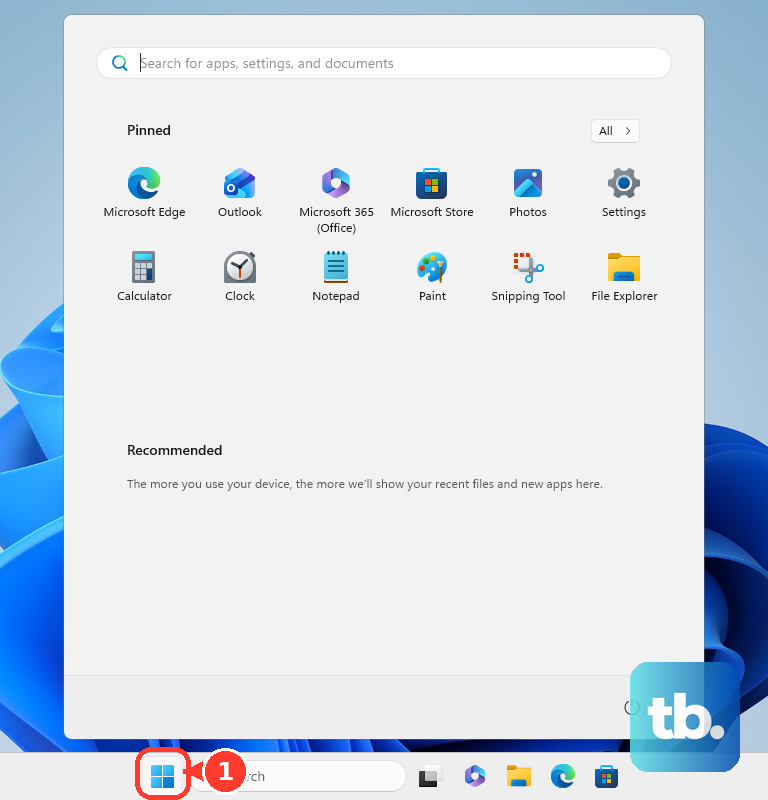
Open Start, go to Settings, and select Windows Update.
Under Pause updates, choose Pick a date, then select the date when updates should resume. Windows pauses downloads and installs, and it cancels updates already in progress.
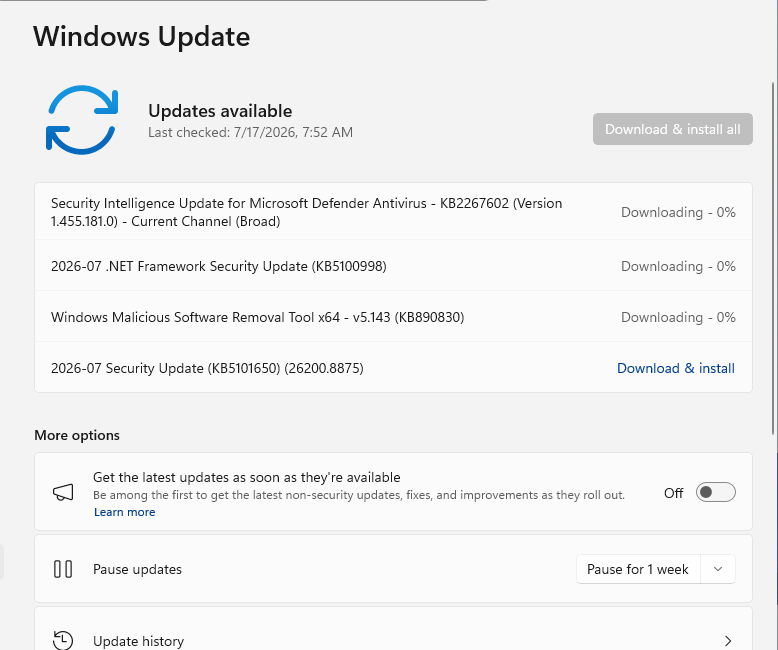
The pause lasts up to 35 days. Use it before travel, a work deadline, or any stretch where an update would get in the way.
If this method fails, set your current connection as metered so Windows Update downloads only priority updates.
Use a metered connection to limit downloads
The most common cause is Windows Update downloading on a connection you need to control.
For Wi-Fi, open Settings, choose Network & internet, select Wi-Fi, open your current Wi-Fi network, and turn Metered connection on.
For Ethernet, open Settings, choose Network & internet, select Ethernet, open the current network, and turn Metered connection on.
For cellular, open Settings, go to Network & internet, select Cellular, and turn Metered connection on.
Then open Settings, select Windows Update, choose Advanced options, and keep Download updates over metered connections off.
Stop early feature updates
Windows can put your PC near the front of the line for newer non-security updates, fixes, features, improvements, and configuration updates. Turning that setting off does not stop regular security updates.
Open Start, then Settings, then Windows Update. Turn Get the latest updates as soon as they're available off.
Use this when you want Windows to keep security updates coming without rushing the newest feature changes onto your PC.
Block extra Microsoft product updates
Use this when Windows Update is also delivering updates for other Microsoft products, including some Office updates. It does not stop Windows operating system updates.
Open Start, go to Settings, and choose Windows Update. Select Advanced options, then turn Receive updates for other Microsoft products when you update Windows off.
Windows Update still handles Windows itself, but that extra Microsoft product update channel is no longer included through this setting.
Turn off Microsoft Store automatic app updates
This fixes automatic Store app updates, not Windows system updates.
Open Start, then launch Microsoft Store. Select Profile, which is your account photo, then open Store Settings. Turn App updates off.
Some app publishers manage updates inside their own apps, so this Store setting does not control every app on your PC.
Control update restarts instead of stopping the update
When an update is already pending, scheduling the restart controls the disruption. Open Start, then Settings, then Windows Update, choose Schedule the restart, and pick a time.
To prevent automatic restarts while you normally use the PC, open Start, go to Settings, then Windows Update, then Advanced options. Open Active hours, choose Adjust active hours, and select Automatically.
For a fixed schedule, choose Manually under Adjust active hours, then set your start and end time.
Remove a bad installed update
Open Start, then go to Settings and select Windows Update. Open Update history, then choose Uninstall updates. Select the problem update, then choose Uninstall.
Some updates cannot be uninstalled, and removing one does not block Windows from installing it again later.
Know what older Windows Update tricks do now
Older Windows Update tricks still show up everywhere, but these are not the right home-PC fix now:
- 1.Disabling the Windows Update service through services.msc is not a supported current consumer method for reliably stopping Windows Update.
- 2.Running Set-Service -Name wuauserv -StartupType Disabled belongs with legacy service-disabling advice, not everyday home troubleshooting.
- 3.Hand-editing Windows Update registry values is the registry equivalent of administrative policy, not a normal Windows Home Settings control.
- 4.Use Pause updates, Metered connection, Schedule the restart, or Uninstall updates instead.
Handle work or school PCs
This fixes cases where your organization controls Windows Update settings.
Check whether the PC is managed by work, school, or an administrator. Use the update controls your organization provides. Contact the administrator if Windows Update settings are locked.
On managed Windows editions, administrators can use policy to disable automatic updates, require notification before download, defer updates, pause updates, hold a target feature version, exclude drivers, or restrict update sources.
Do not try to bypass managed update settings on a work or school device.
Frequently Asked Questions
Can I stop Windows Update permanently on a home PC?
No. Windows does not provide a permanent consumer off switch. Use Pause updates, metered connection limits, restart controls, or Uninstall updates for a bad update.
How long can I pause Windows Update?
You can pause Windows Update for up to 35 days. If updates are already paused, choose a new end date up to 35 days from the current date.
Does a metered connection stop every Windows update?
No. A metered connection limits Windows Update downloads, and Windows Update downloads only priority updates on that connection.
Can I uninstall a Windows update that caused problems?
Yes. Open Windows Update history and use Uninstall updates. Some updates cannot be removed, and uninstalling one does not stop future reinstallation by itself.