Pop-up ads are maddening because they do not all come from the same place. A browser window, website notification, extension, installed app, or system notification all need different switches. Start with the browser blocker, then shut down the specific source that keeps interrupting you.
1. Turn On Your Browser Pop-Up Blocker
Start in the browser you use every day. This stops real pop-up windows and redirects before you chase deeper fixes.
Chrome desktop: open More, then Settings, Privacy and security, Site Settings, and Pop-ups and redirects. Choose the default option that blocks pop-ups and redirects.
Chrome Android: open More, then Settings, Site settings, and Pop-ups and redirects. Turn Pop-ups and redirects off.
Chrome iPhone or iPad: open More, then Settings, Content settings, and Block Pop-ups. Turn Block Pop-ups on.
Safari iPhone or iPad: open Settings, then Apps, Safari. Turn Block Pop-ups on, then turn Fraudulent Website Warning on.
Safari Mac: open Safari, then Settings, Websites, and Pop-up Windows. Set the website, or the default for all websites, to Block.
Microsoft Edge desktop: open Settings and more, then Settings, Privacy, search, and services, Site permissions, All permissions, and Pop-ups and redirects. Turn on Blocked (recommended).
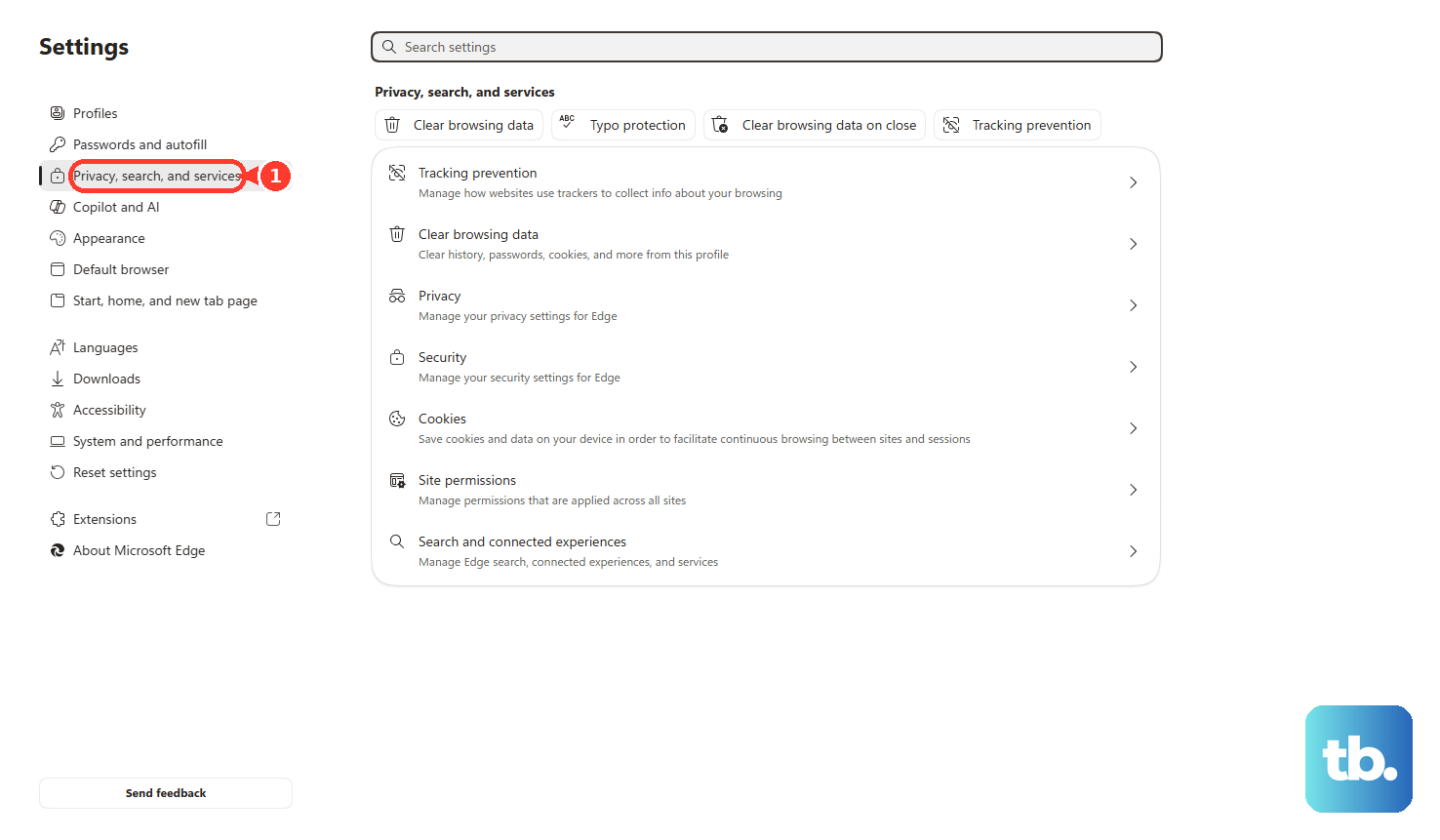
Microsoft Edge mobile: open menu, then Settings, Privacy and security. Turn on Block pop-ups.
Firefox desktop: open menu, then Settings, Privacy & Security. Under Permissions, keep Block pop-up windows or Block pop-ups and third-party redirects checked.
Samsung Internet: open Menu, then Settings, Privacy dashboard. Turn Block pop-ups on.
If the ad is built into the webpage instead of opening a separate window, the browser pop-up blocker will not remove it. Use the ad and content blocker steps below for that.
2. Block the Noisy Site Directly
- 1.In Chrome on desktop, open More, then Settings, Privacy and security, Site Settings, and Pop-ups and redirects.
- 2.Under Allowed to send pop-ups and use redirects, find the site.
- 3.Open More next to that site and choose Block.
- 4.If the site is not listed, use Add next to Not allowed to send pop-ups or use redirects.
- 5.Enter the website address and choose Add. To cover the whole site, use the wildcard format that starts with [*.] before the domain.
Use this when one website keeps launching redirects and you want to block that site instead of changing how every site behaves.
3. Cut Off Website Notification Ads
Notification ads look like browser pop-ups, but they come from permission you granted to a website. Revoke that permission.
Chrome desktop: open More, then Settings, Privacy and security, Site Settings, and Notifications. Next to Not allowed to send notifications, choose Add, enter the site address, and choose Add.
For an open site, select View site information, then Notifications, and Block.
Chrome Android: open More, then Settings, Site settings, and Notifications. Or open the site, tap Page info, then Permissions, then Notifications, and block it.
Chrome iPhone or iPad: open Settings, then Notifications, then Chrome. Turn Allow Notifications off.
Microsoft Edge desktop: open Settings and more, then Settings, Privacy, search, and services, Site permissions, and All sites. Select the website, open Notifications, and choose Block.
Firefox desktop: open menu, then Settings, Privacy & Security, and Notifications. Choose Settings, select the site, then remove it or set it to Block.
Check Block new requests asking to allow notifications, then choose Save Changes.
Safari Mac: open Apple menu, then System Settings, Notifications. Choose the website under Application Notifications and turn Allow Notifications off.
4. Shut Down App and System Notifications
iPhone or iPad: open Settings, then Apps, [app name], and Notifications. Turn Allow Notifications off.
You can also use Settings, Notifications, [app name], then Allow Notifications.
Android: open Settings, then Notifications. Or open Settings, then Apps, [app], and Notifications. Turn off that app's notifications.
If the ad just appeared, tap and hold the notification to manage that sender.
Samsung Galaxy: long-press the ad notification and turn off the notification toggle for that app. For older alerts, use Settings, then Notifications or Settings, then Apps.
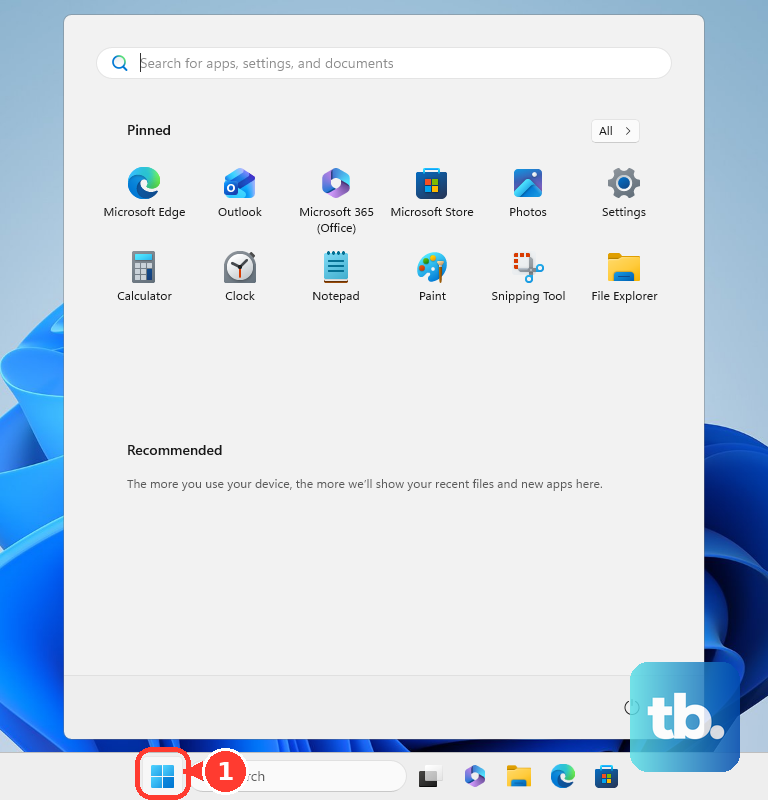
Windows 11: open Start, then Settings, System, and Notifications. Turn notifications off for every sender, or use the sender list to disable the app or browser causing the ads.
Mac: open System Settings, then Notifications. Click the app or website under Application Notifications and turn Allow notifications off.
Ads that slide in from the top, corner, or side of the screen are notification ads, so turn off the sender that is pushing them.
5. Remove Bad Extensions and Reset Your Browser
Remove the extension first if the pop-ups started after a coupon tool, search helper, downloader, or unfamiliar add-on appeared.
Chrome desktop: open More, then Extensions, Manage extensions. Choose Remove for every unwanted extension.
If the extension icon is visible, right-click it and choose Remove from Chrome.
Microsoft Edge desktop: open Extensions, then Manage extensions. Turn the extension off or choose Remove.
Firefox desktop: open menu, then Add-ons and themes, and Extensions. Use the toggle to disable the add-on, or open More options and choose Remove.
Then reset the browser when ads keep coming back.
Chrome desktop: open More, then Settings, Reset settings, Restore settings to their original defaults, and Reset settings. Chrome resets site settings and disables extensions without deleting bookmarks or passwords.
Firefox desktop: open menu, then Help, More troubleshooting information, and Refresh Firefox. Choose Refresh Firefox. Firefox removes extensions and customizations while preserving essential profile data like bookmarks and passwords.
6. Uninstall Apps That Push Ads
Android: open Google Play Store, tap your profile icon, then Manage apps & devices, and Manage. Select the app and choose Uninstall.
On many devices, use Settings, then Apps, [app], and Uninstall.
iPhone or iPad: touch and hold the app, then choose Remove App, Delete App, and Delete. From the App Library, touch and hold the app, then choose Delete App and Delete.
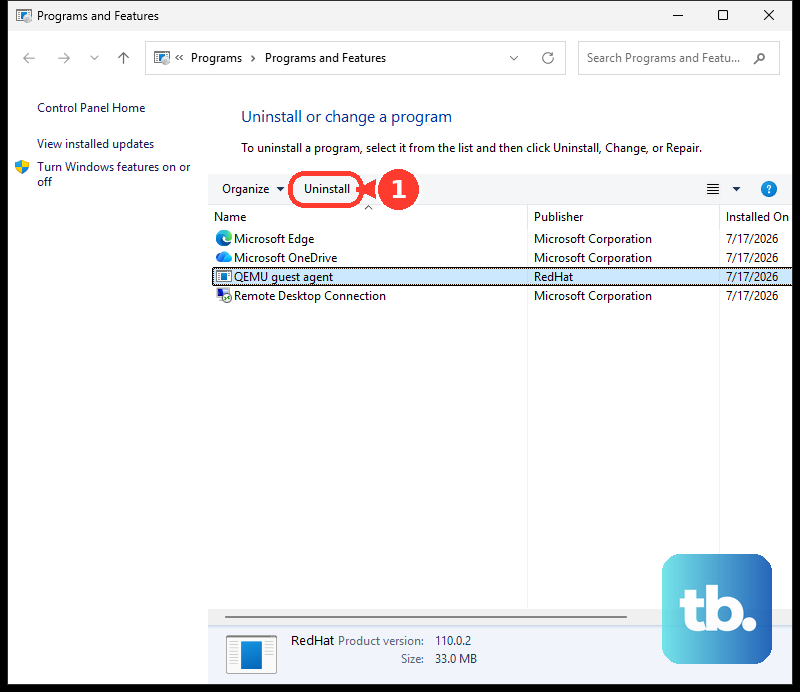
Windows: open Start, then Settings, Apps, and Installed apps. Find the app, open More, and choose Uninstall.
For older uninstallers, open Control Panel, then Programs, Programs and Features, select the app, and choose Uninstall.
Mac: open Finder, then Applications. If the app folder includes Uninstall [App] or [App] Uninstaller, open it and follow the onscreen instructions.
Otherwise move the app to Trash, then use Finder and Empty Trash.
Microsoft Edge web apps: open Edge and go to edge://apps. Select Details on the app card, choose Uninstall, choose whether to delete app history and data, then choose Uninstall again.
A bad app pushes ads outside the browser. Remove recent apps you do not trust, especially ones installed right before the ads started.
7. Scan for Malware and Test Android Safe Mode
When pop-ups survive browser and app cleanup, scan the device and isolate Android apps in Safe Mode.
Windows: open the Windows Security app, then Virus & threat protection, and run a Quick scan. For a deeper scan, open Scan options and use Microsoft Defender Antivirus (offline scan).
Android: open Google Play Store, tap your profile icon, then Play Protect, and Settings. Keep Scan apps with Play Protect on.
When Play Protect flags an app, tap the notification and choose Uninstall.
Android Safe Mode: on most stock Android phones, press and hold the power menu, touch and hold Power off, then choose Safe mode. Exact steps vary by phone, so check your manufacturer's instructions if yours differ.
If pop-ups stop in Safe Mode, restart normally and remove recently downloaded apps one by one.
Samsung Galaxy Safe Mode: press and hold the Volume Down and Side keys, tap and hold Power off, then choose Safe mode. If ads disappear, exit Safe Mode, open Settings, then Apps, and uninstall suspicious recently installed or updated apps one by one.
8. Add Content Blockers and Intrusive Ad Filters
Chrome desktop: open More, then Settings, Privacy and security, Site settings, Additional content settings, and Intrusive ads. Choose the blocking default. This blocks ads on sites with intrusive ad experiences, not every ad on the web.
Chrome Android: open More, then Settings, Site settings, and Intrusive ads. Keep intrusive ads blocking turned on.
Safari iPhone or iPad: download a content blocking app from the App Store. Then open Settings, Apps, Safari, and Extensions. Turn on the listed content blocker.
Safari Mac: after installing a compatible content blocker extension, open Safari, then Settings, Websites, and Content Blockers. Choose On for the website.
Microsoft Edge Android: open menu, then Settings, Privacy and security, and Content blockers. Turn on Block ads. Turn off Allow acceptable ads to block all ads supported by that feature.
Microsoft Edge iPhone or iPad: open menu, then Settings, and Content blockers. Turn on Block ads. To block all ads, open Advanced settings and turn off Allow acceptable ads.
Samsung Internet: open Menu, then Ad blockers. Install a listed blocker and turn on the toggle for that blocker.
Built-in pop-up blockers are not full ad blockers, so add the blocker your browser or device officially supports.
9. Skip Outdated Fixes and Check Managed Devices
Do not follow old Chrome instructions that send you to Clean up computer. Google removed the user-requested Chrome Cleanup Tool scan starting with Chrome 111, so use Windows or Mac app removal, extension removal, browser reset, and device malware scanning instead.
Ignore old Firefox paths that say Options, then Content, then Block pop-up windows. Current Firefox uses Settings, Privacy & Security, and Permissions.
When a setting is locked or keeps changing back on a work, school, or family-managed device, the device is managed outside the normal browser screen. Use the administrator, parent, school, or workplace that controls the device.
Frequently Asked Questions
Why do pop-ups keep showing after I turned on the blocker?
Those alerts are not true browser pop-up windows. They are website notifications, in-page overlays, app notifications, extensions, or installed adware apps, so they need the matching notification, extension, app, or malware cleanup step.
Does Chrome block every ad with Intrusive ads turned on?
No. Chrome's Intrusive ads setting blocks ads on sites with intrusive ad experiences. Use it as a supporting filter, not a universal ad blocker.
Will resetting Chrome remove my saved passwords?
No. Chrome's reset option restores settings to their original defaults, resets site settings, and disables extensions. It does not delete bookmarks or passwords.
Where should I install an ad blocker from?
Use official marketplaces: the App Store for Safari content blockers, Chrome Web Store for Chrome extensions, Microsoft Edge Add-ons for Edge, Firefox Add-ons for Firefox, and Samsung Internet's Ad blockers screen.